
Using Chrome and Edge Extensions for Training and Document Extraction (6:21)
This video demonstrates how to use the Flowtrics browser extension to enhance referrals, admissions, and training within your organization. You’ll learn to capture documents, manage workflows, and access training resources without leaving your current applications.
1. Flowtrics Extension Overview
Welcome to the Flowtrics Browser Extension training. In this video, you’ll learn how to use the Flowtrics Extension for Google Chrome and Microsoft Edge to support your referrals, admissions, and ongoing training across your organization. We’ll show you how to capture and send documents directly into Flowtrics, create or update resident workflows, and quickly access training resources so that you’re fully up and going and understand everything about the system. This is all without leaving the applications you’re already working in.
2. Training Dashboard Introduction
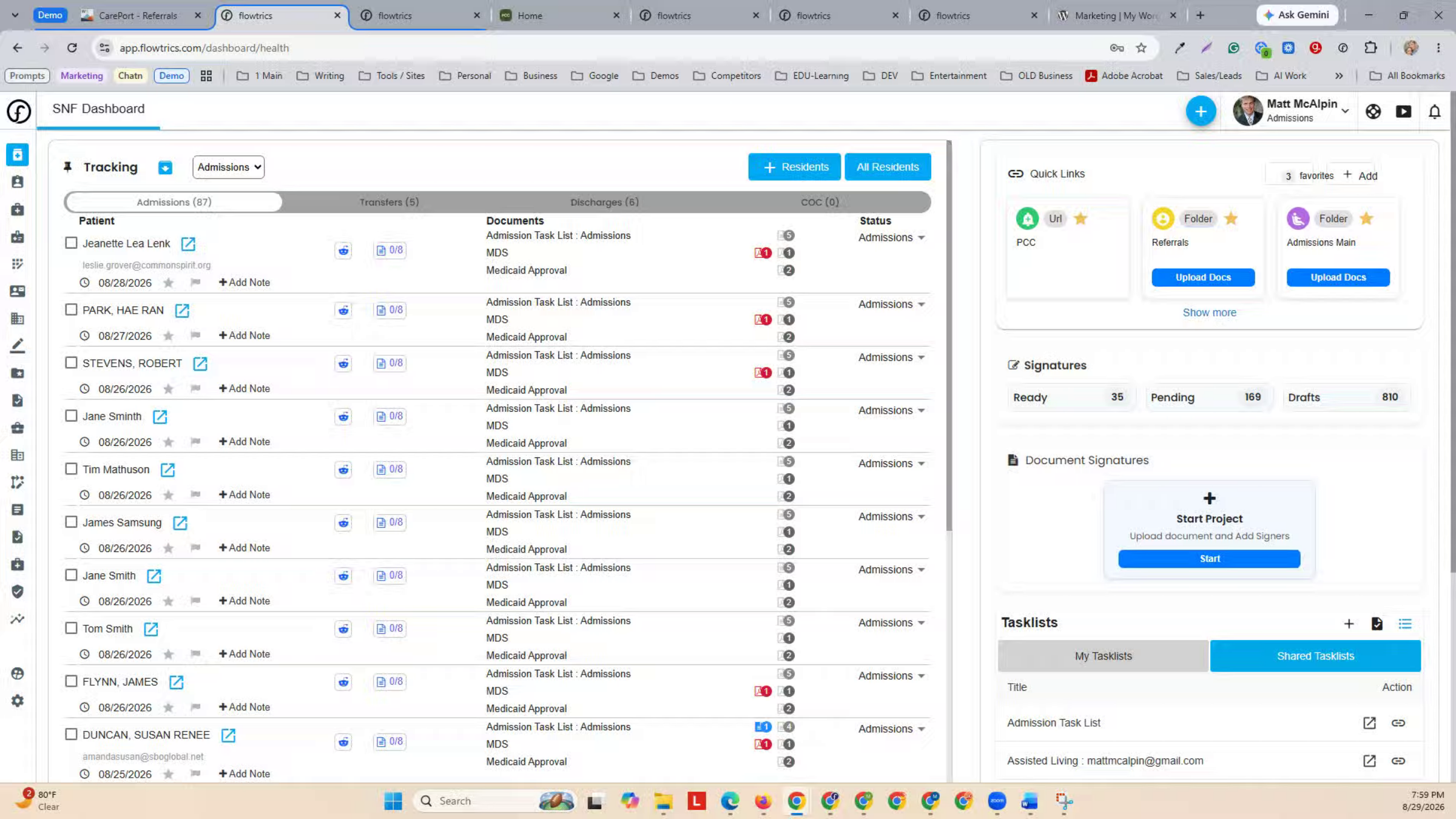
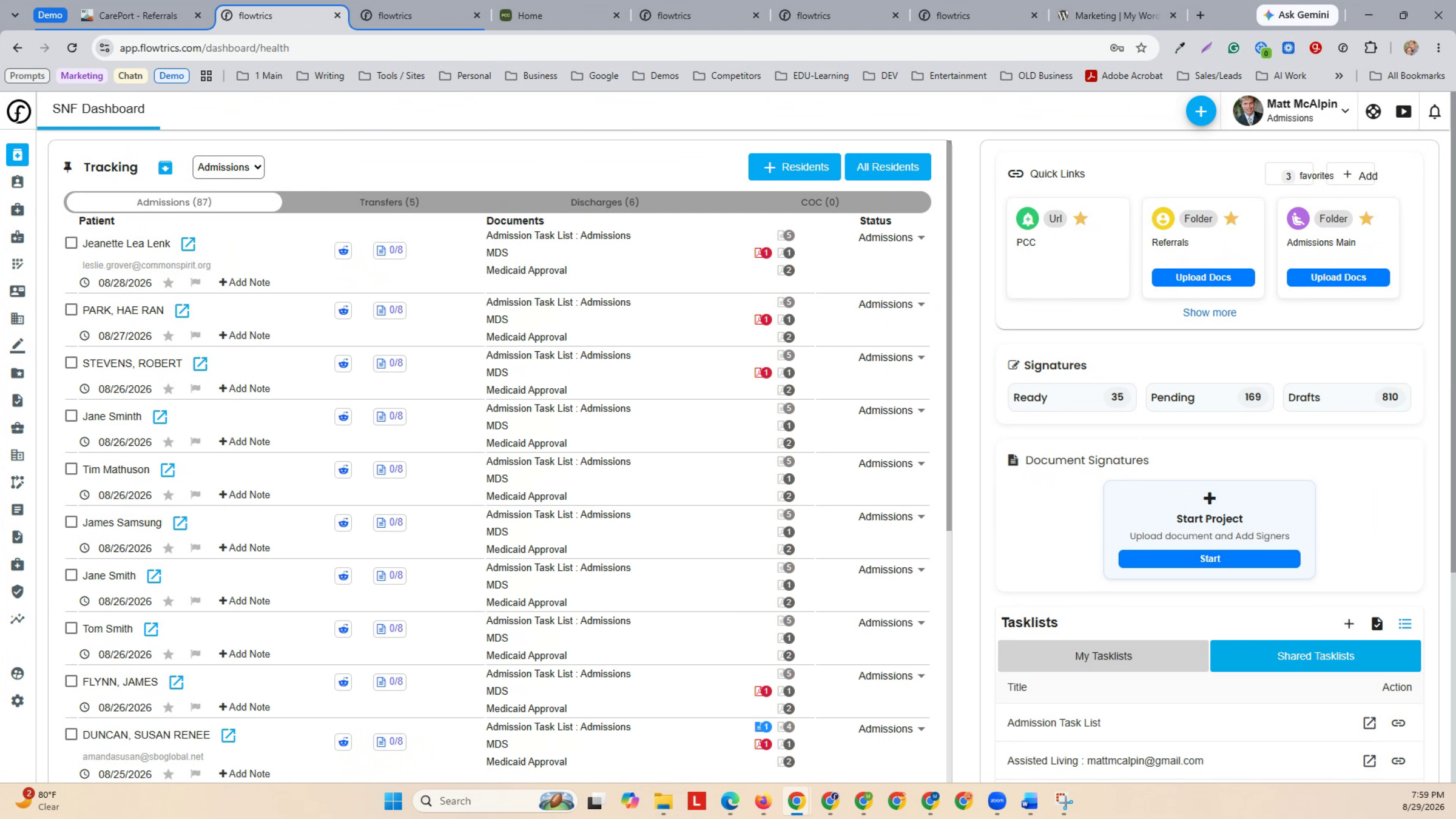
By the end of this training, you’ll understand how to use the browser extension to streamline key features and workflows while keeping Flowtrics available wherever you work. Let’s get started. As you’ve seen in other trainings, we’ll begin here on the Dashboard. From here, we’ll walk through the Chrome and Microsoft Edge browser extensions.
3. Extension Setup Training Reference
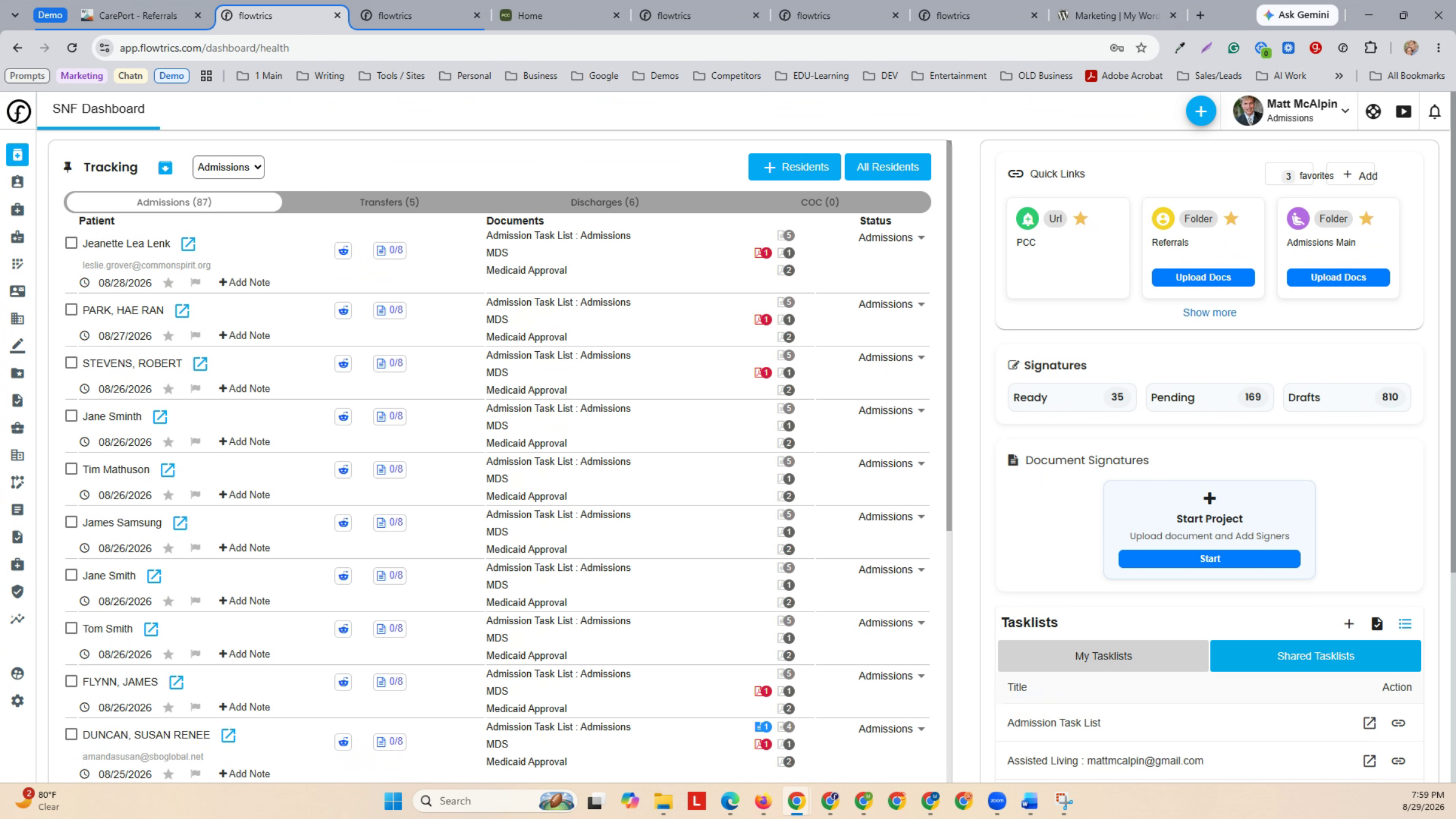
If you don’t see the Flowtrics extension at the top of your browser, you’ll need to complete the separate setup training first. That training is called Setting Up the Flowtrics Browser Extension for Edge and Chrome. It will walk you through how to install the extension and make it available in your browser. The extension works the same way in both Google Chrome and Microsoft Edge. As you can see here, it’s already open and ready to use, so let’s get started.
4. Training Section Overview
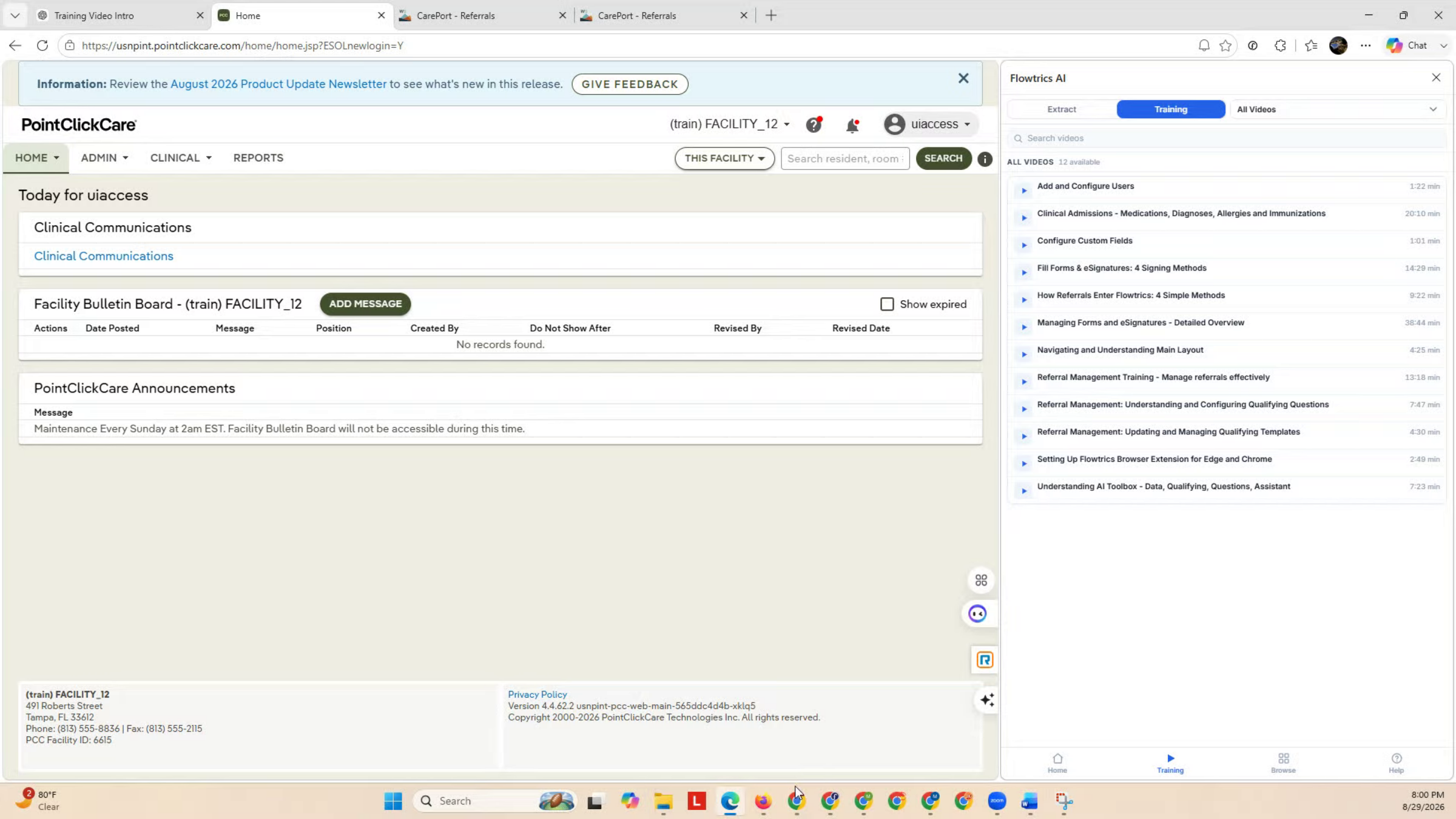
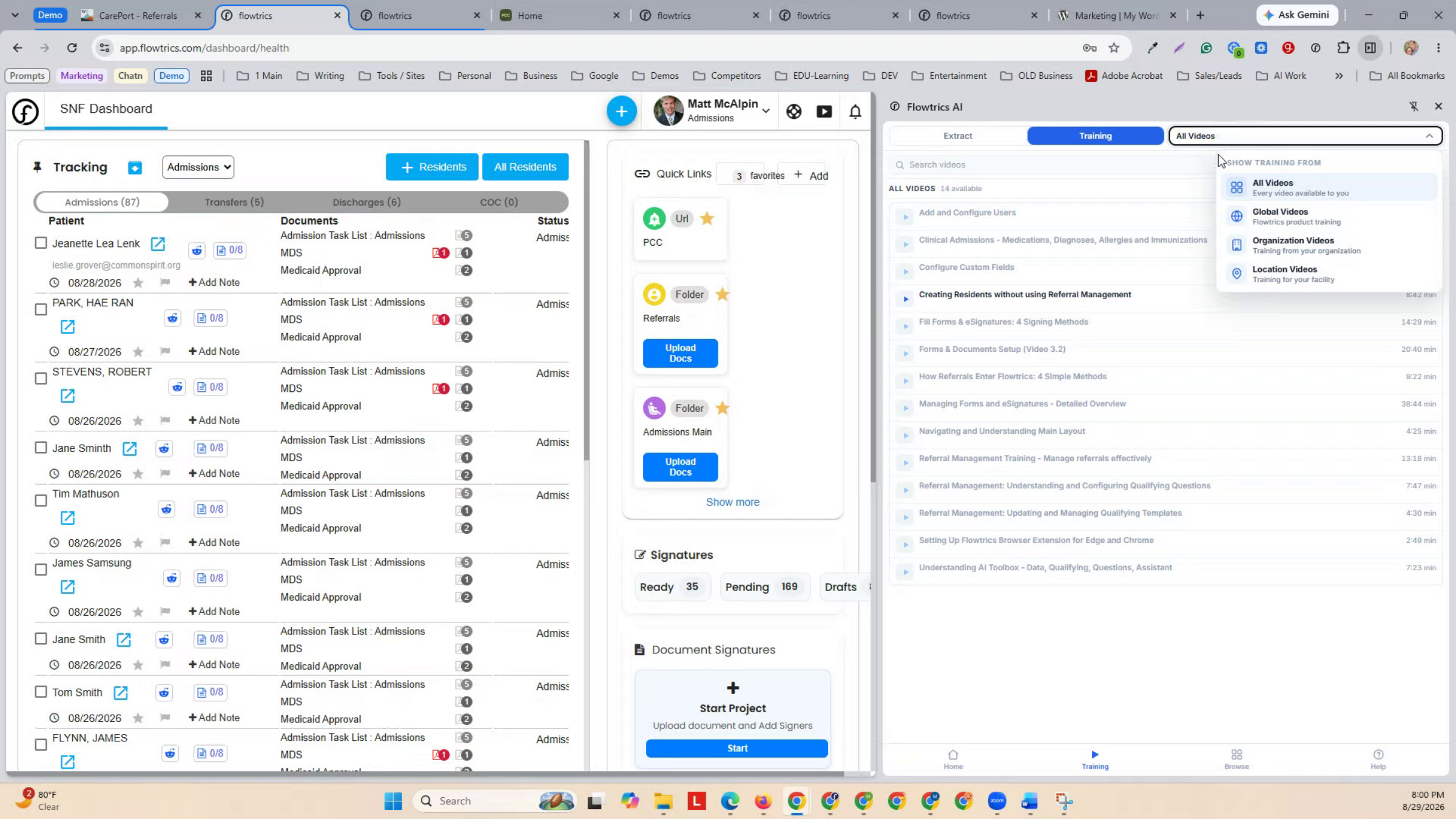
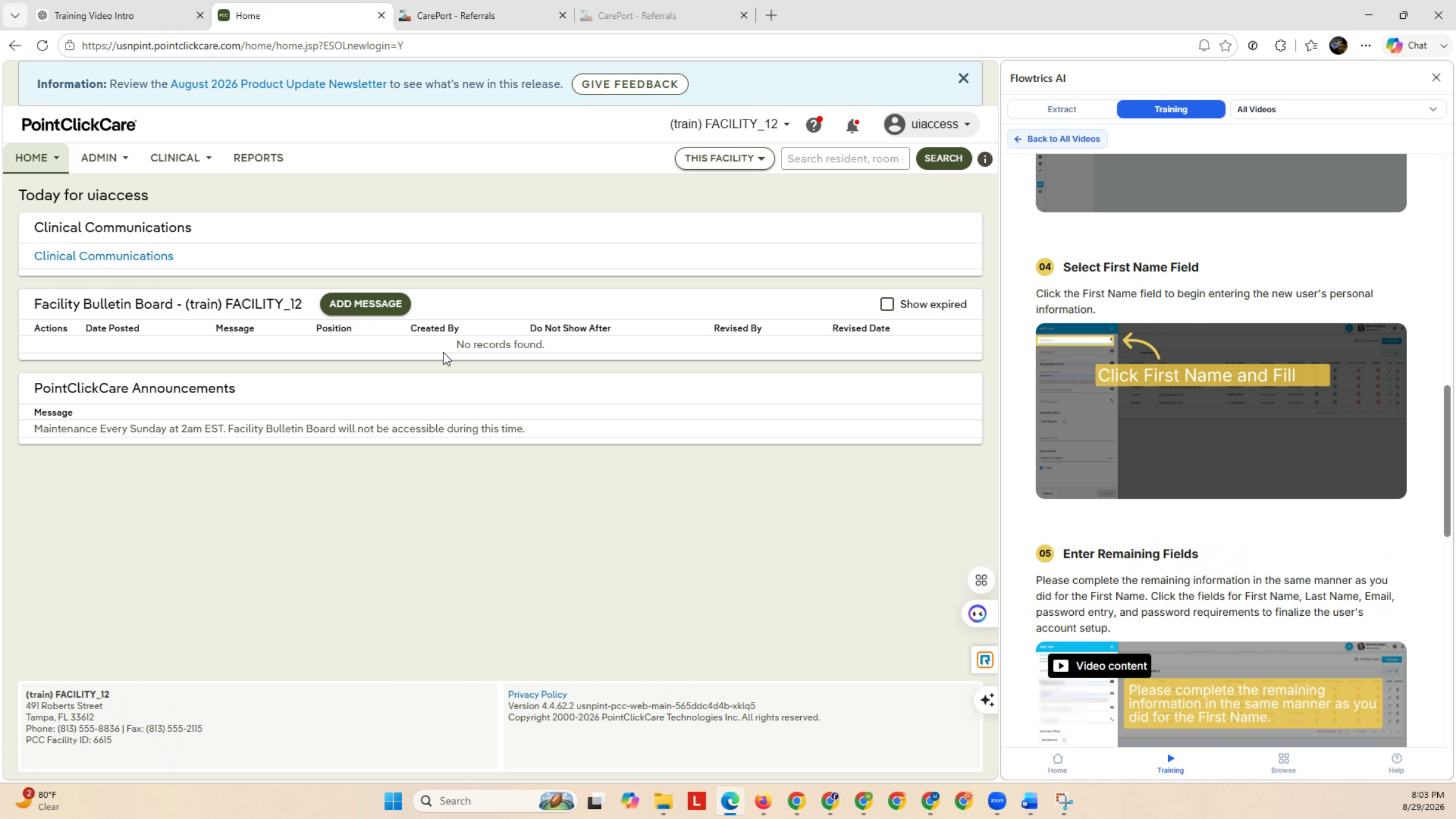
Let’s go back to Google Chrome, since the extension works the same way in both Chrome and Microsoft Edge. Once you’re in the extension, you’ll see two main areas: Extract Documents and Training. We’ll start with the Training section. This is where you’ll find all of the training videos available to you.
5. Global Training Videos Explained
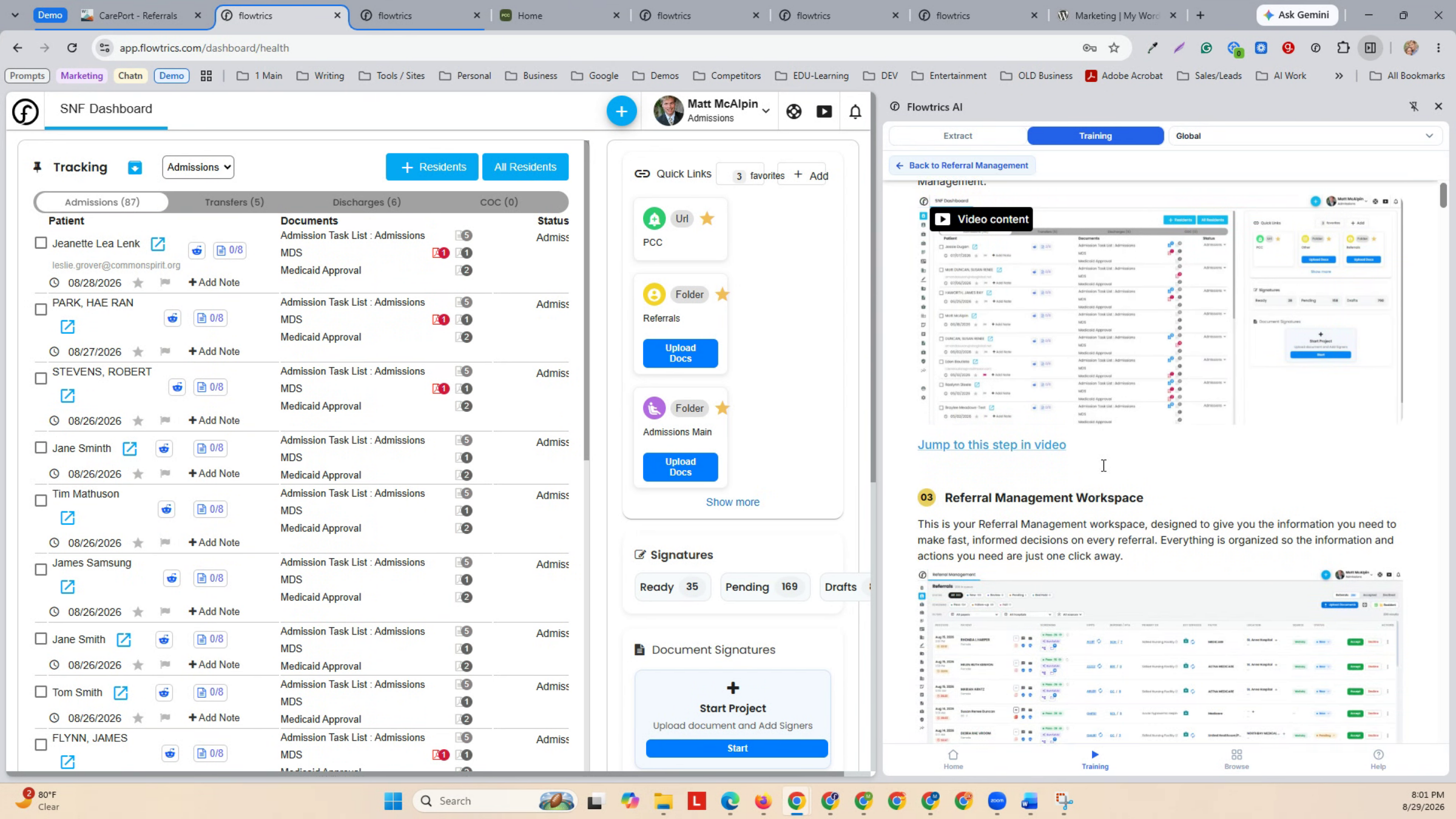
You’ll also see Global Videos, which are provided by Flowtrics. These include training for setup, admissions, and other key areas you’ll need to understand the platform. The videos are organized into separate groups, making it easy to find the topic you need. Simply select a video, and it will open directly within the extension. This allows you to watch the training side by side with the application while following the step-by-step instructions.
6. Side By Side Training Benefits (1)
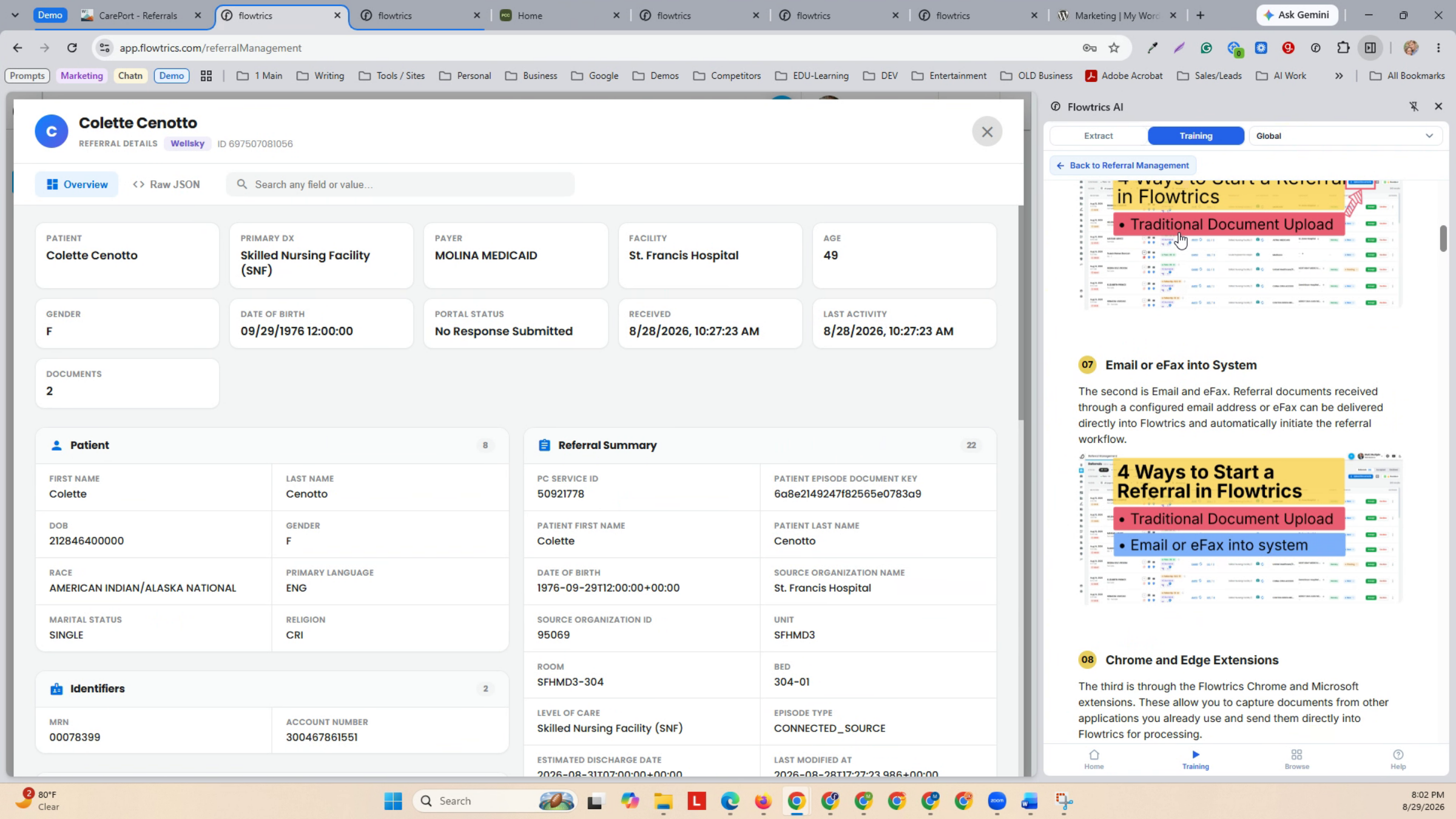
These trainings also include workflows, images, and step-by-step guidance to help you understand exactly what you’re doing. For example, if you’re working in Referral Management, you can keep the training open side by side while you complete the process in Flowtrics. That was the goal behind this feature—to eliminate the need to constantly switch between training videos, separate instructions, and the application itself. Instead, the guidance stays right beside you while you work. Whenever you need help completing a process, simply follow the steps in the guide as you go. That’s the core of the Training experience within the extension.
7. Side By Side Training Benefits (2) (1)
You’ll also have an Organizational Training section. In this example, no organizational content has been added yet, but your organization can use this area to provide its own training videos and resources. For example, your team may add training for PointClickCare, WellSky, or other systems and internal processes. This allows your organization to keep all of its training together in one centralized location.
8. Side By Side Training Benefits (2) (2) (2)
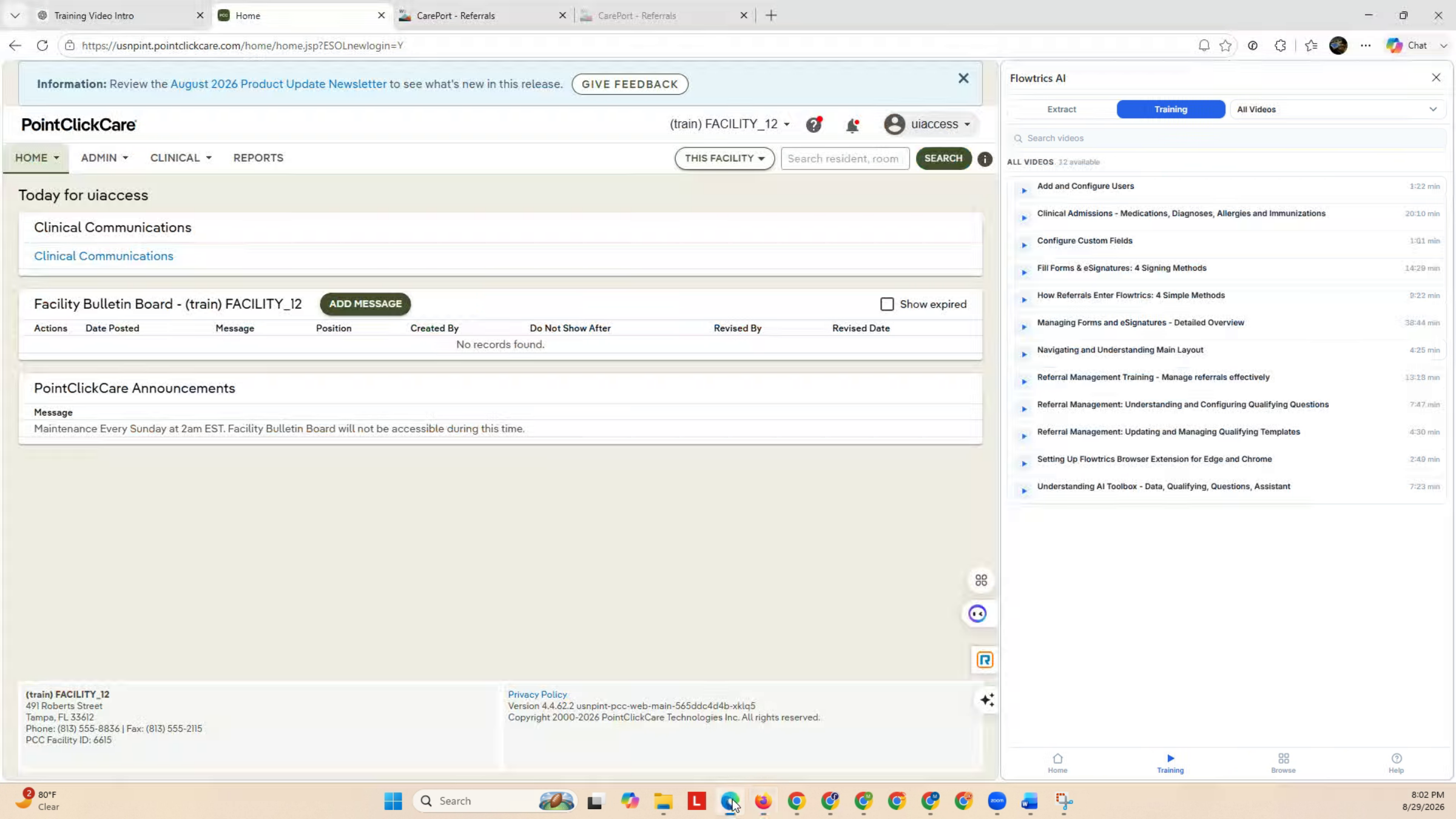
The same training experience is available in Microsoft Edge. From All Videos, you can use the search bar to quickly find the training you need. For example, searching for “Add” will take you directly to Add and Configure Users. Select the training, and it will open directly within the Edge extension just as it does in Chrome. That completes the Training section. If you have any questions, you can always contact Flowtrics Support for additional assistance.
9. Switching Back To Chrome (1) (1)
Going back to Chrome now.
10. Extract Document Icon Functions
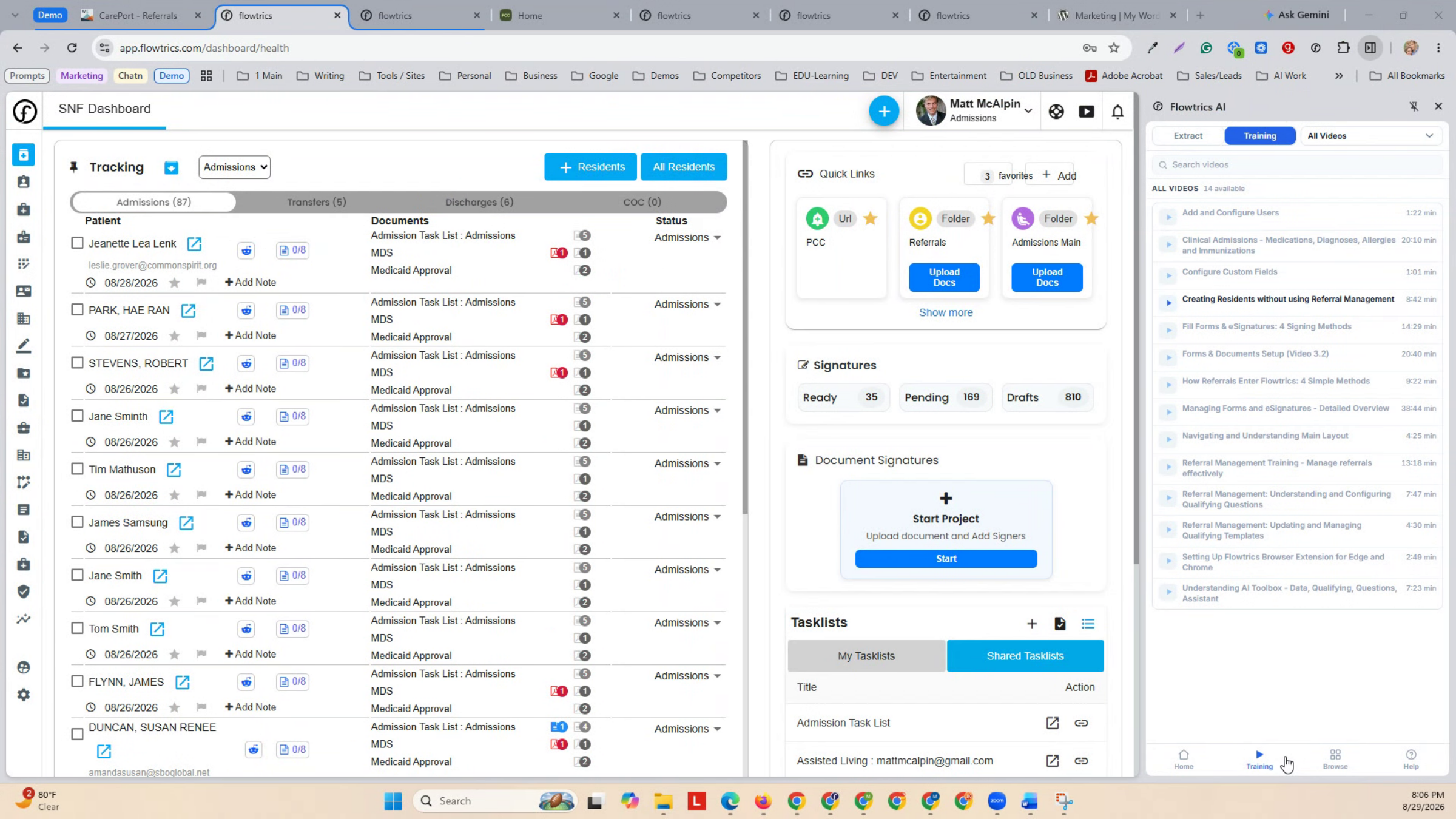
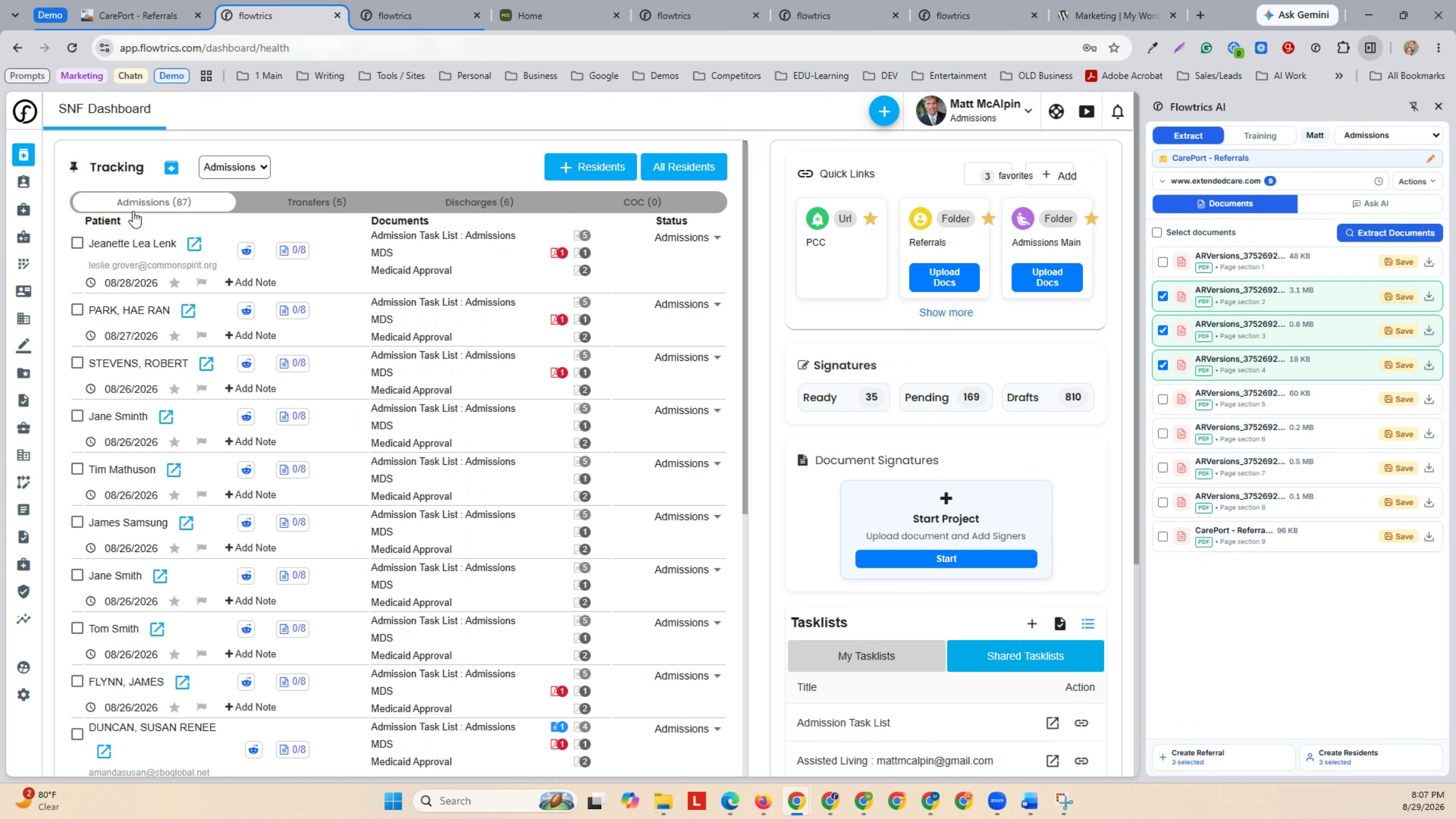
That completes the first half of the Flowtrics Browser Extension training. Next, we’ll move to the second tab: Extract Documents. You’ll find it directly next to Training. Selecting Extract Documents gives you two options: Create a Referral or Create a New Admission.
11. Extract Documents On Websites
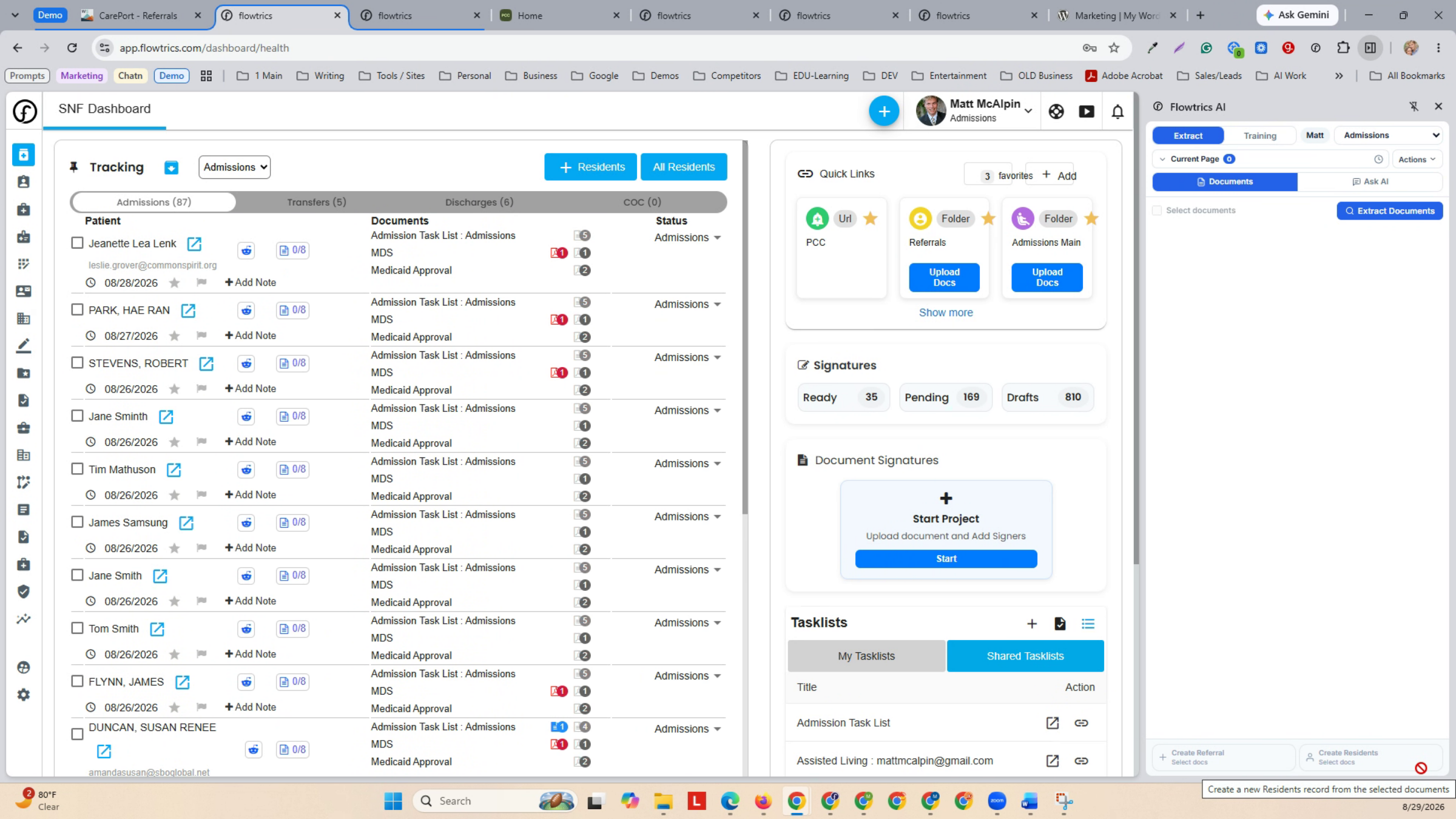
These two options connect directly to the Dashboard and Referral Management workflows in Flowtrics. Now, if you’re working in CarePort or another supported website, simply open the Flowtrics extension and select Extract Documents.
12. Referral And Resident Creation
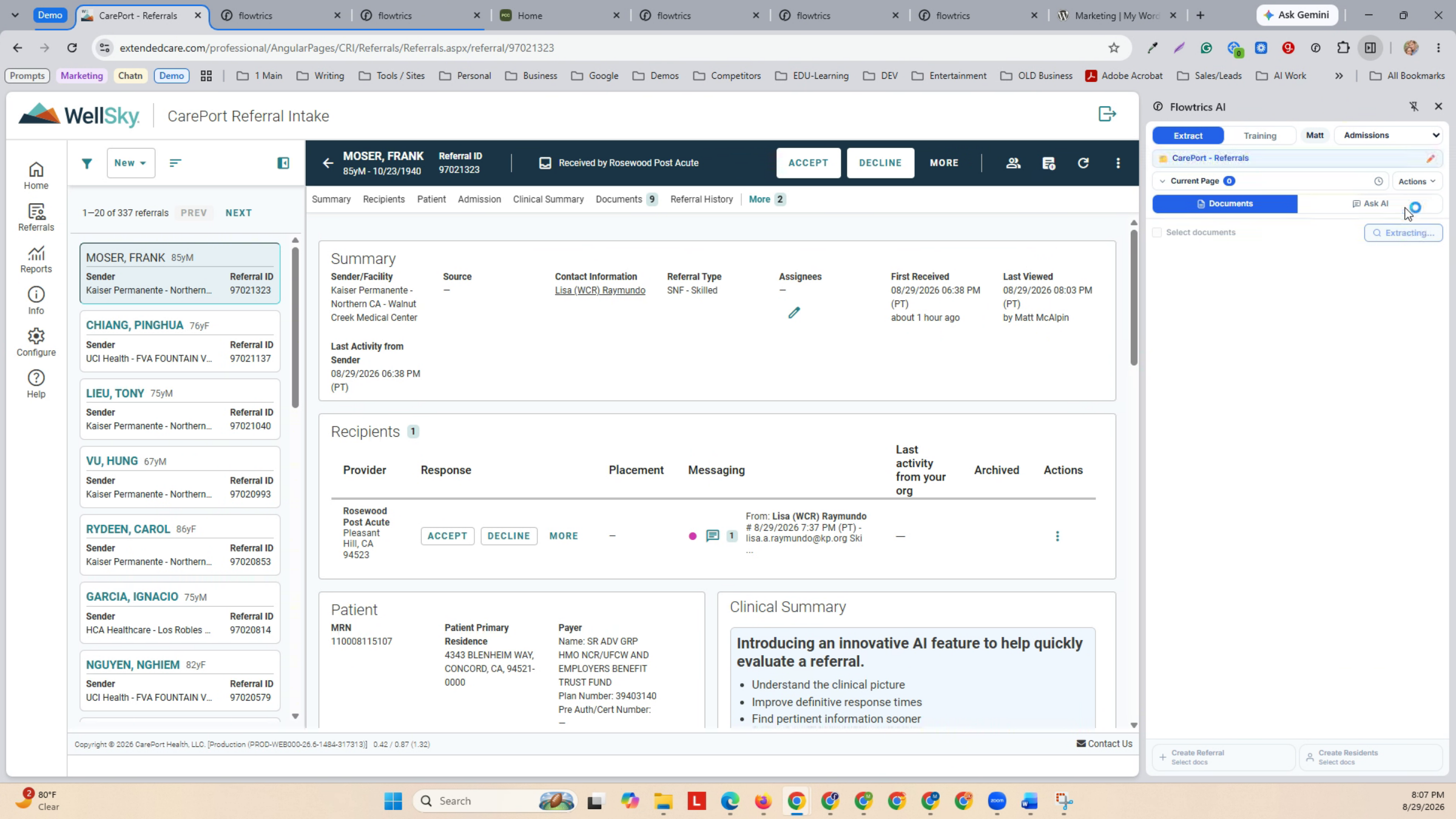
At that point, Flowtrics will extract the available documents directly from the site, so you don’t have to download and re-upload them manually. From there, you can use those documents to either create a referral or create a new resident. Flowtrics will bring the documents into the appropriate workflow and automatically begin the AI processing needed to extract the important information. So whether you’re creating a referral or a new admission, the AI process begins automatically as soon as the documents are brought into Flowtrics.
13. Workflow Automation Benefits
What this allows you to do is eliminate the entire manual download-and-upload process. You no longer need to download documents to your computer, log into Flowtrics, upload them again, and manually move them through the workflow. The extension handles that process for you, allowing the documents to move directly into Flowtrics and begin processing automatically.
14. Extension Setup Training Reminder
And that’s how Extract Documents works within the Flowtrics browser extension. If you haven’t installed the extension yet, complete the training titled Setup Flowtrics Browser Extensions for Chrome and Edge. That training will walk you through everything you need to get started with both Training and Extract Documents. Thank you for completing this training.
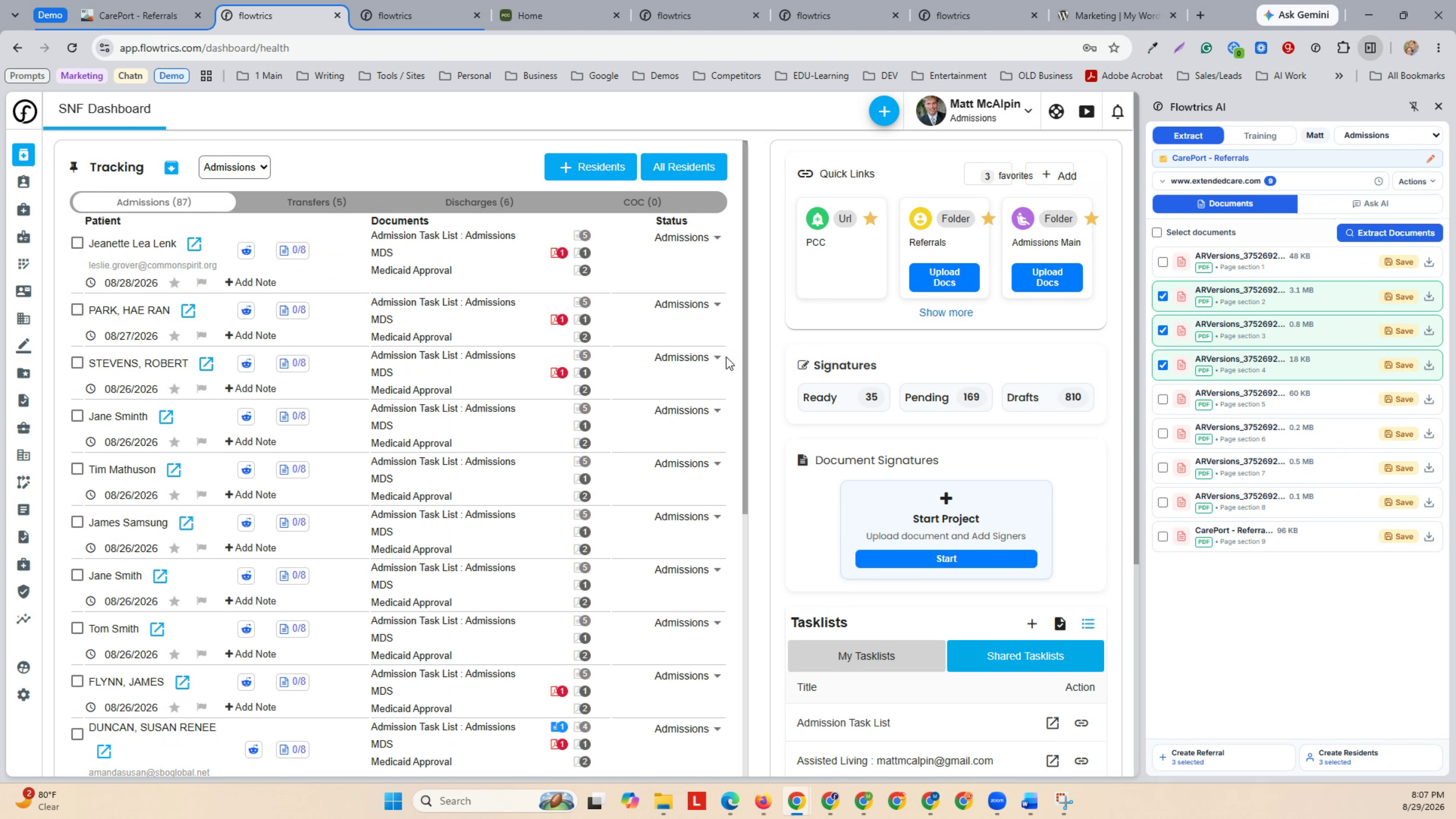
In this training, we learned to extract documents, create referrals or admissions, and access training videos directly through the Flowtrics extension for Chrome and Edge browsers.
0 Comments