
Understanding AI Toolbox – Data, Qualifying, Questions, Assistant – (7:23)
This tutorial introduces the Flowtrics AI Tools and demonstrates how the Data, Qualifying, Questions, and AI Assistant tabs work together to analyze referral documents and support faster, more informed decisions.
Go to app.flowtrics.com
1. Introduction To Referral Management
Let’s get started by showing you where to find the AI Toolbox in Flowtrics.
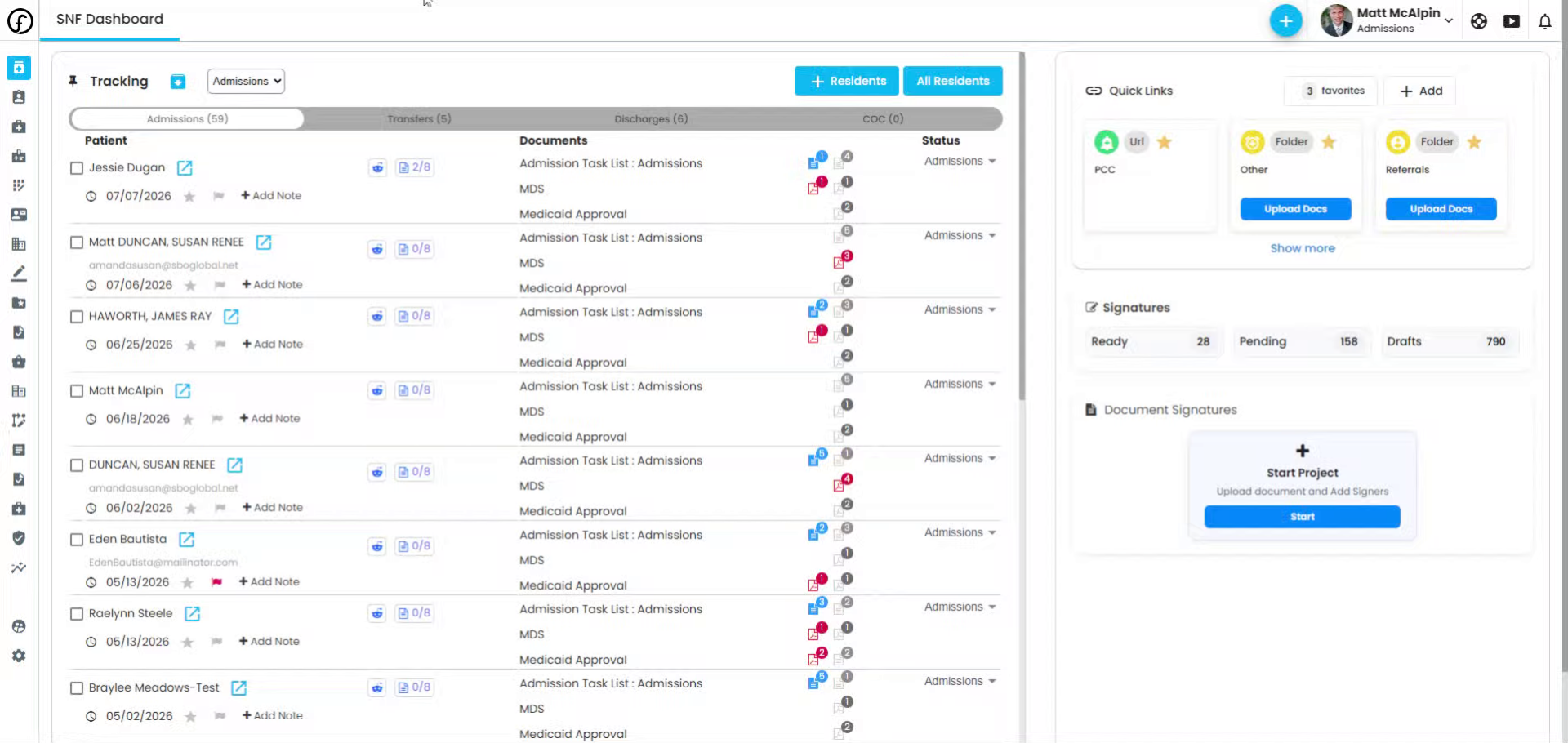
2. Locating Filters and Referral
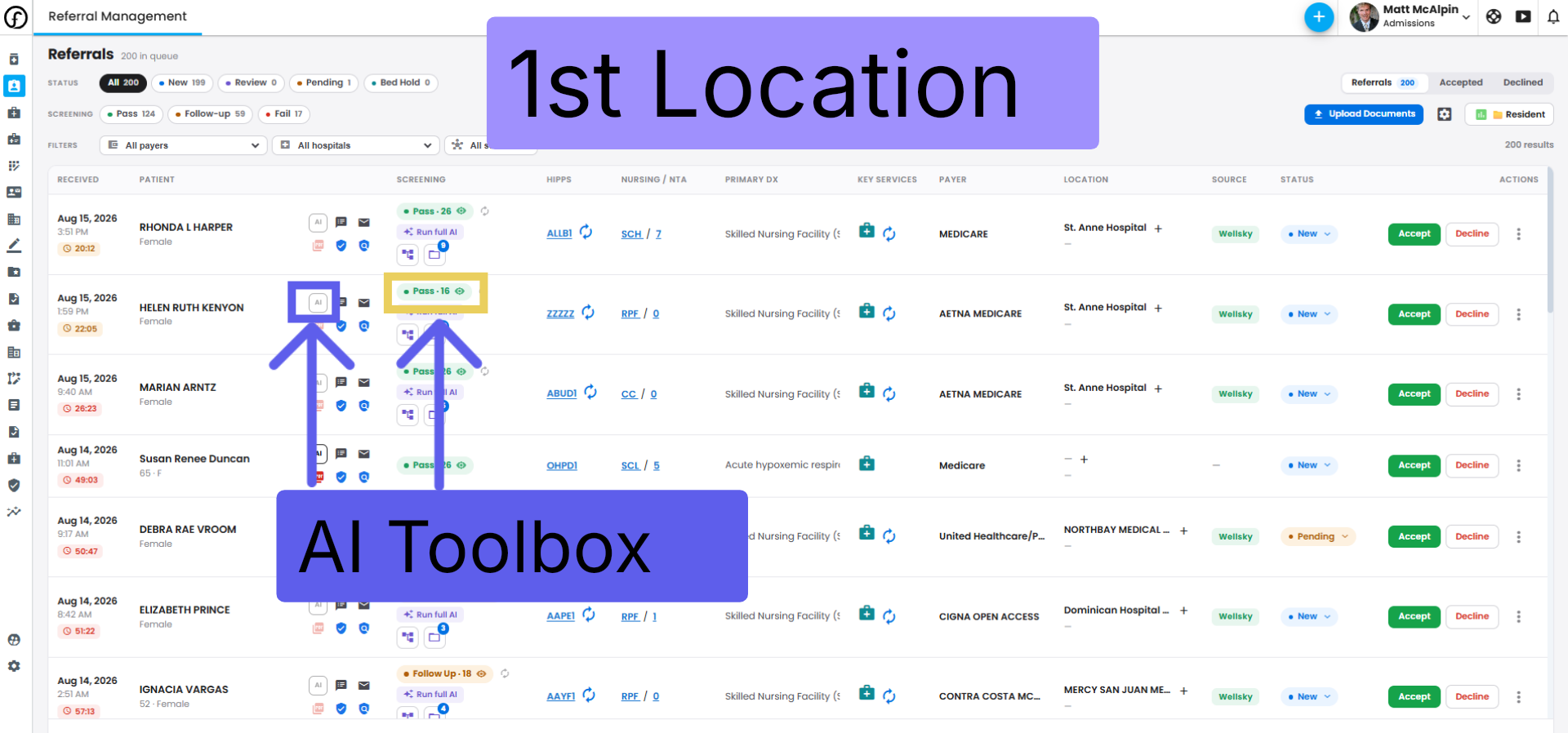
There are two locations where you can access the AI Toolbox. The first is within Referral Management, where you’ll find two icons that provide quick access to these AI features.
3. It the CORE Record: Resident
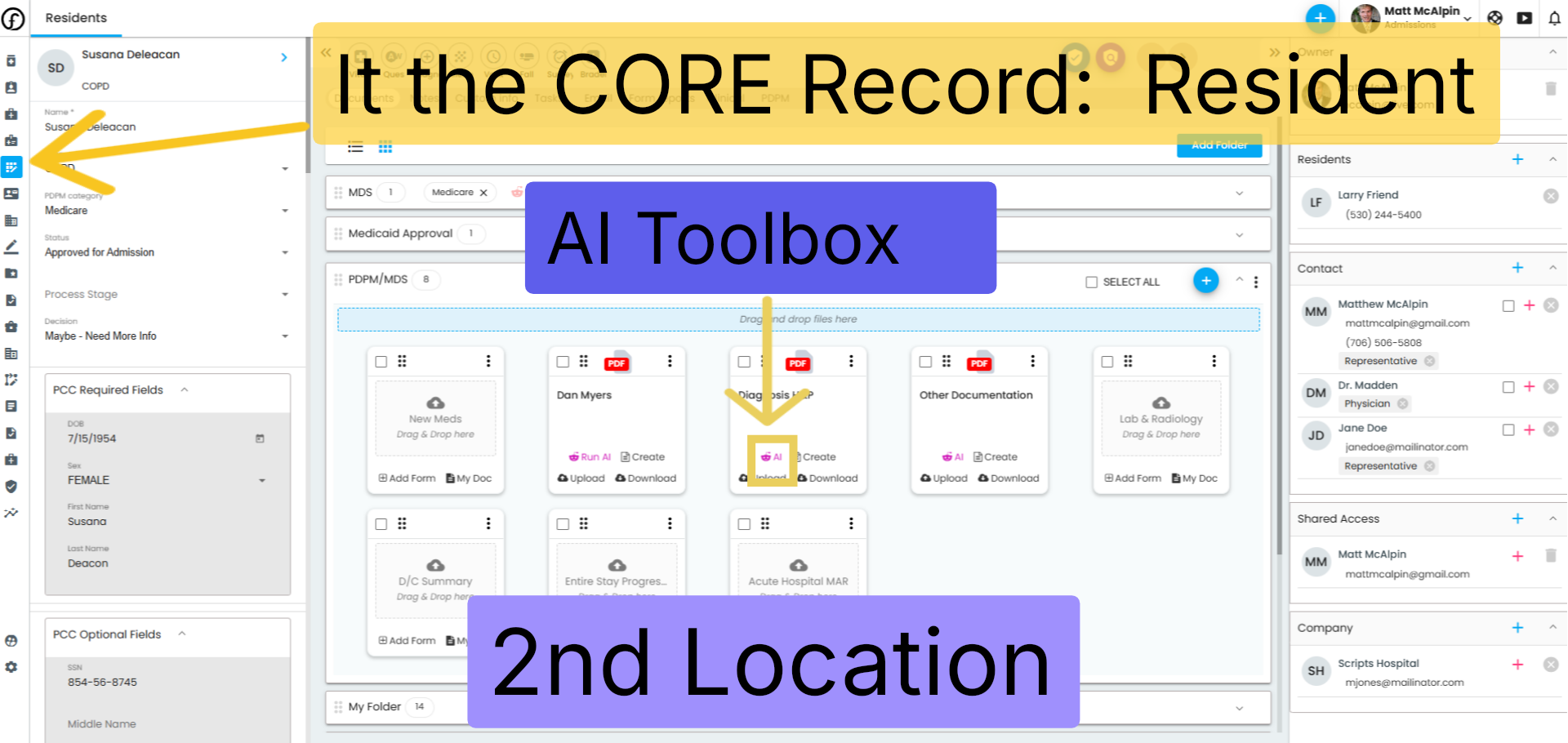
The second location is within the Core Record, which in this case is called the Resident Record. From the Documents section, locate the document that was processed by AI to access the same AI tools.
4. Understand Referral Process Components
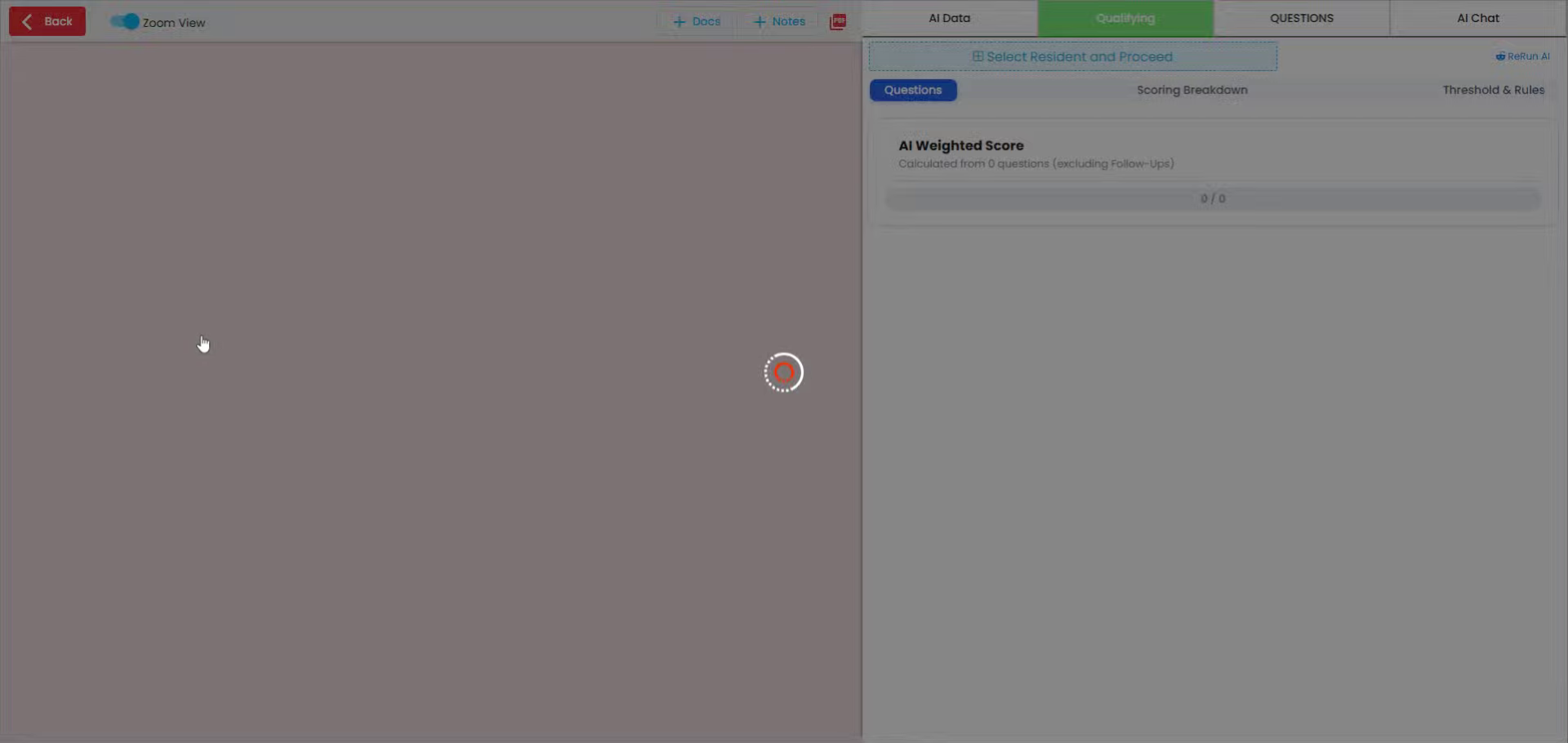
Whichever method you use, Flowtrics will open the original referral documents so you can review everything that was uploaded.
5. 4 Tabs to AI Toolbox
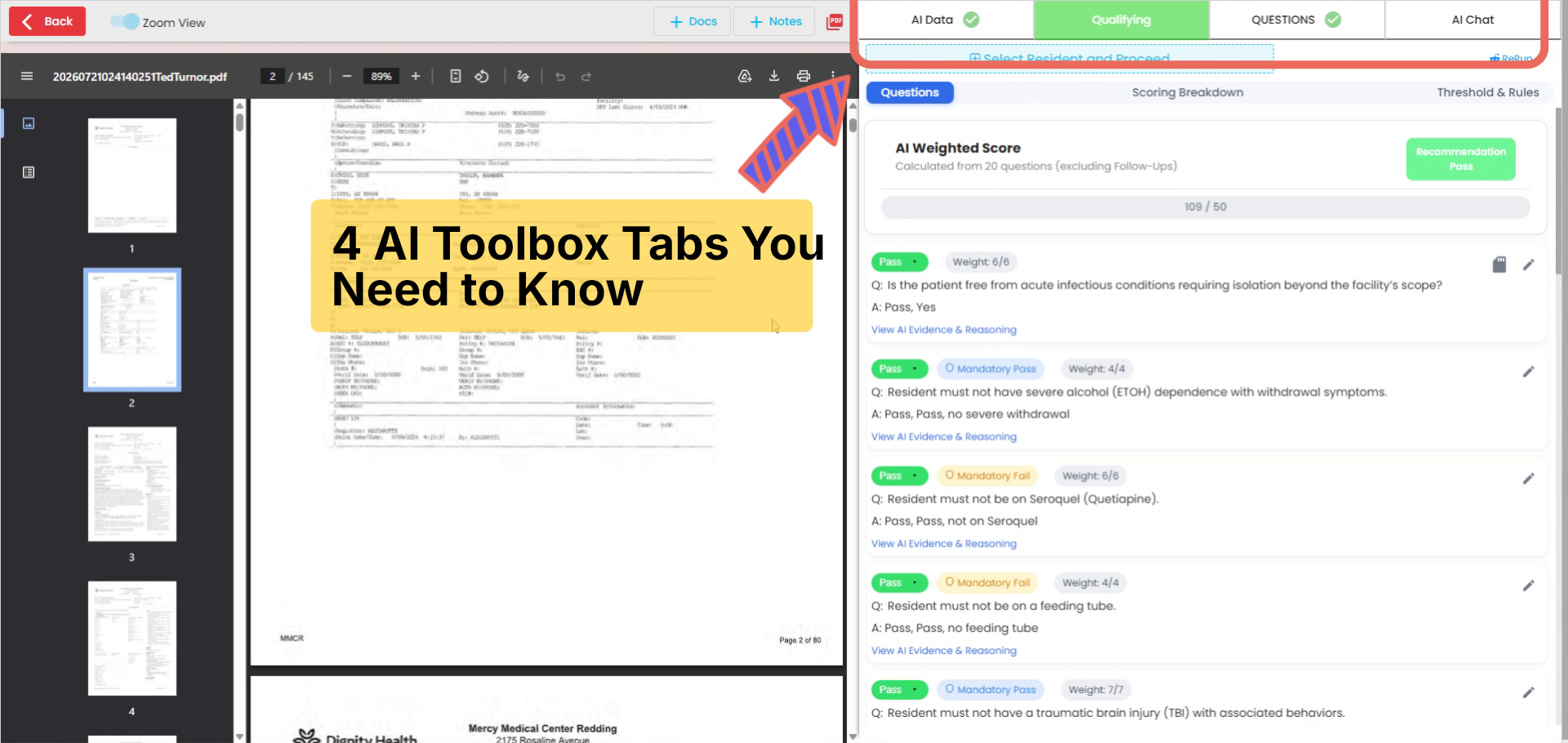
In the upper-right corner, you’ll find four primary AI tabs. These tabs provide access to the core features of the AI Toolbox and guide you through reviewing and analyzing your referral information.
6. AI Data Tab
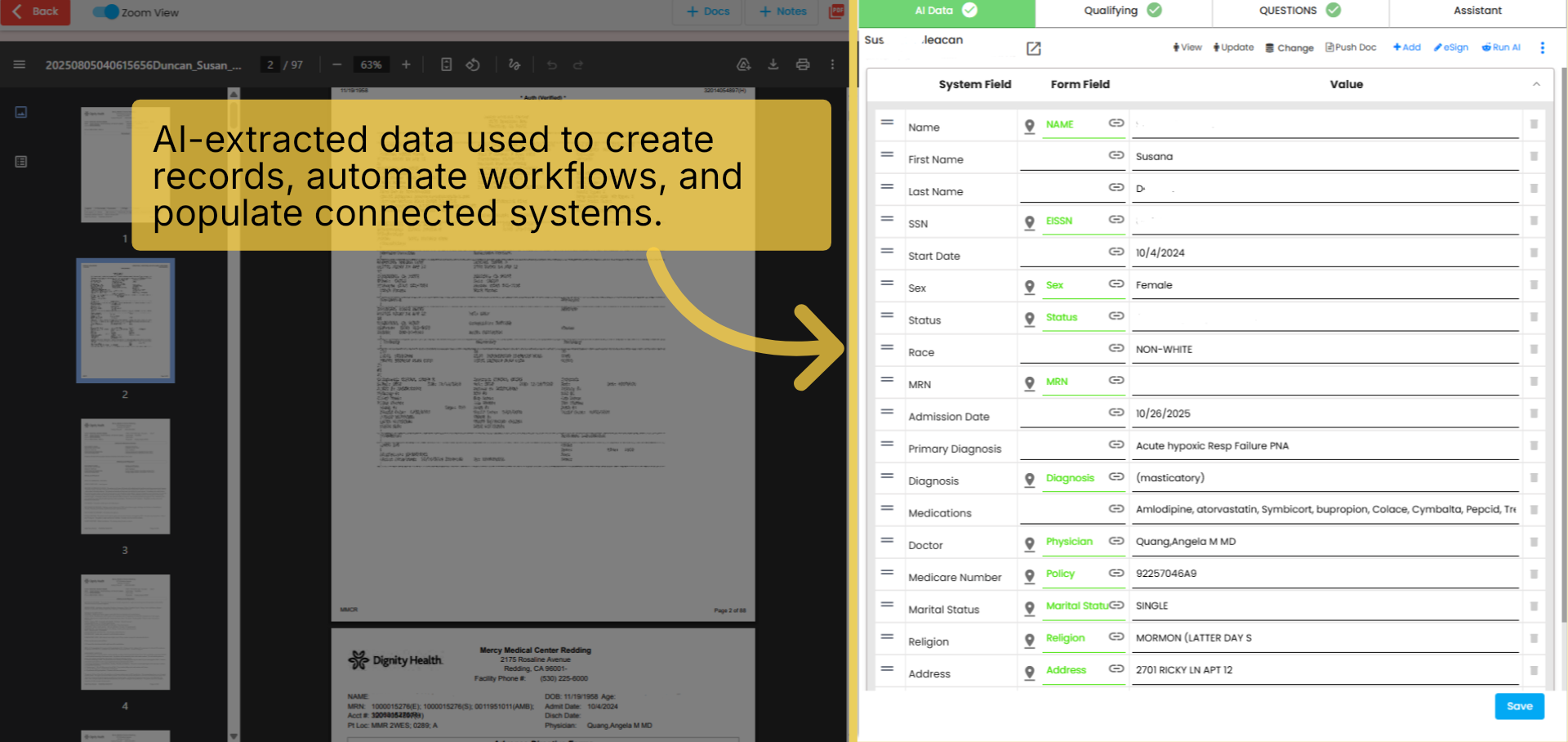
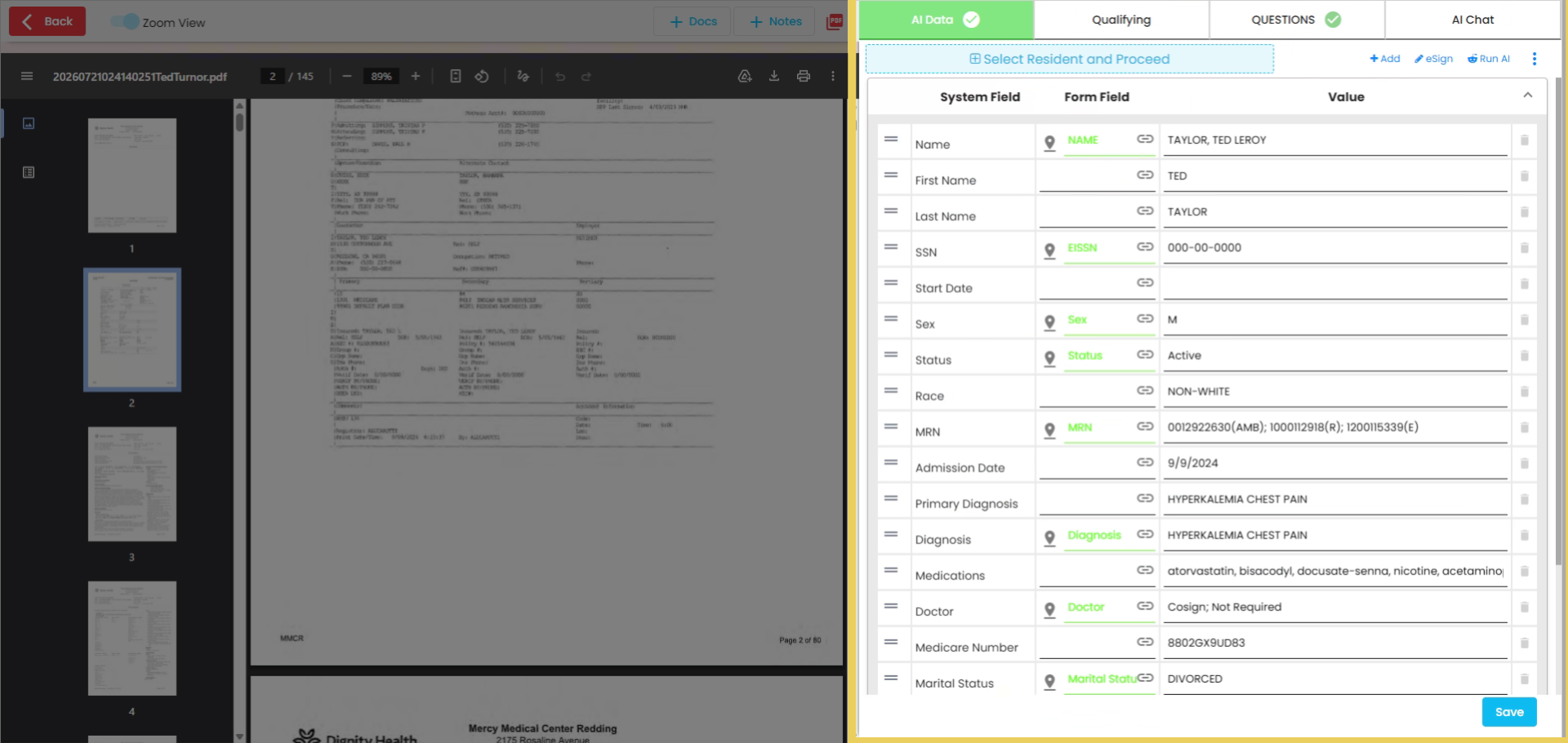
The first is AI Data, which displays structured information automatically extracted from the referral documents. This data can be used throughout Flowtrics to create records, populate forms, automate workflows, and send information to connected systems.
7. Qualifying Tab
The second is Qualifying, which evaluates each referral against your facility’s configured criteria. This is a key feature, and we’ll explore it in more detail during this training.
8. Questions Tab for AI Toolbox
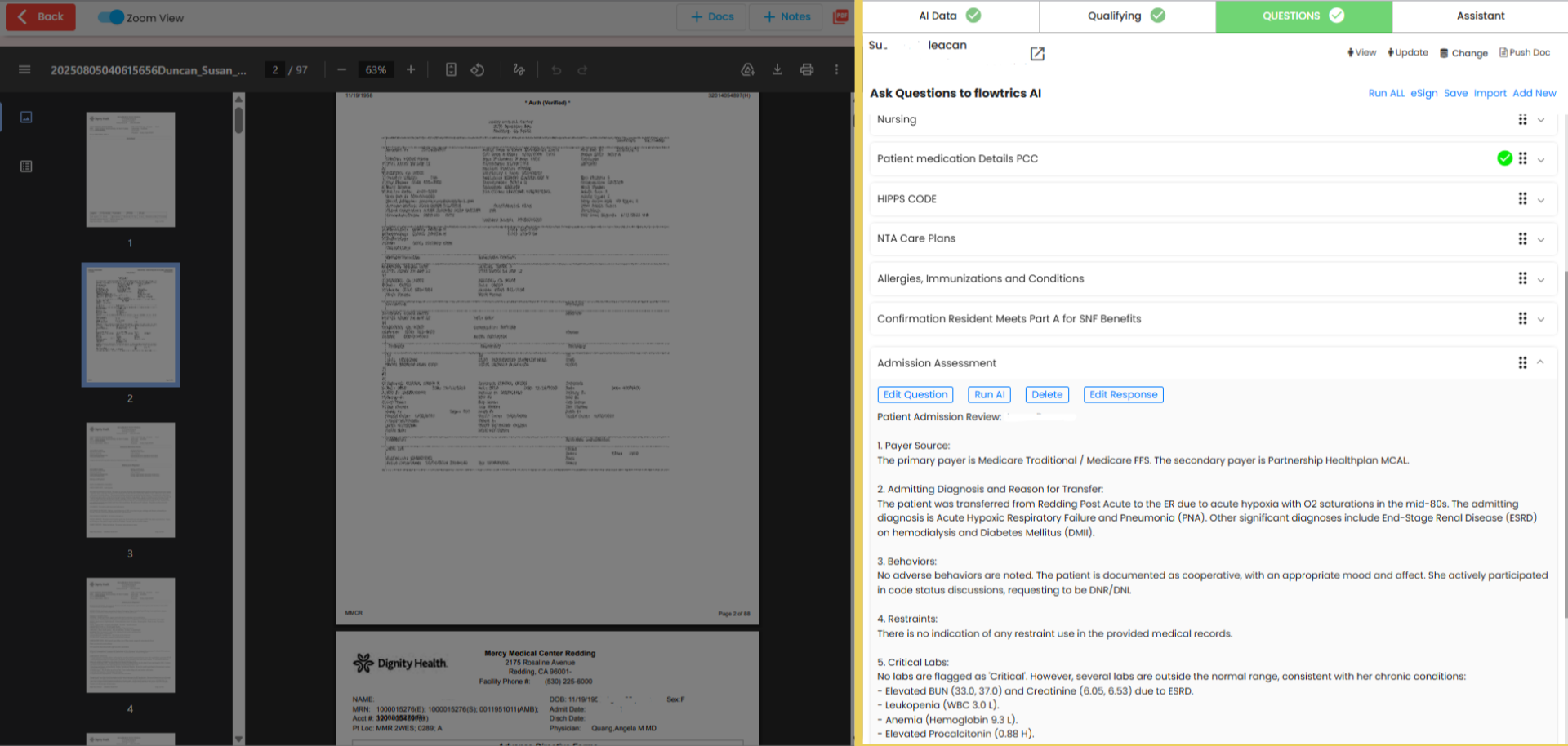
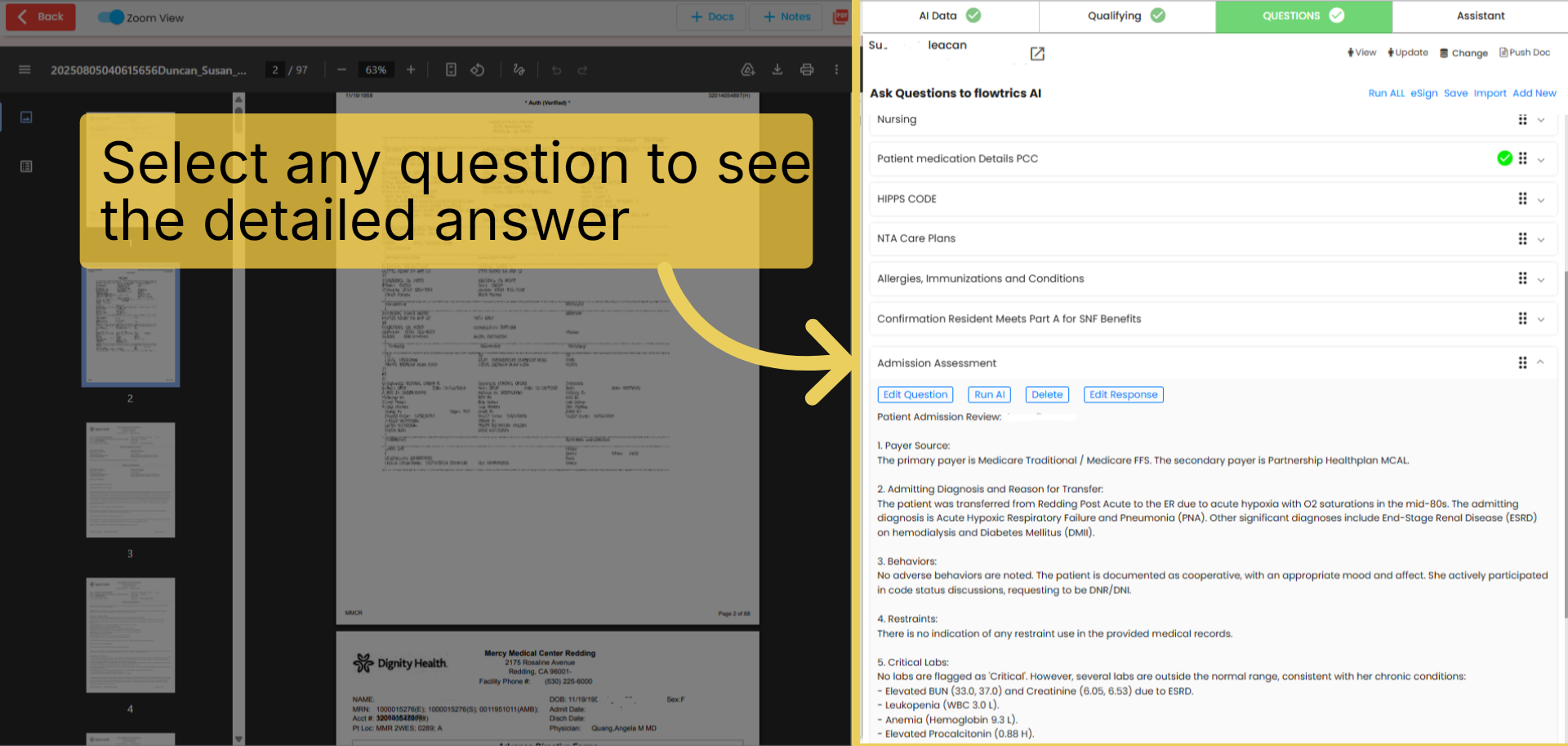
The Questions tab provides deeper, customizable analysis based on the specific information your organization needs. It can be used alongside Qualifying or after the initial review for more detailed analysis. This is also where clinical information—including medications, diagnoses, allergies, immunizations, and vitals—is extracted and converted into structured data that can be reviewed and sent to your EHR.
9. Reviewing Questions Answered
Once setup is complete, each question runs automatically, so the answers are ready when you open this tab. Simply select any question to view the AI-generated response.
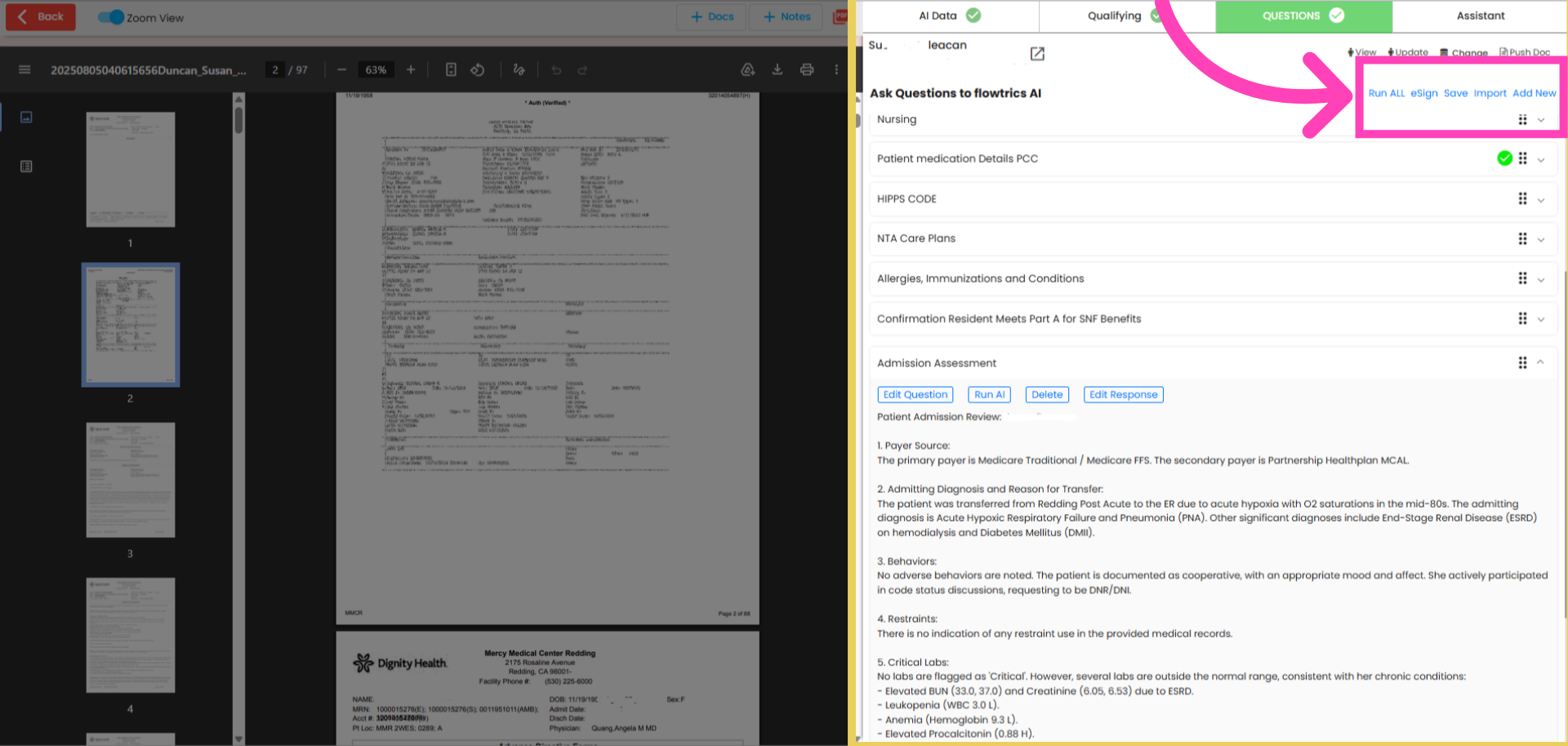
10. Add more Questions
At any time, you can add a new question beyond your predefined list. Simply select Add, enter your question, and choose Run AI to generate the answer.
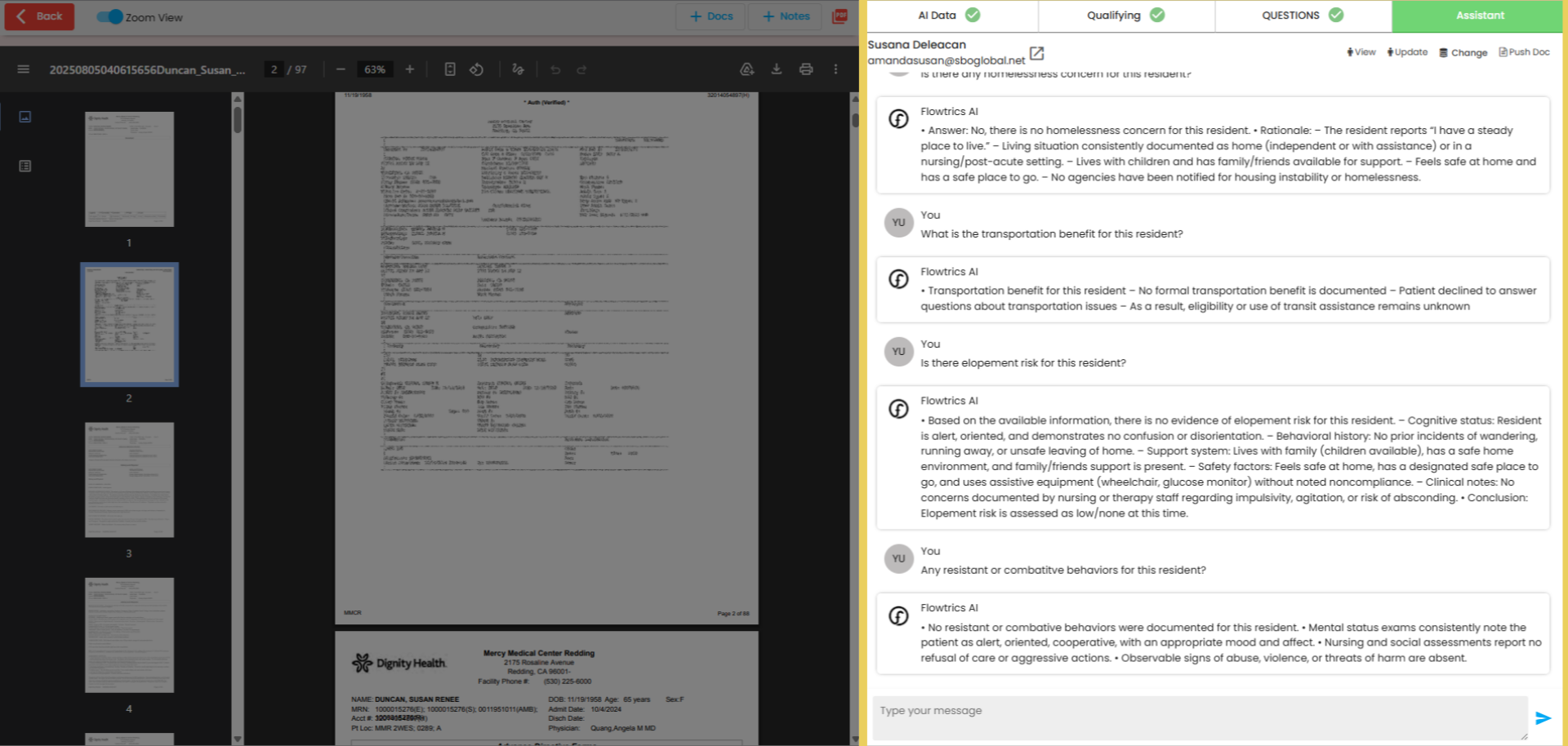
11. Use Chat Assistant For Documents
The final tab is AI Chat, where you can ask questions directly about the referral documents and receive answers based on their content. Use it to quickly find information, ask follow-up questions, or explore the referral in greater detail.
12. Understand Qualifying Questions Purpose
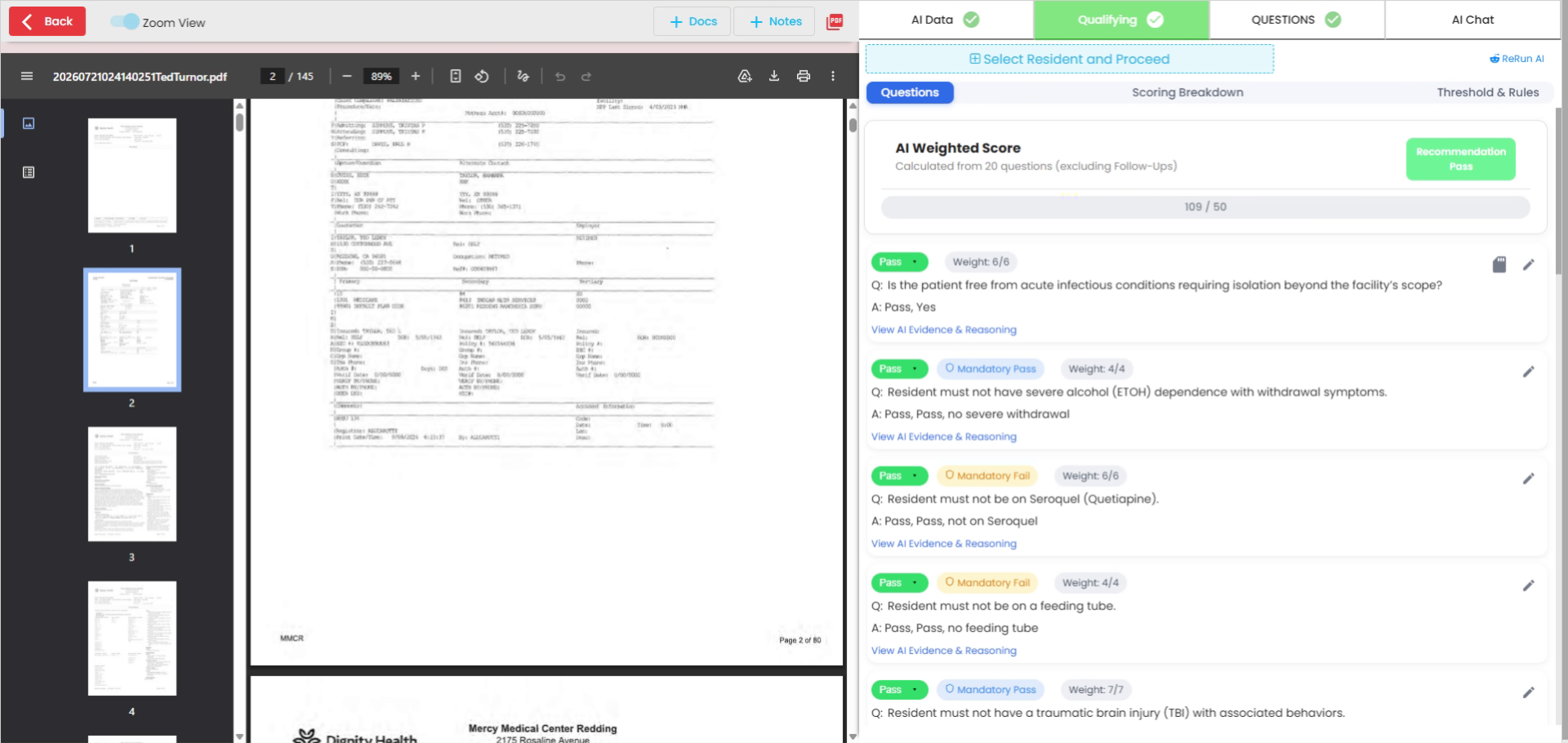
Ok, now let’s go back to the qualifying questions tab in more detail. This is how you understand whether you’re going to accept or reject that resident. These are objective questions: yes, no, pass, fail, that you’re really trying to understand what’s going on. Let’s take one like this one. Are the patient’s vital signs within the acceptable admissions limits? You’ll have a question, an answer, and then the reasoning behind that question.
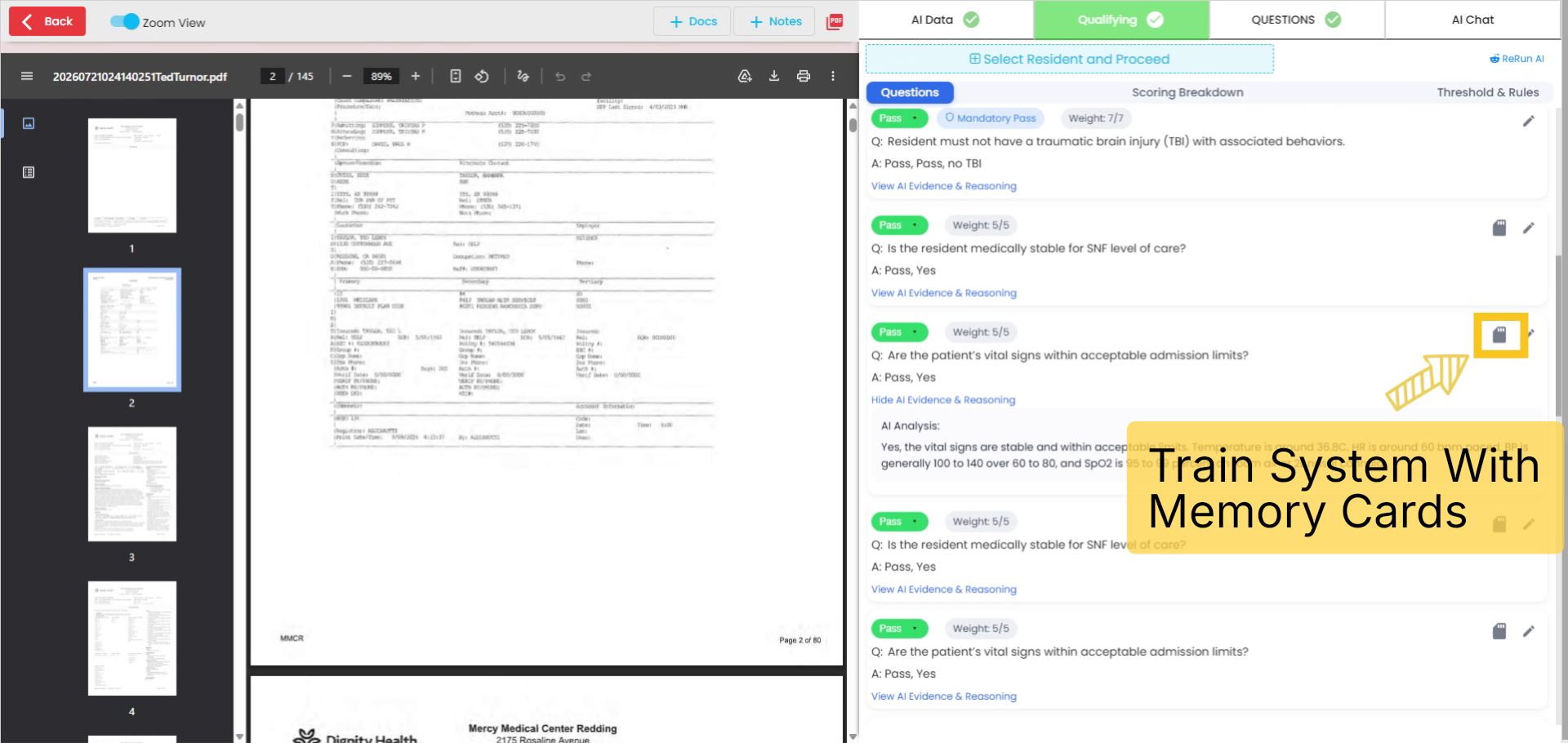
13. Train System With Memory Cards
If there’s anything beyond your standard workflows that you’d like the system to recognize, you can use Memory Cards. Memory Cards let you train the system with facility-specific information. For example, you can define the acceptable vital sign ranges for your facility. Once that information is stored, the system uses it as context when evaluating and responding to related questions.
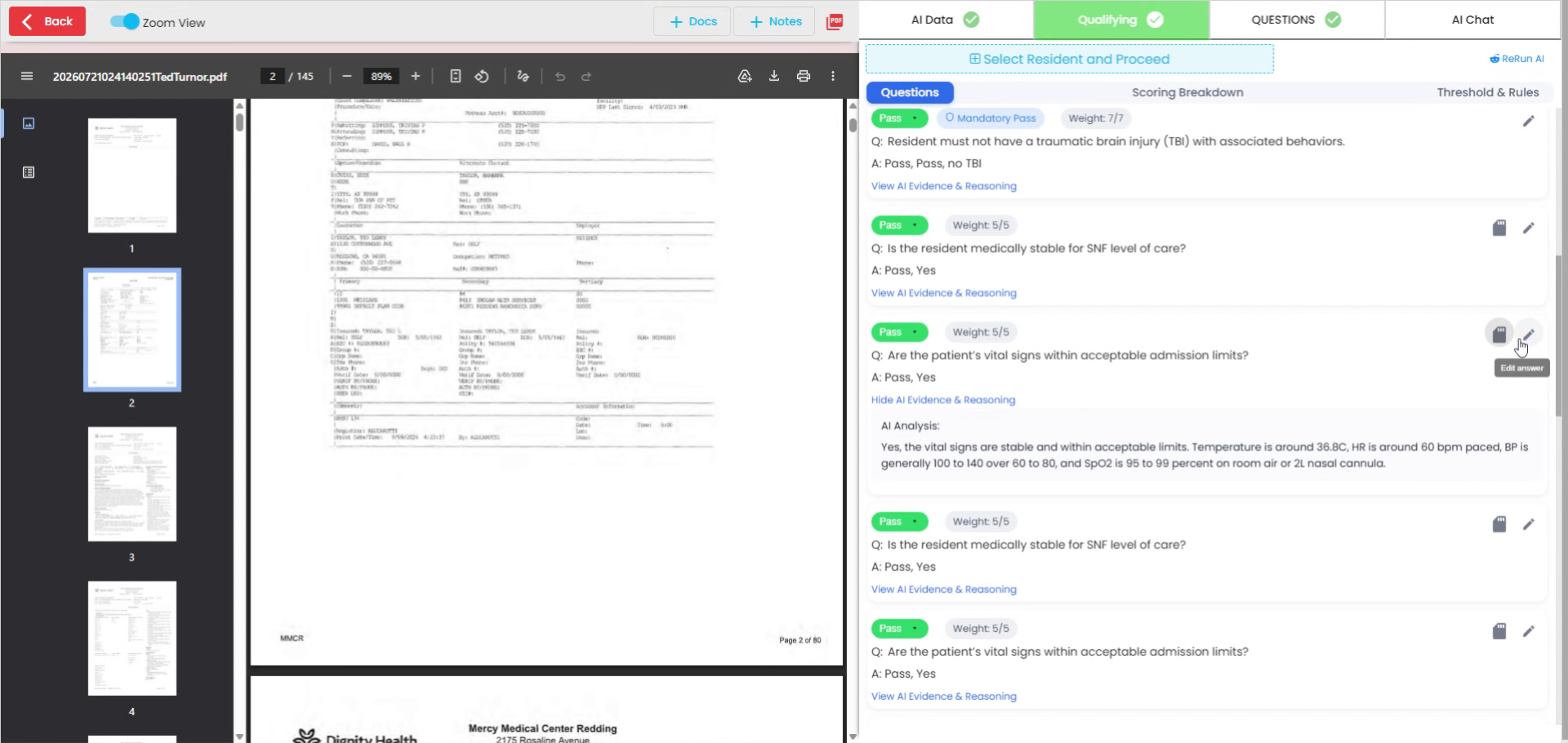
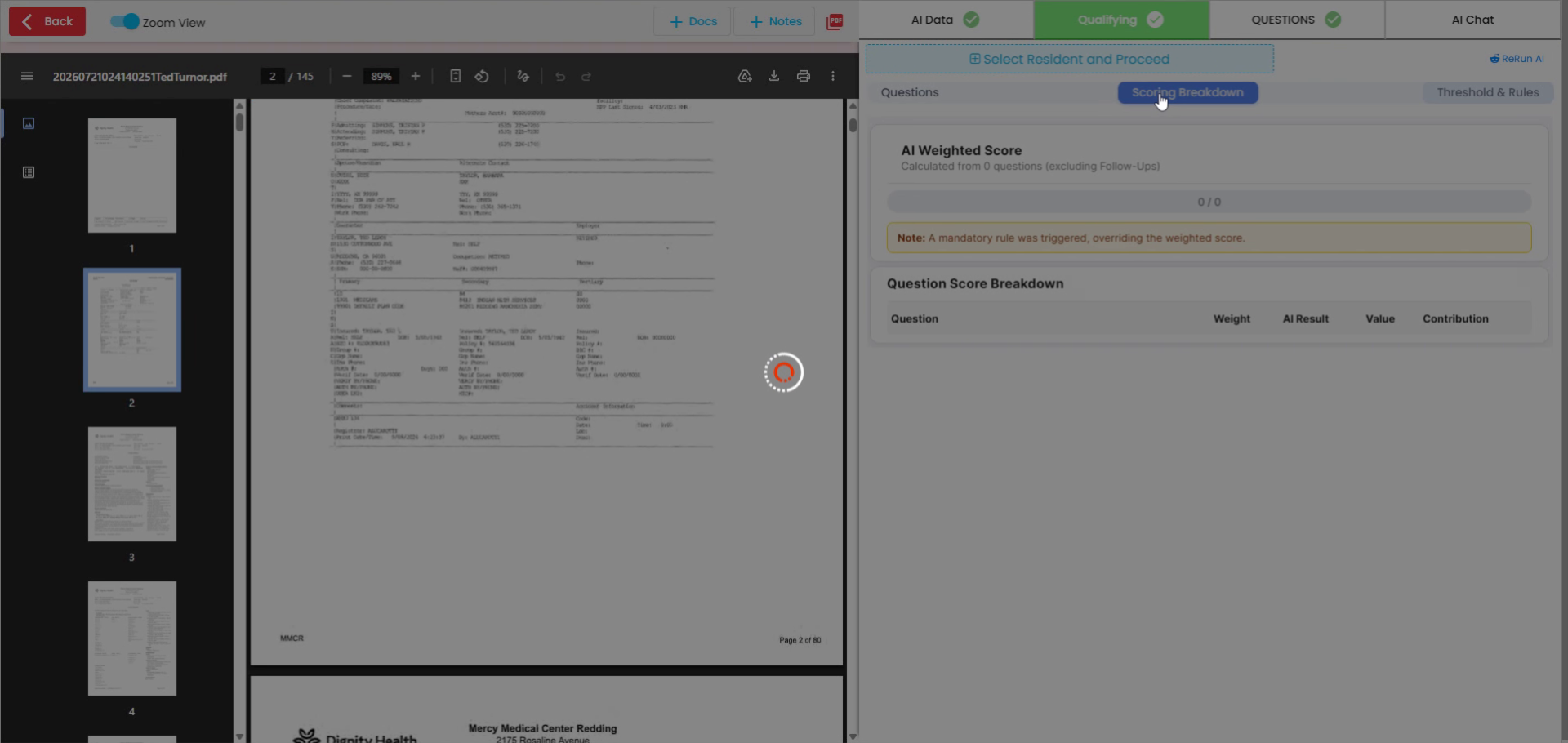
14. View Scoring Breakdown
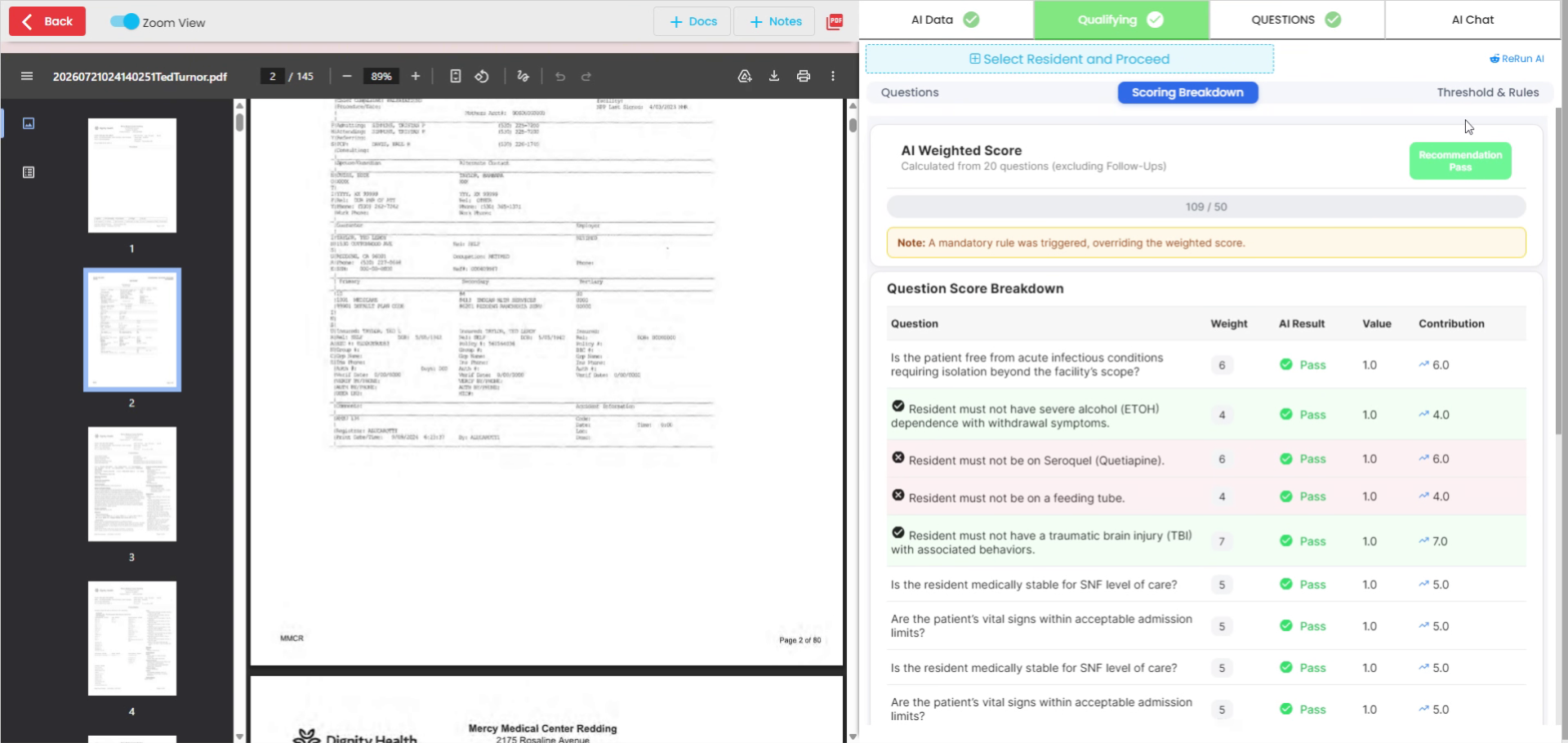
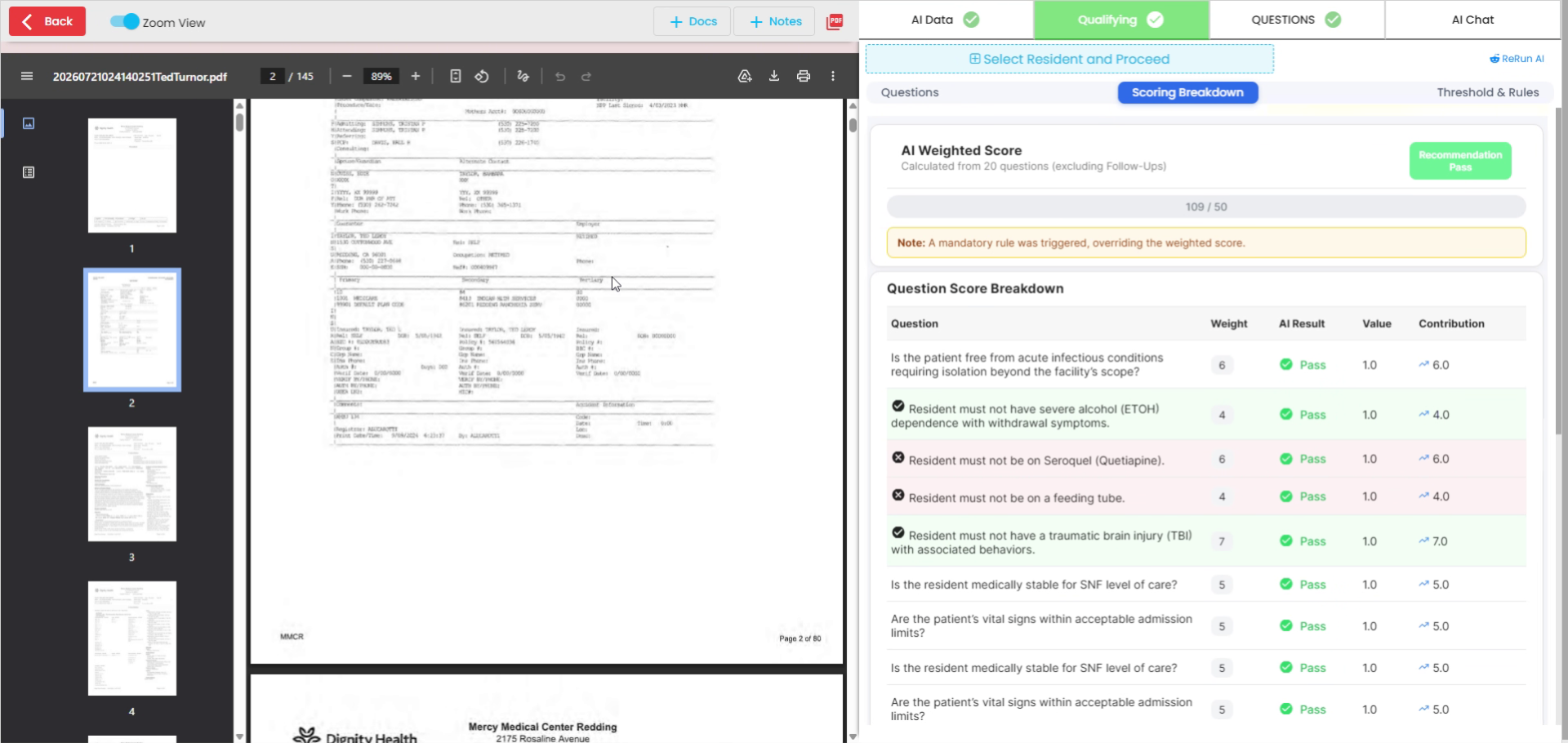
The system uses the information you’ve provided to answer the question based on the document. All of the questions are evaluated automatically. You don’t need to review each question individually first—you can go directly to the Scoring Breakdown. There, you’ll see every question along with whether it passed or failed.
15. Navigate Follow-Up Questions
If you have a question or need more information about a document, simply open the Questions tab to jump directly to the relevant section. All of these questions are generated automatically from a template that runs each time a document is processed. It’s a true “set it and forget it” workflow—you configure the template once, and the system automatically applies it to every document going forward.
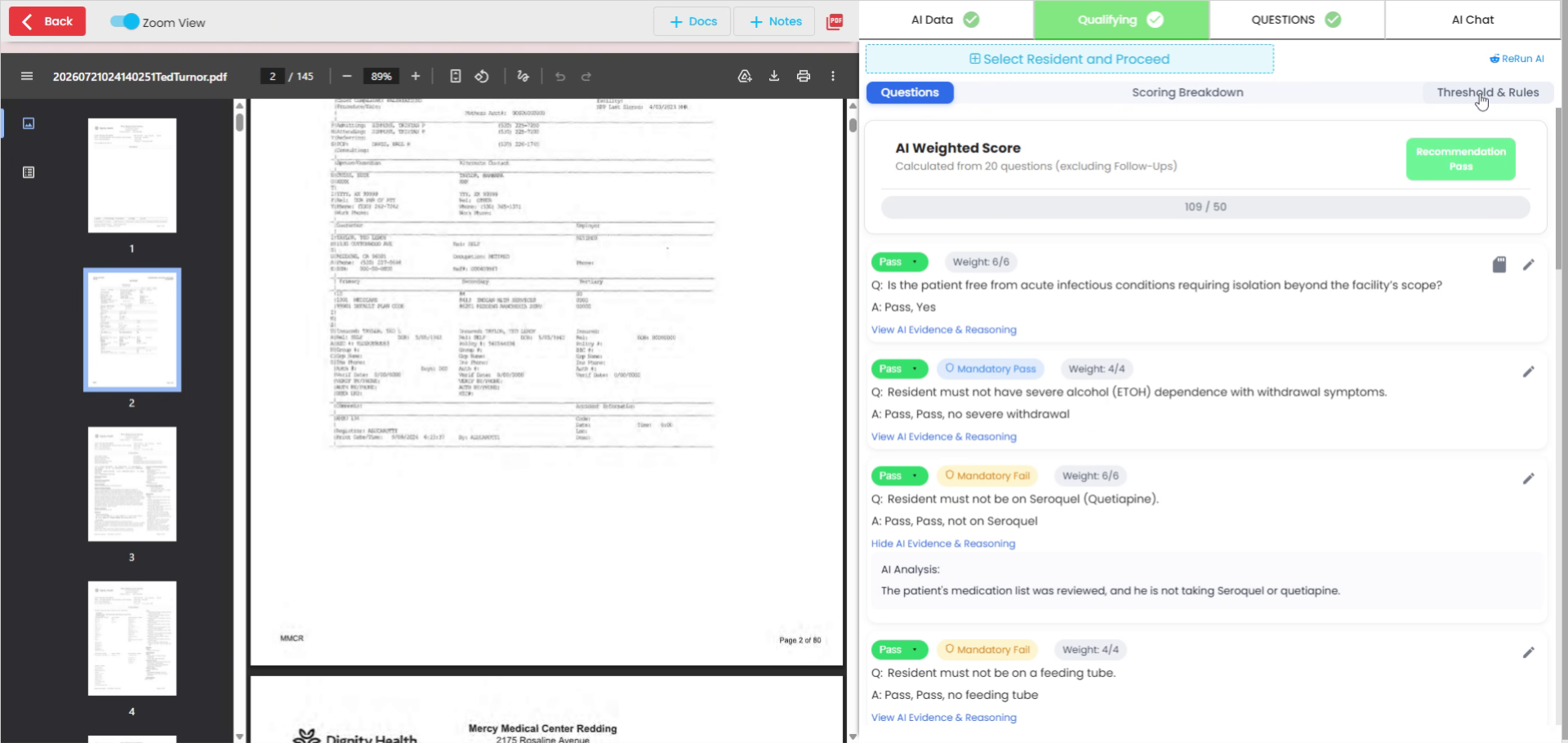
16. Set Threshold And Rules Templates
Your templates found under Threshold and Rules will already be configured when you begin using the system. However, we want to provide a complete overview of the so you understand how each referral is assessed. Now, let’s take a closer look at how the qualifying questions are scored.
17. Threshold and Rules: Scaling Questions
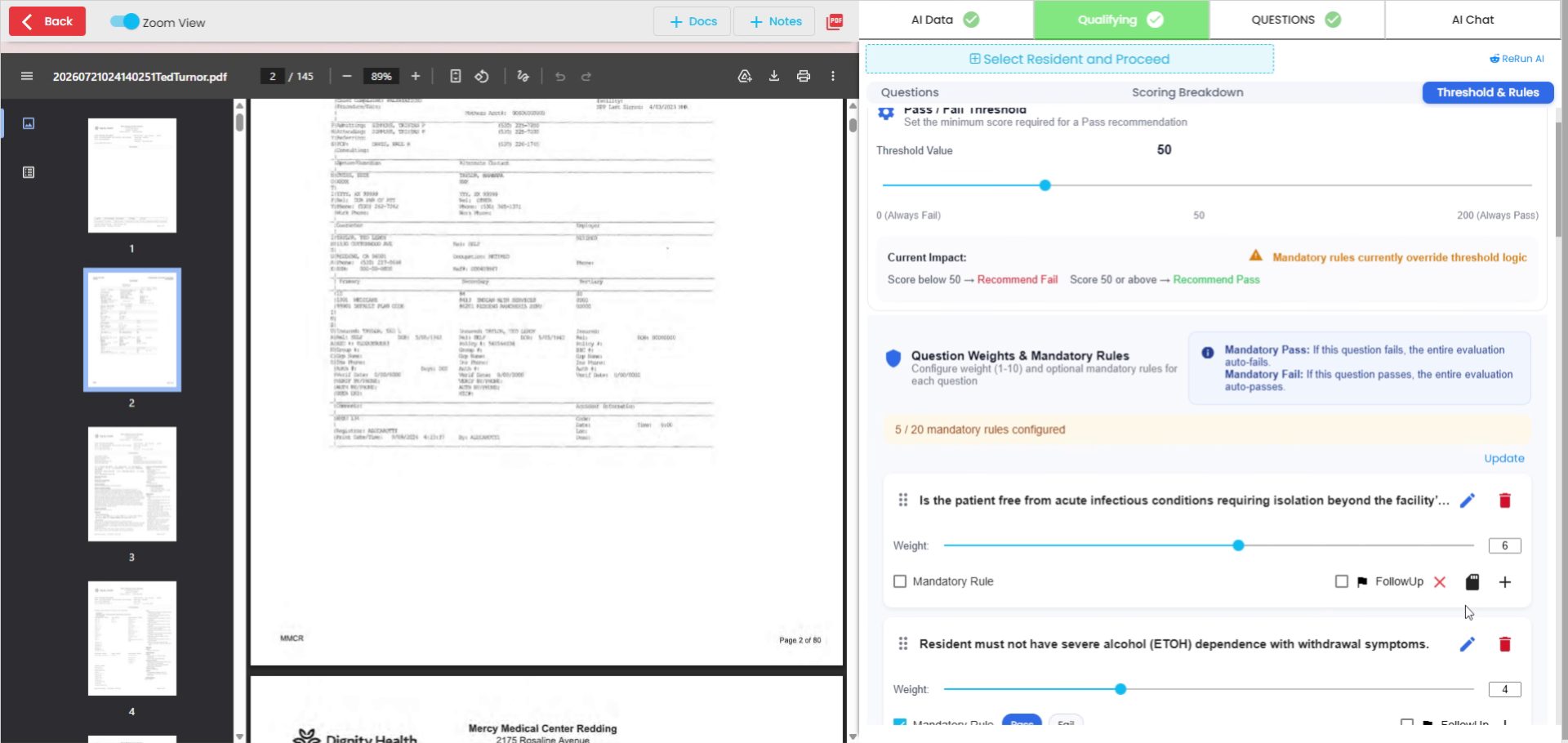
Each qualifying question is assigned a weight that reflects its importance to your facility on a scale from 0 to 10?
18. Threshold and Rules: weighted scores
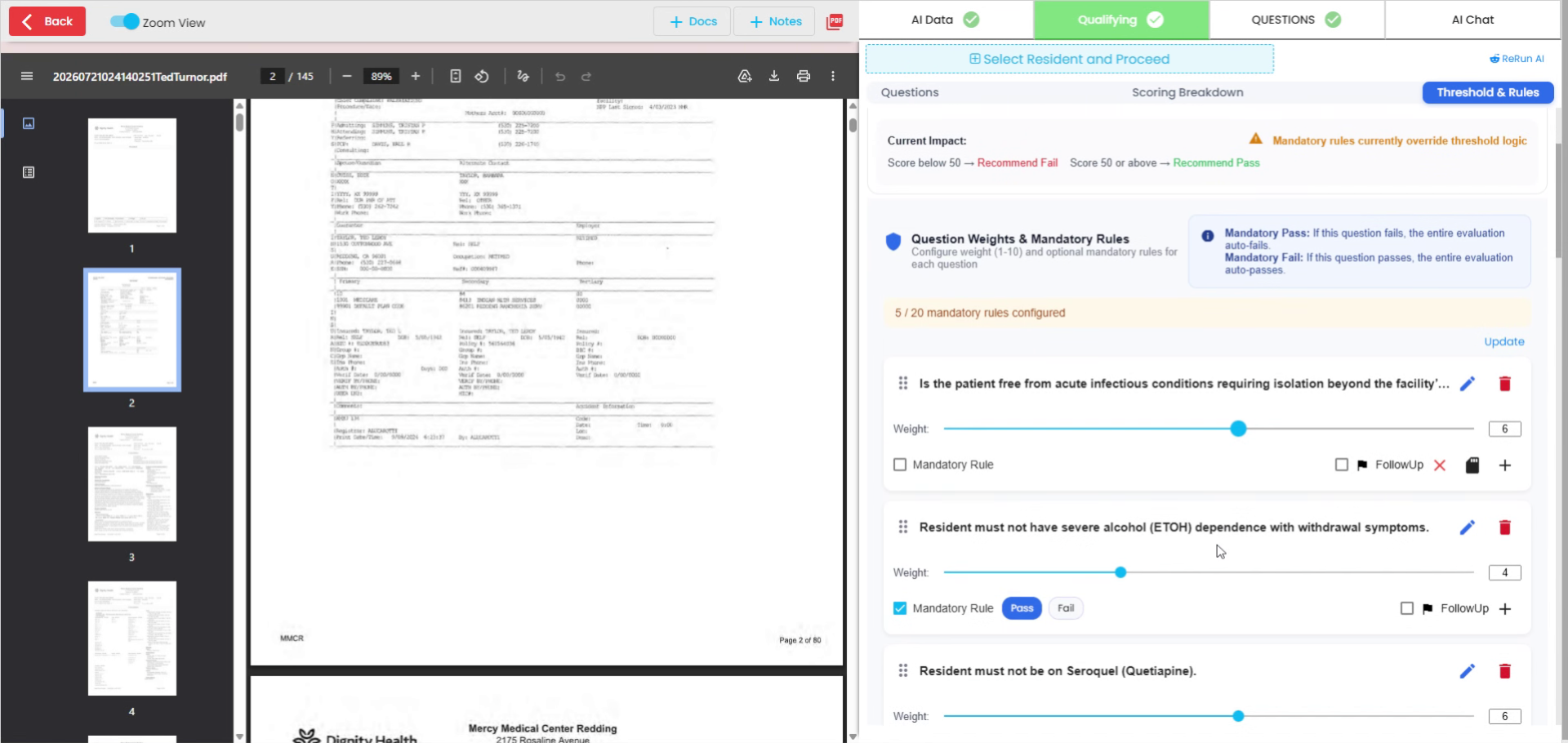
The system combines these weighted scores into an overall score at the top.
19. Adjusting Threshold
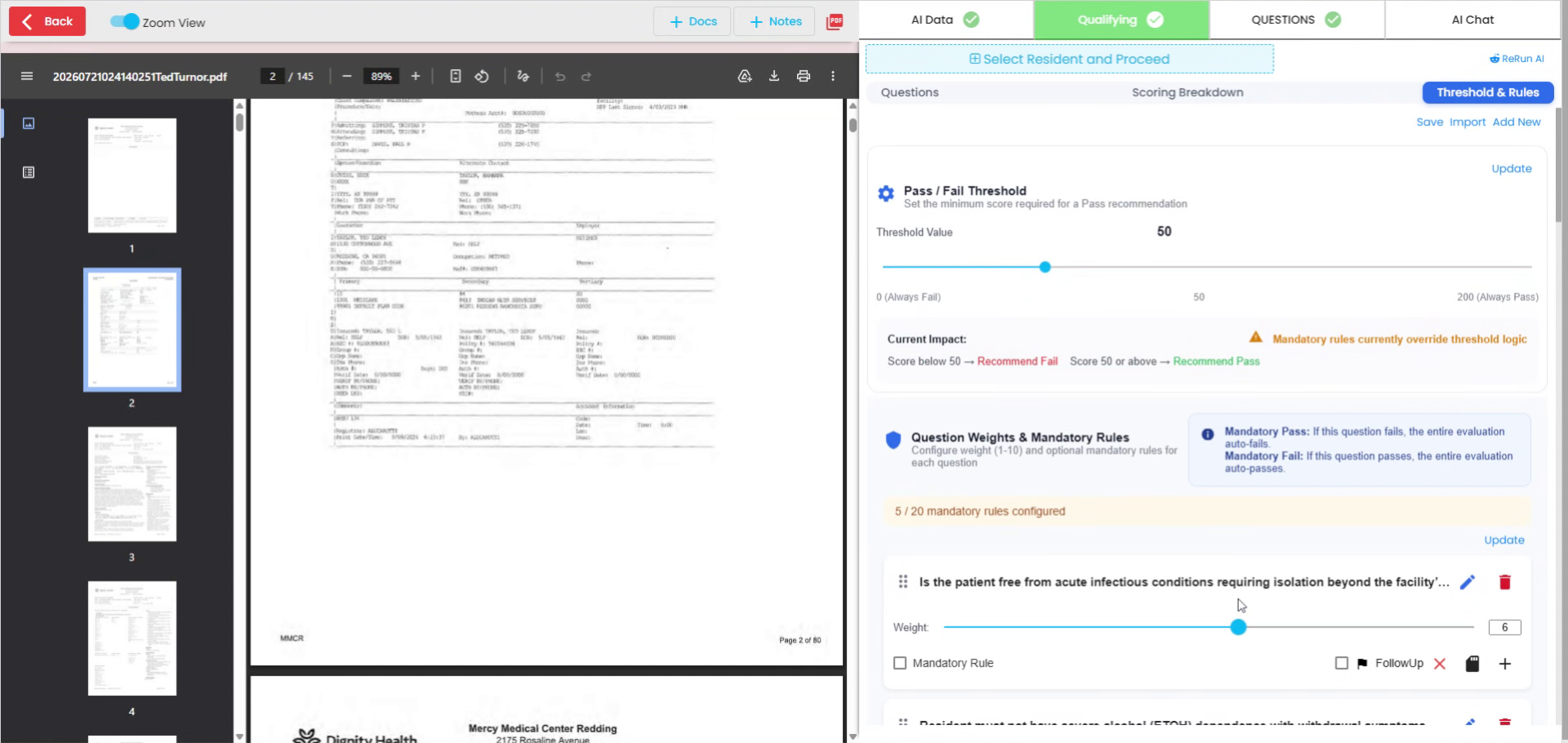
Flowtrics then compares that score against your configured pass or fail threshold. You can adjust these thresholds at any time to control how referrals are evaluated.
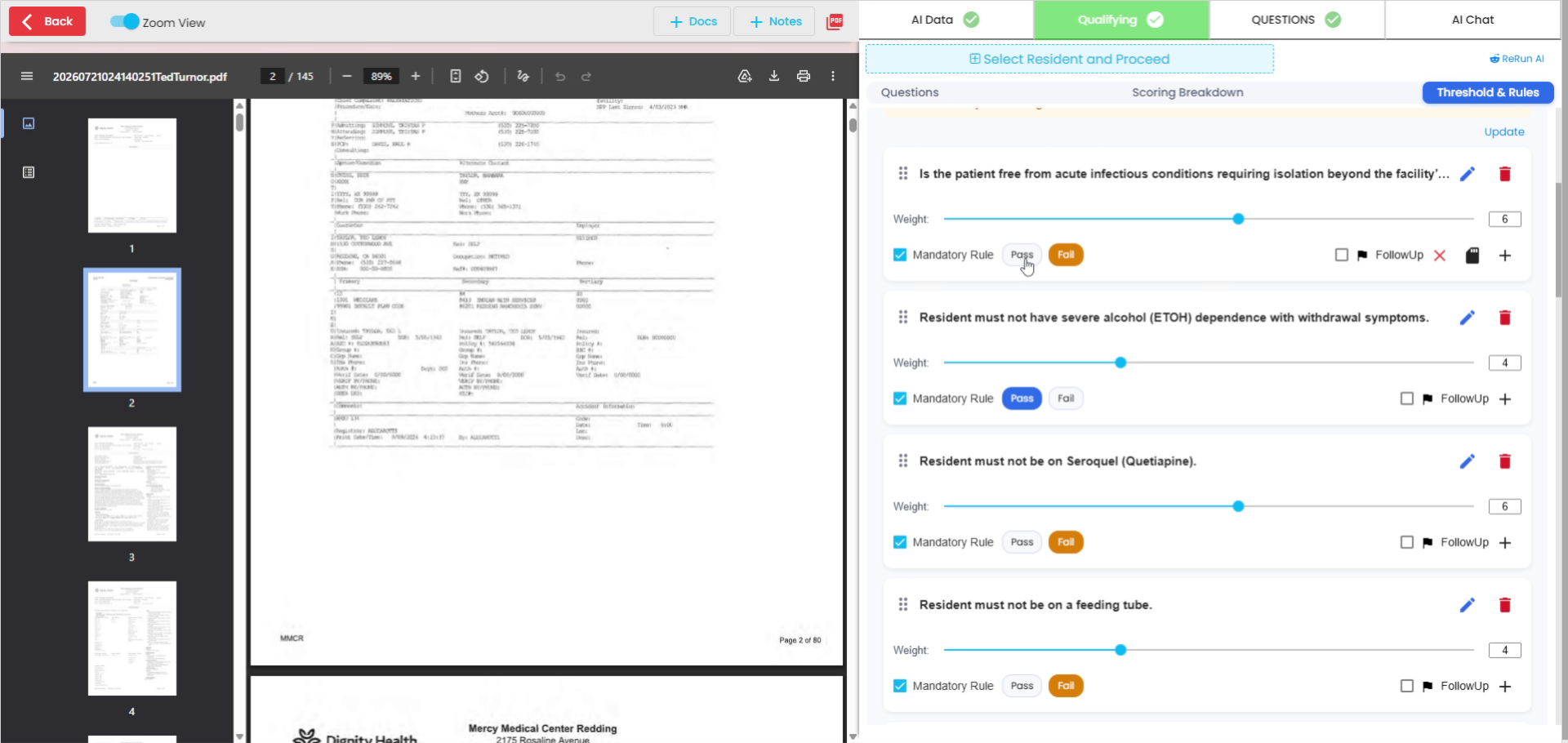
20. Configure Mandatory Fail And Pass Rules
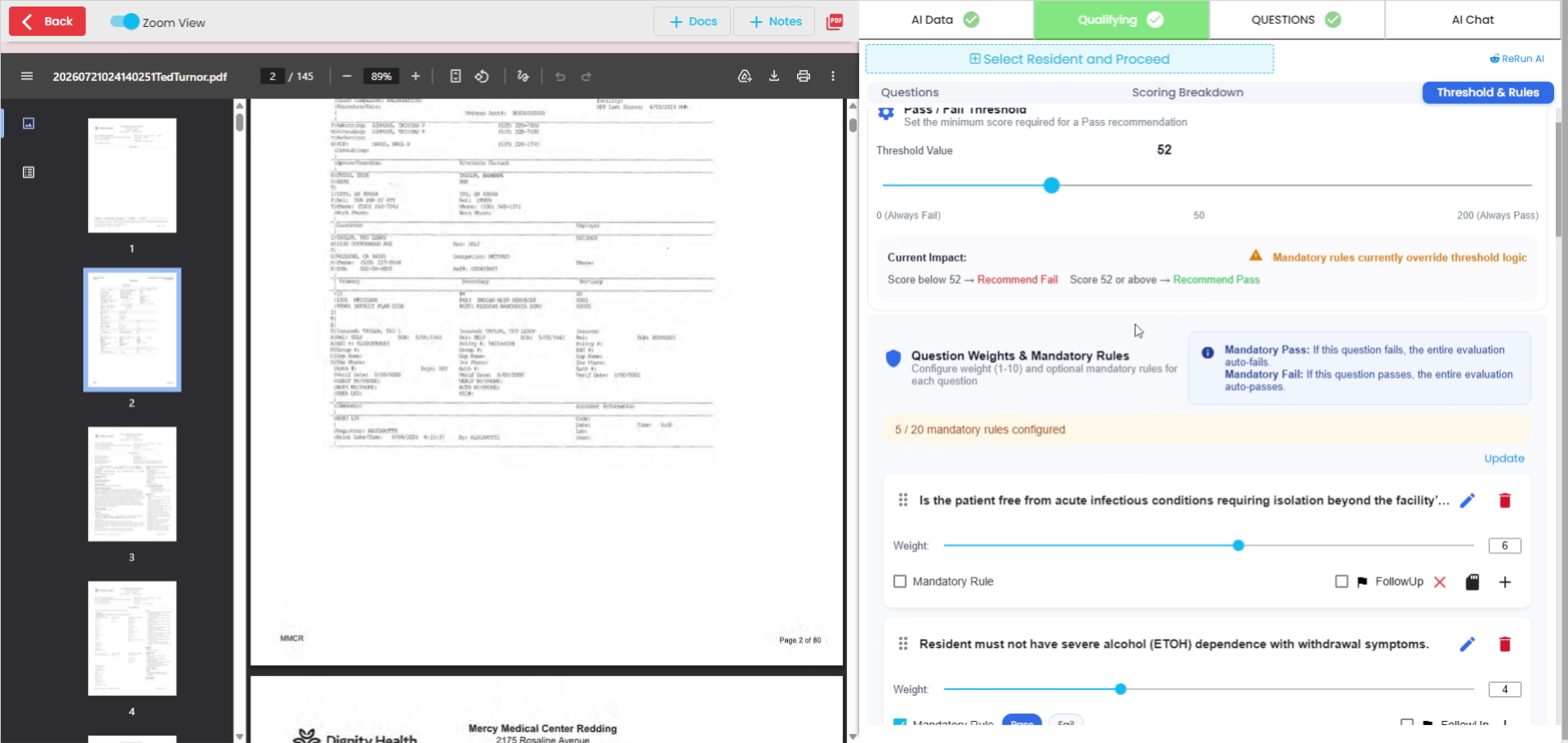
In addition to your Pass and Fail thresholds, you can also create Mandatory Rules. Most referrals are evaluated using their overall weighted score, but a mandatory rule overrides that score. If a specific condition is met, the resident can automatically Pass or Fail, regardless of the results from the other qualifying questions.
21. Configure Mandatory Fail And Pass Rules- example
For example, if a resident exceeds your bariatric weight limit, you can configure a Mandatory Fail rule. If your facility doesn’t have the equipment needed to provide bariatric care, the referral is automatically failed, regardless of the other qualifying questions. The same applies to Mandatory Pass rules. If your facility specializes in services such as memory care or tracheostomy care, you can automatically qualify referrals that meet those criteria, regardless of their overall score.
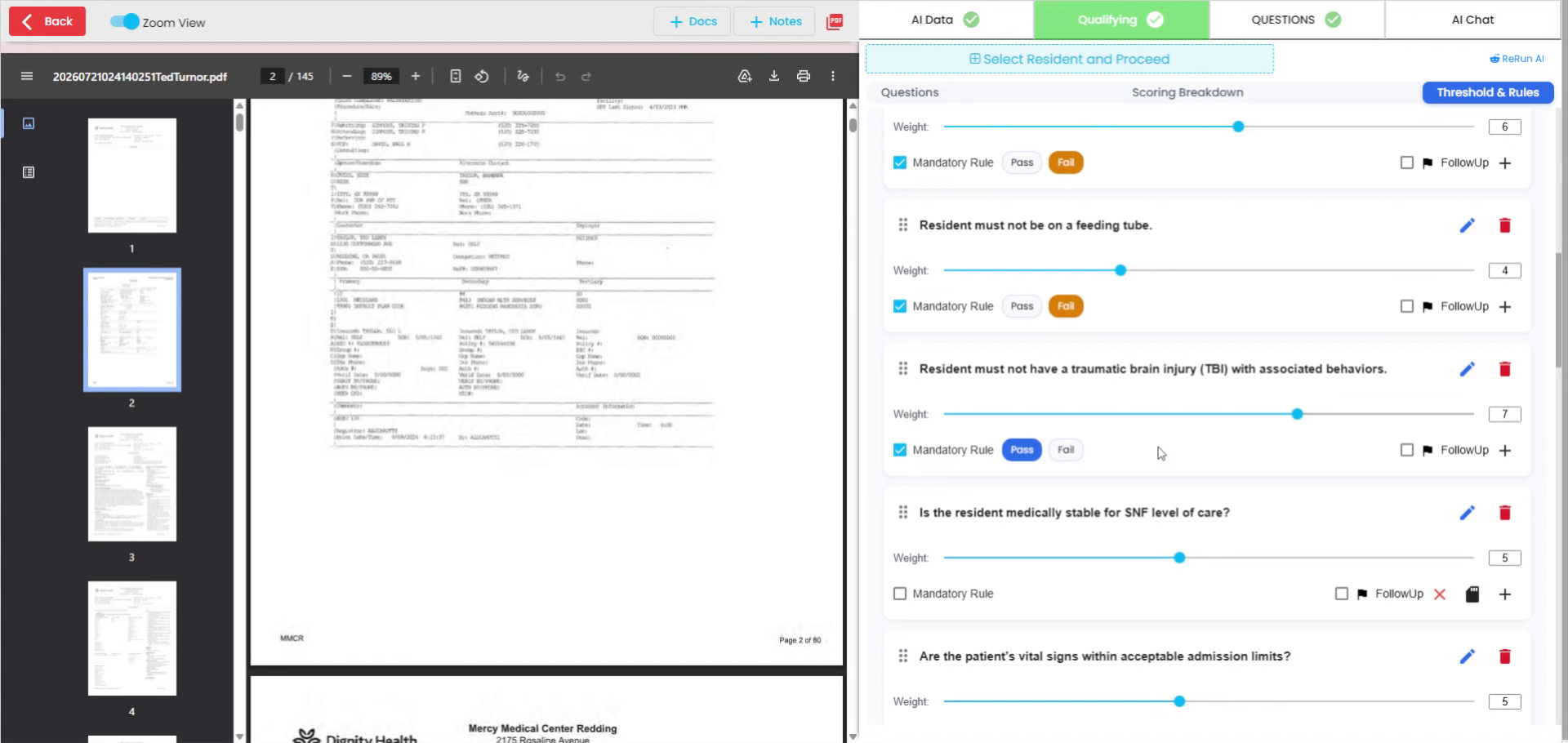
22. Set Mandatory Follow-Up Triggers
The next feature is follow-up rules. These are used to identify items that require additional review after a referral has been evaluated. Unlike pass or fail rules. A follow-up rule doesn’t change the admission decision. Instead, when a qualifying question meets your defined criteria, the system automatically creates a follow-up so your team knows additional action is needed. Once your template is configured and saved. These rules are evaluated automatically.
23. Remember – Important
Remember, this is part of your initial template configuration, so you won’t need to work in this area during your day-to-day workflow. We simply want you to understand how the answers displayed in the Questions and Scoring Breakdown tabs are generated.
24. Scoring Breakdown
Now, for every referral, you can review the results in the scoring breakdown, which shows how each qualifying question was evaluated.
25. Additional Features in AI Tool
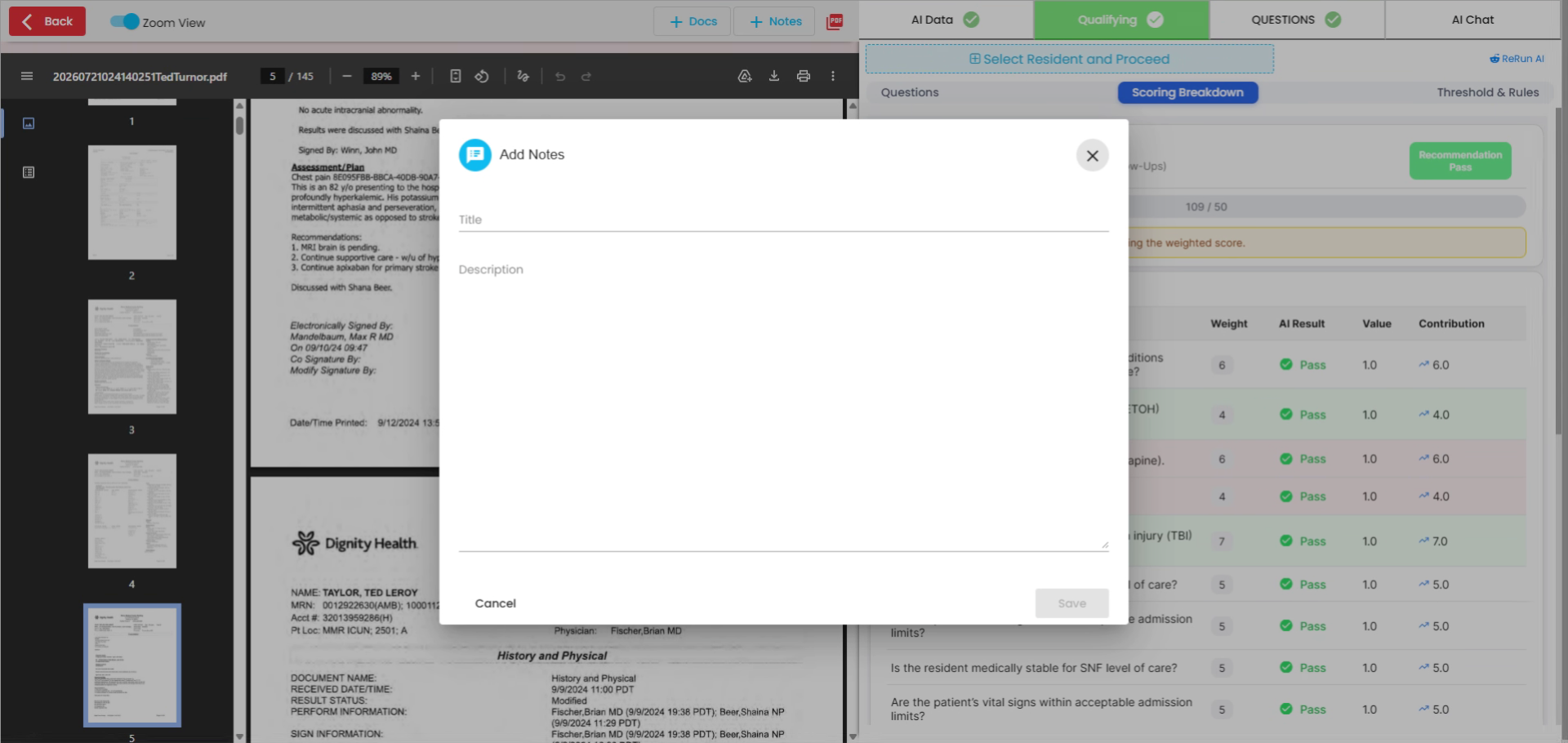
Once the referral has been processed, you can review the documents, upload additional documents as they become available, and rerun the AI to incorporate the new information. You can also add notes to capture important details that should be considered as part of the referral review.
26. Add Notes And Additional Documents
You can also add your own information at any time. For example, if new information becomes available, simply paste the information into the notes section. That content is analyzed by AI just like your uploaded documents. These are the primary ways to bring information into the system after the AI has initially run.
This tutorial guided you through managing referrals in Flowtrics, covering document uploads, AI data extraction, qualifying questions, scoring, and acceptance processes.
0 Comments