
Syncing Completed Forms and Documents to PointClickCare – Manually and Automatic – (4:55)
This video demonstrates how to sync completed forms and documents from Flowtrics directly to the resident record in PointClickCare. It covers both manual uploads and automated syncing for finished, signed forms converted to PDFs.
1. Opening Resident Record (1)
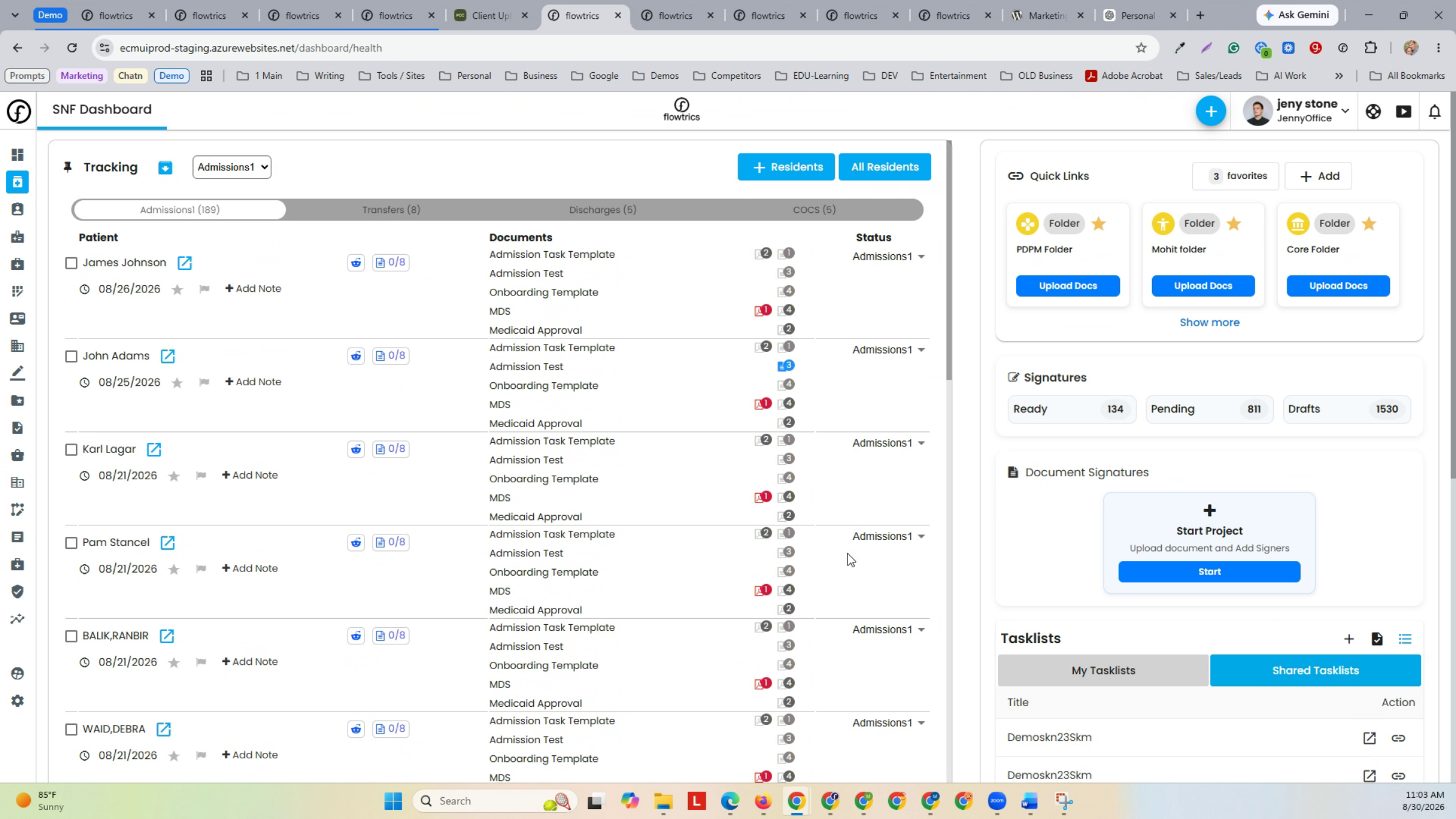
Let’s get started. As with our other trainings, we’ll begin here on the Dashboard so you know exactly where we are. From here, we’ll open a resident record. For this example, we’ll use John Adams. You’ve already completed the PointClickCare training on how to sync a resident, and in this case, John has already been synced, which is indicated by the green PointClickCare icon.
2. Opening Resident Record (2)
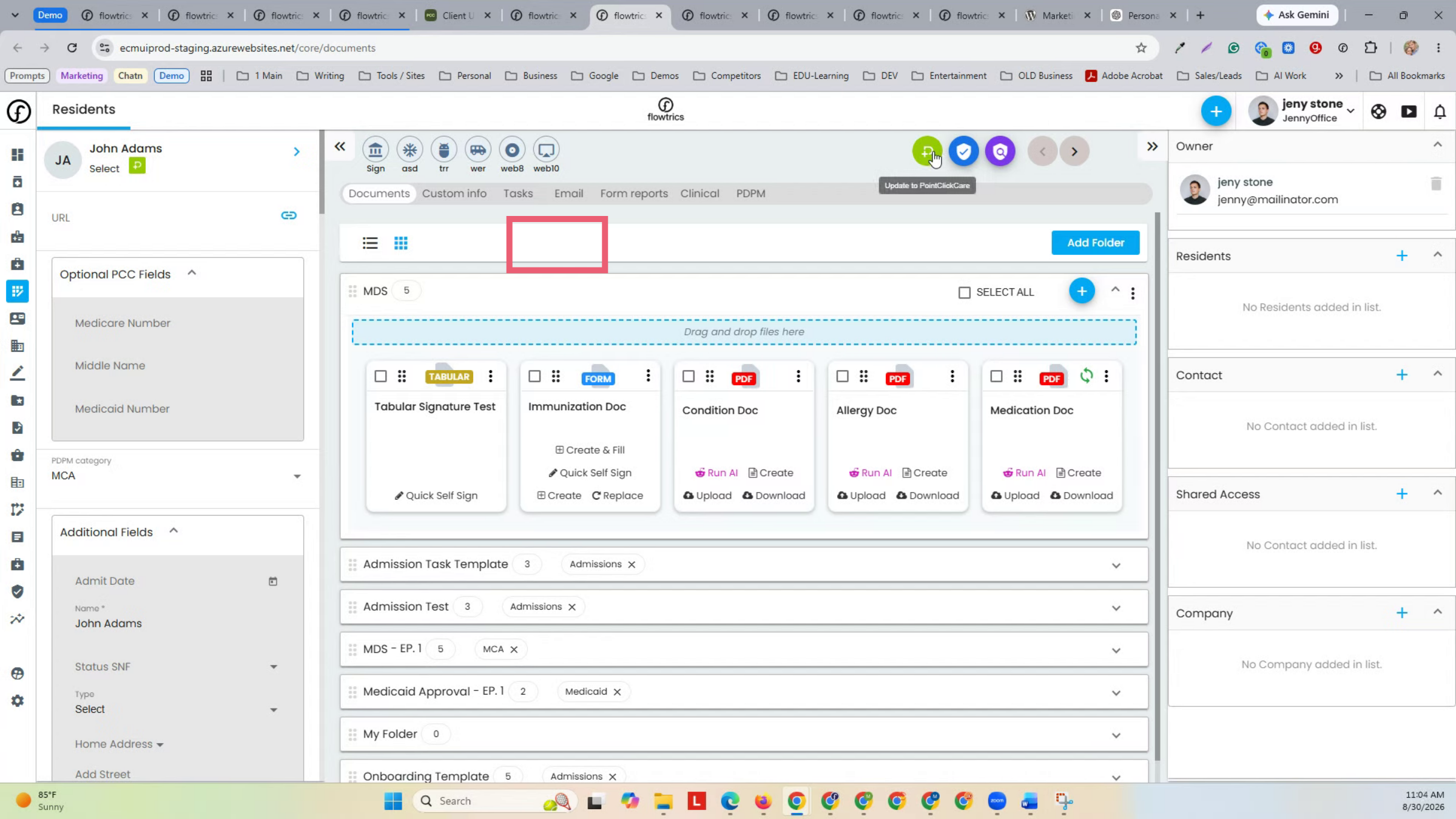
Now we’re going to sync his documents. Simply select the document you want to send. Once it’s selected, the upload option will appear at the top. Select the Upload icon to continue.
3. Uploading Documents To PointClickCare
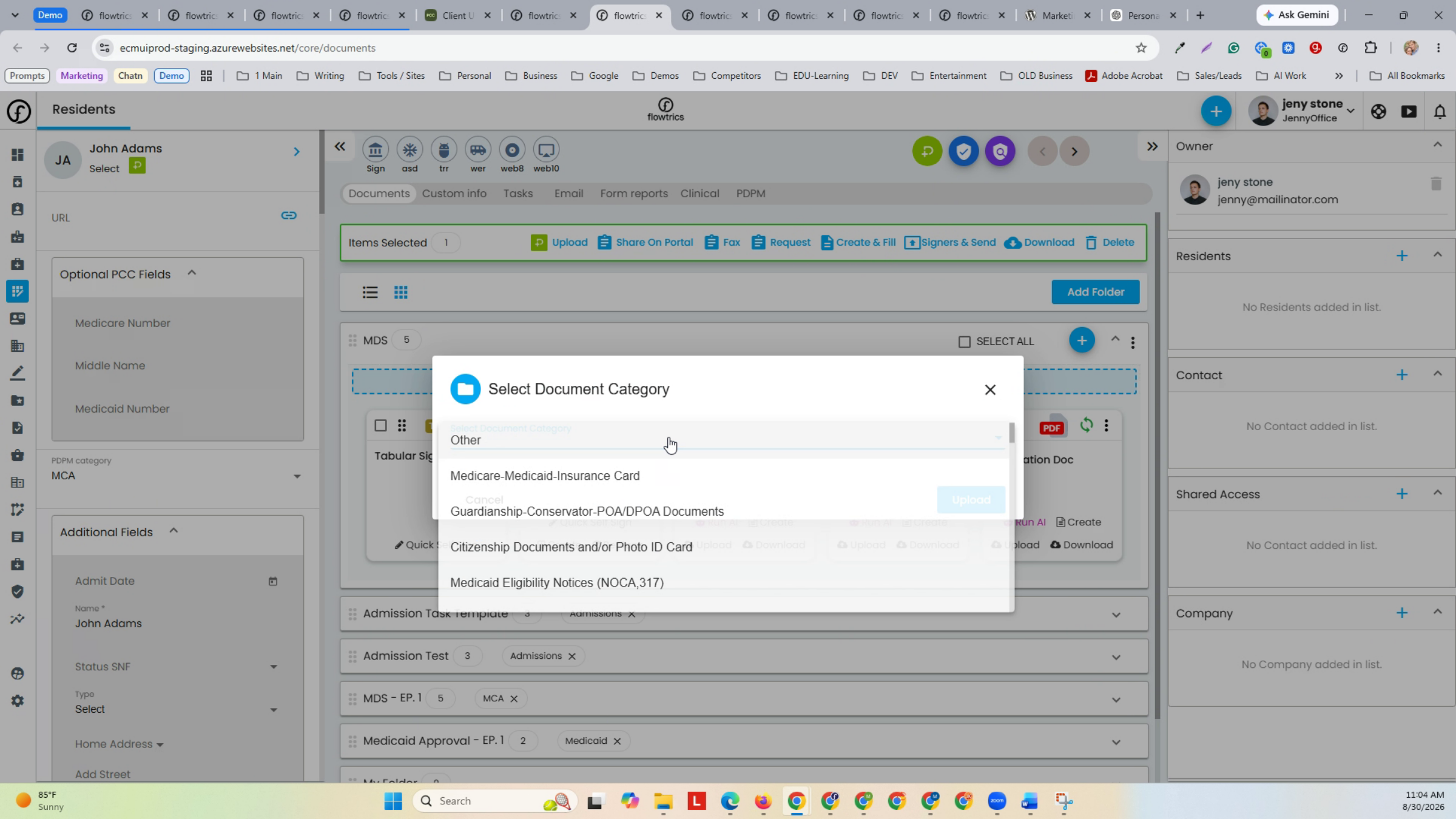
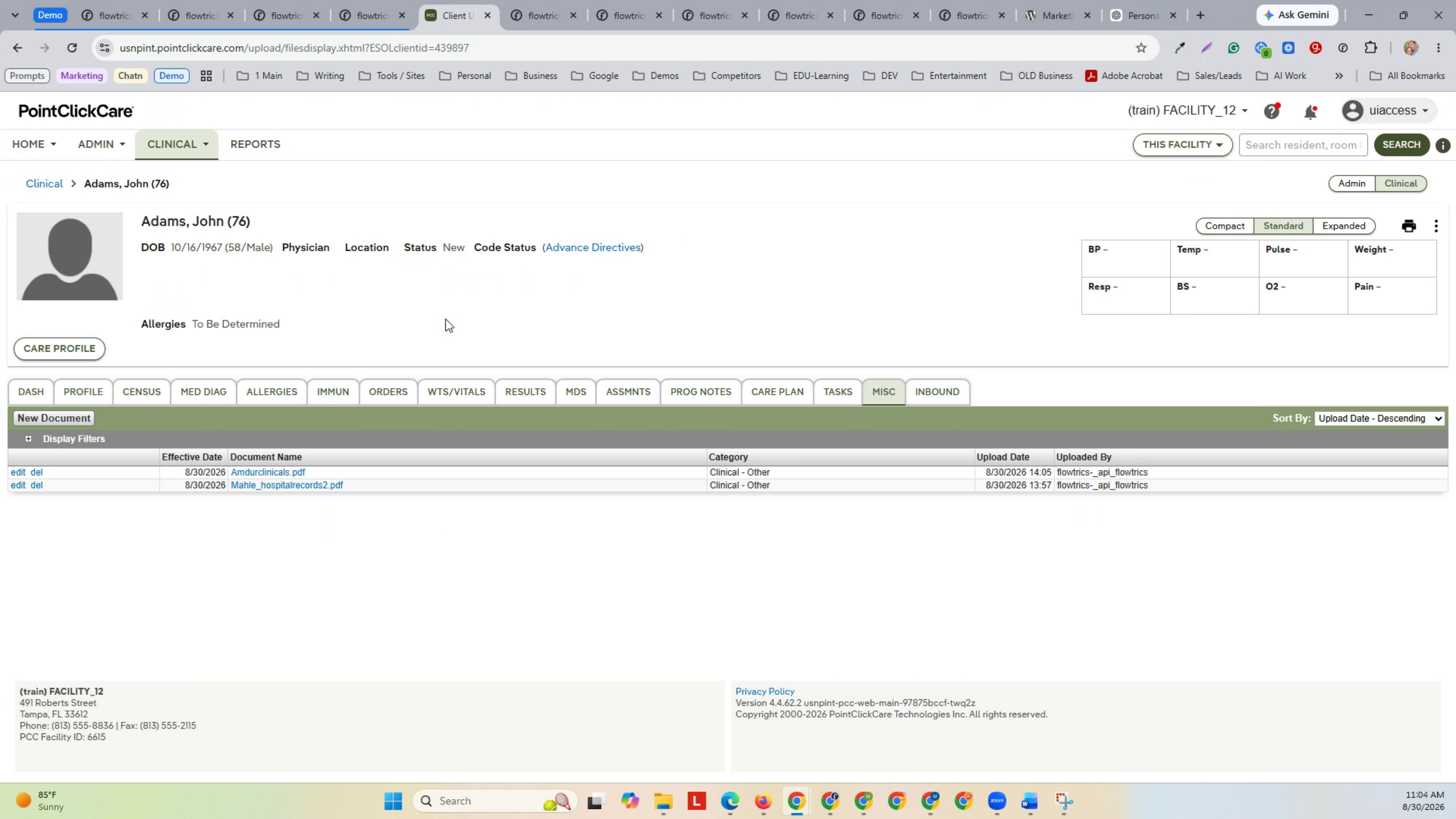
Next, use the dropdown to choose where you want the document to be filed in PointClickCare. For this example, we’ll select Clinical Other, then select Upload. Flowtrics will confirm that the document was successfully uploaded to PointClickCare. Now, if we return to John Adams in PointClickCare and refresh the record, you’ll see the documents are now available here. You can also see when each document was received and who uploaded it. Everything is now stored in PointClickCare and ready to use. That’s how you sync documents from Flowtrics into PointClickCare.
4. Form Signing And PDF Conversion
The second thing we’ll cover is how Forms work with PointClickCare. A form cannot be sent to PointClickCare until it has been fully signed and converted into a PDF.
5. Setting Auto-Sync For Finished Forms
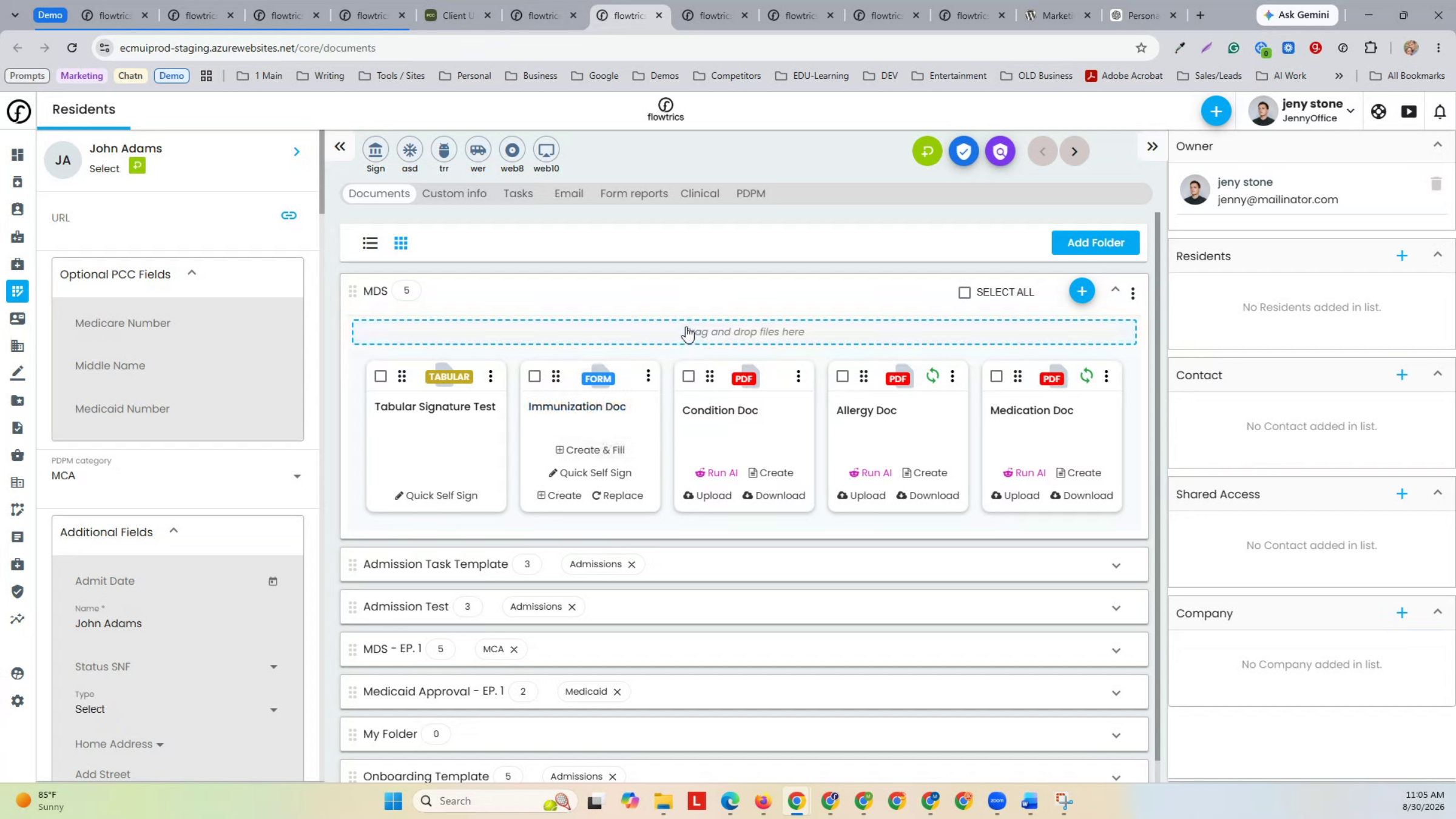
You can also tell Flowtrics where you want the completed form to go in PointClickCare once it’s finished. To do that, select the ellipsis icon on the right side of the form. This opens the menu on the right-hand side. From here, choose the PointClickCare document category you want to use. For this example, we’ll select Advanced Directives, then select Save. You’ll now see a small tag next to the form showing that destination. Once the form has been completed, signed, and converted into a final PDF, Flowtrics will automatically send it to PointClickCare under that selected category. You can also preset these destinations in advance, so the correct PointClickCare location is already assigned when the form is completed.
6. Template Setup For Auto Sync
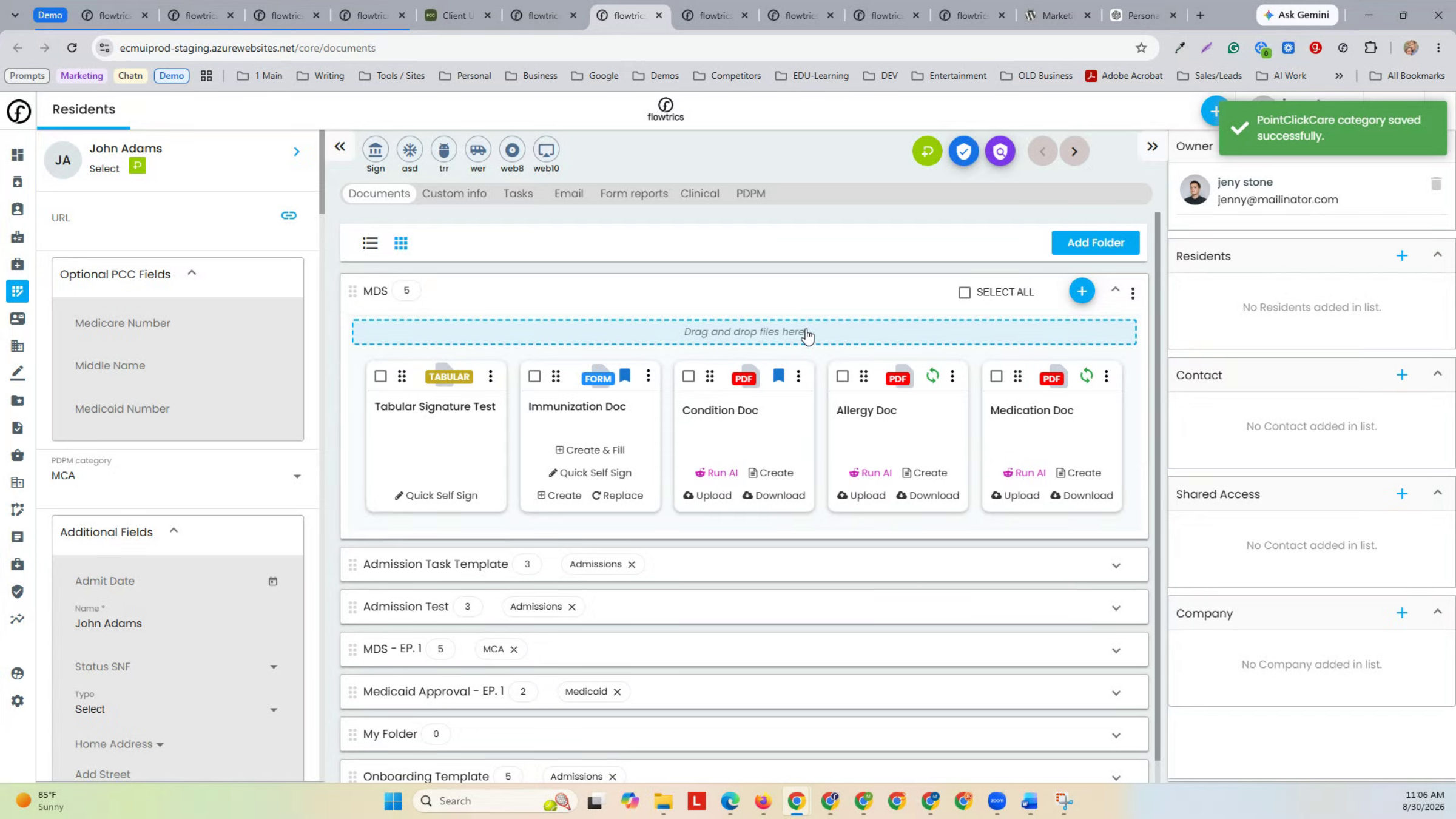
Once a document is uploaded into one of these configured placeholders, Flowtrics can automatically sync it directly to PointClickCare. The real benefit is that these destinations can be saved as part of the template ahead of time. That means each placeholder can already know exactly where the document should go in PointClickCare. So, when a document is added here, the sync can happen automatically without you having to select the destination each time. You can also see which documents have already been synced, along with the PointClickCare location assigned to each one.
7. Adding Placeholder Names
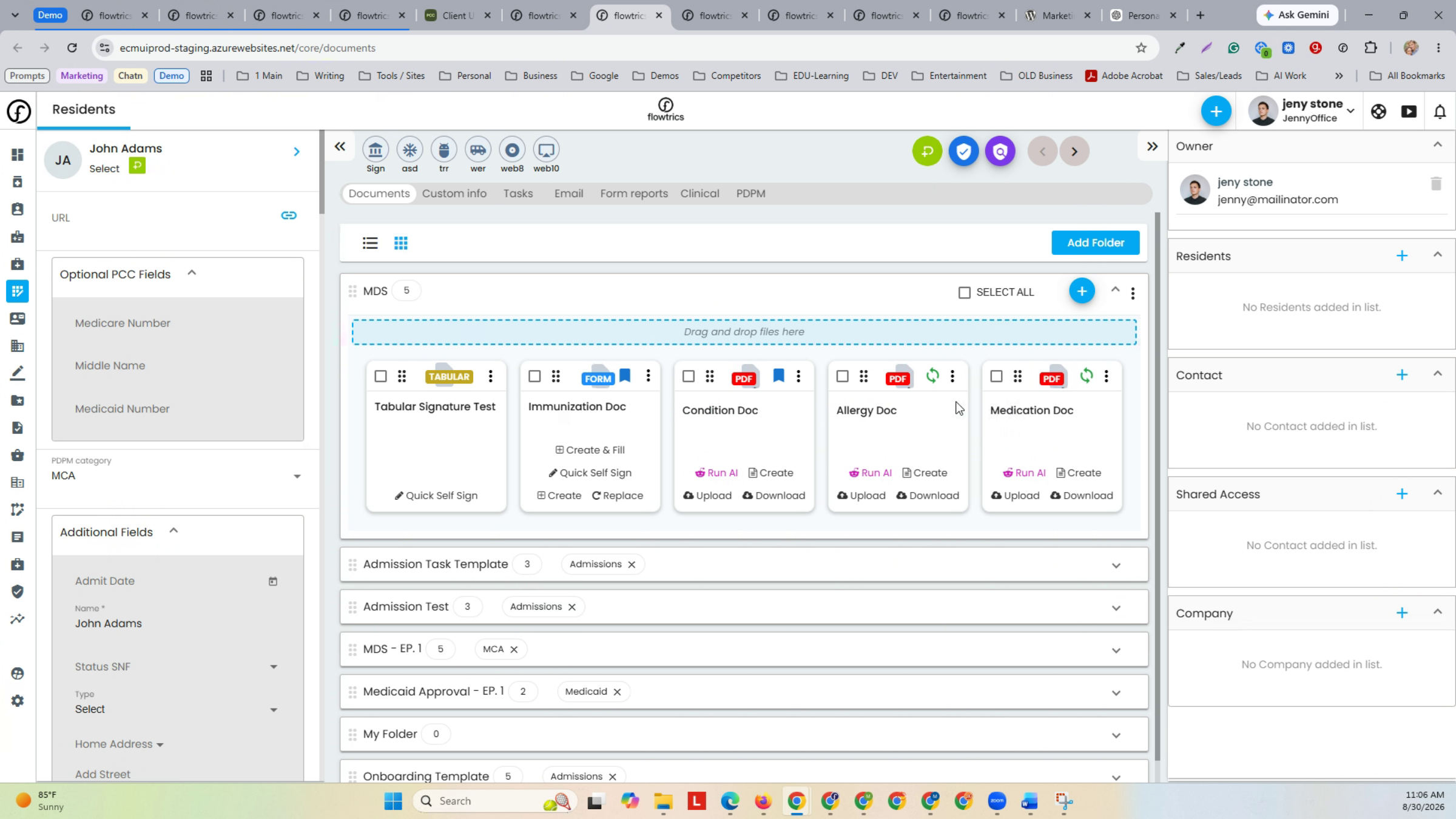
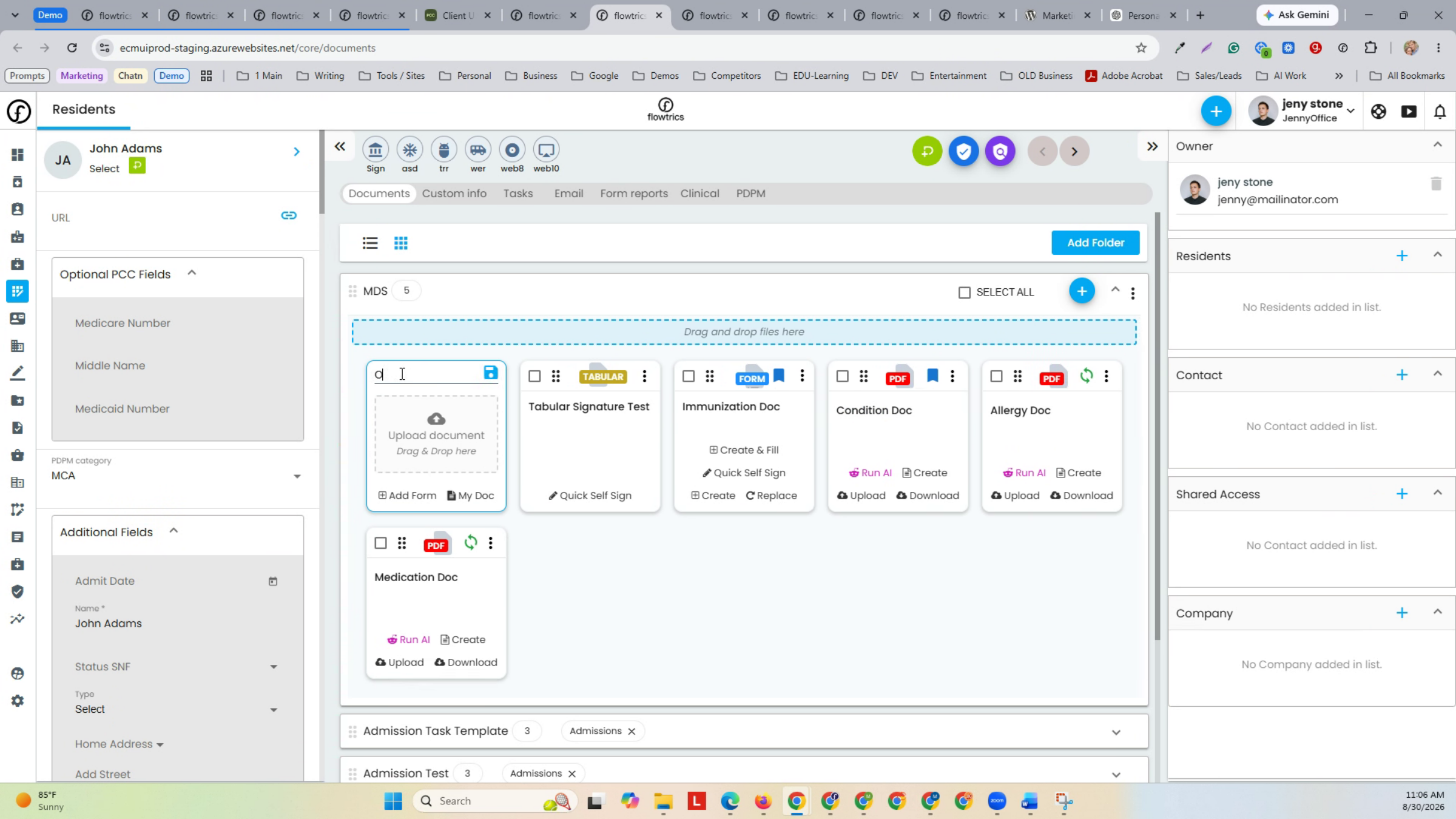
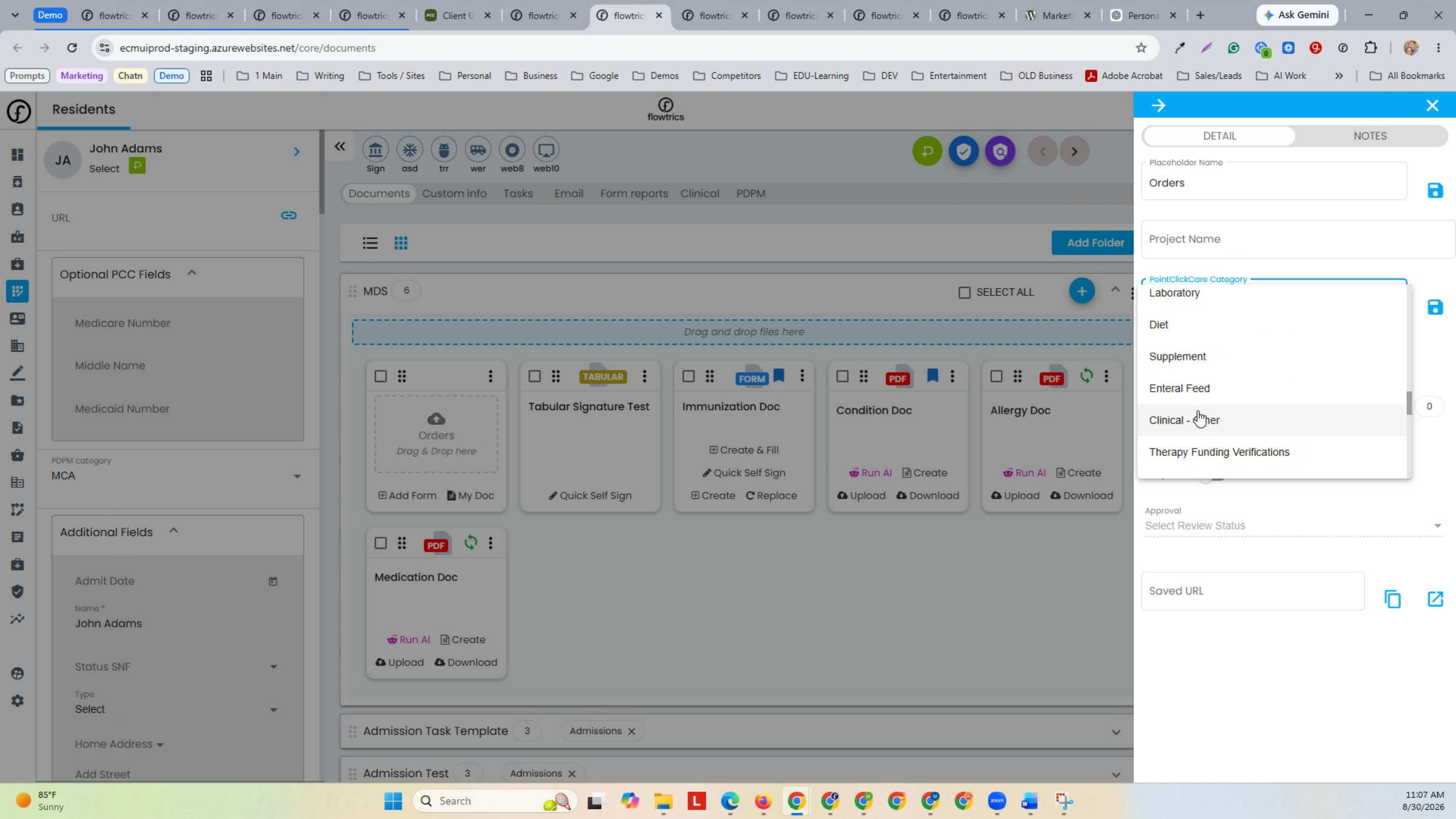
Now that you’ve seen how this works with forms, let’s look at the same process using a document placeholder. For example, if I add a new placeholder and name it Orders, I can configure that placeholder for the specific type of document I want to collect.
8. Assigning Placeholders To Categories
Select Save, and now that placeholder is part of the template. From here, I can assign its PointClickCare destination—for example, Orders Clinical—so any document added to this placeholder knows exactly where it should go.
9. Saving Template Auto Sync Settings
Select Clinical, then select Save. Now the template knows that any document placed in this placeholder should automatically sync to PointClickCare for you.
10. Final Sync Confirmation And Wrap Up
Now, when a document is uploaded here, it can automatically sync directly to PointClickCare. If this is saved as part of a template, that process happens automatically each time a document is added to the configured placeholder. If we return to PointClickCare and refresh the resident record, we should now see all three documents available here. And that’s how Flowtrics allows you to send documents to PointClickCare either manually or automatically, depending on how your workflow is configured. Thank you for completing this training.
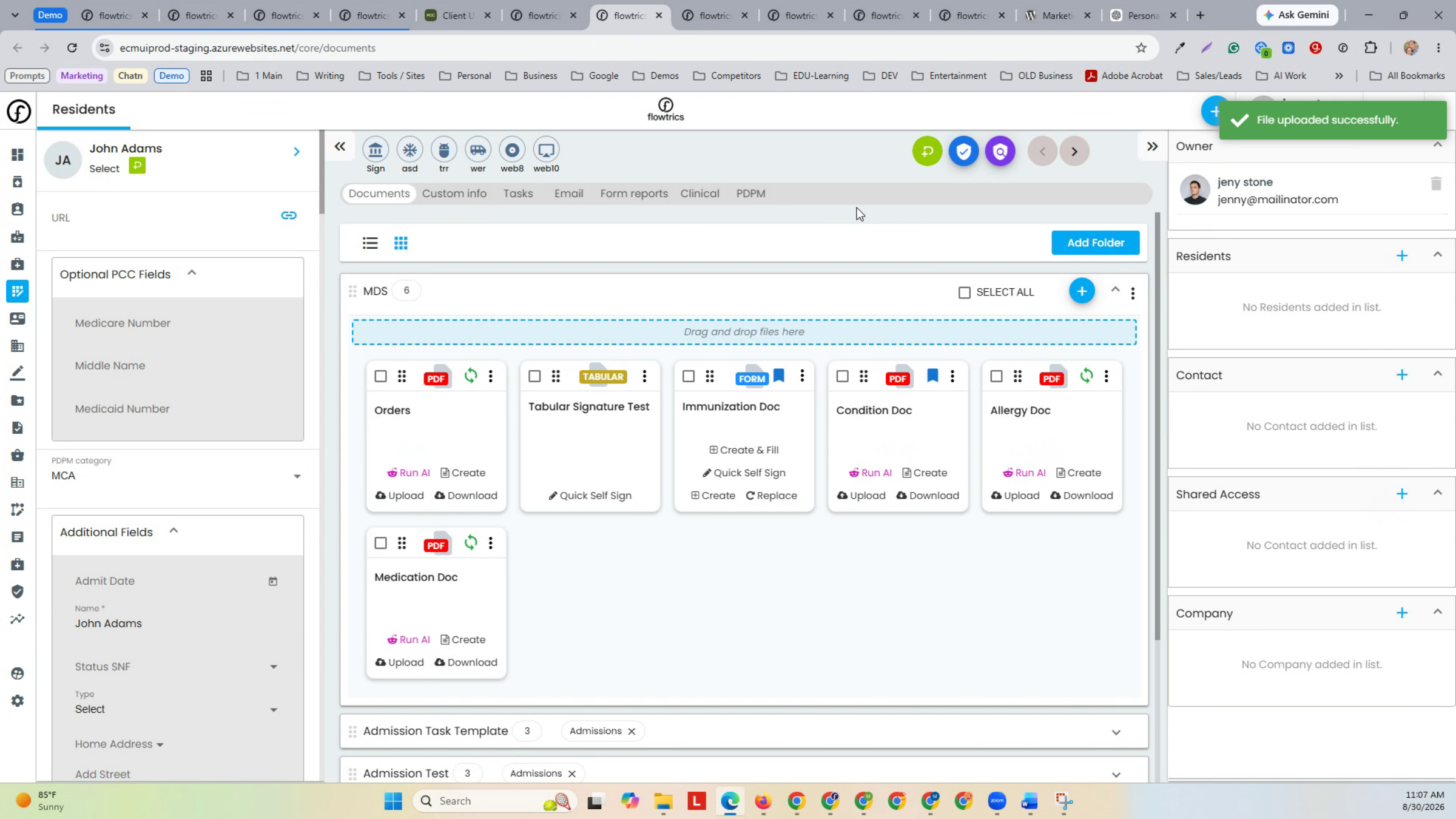
In this video we learned to upload and automatically sync signed forms and documents from Flowtricks to PointClickCare, ensuring all resident records are up to date efficiently.
0 Comments