
Setting Up Flowtrics Browser Extension for Edge and Chrome
This video demonstrates how to set up the Flowtrics browser extension for Microsoft Edge and Google Chrome. It shows how to install, pin, and log in to the extension to capture and send documents to Flowtrics for AI processing workflows and works alongside the applications you already use. We’ll begin with Microsoft Edge.
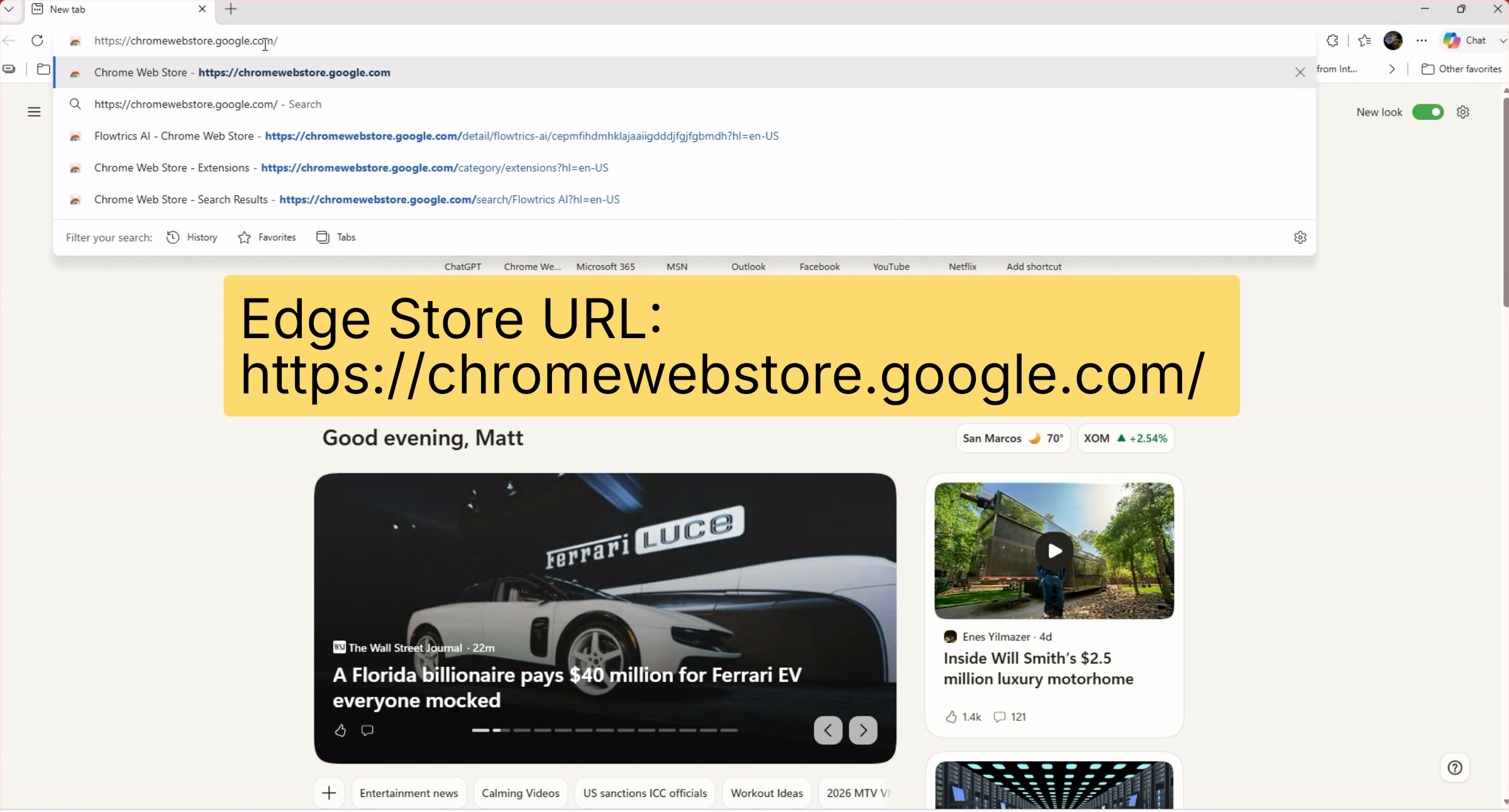
1. Edge Store URL Entry
Open Microsoft Edge to continue and put in the following URL chromewebstore.google.com.
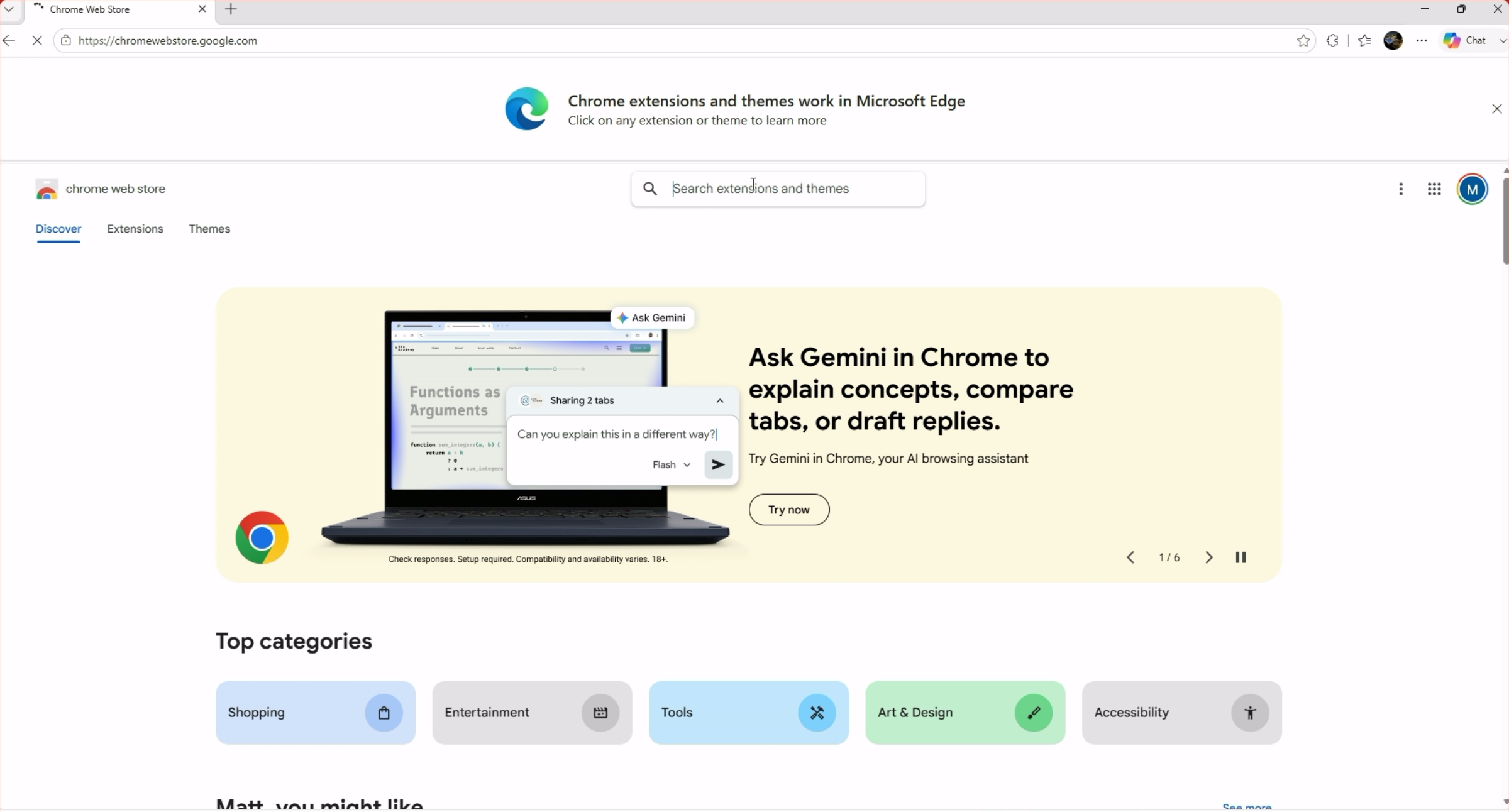
2. Searching Flowtrics Extension
When you’re in this web store, you’re going to type in Flowtrics. This will give you search and refine results for Flowtrics
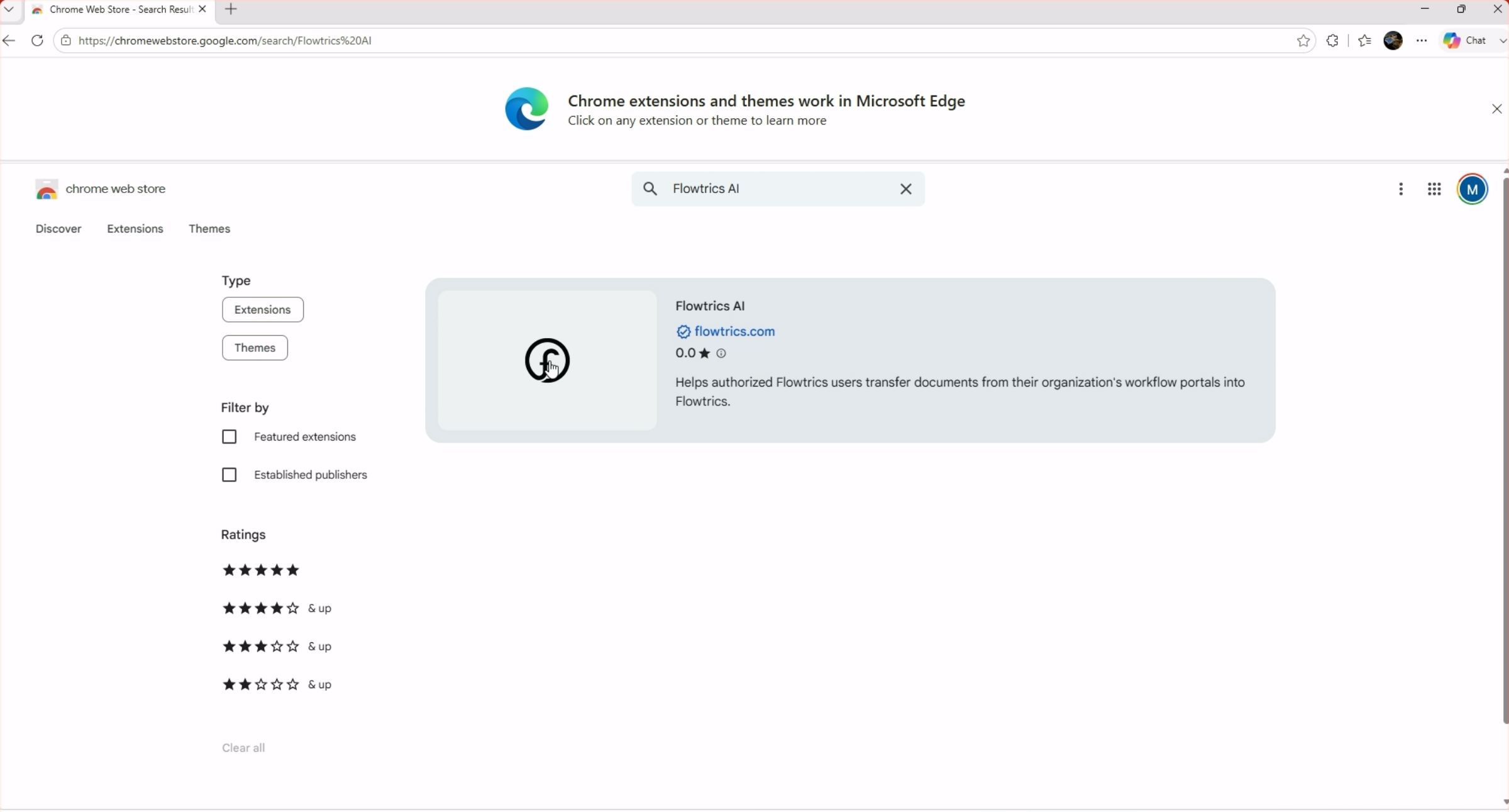
3. Adding Flowtrics Extension
It will pop open, and you’ll click on the Flowtricks icon. There, you’re going to click Get, then add the extension. After downloading the extension,
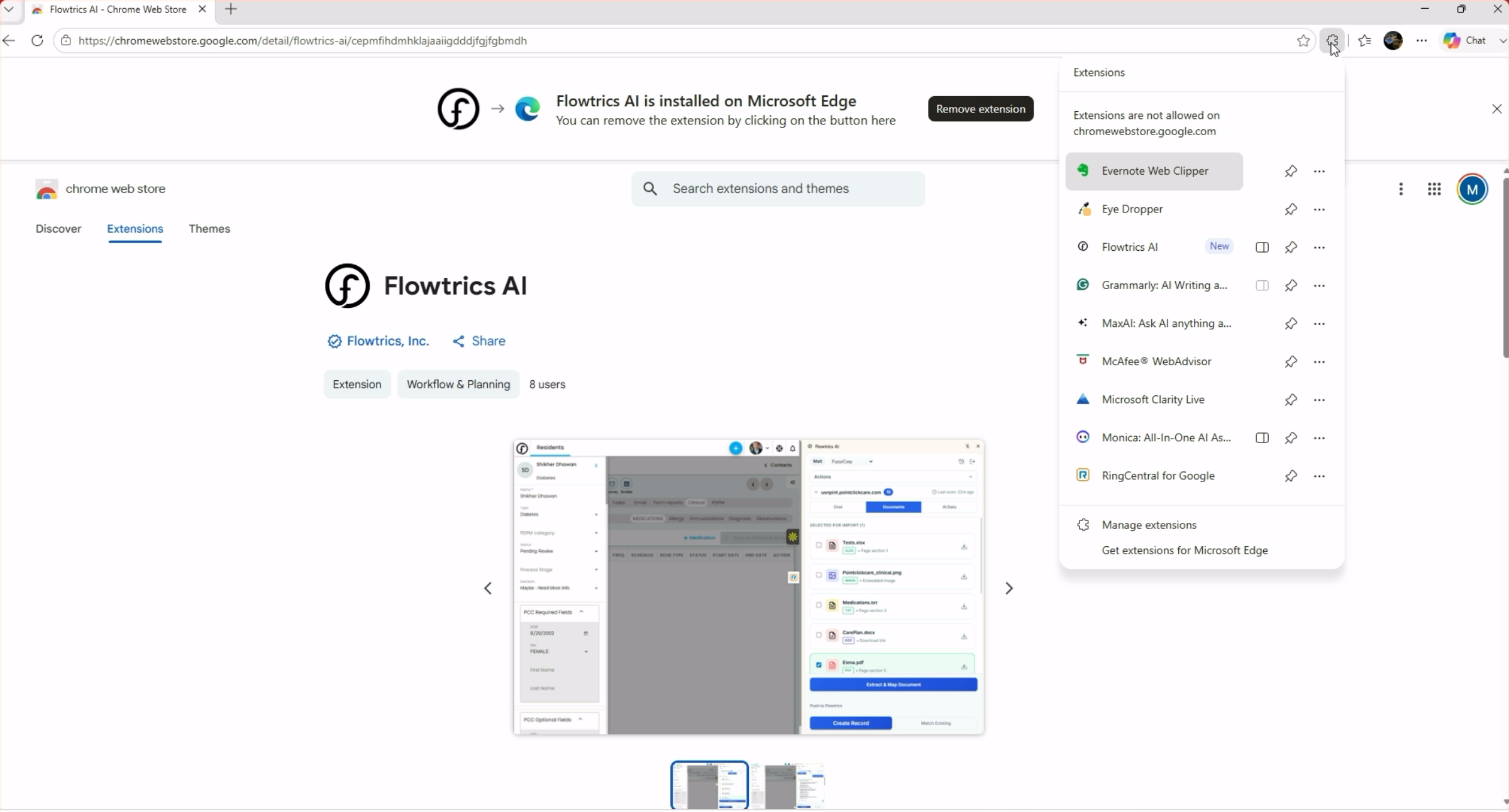
4. Pinning Extension To Toolbar
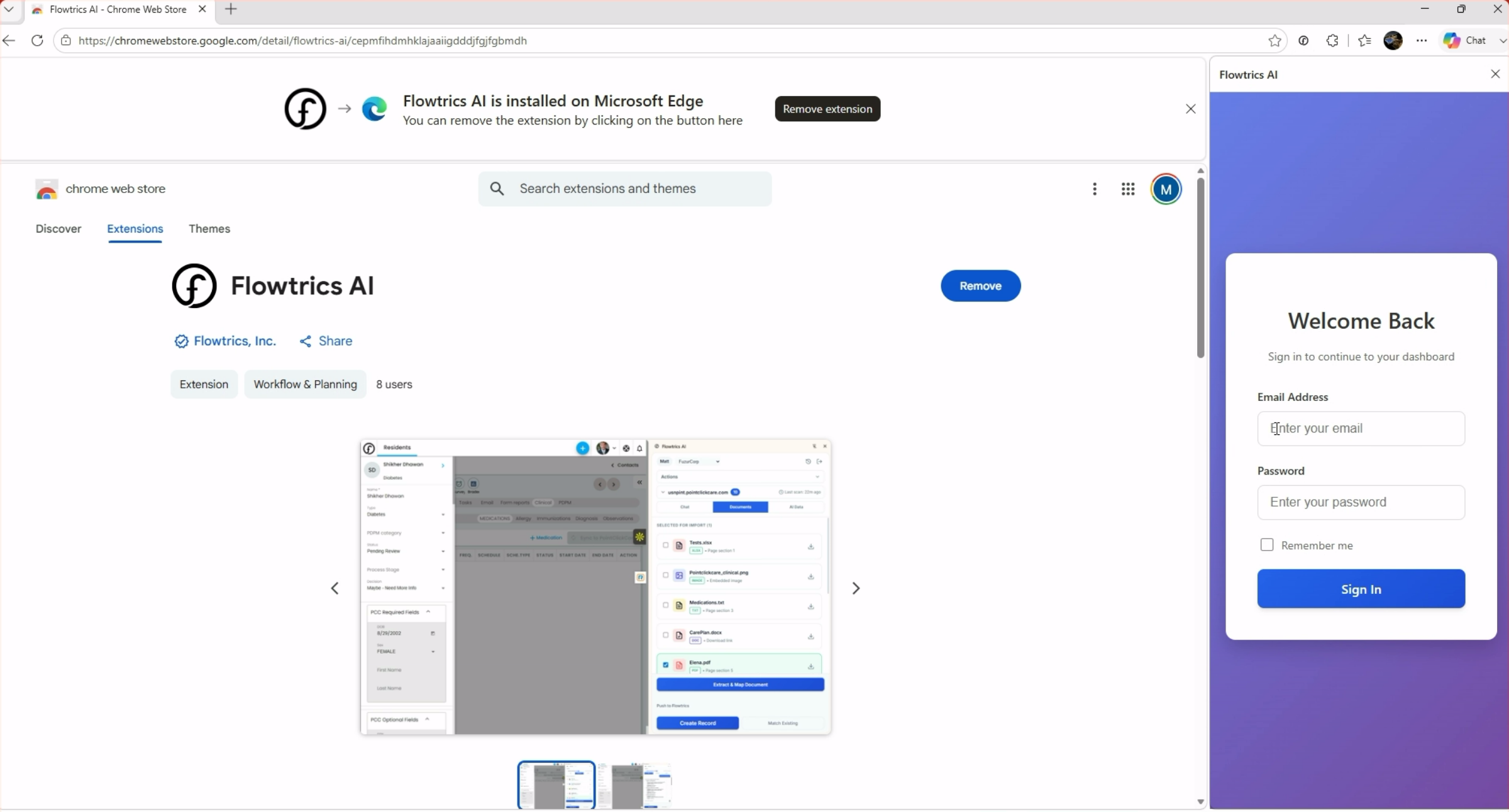
click the little puzzle on the right, go to Flowtricks, and click Pin to Toolbar. At that point, this extension is on your Microsoft browser. Now you can go to the top and find the Flowtrics Icon which will open your extension to login
5. Logging Into Edge Extension (1)
in Edge, you just log in with the same credentials you’d use for Flowtrics. Now let’s jump into Chrome.
6. chromewebstore.google.com
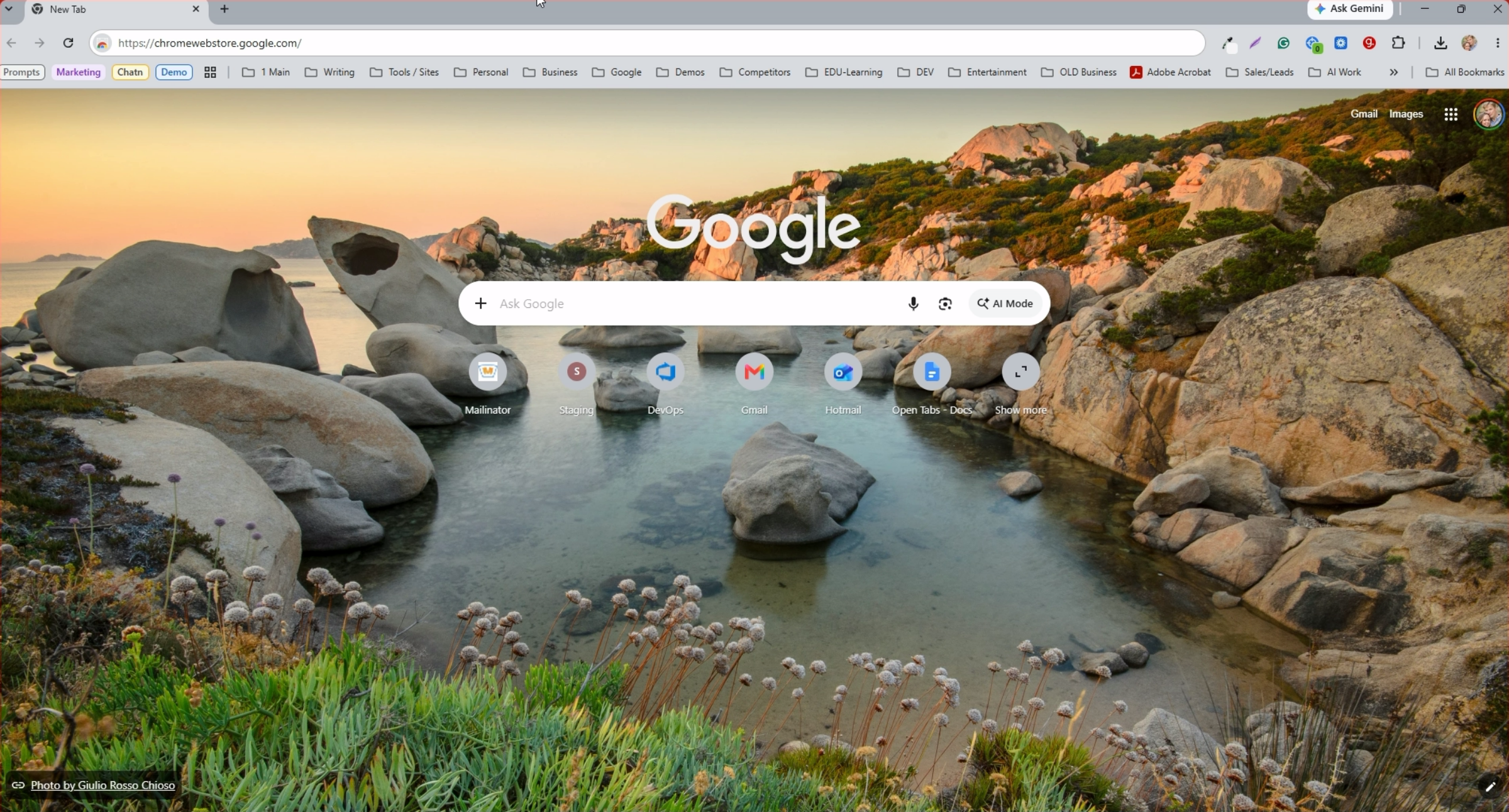
Open Google Chrome, and you will use the same URL to access the flowtrics extension: chromewebstore.google.com

7. Opening Chrome Web Store
and you click enter.
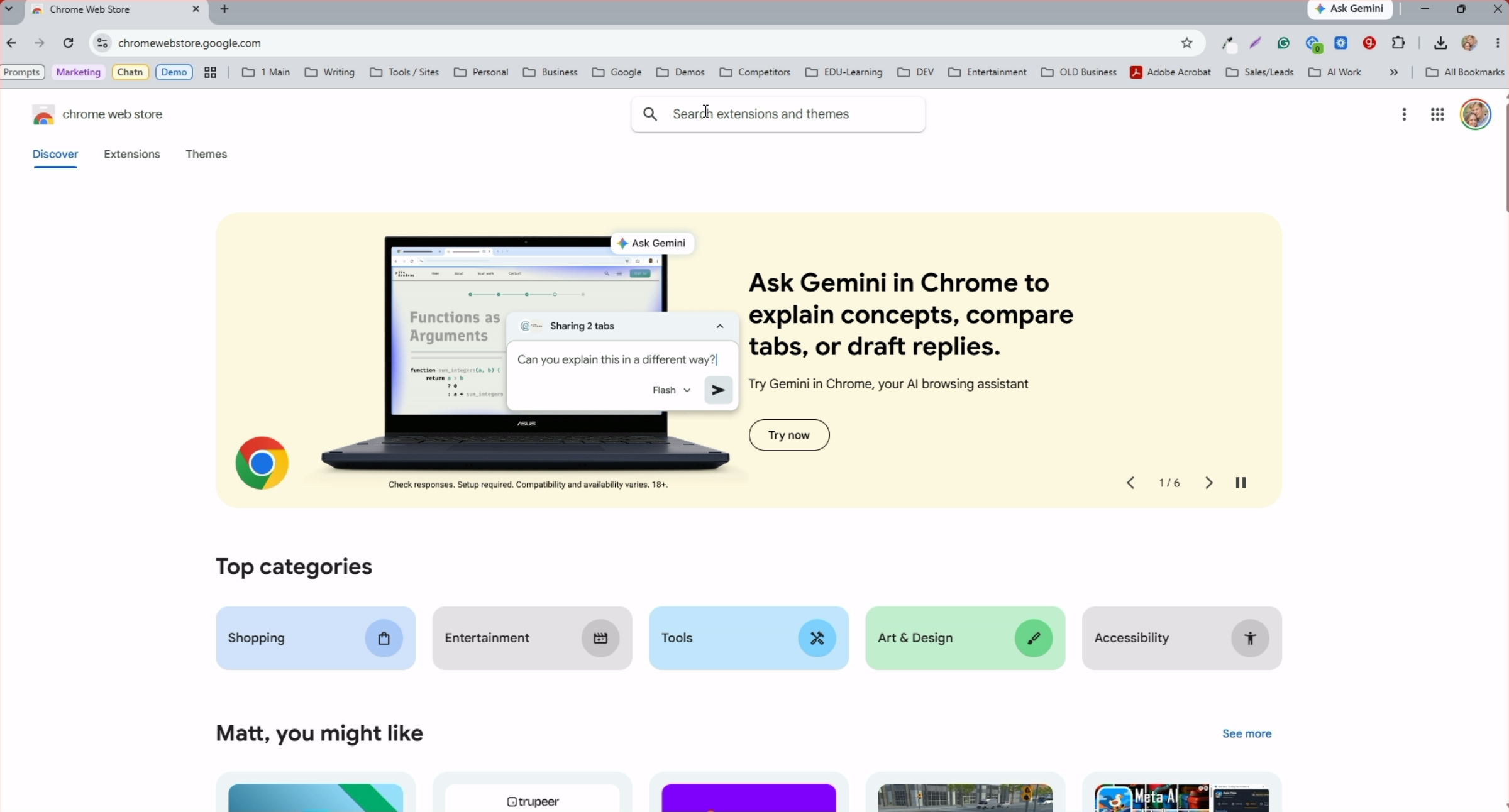
8. Installing Flowtrics On Chrome
This will open the Chrome Web Store. From here, search for Flowtrics, then select Flowtrics AI. In the results, click on the icon. On the extension page, select Add to Chrome and then add Extension in the popup to begin the installation
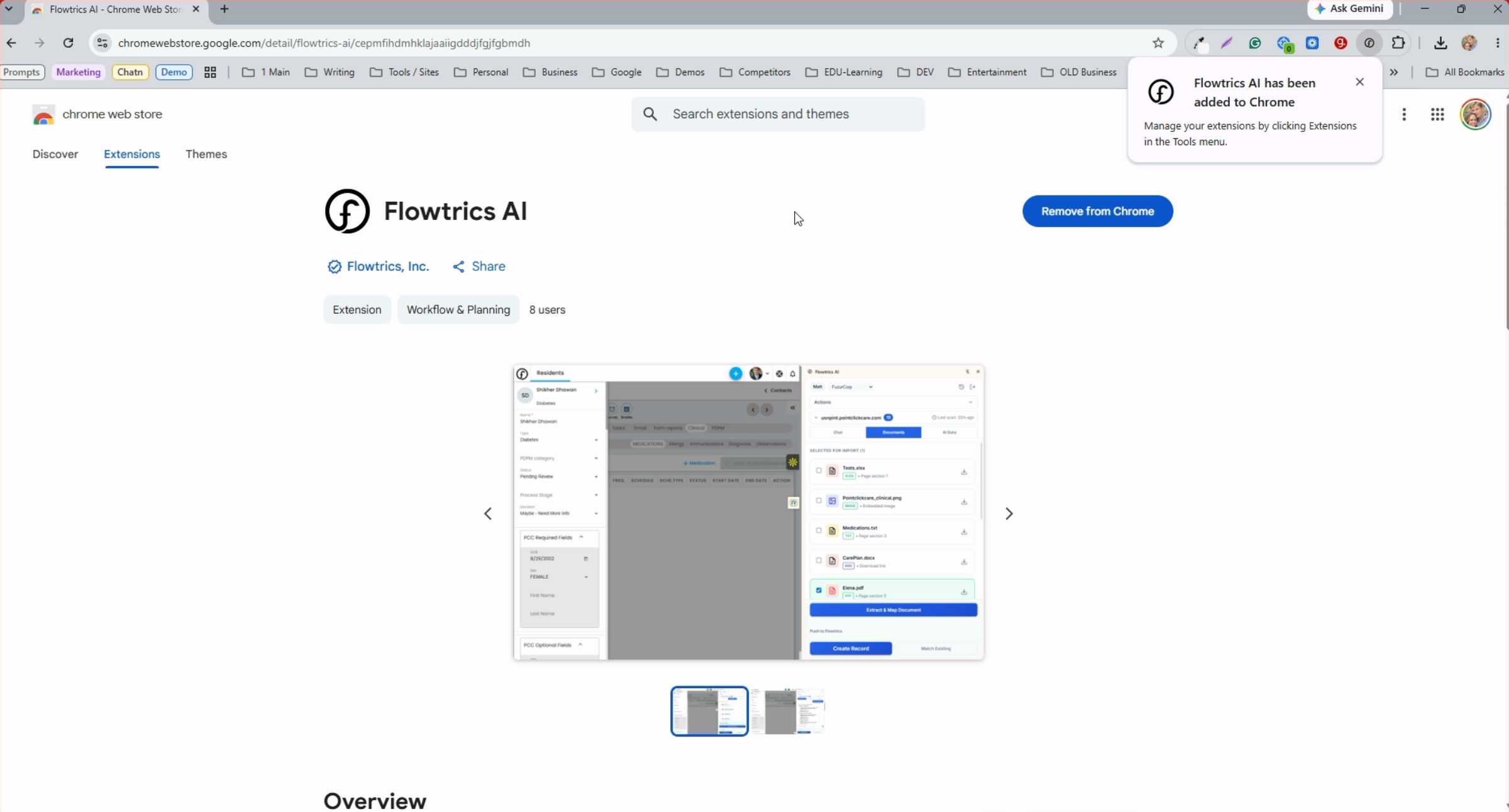
9. Pinning Chrome Extension (1)
Add that extension, and that’s all you do. It will download into Chrome. Click on the puzzle extension, go down to Flowtrics, and pin it to your browser. At that point, it does the exact same thing that the Microsoft Edge browser does for you. Click on the Flow Tricks icon, and enter the same credentials you used in the previous browser.
10. Extension Compatibility Overview
At this point, the Flowtrics browser extension is open and ready to work alongside the applications you already use. The experience is the same in both Microsoft Edge and Google Chrome. From here, you can extract documents and use the available Create features directly from the extension.
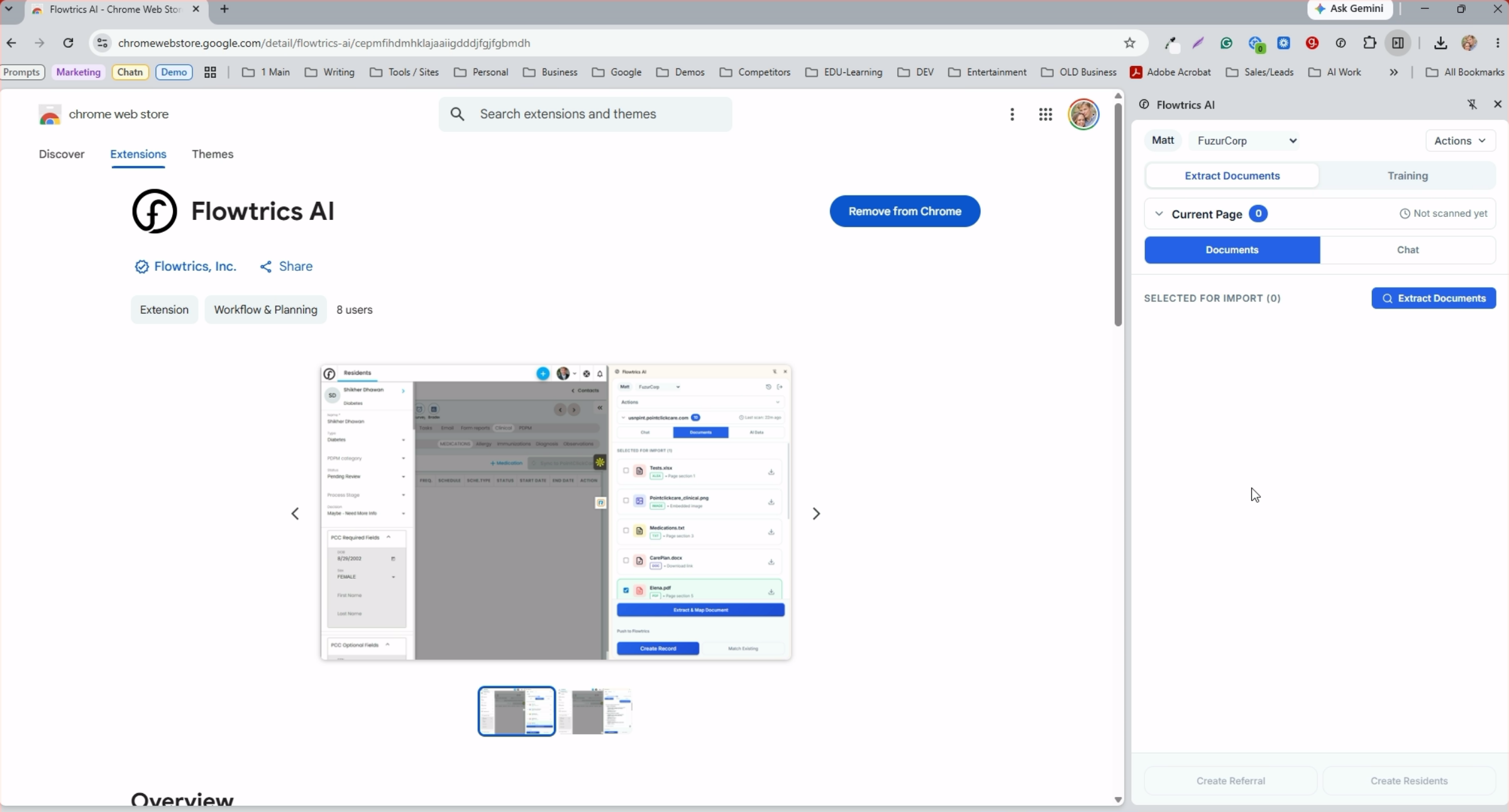
11. Training And Setup Completion (1)
You’ll also have access to Training, where you can view available videos and learning resources directly from the extension.
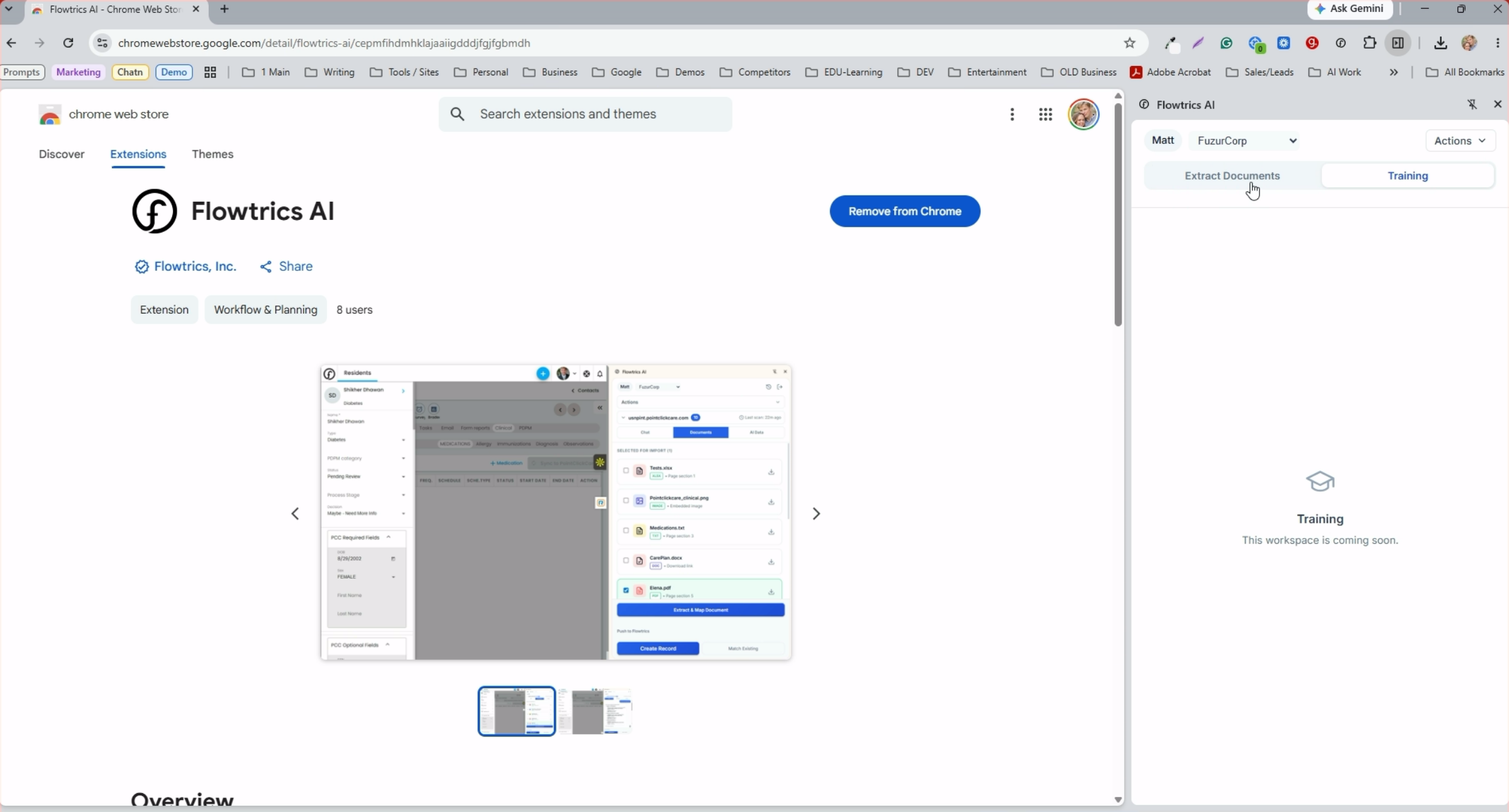
That completes the setup process. You now know how to download, install, and configure the Flowtrics browser extension so it’s ready to work alongside your existing applications.
0 Comments