
Referral Management: Updating and Managing Qualifying Templates – (4:30) [& Setup]
This video demonstrates how to update and save referral management templates to standardize your review process. You’ll learn how to edit questions, save templates, and identify which templates are in use within your organization.
1. Referral Template Overview
Learn how to update and save referral management templates. Templates allow you to standardize your review process and ensure consistent evaluations across your organization.
2. Editing And Saving Templates (1)
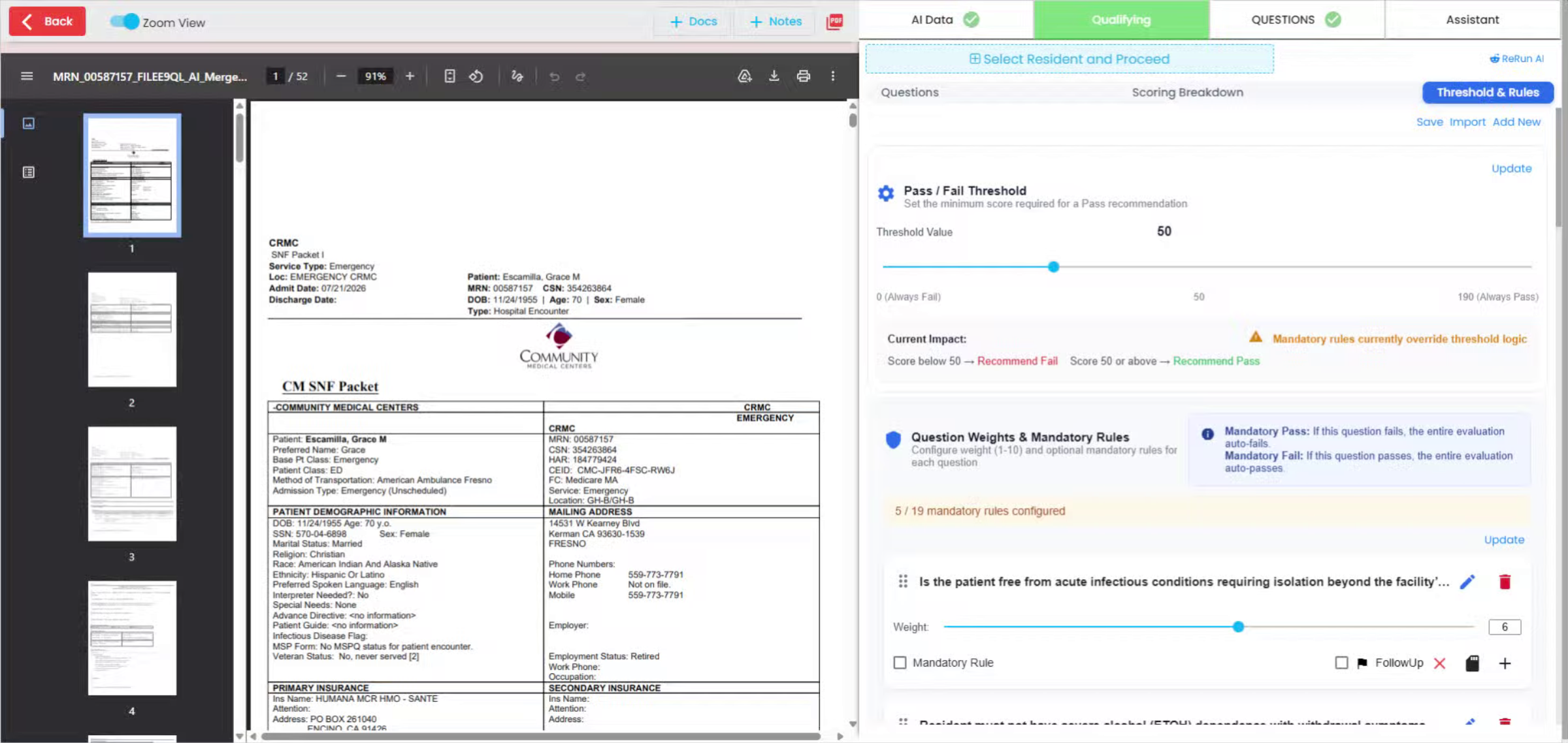
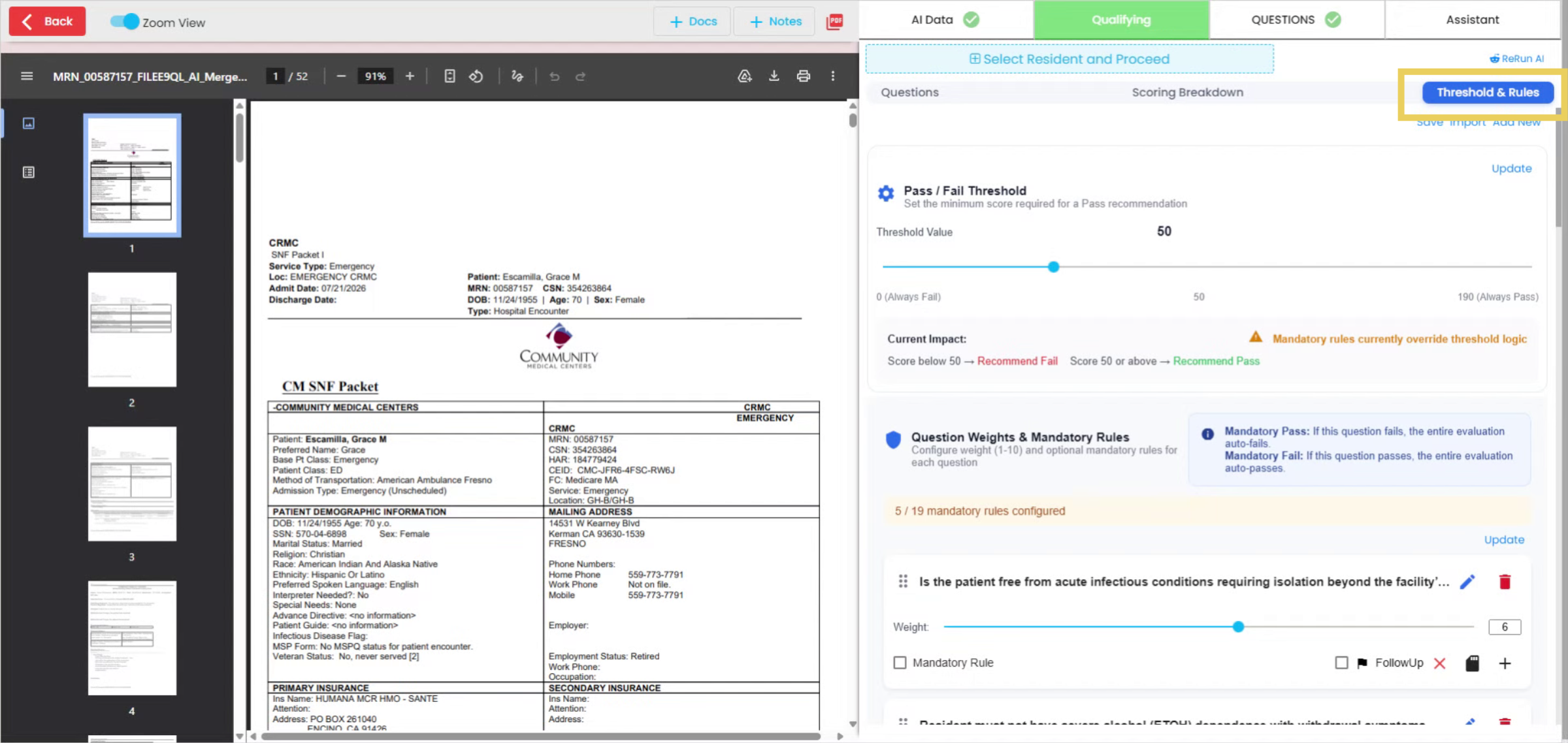
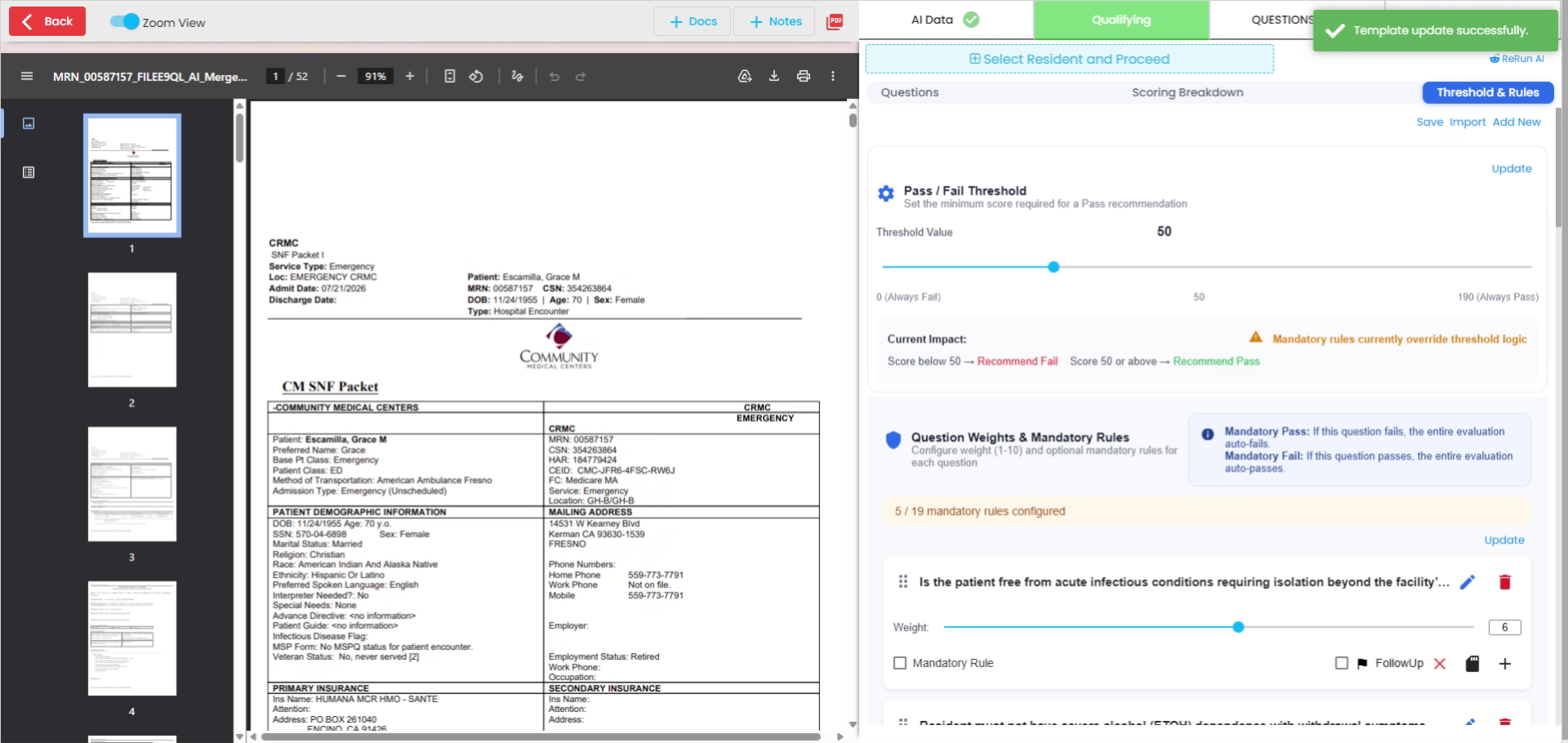
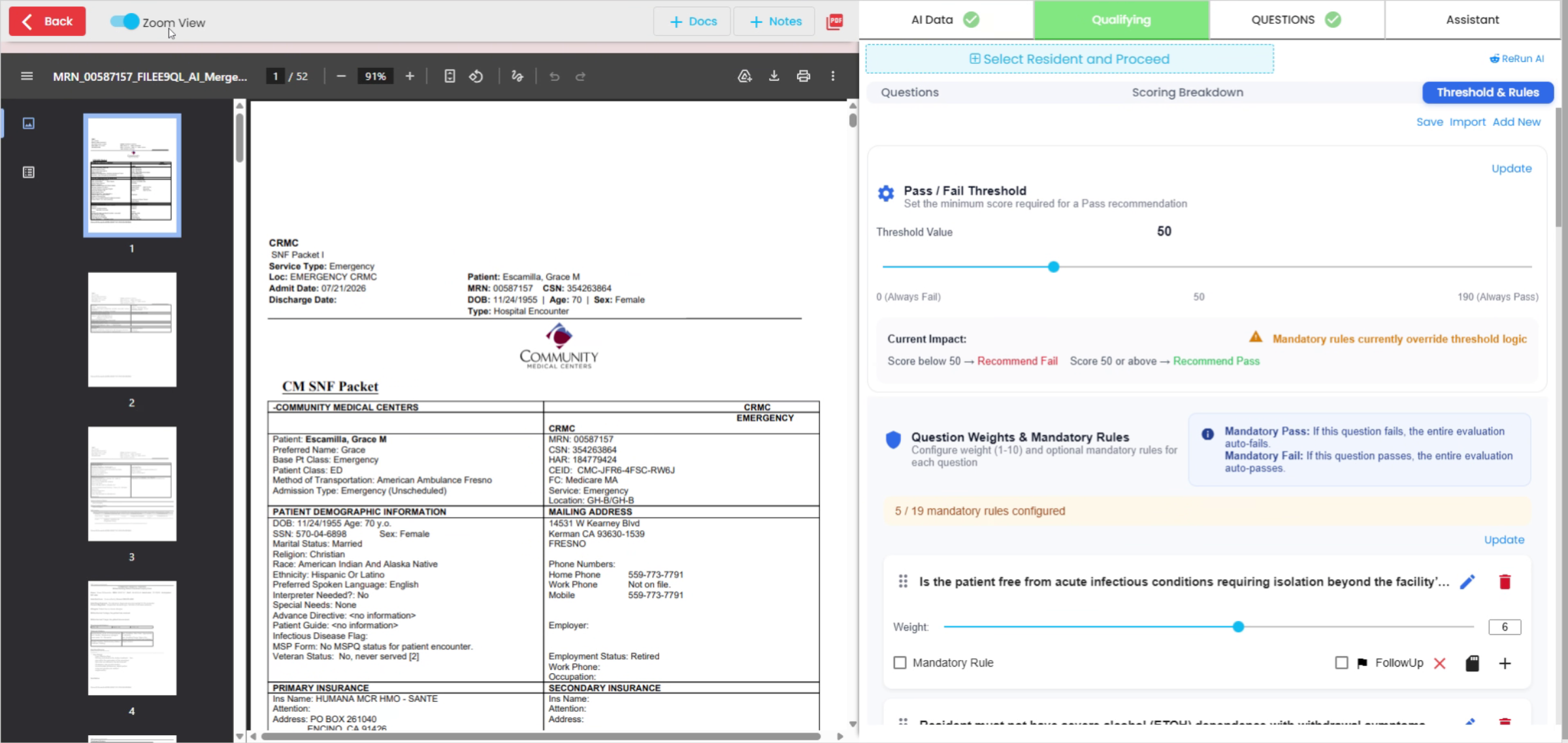
This screen should look familiar, as it includes your qualifying questions, scoring breakdown, and the Thresholds & Rules tab. The screen will display the template currently being used and assigned to this referral. This is where you will go if you want to make updates and then save your changes for that template. You can add new questions by selecting Add New, or modify existing questions by editing them directly within the template.
3. Editing And Saving Templates (2) (1)
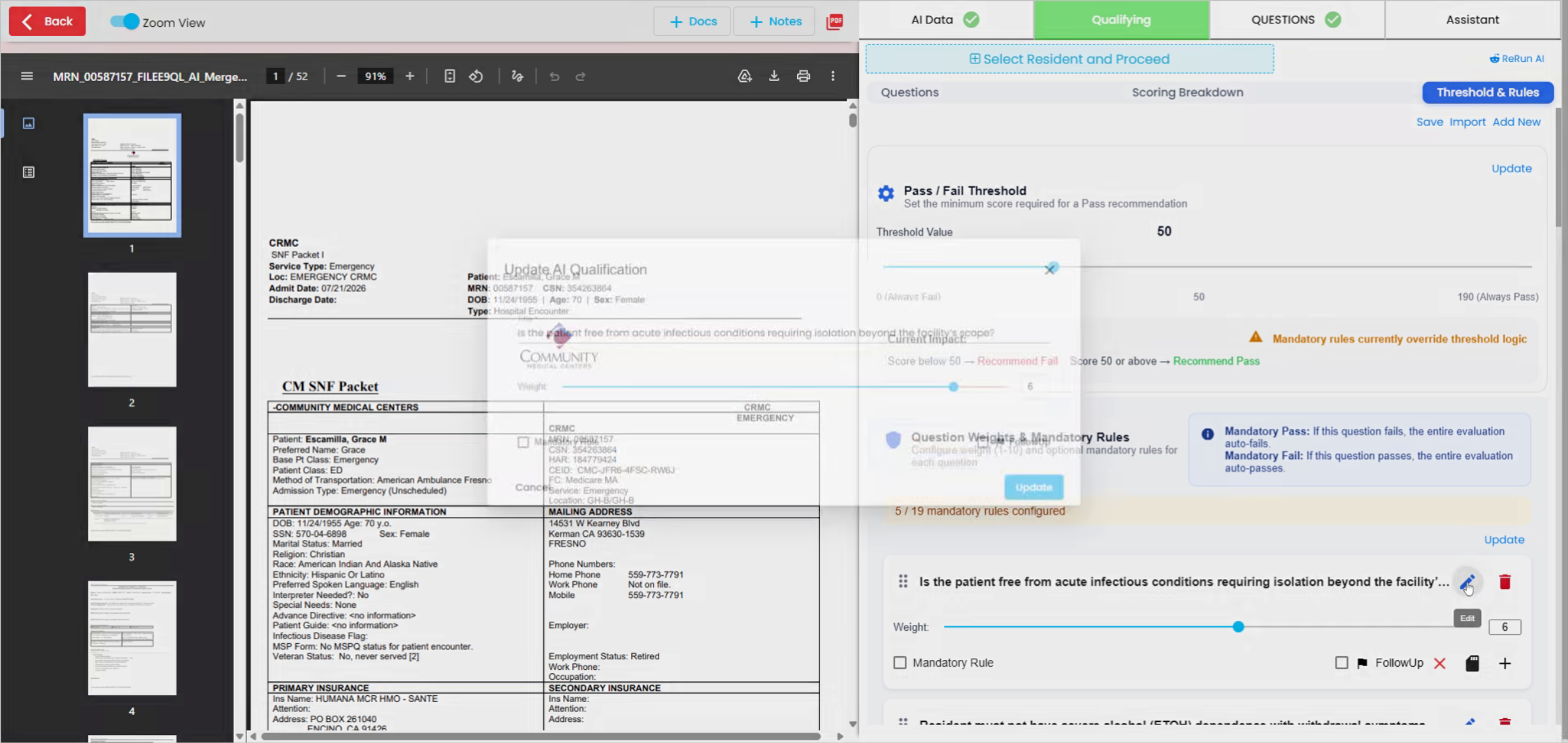
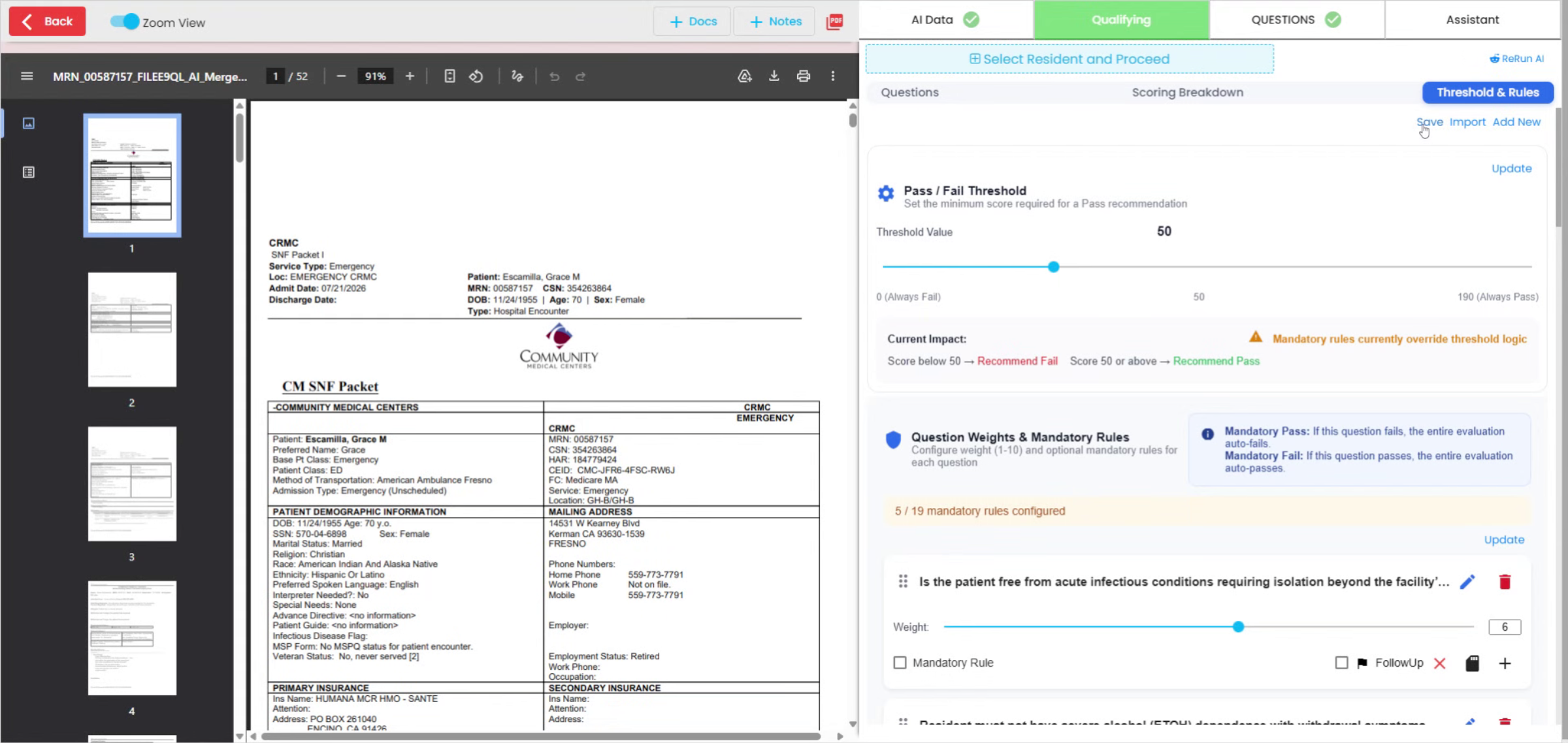
For this demonstration, we’ll edit an existing question; the process is the same for new ones. You can define the question title, assign a Question Weight, and choose whether a follow-up question is required. Repeat this process to add or update as many questions as needed. When you’re finished, select Save at the top of the screen. You can save the template as My Template for personal use or as an Organization Template to make it available to everyone in your organization.
4. Editing And Saving Templates (2) (2)
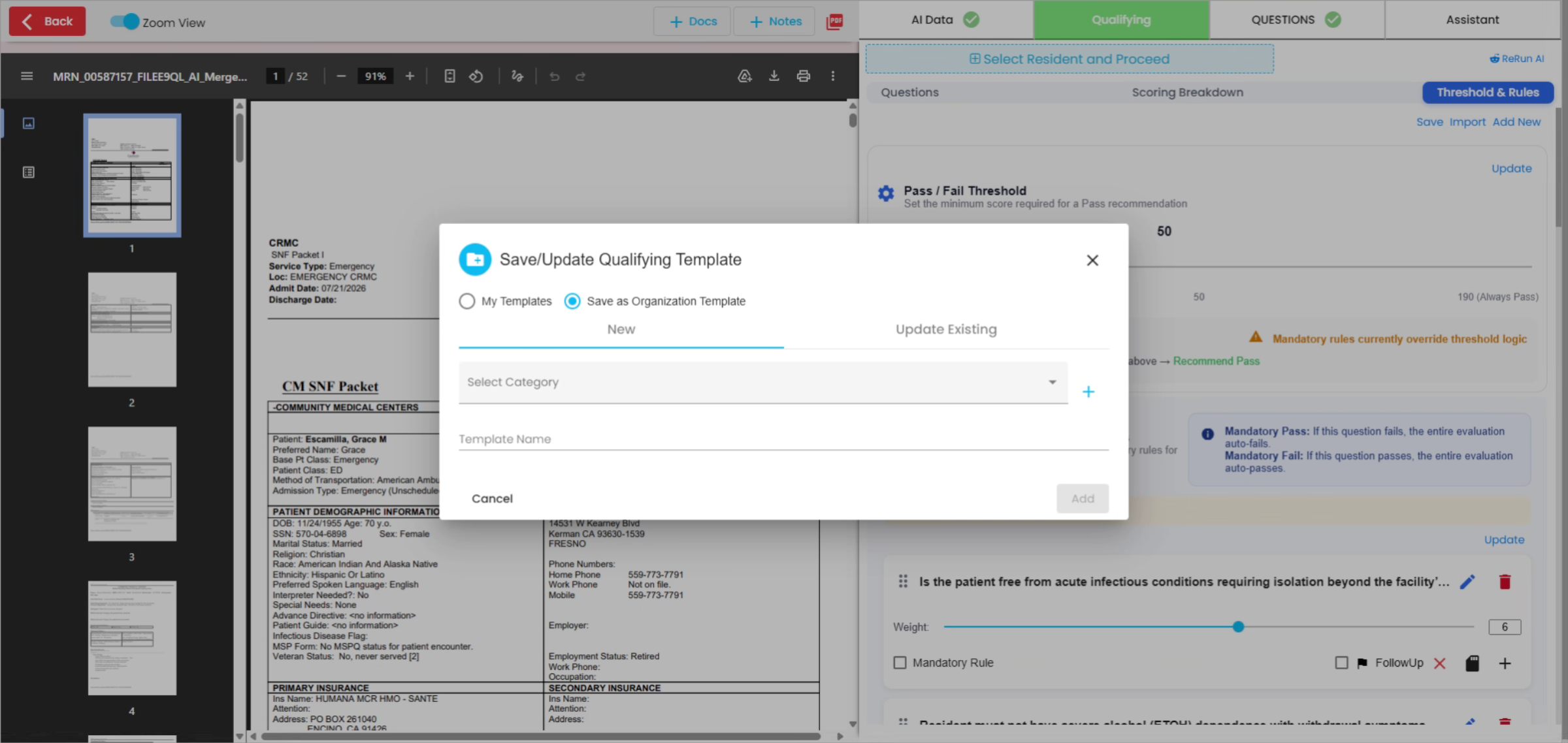
If you only have access to personal templates, you can save templates for your own use by selecting My Template. If you have permission to manage organization templates, select Save as Organization Template to make the template available to your entire facility. You can then choose to create a new template or update an existing one.
5. Updating Existing Templates
Creating a new template follows the same process. Simply select the category, enter a template name, and click save. For this demo, we’ll update an existing template. Select the Referrals category, choose the template you want to update, verify it’s the correct template, then select Actions and click Update. Your template is now updated and ready to use.
6. Locating Your Template
At this point, you may be wondering which template we’ve been working with throughout this training. In most cases, your organization will have a single qualification template, and that’s all you’ll need. As your workflows evolve, you can create additional templates for different workflows or admission criteria.
7. Identifying AI Template Source (1)
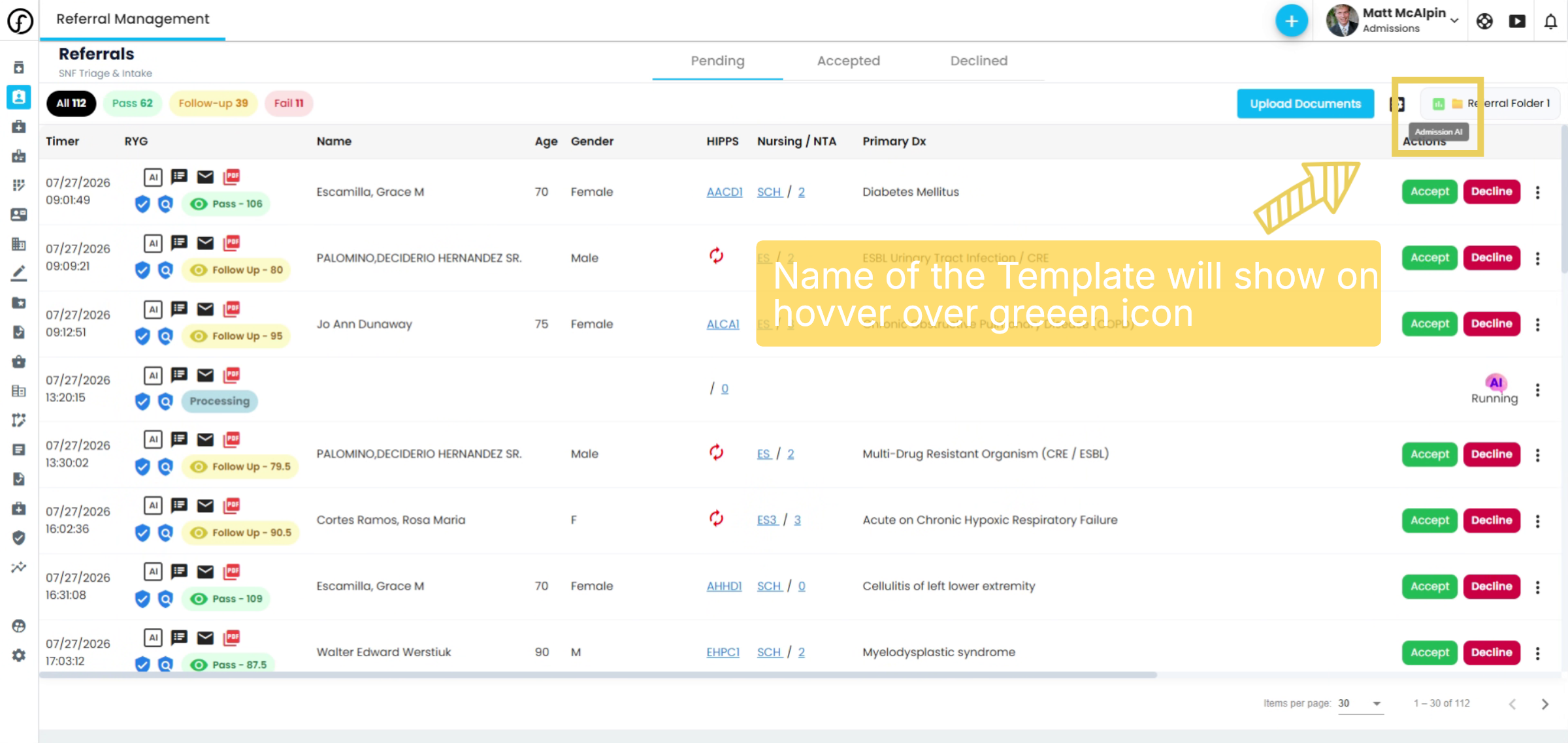
To identify which template is being used, return to the referral and hover over the AI indicator, the tooltip displays, the AI template assigned to that referral.
8. Identifying AI Template Source (2)
In this example, the referral is using the admissions AI template.
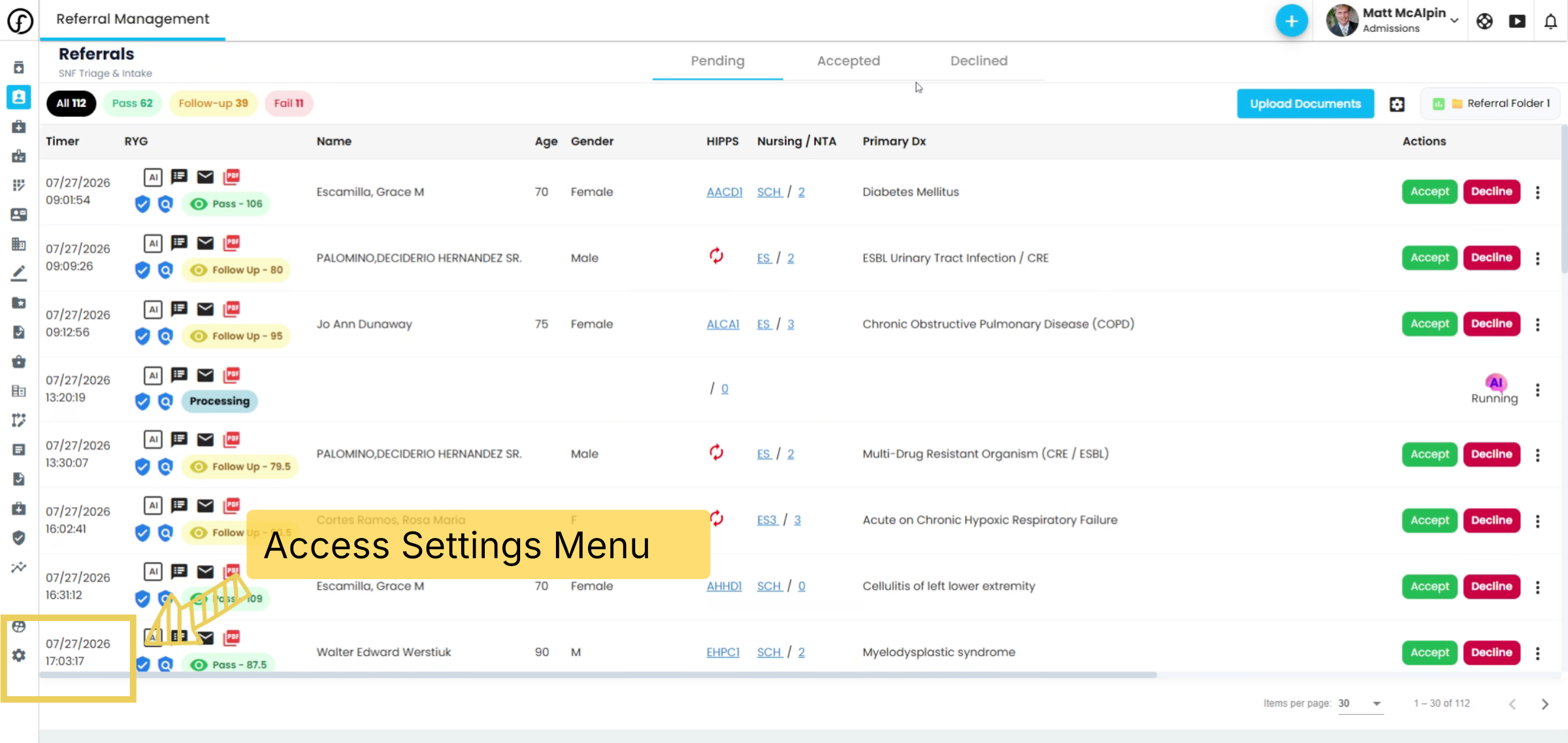
9. Accessing Settings Menu
Next, navigate to Settings.
10. AI Templates Overview (1)
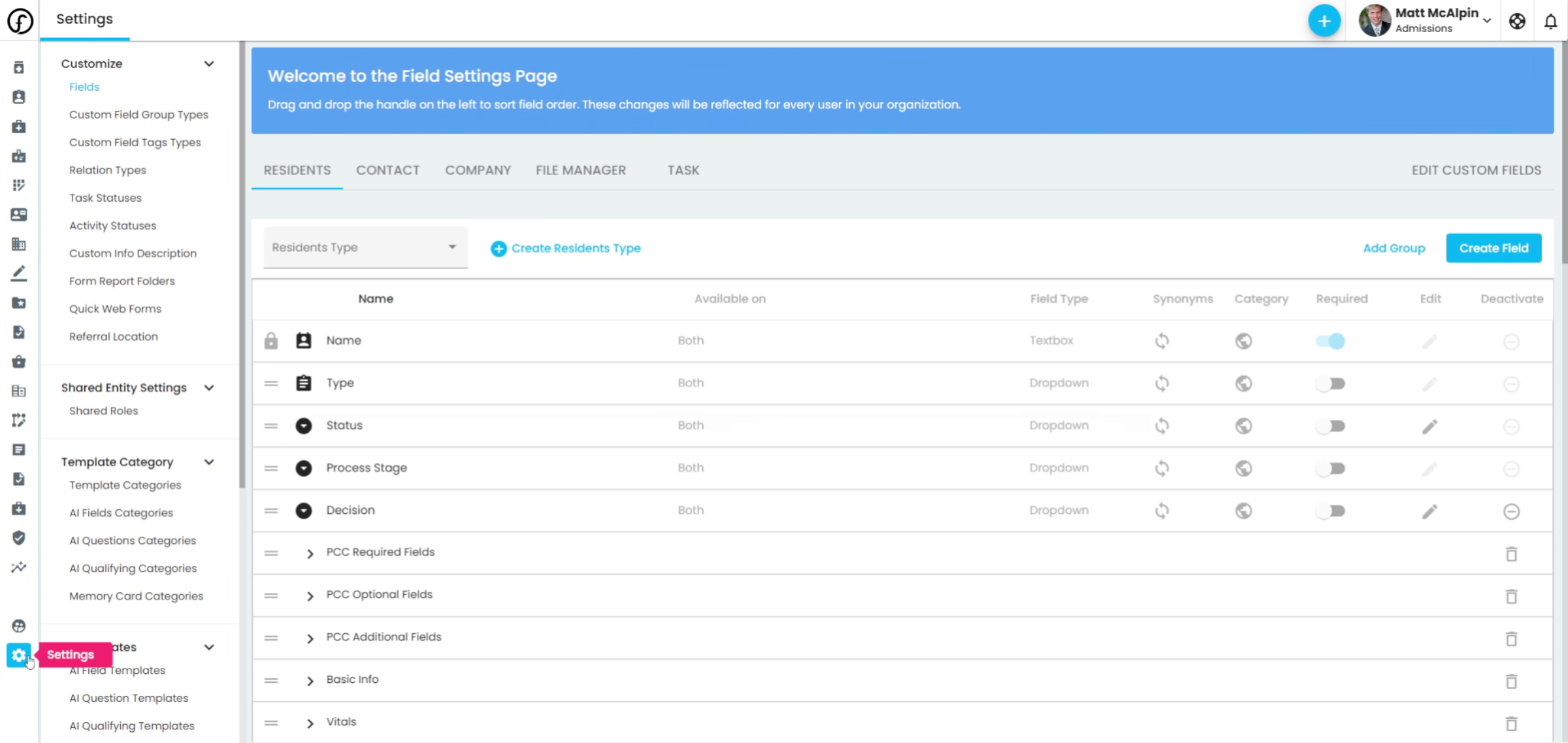
and in settings, if you go down to AI templates, You’ll notice.
11. AI Templates Overview (2)
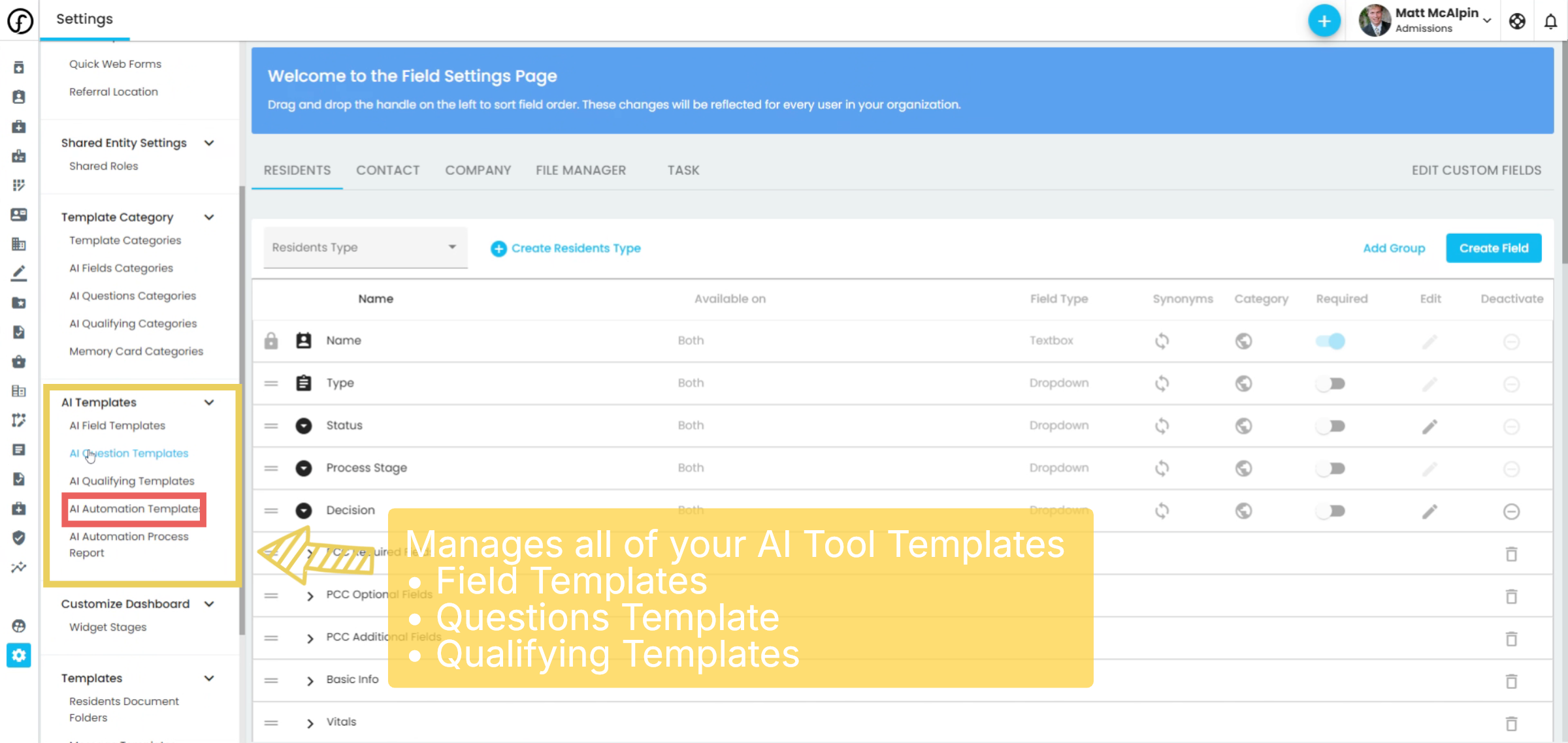
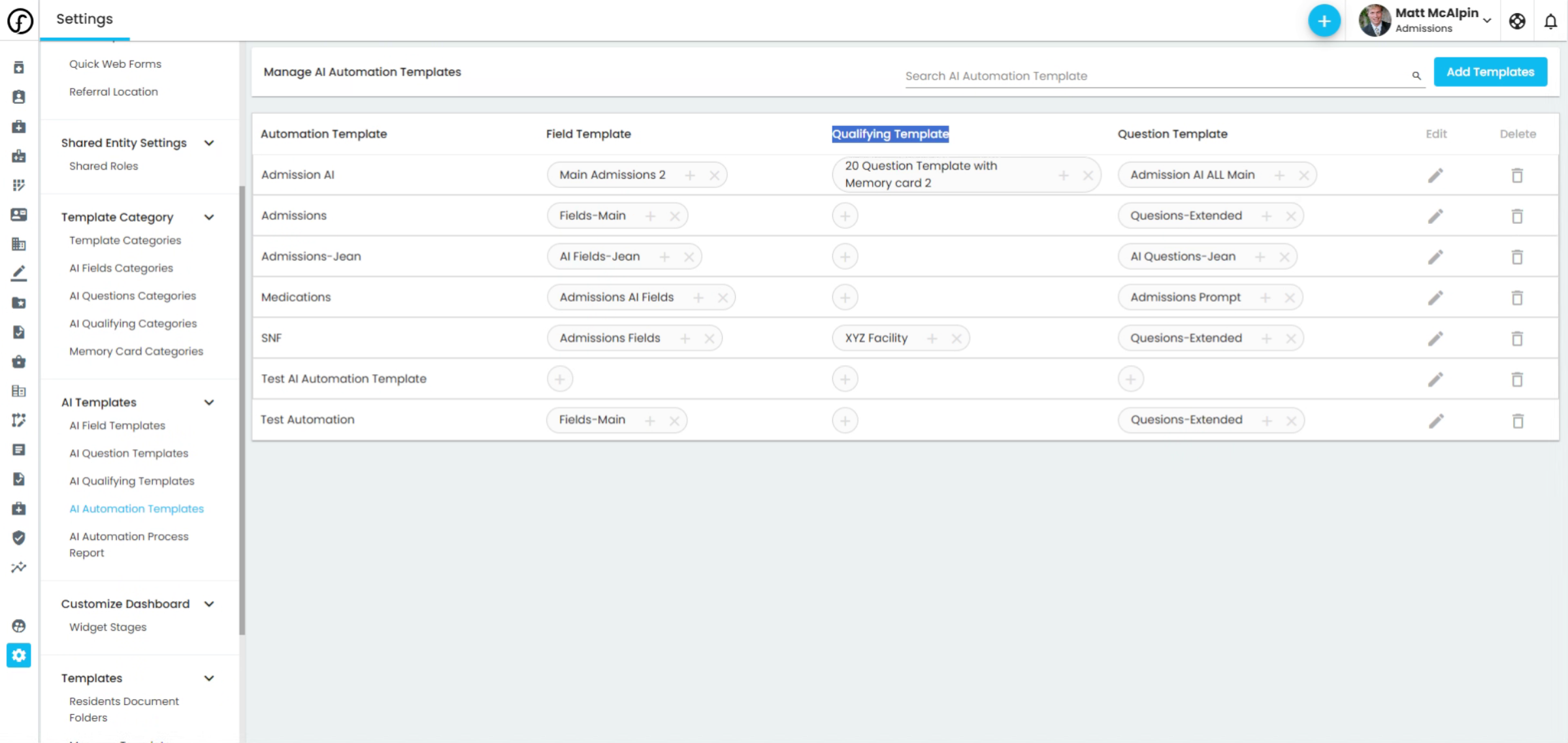
You have your AI questions, template, your qualifying templates and your AI automation template. If I click on the AI automation template, you’ll recognize this
12. Referral Management Template Details
These are the AI templates currently assigned to your Referral Management workflow. They include the Field Template, Qualifying Template, and Question Template. These templates control how AI processes referrals and evaluates admission criteria. For this training, we’re updating the Qualifying Template. Specifically, you’ll want to edit the 20 Questions – Memory Card 2 template, as that’s the template currently used for Referral Management.
13. Template Usage And Summary (1)
This makes it easy to identify the correct template, even if your organization has multiple templates configured. Most facilities will begin with a single template, with additional templates added as your workflows evolve. This concludes this training on updating referral management and qualifying question templates, including thresholds and rules.
Learn to edit, save, and manage referral templates, ensuring consistent evaluations and understanding template sources for effective referral management.
Get started
0 Comments