
Referral Management: Understanding and Configuring Qualifying Questions – (7:47)
Today, we’ll explore the qualifying tab to understand thresholds and rules that shape your referral management template. This video demonstrates how to set up and customize questions to evaluate residents effectively.
1. Introduction To Thresholds
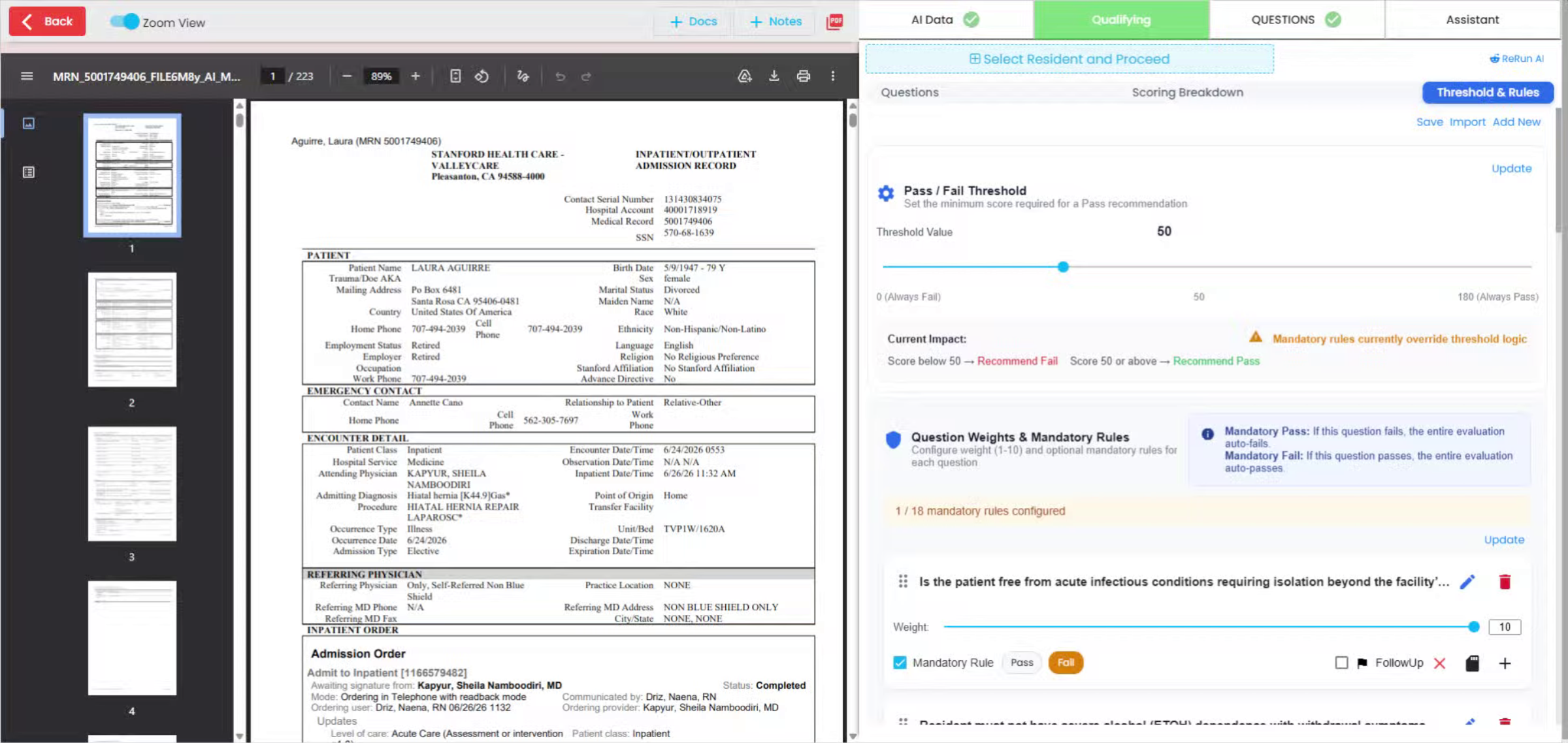
Okay, today we’re going to go over the qualifying tab and understand the thresholds and rules section. This guides the template that you save. Let’s start by understanding everything on the threshold and rules, which is saved to become the template you’ll use repeatedly.
2. Pass Fail Threshold Basics
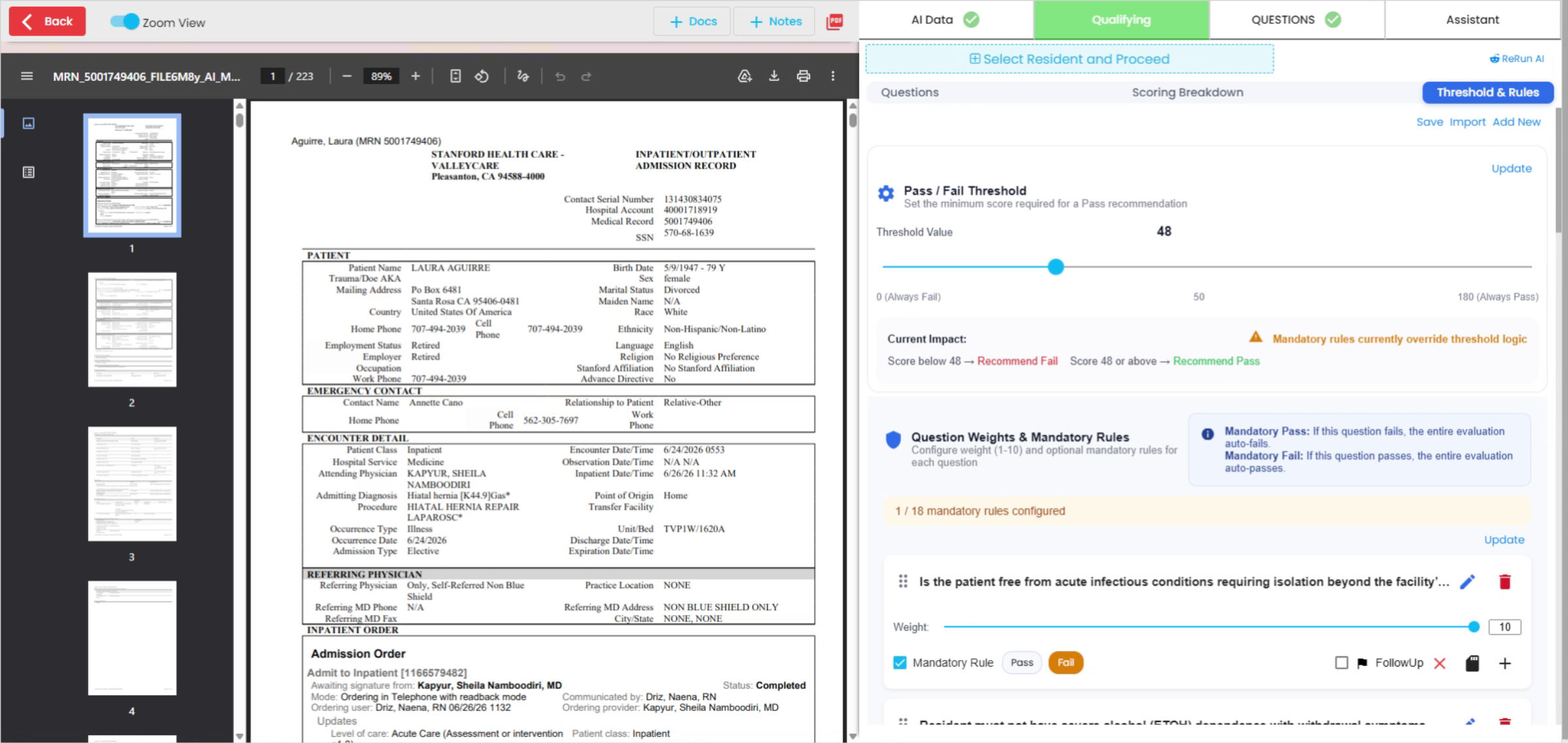
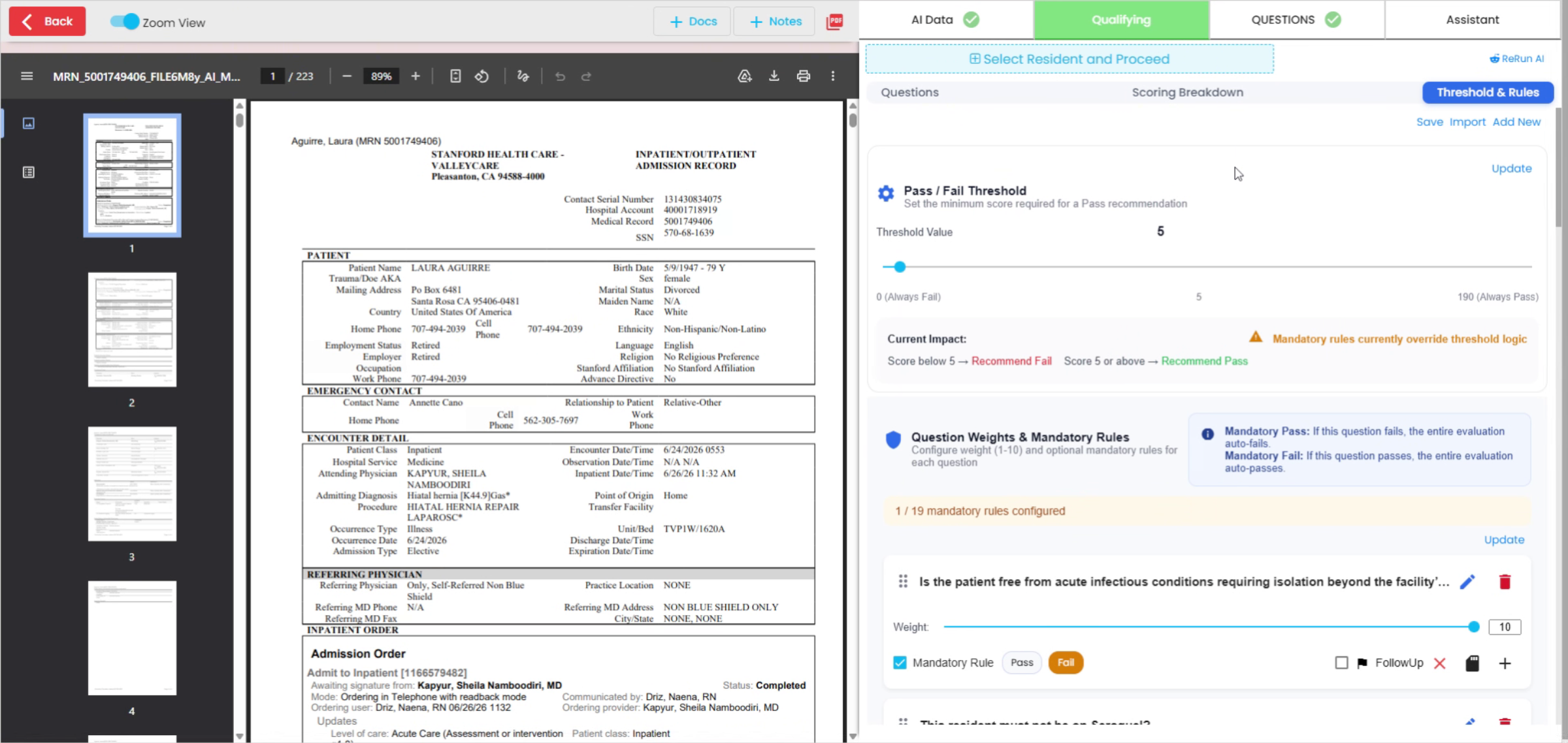
First and foremost, you have your pass and fail threshold. All these questions have up to 10 points of weighting. Not every question is weighted the same.
3. Question Weighting Explained
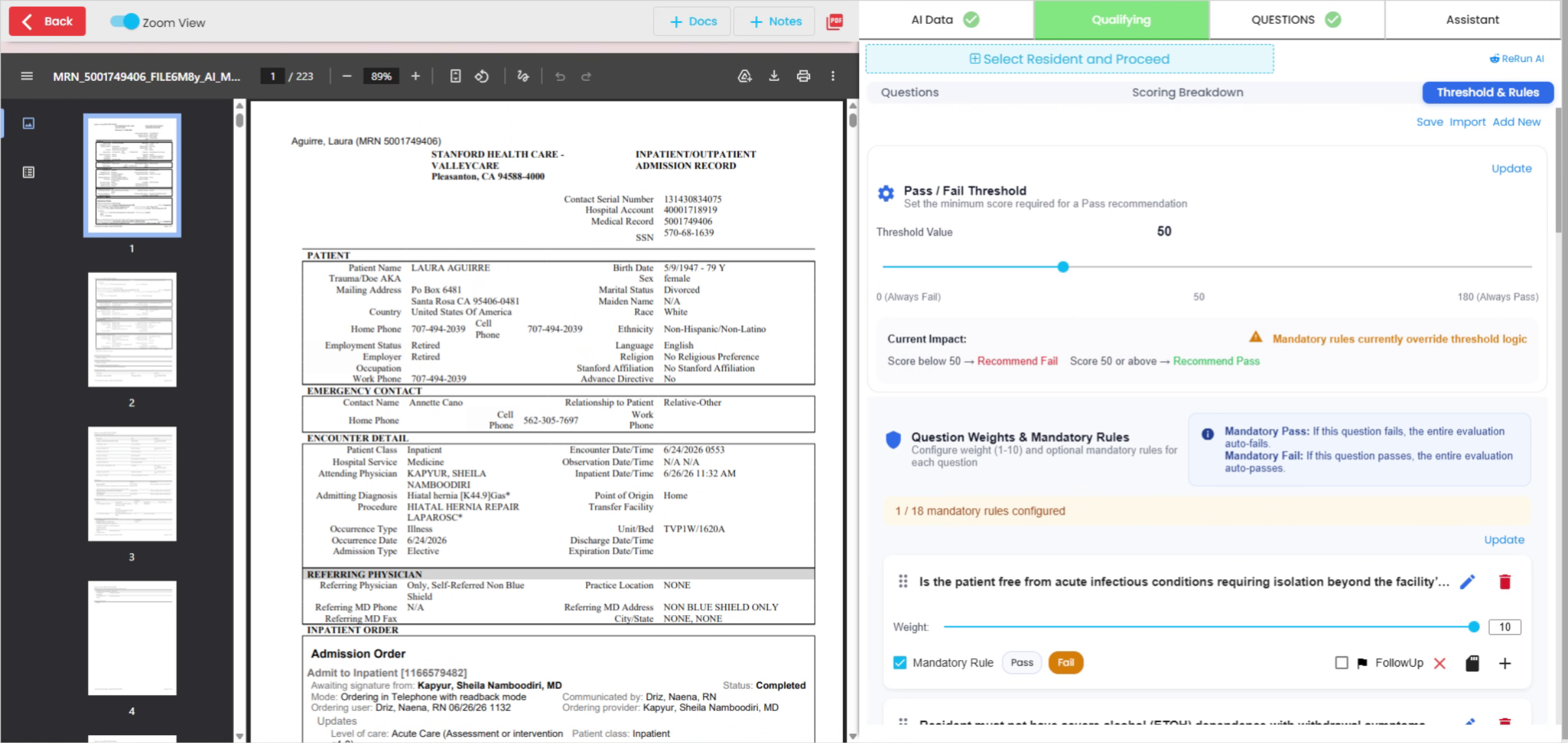
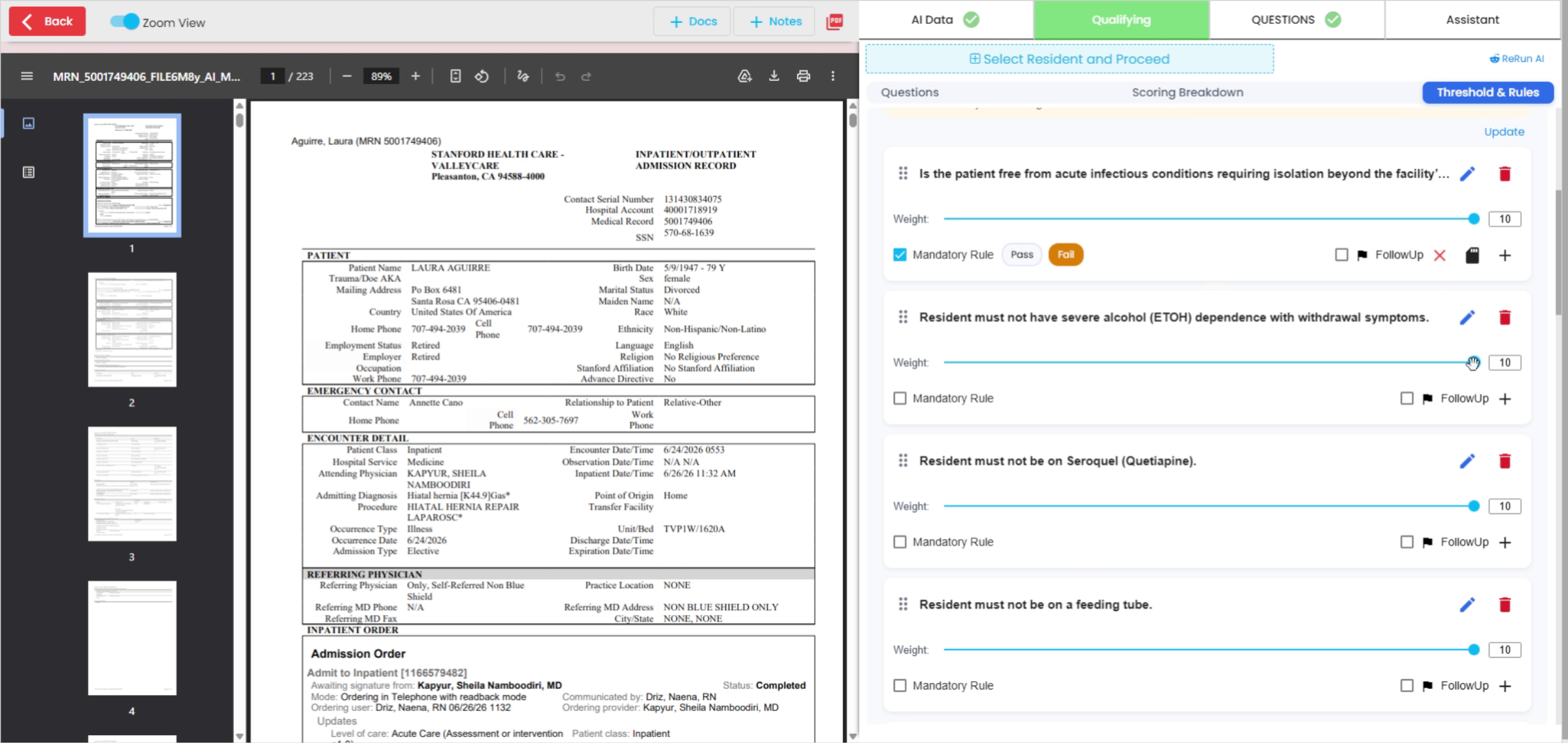
If you adjust these, you can see how they will change. As we start to create these questions, you’ll see that all these questions combined, this question doesn’t have as much weight as a question with 10. A question with three doesn’t have as much weight. They’re all added together to give a threshold of each question equaling 10.
4. Overall Pass Fail Threshold
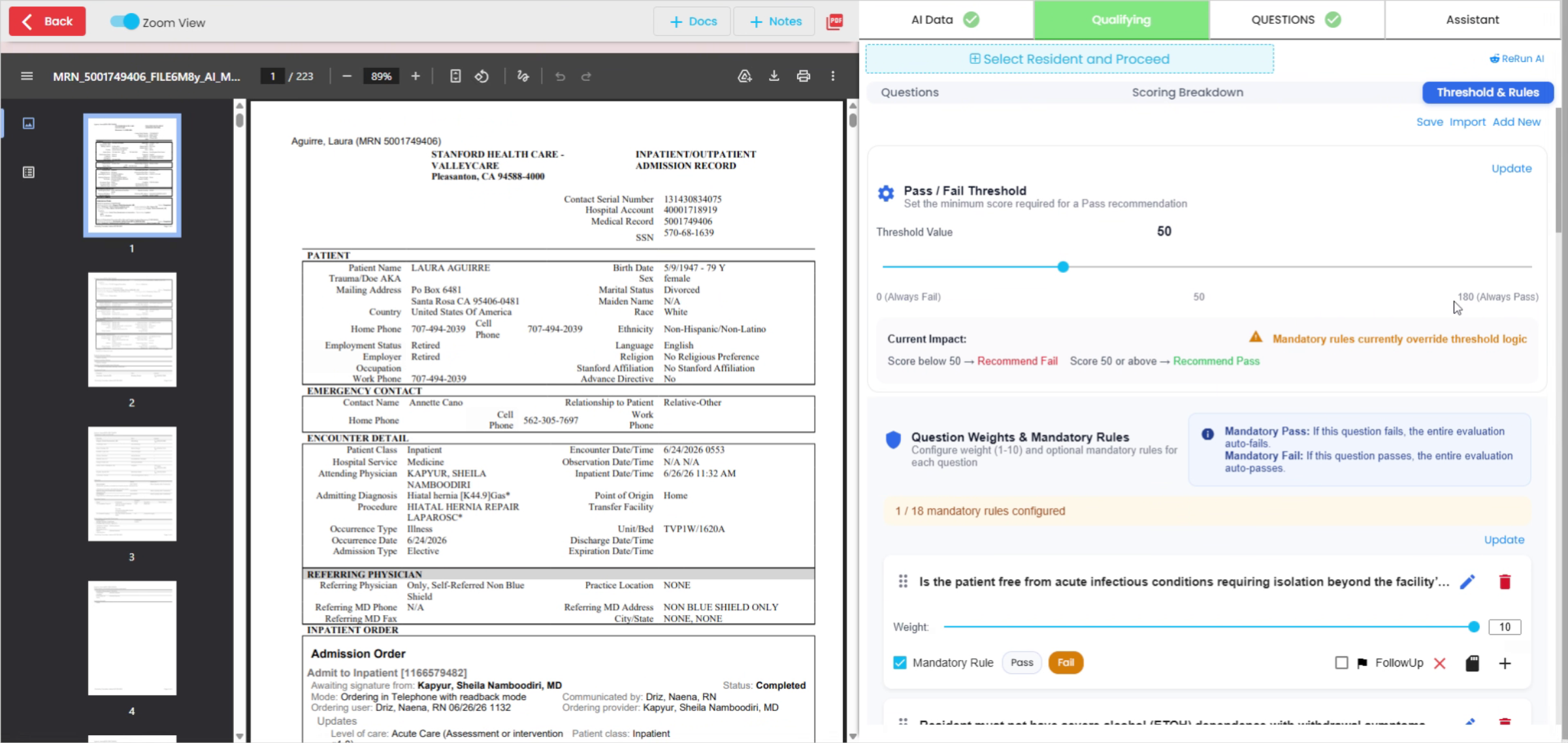
And then a weight behind that, and an overall pass-fail threshold that you’ll set to pass or fail these residents according to each question. The important piece is that not every question is equal. That’s what the weight is for. You weight these questions on a scale from 1 to 10 based on their importance, which determines the overall score weight each resident gets.
5. Creating New Question Steps
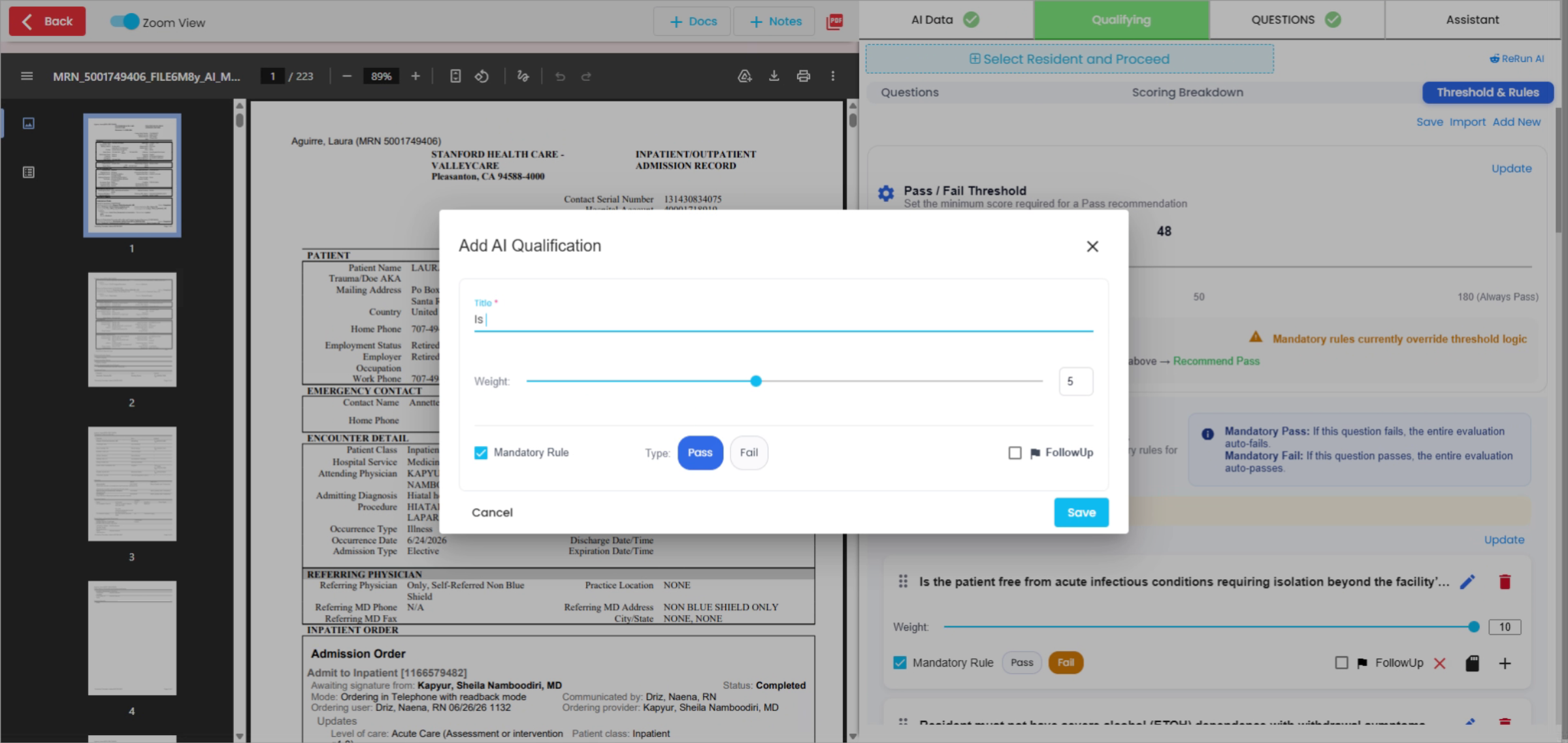
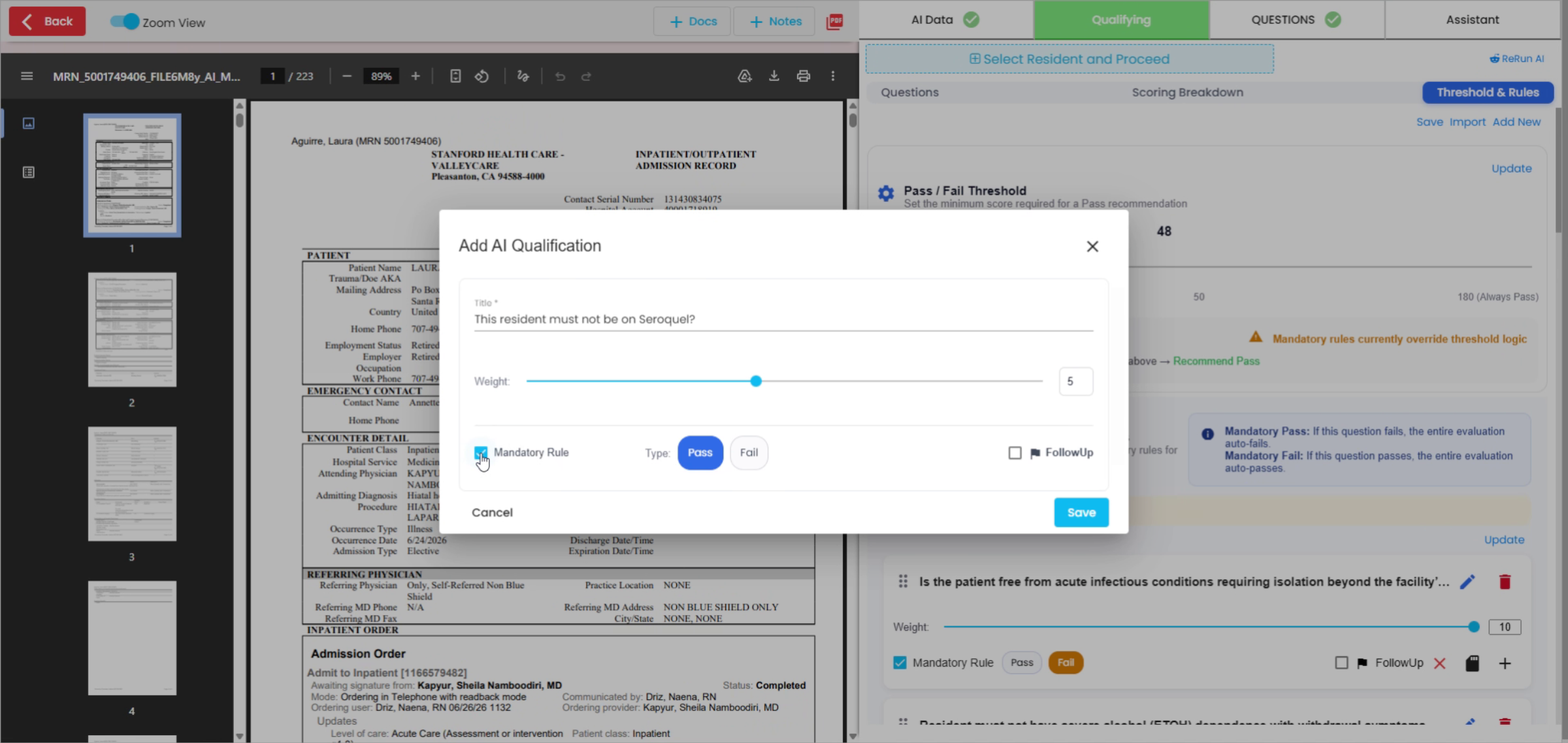
Now let’s dive into creating a new question. When you add a new question, it will add another 10 points to this overall score. If I add a new question, this will pop up. You’ll put in a title.
6. Setting Question Title And Weight
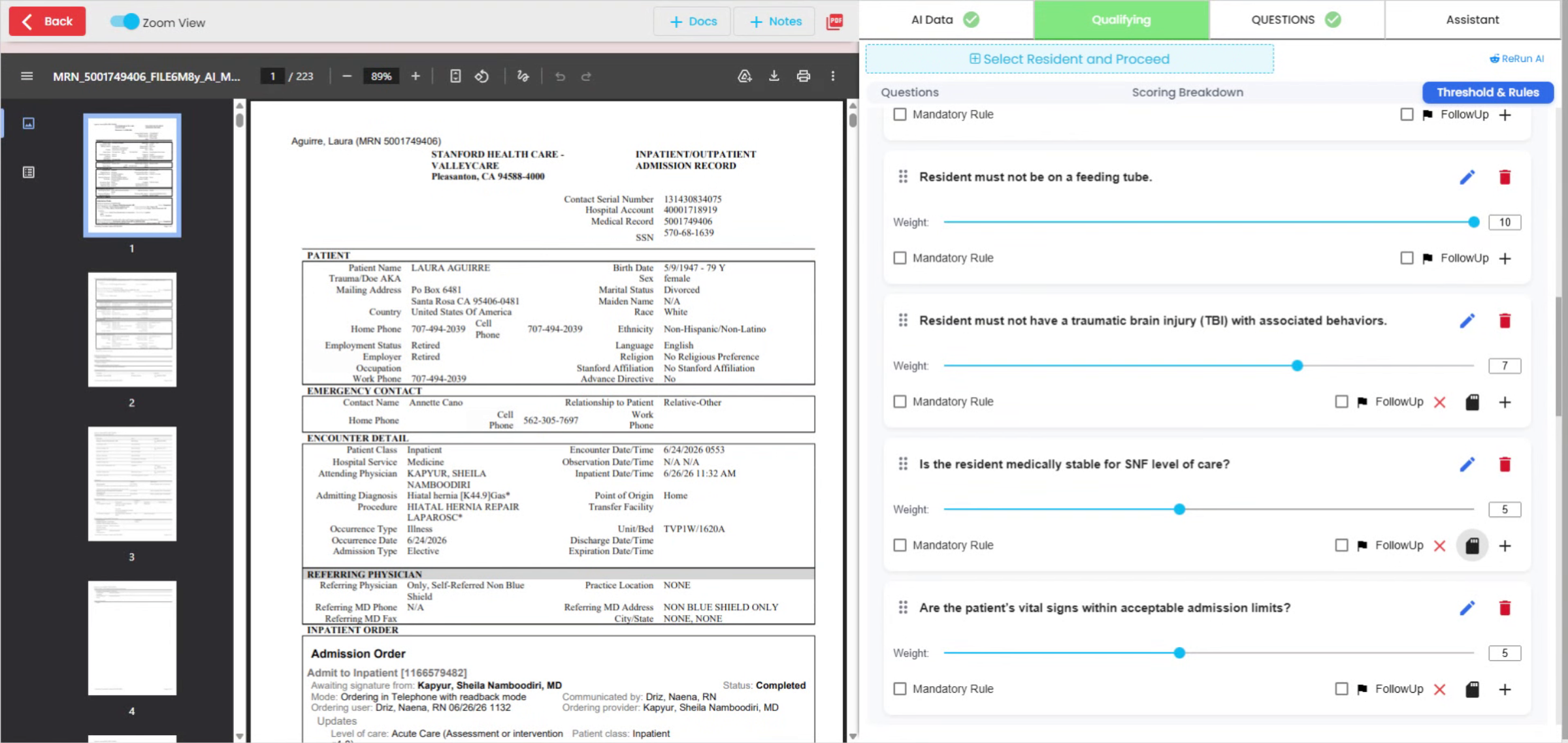
Is this resident? Or this resident must not be, or this resident must be. Then you’ll weight this accordingly.
7. Mandatory Question Rules
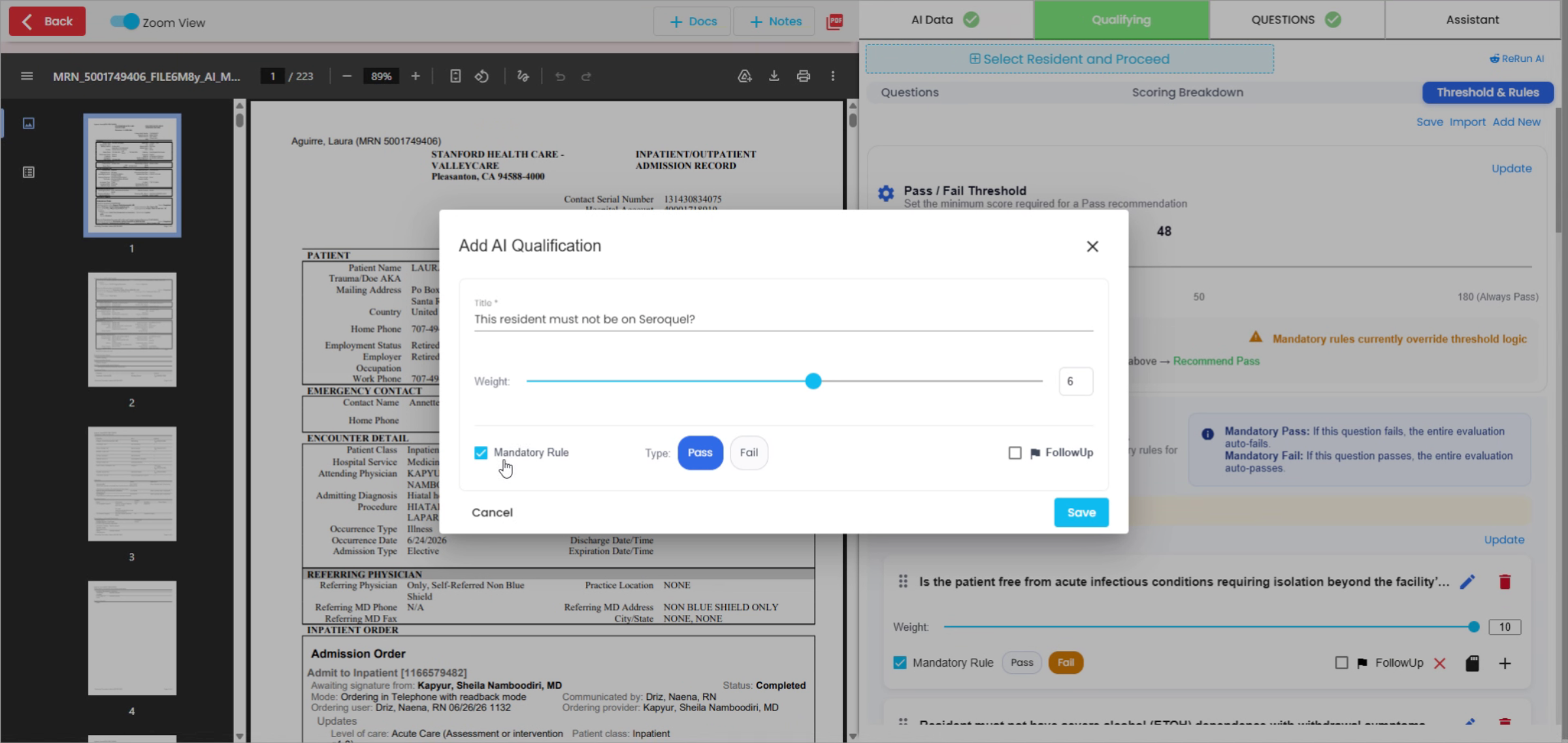
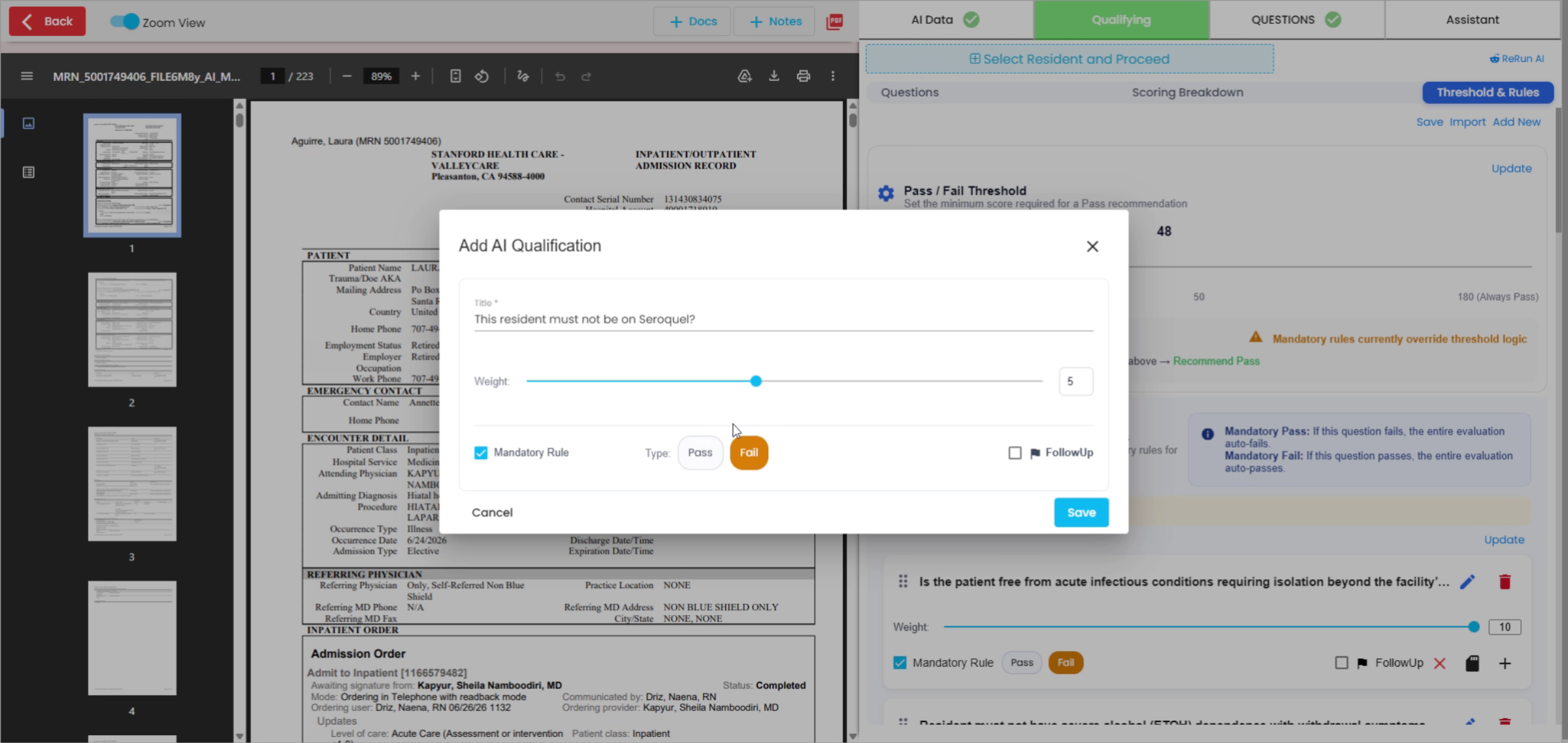
And then the next piece is a mandatory question. The weight gets thrown out if you check this checkbox. This means the resident must not be on Seroquel. This is the weighted scale. If you click this button, mandatory rule, then you can mandatory pass or fail according to the answer. If the resident must not be on Seroquel, if they’re not on Seroquel, you can pass. If they are on Seroquel, then you can automatically fail this person, saying, if this person’s on Seroquel, we will not take them in our facility. It doesn’t matter what the other 18 questions are.
8. Mandatory Pass Example
This is based on if it fails this question, the entire person is set to fail. That’s one thing. You can mandatory pass on the same thing. For example, if it is this resident, if you do memory care and this resident is a memory care resident, you might mandatory pass this person. You might have five beds available, and everyone that’s a memory care, you’re just going to take them till you’re full. So you can mandatory pass and work out with everything else later.
9. Follow Up Trigger Explanation
So if it’s not a mandatory rule, the other thing you can do is say, hey, follow up. So, hey, this resident must not be on Seroquel. If it passes that and they’re not on Seroquel, then I want this to trigger not a pass or fail, not weighted. I want it to automatically follow. There might be those questions that you want that no matter, you’re just looking for them. And if they’re there, it triggers a follow-up. That’s what this is for. Once you’re done, you click save.
10. Editing And Adjusting Questions
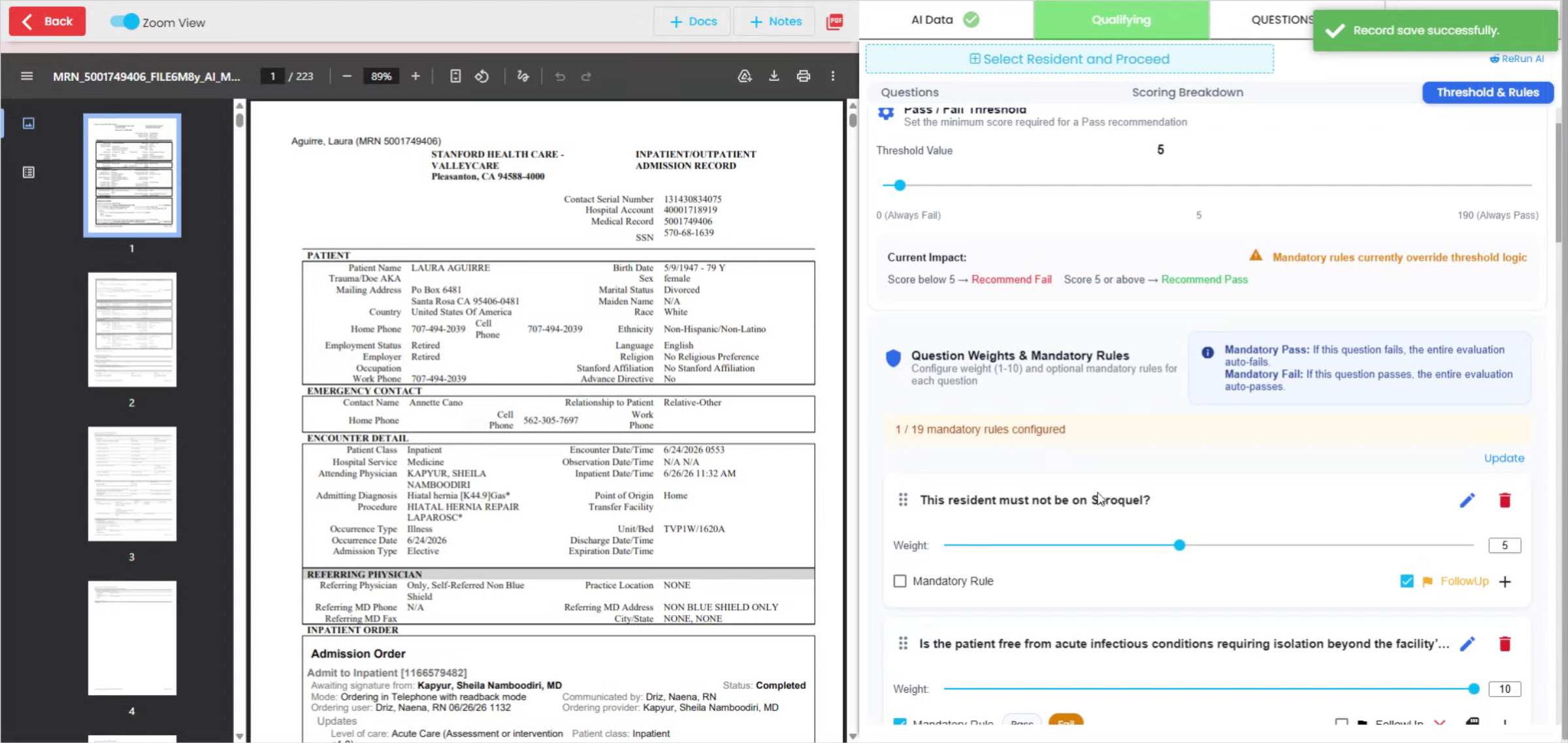
And then it’s going to put it right here at the top. So you see your most recent one. You can still edit it all right here. But then you can also use this and adjust where you want that question to go. Once you have those in there and they’re adjusted, then what you’re able to do is really review and make sure they’re all the way you want them. And at that point, you’ve learned how to create a question,
11. Memory Card Introduction
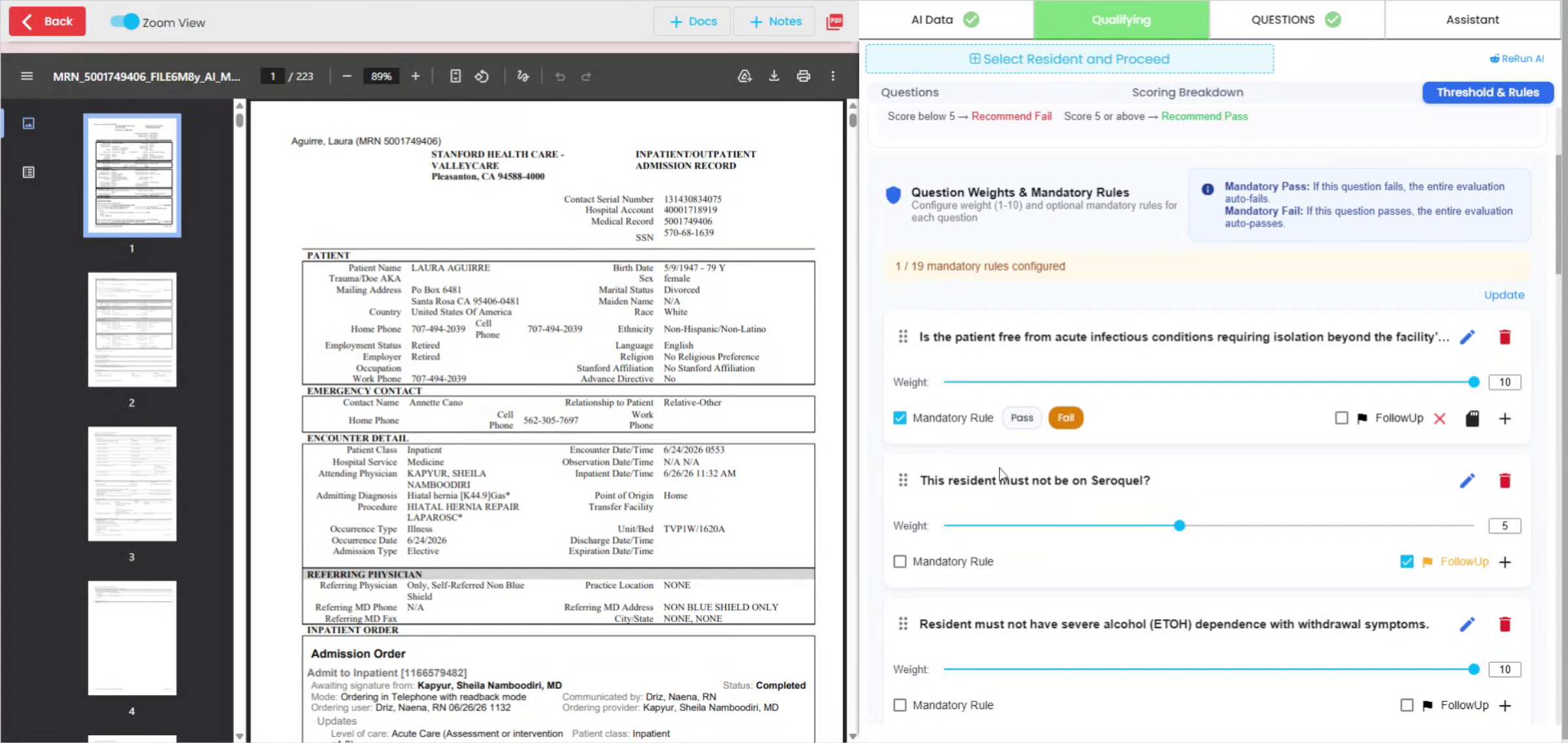
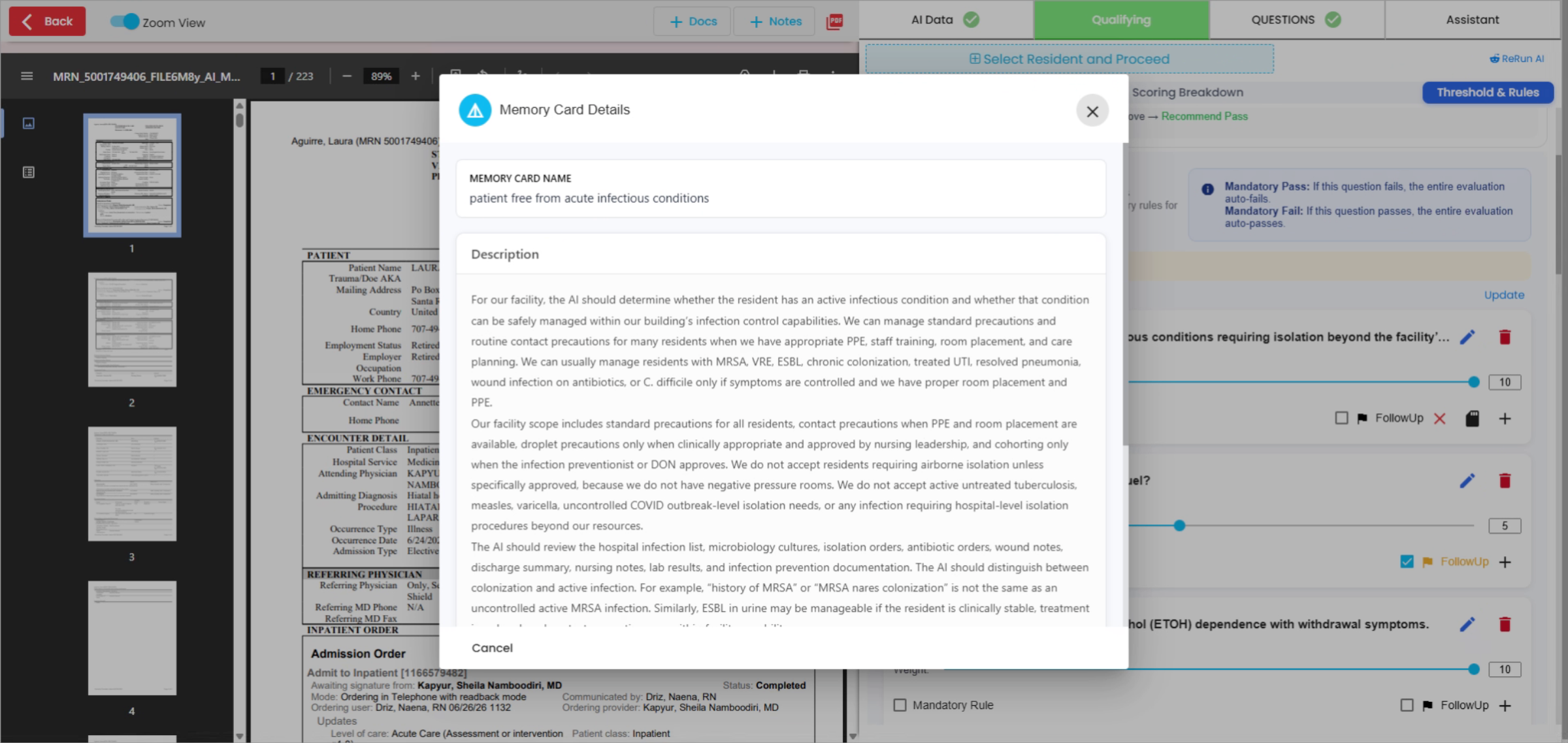
Add weight to it, decide if it’s mandatory or not, decide if it’s a follow-up. Now the final piece we want to look at is what’s called the memory card. The memory card allows you to specify what is important in your facility outside the overall answer.
12. Example Of Memory Card Use
For example, if the question is, is this resident over 300 pounds? You don’t need to train the system on that. But if you’re saying, hey,
13. Defining Infectious Conditions
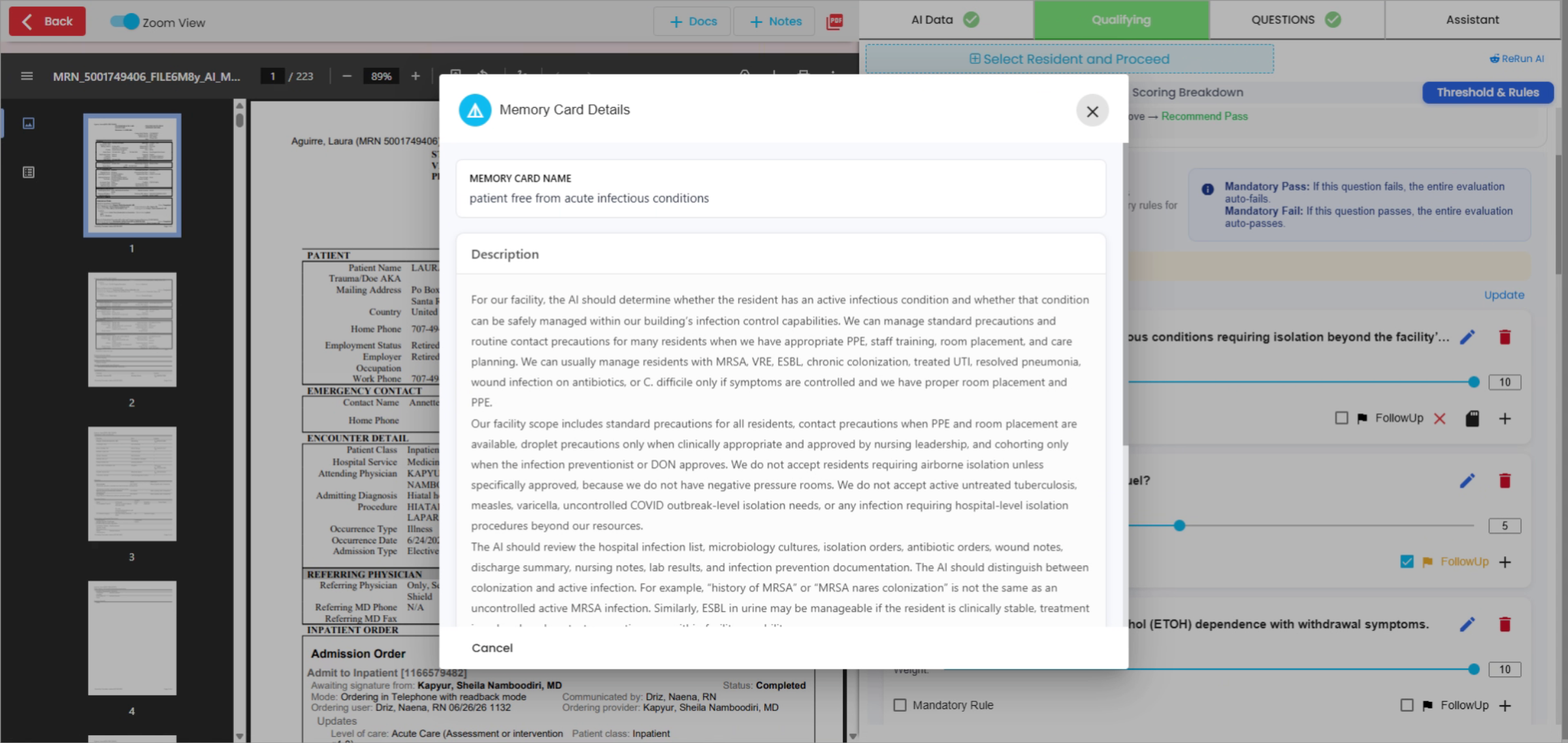
What is the overall infectious condition of this resident? What is considered an active infectious condition in your facility?
14. Customizing Memory Card Definitions
You can create those memory cards, and once created, they tell the system to use your specific training when answering questions about a document. For example, if the question is “Is this resident medically stable for our skilled nursing facility?” the system will use your facility’s definition of medically stable. This way, answers are tailored to your facility rather than the industry as a whole. You can refine and define how these questions are answered.
15. Reviewing Question Setup
Hopefully that helps and really gets you to understand how to set up, add, create all these, and understand how all the questions are set up. If you’re trying to set up all your questions for your template, once you have that, we’ve gone over this in another training, which is edit, update, and save those templates. You’ll just click here to save it. We’ve been over this in another template. You’ll go through and save the template there. And then from there, you can reuse this template over and over and over again in every single resident that comes through.
16. Template Save Reminder
If you run it, you’ll get this scoring breakdown.
17. Scoring Breakdown Overview
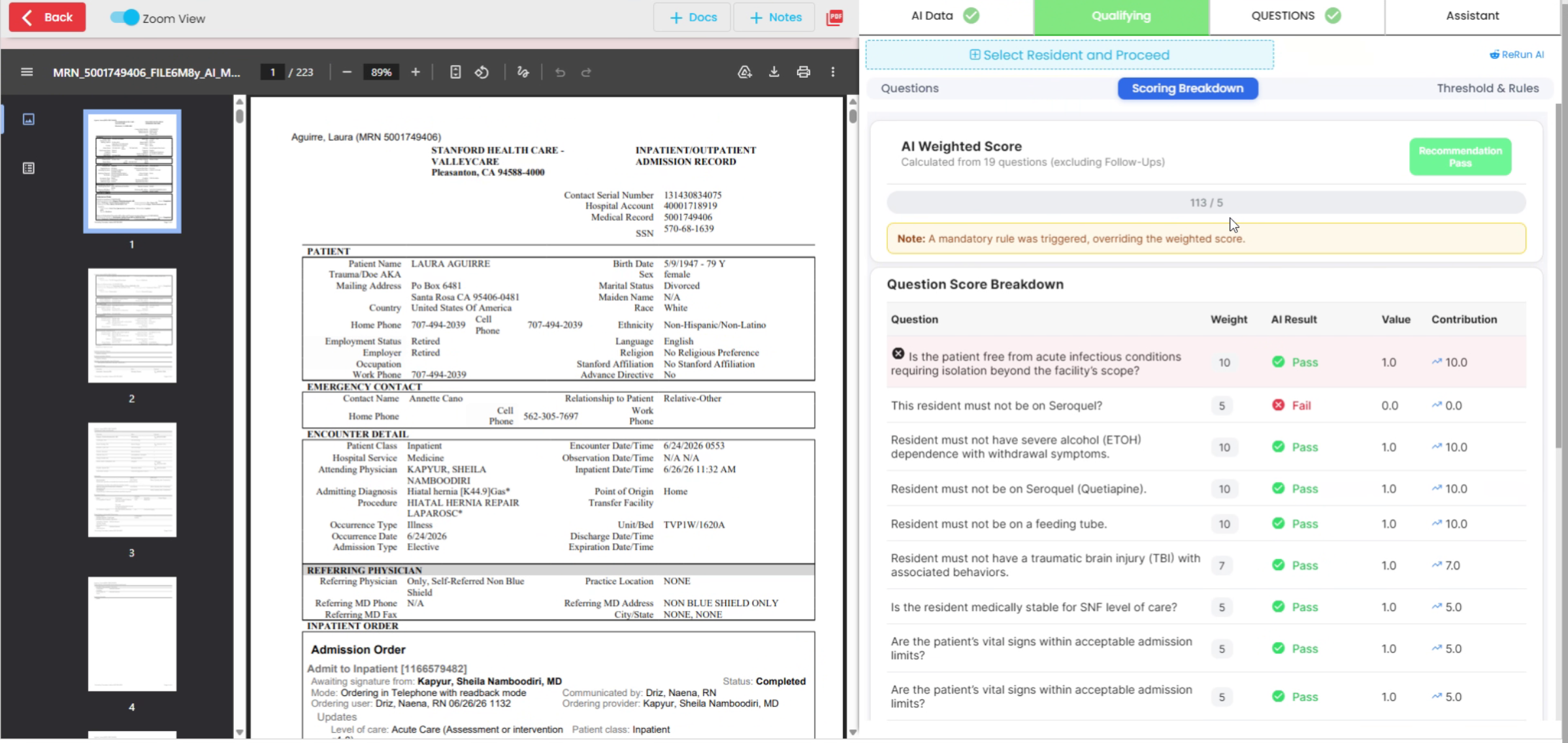
That scoring breakdown will take all those questions on the document and give you a quick overview of the pass, fail, or follow-up on each one of these questions. Now, if you notice here, these are the weight scores that we talked about. What each question is weighted, and that gets a value assigned to it. If it passes, it gets one; if it fails, it gets zero; and if it’s a follow-up, it gets 0.5. So then you get that contribution average overall here, which is aligned to whether you pass or fail that resident in this particular situation.
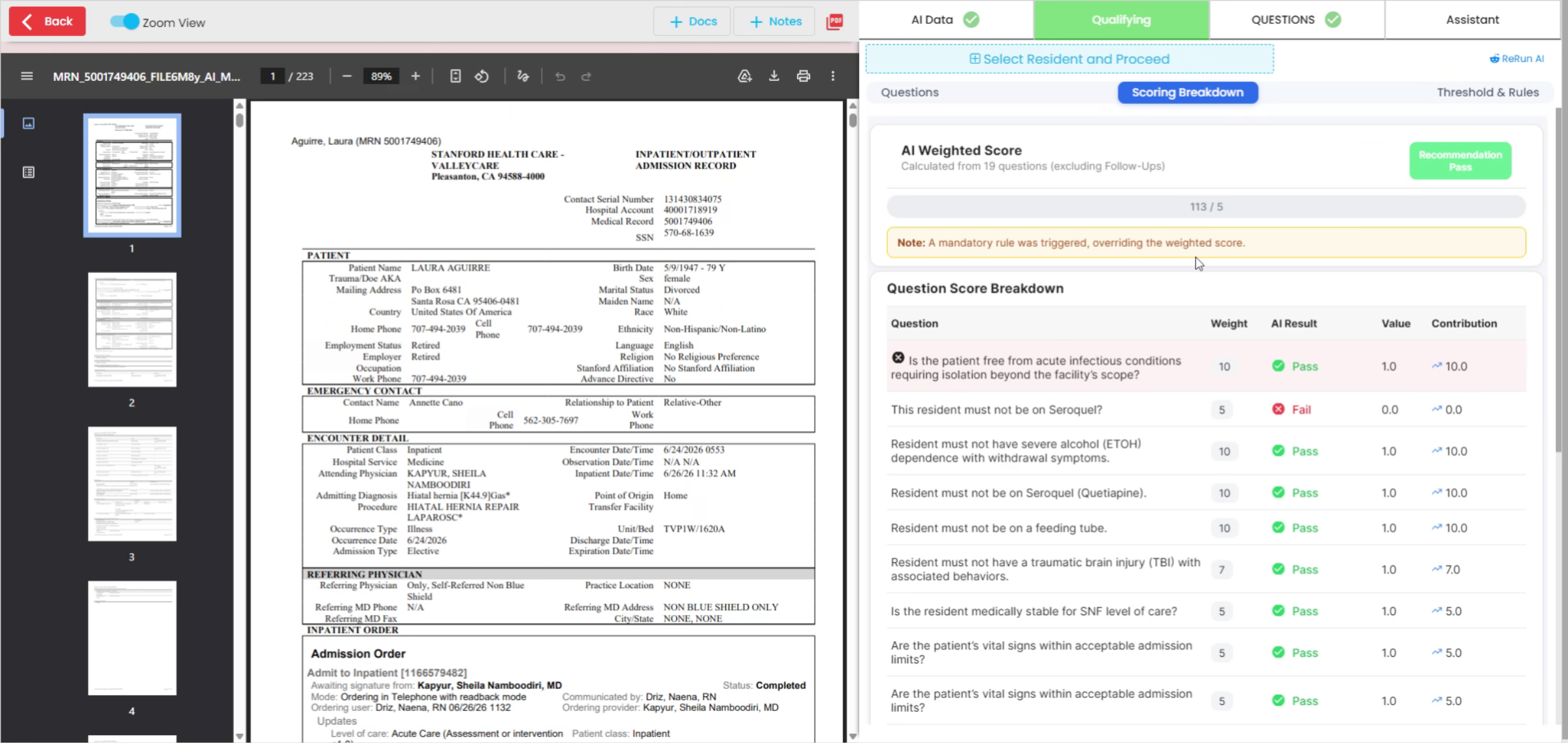
18. Detailed Scoring Question Analysis
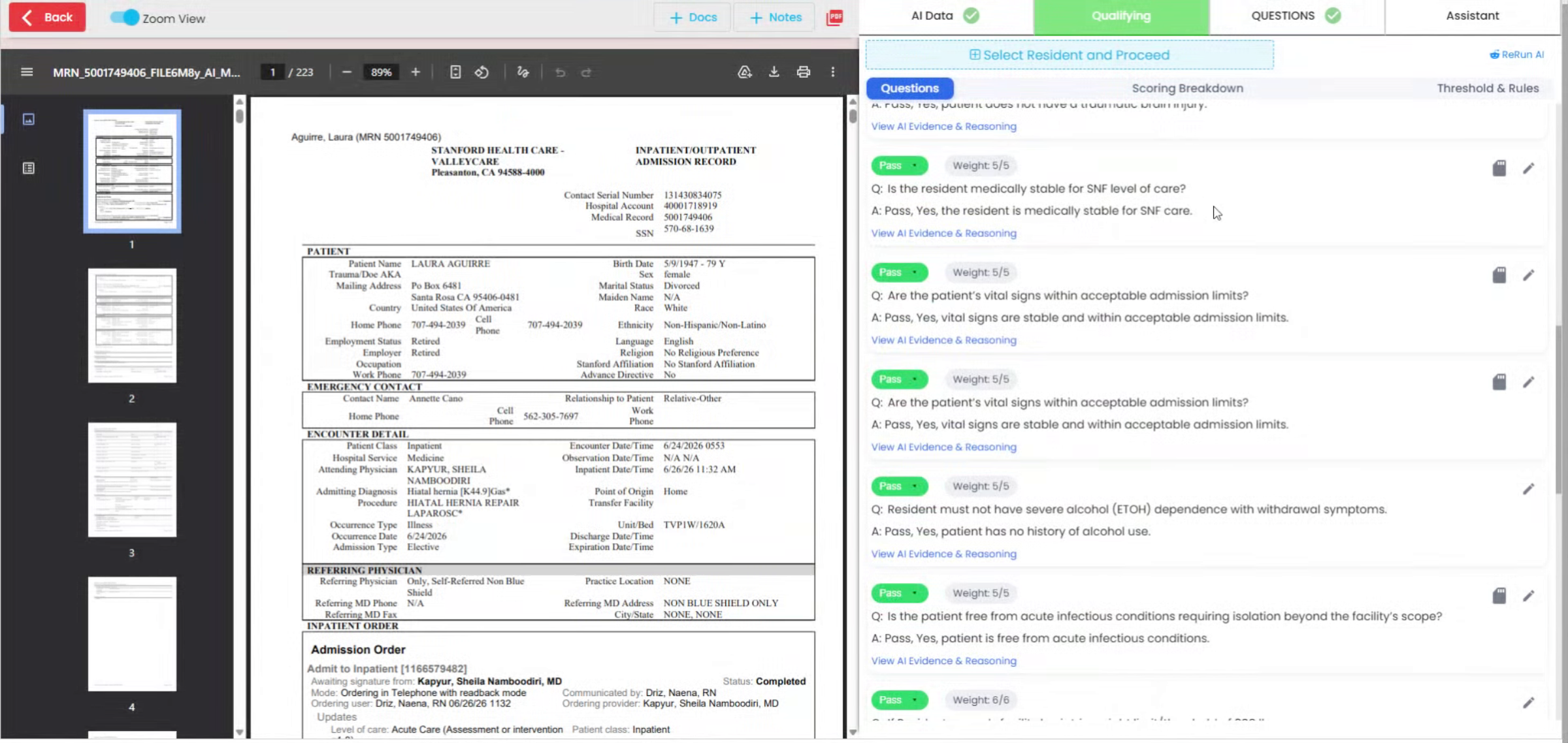
Now, if you have a question on these scoring breakdowns, the resident must not be on Seroquel. If you go here to questions, it will tell you exactly where we found this information. It’ll give you the question, the answer, and the overall analysis or reasoning on why we came to that conclusion. It’ll tell you whether this question is a mandatory fail question, if this is a follow-up question, or anything else you need to know. If you want to refer back to that memory card detail, you can do that there too.
19. Threshold Rules Summary
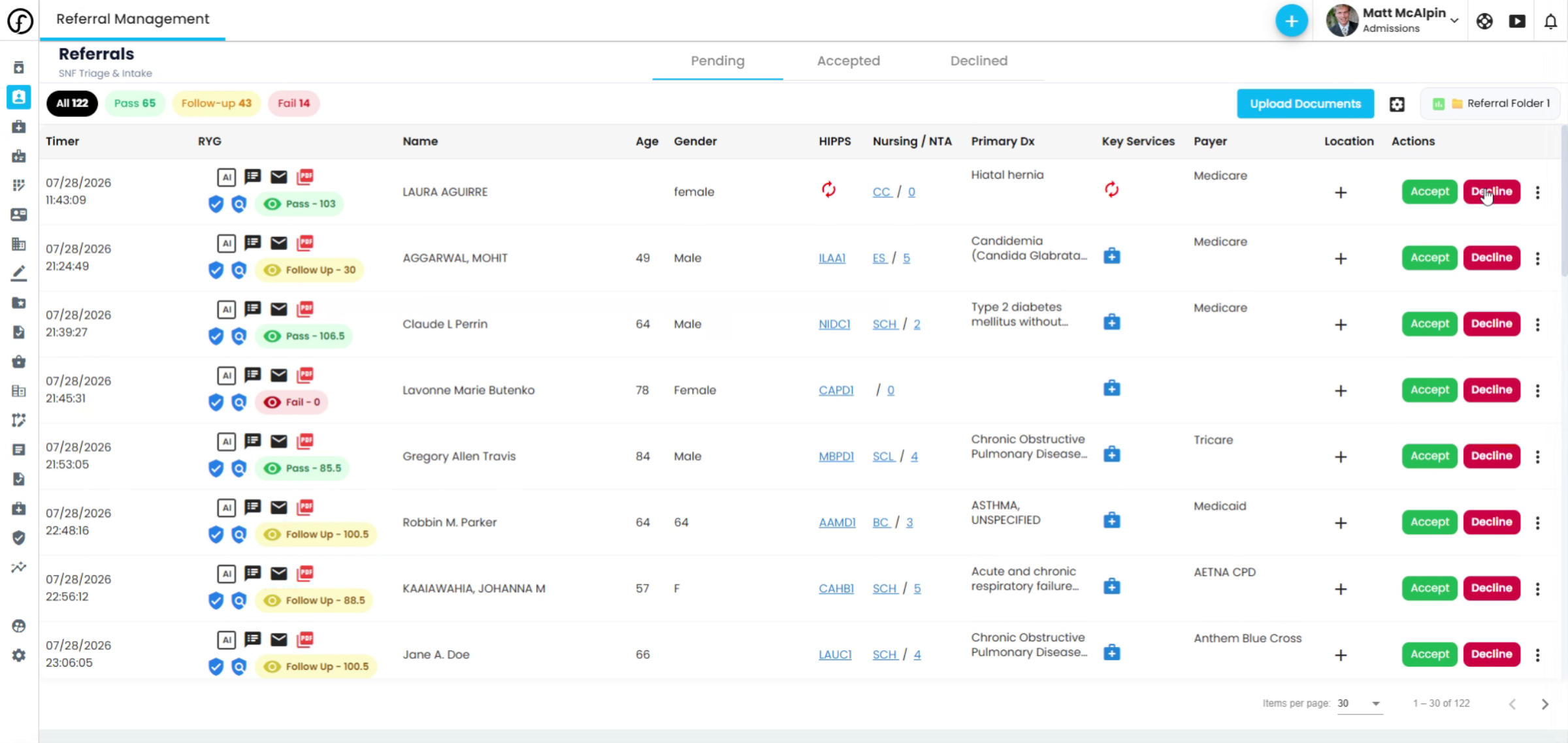
That is understanding how to set up the threshold rules and then reviewing what the questions are behind all those, the answers and the analysis, as well as the scoring breakdown, so that you can really understand this document and still have that document available, but to be able to get all that information for you to be able to accept or decline that resident, that referral coming in. Hopefully.
20. Tutorial Conclusion
You enjoyed this tutorial on referral management and understanding the qualifying questions tab.
Learn to create, weight, and manage qualifying questions with mandatory rules and follow-ups, plus use memory cards for tailored facility criteria in referral assessments.
Get started
0 Comments