
Navigating and Understanding Main Layout – (4:25)
This video demonstrates how to navigate the Flowtricks platform and understand its main layout. It provides an overview of key features and settings to help you get started confidently with the system.
1. Platform Navigation Overview
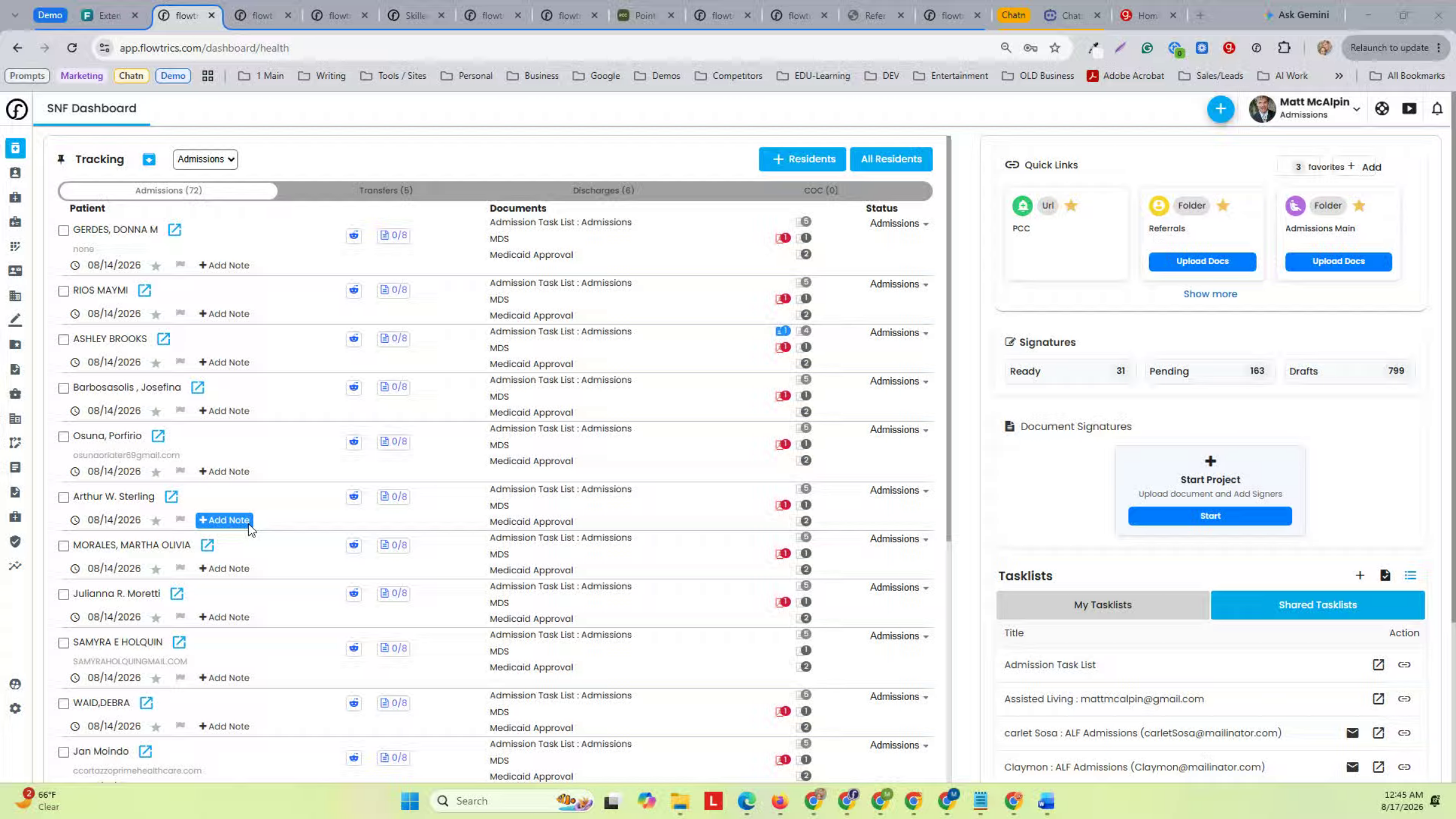
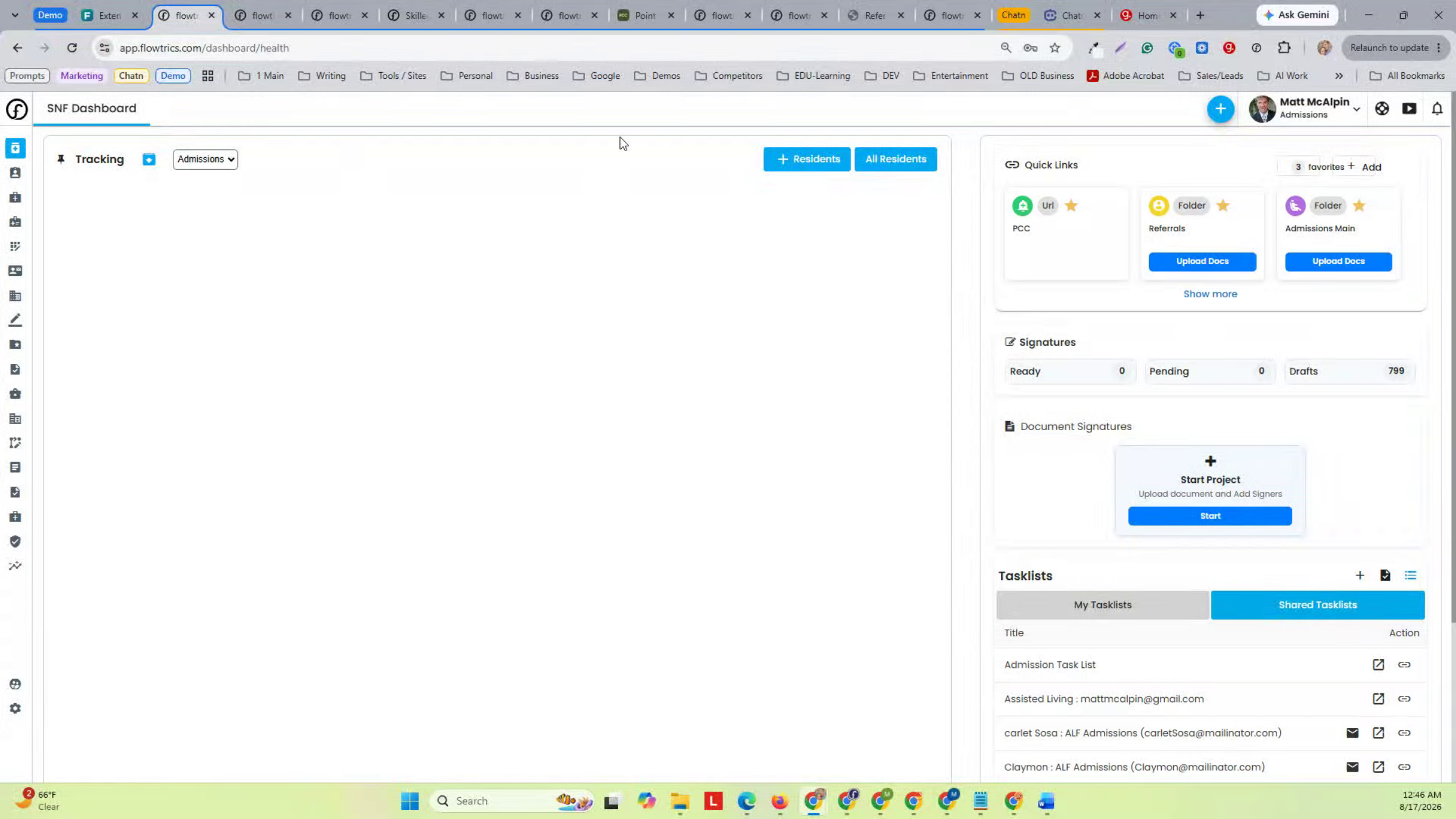
Welcome to Flowtrics. In this training, you’ll learn how to navigate the platform and become familiar with the main layout, giving you a strong foundation for using the system. When you first sign in, this is the screen you’ll see. Let’s walk through a few key areas, starting on the right side and then moving to the left. At the top right, you’ll see the Plus (+) icon. This provides quick access to common actions from anywhere in Flowtrics, so you can quickly start a new action without leaving the page you’re working on. Next, you’ll see your name and your current facility or location. If you have access to multiple locations, you can easily switch between them here.
2. My Profile Password Setup
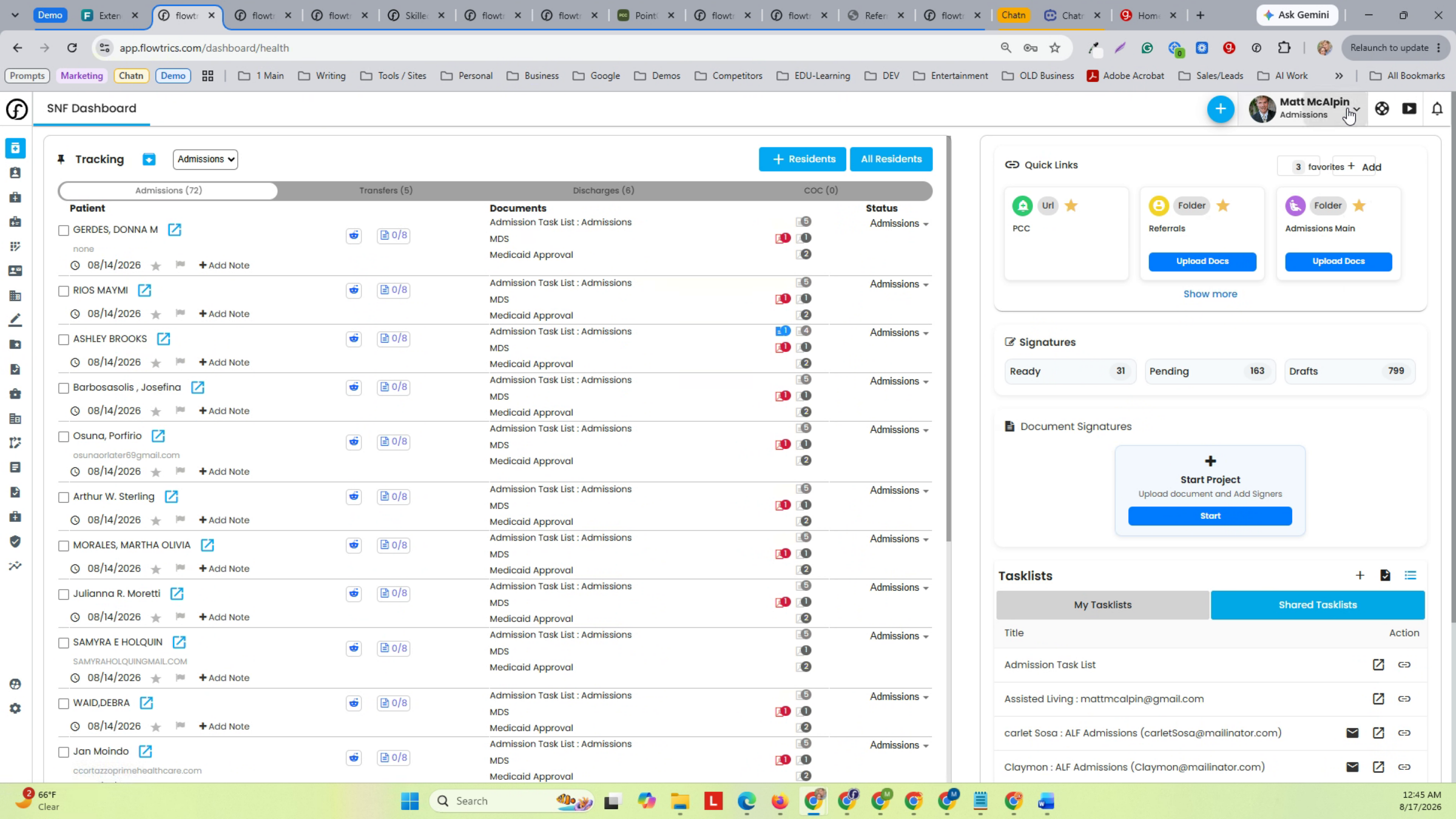
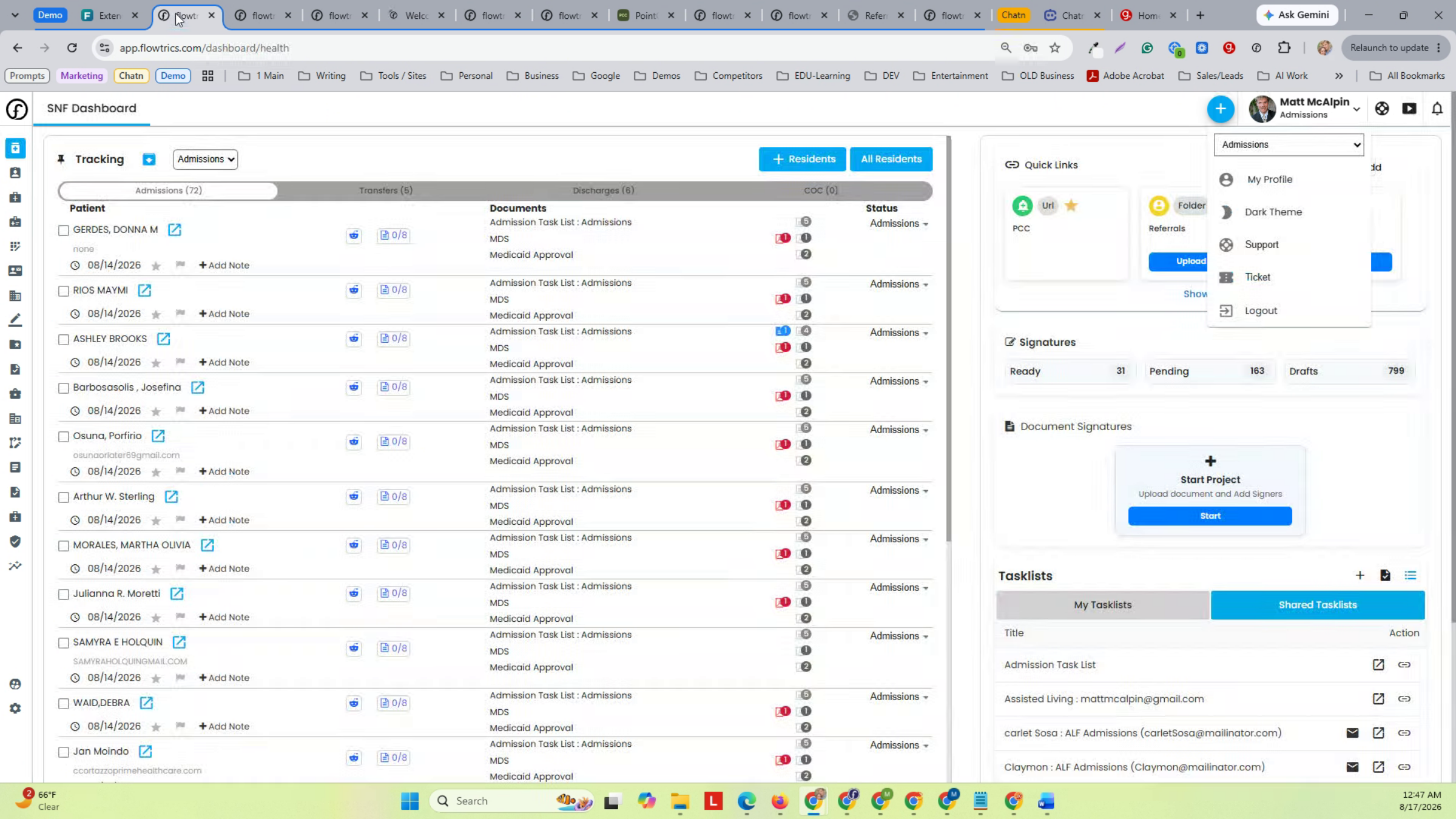
One important area is My Profile. If this is your first time signing in, open My Profile and replace your temporary password with a new, secure password. This is an important first step and should be completed when you initially access Flowtrics.
3. Profile Information And Security Settings
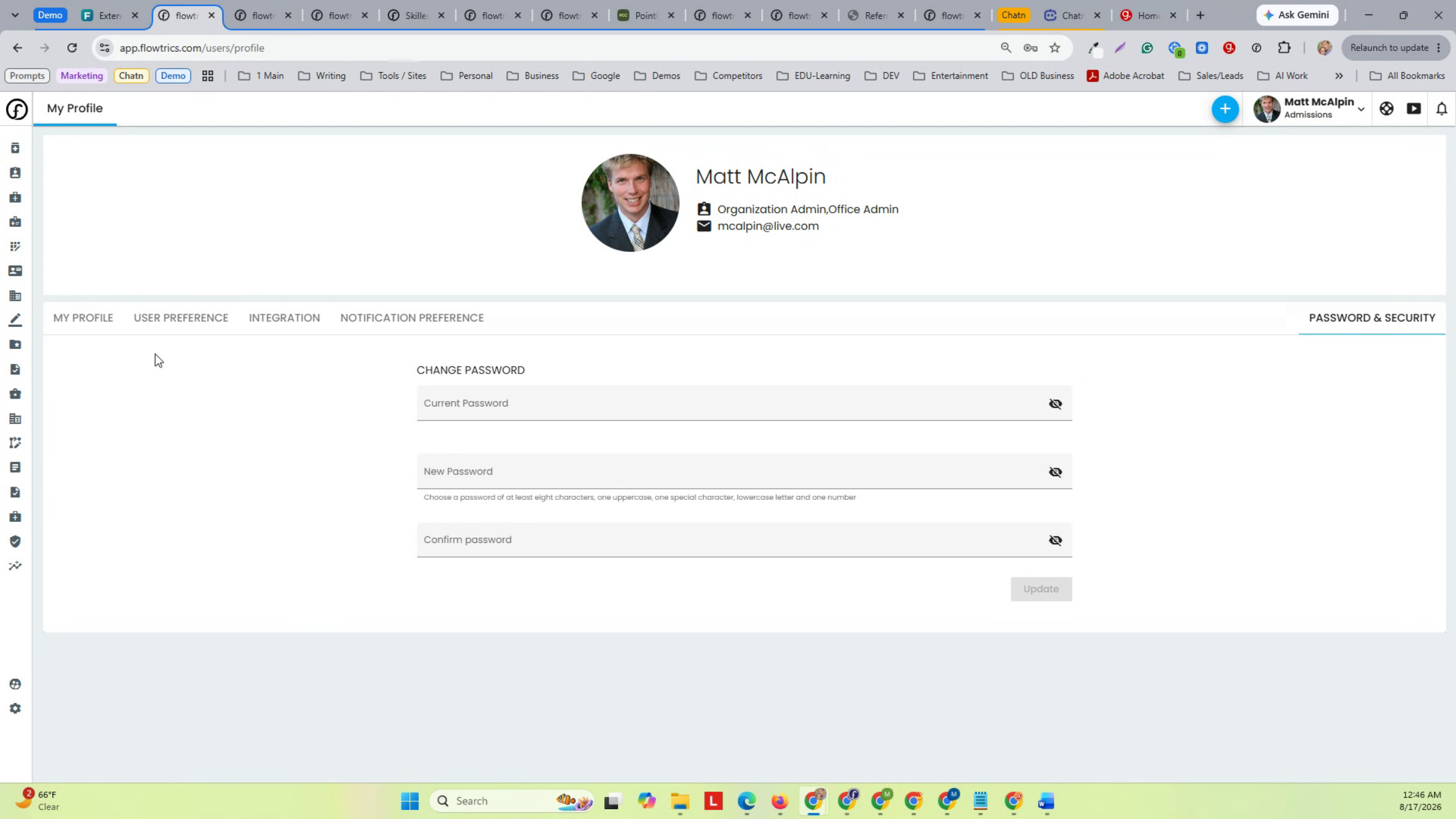
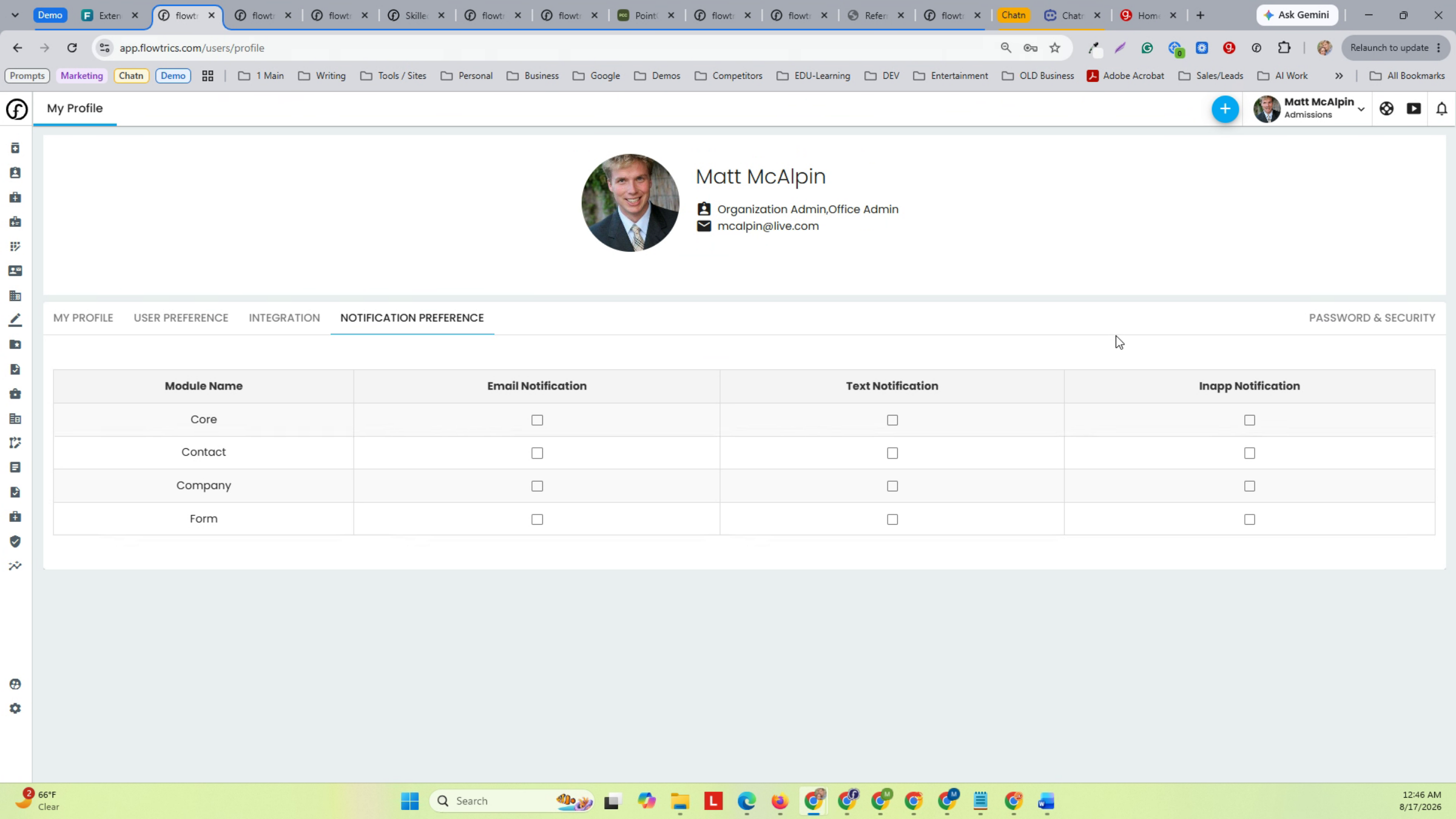
Next, within My Profile, you’ll see several options on the left-hand side. Your Profile Information includes your name, email, and other details that Flowtrics can automatically use when populating forms and documents on your behalf. Next are your User Preferences, including additional security options such as two-factor authentication, when enabled by your organization. You’ll also find your available Integrations and Notification Preferences, where you can manage how and when you’d like to receive specific notifications.
4. Summary Of Profile Features
Those are the main things on this first.
5. Dark Theme and Support Availability
Next, you’ll see the Dark Theme option. If you prefer a darker workspace or want to reduce screen brightness, you can switch between display modes at any time. The next two options are focused on Support and Training, and these are important to remember. You’ll also see Support represented by the life buoy icon, making help easy to access throughout Flowtrics. Whenever you have a question, need additional training, or want to learn more about a feature, this is where you’ll want to go. Selecting it opens the Support Center, giving you access to training videos, helpful resources, and the materials you need to continue learning Flowtrics.
6. Support Features and Notifications
The Support Ticket option is another important resource. You’ll always have access to the Flowtrics Support team, but whenever you need assistance, you can also submit a support ticket directly from here. Finally, the last two options keep you informed. Notifications provides a centralized place to view important updates delivered through the system, email, or text. And if new training videos or resources are available, you’ll be able to access those here as well.
7. Support Video Look
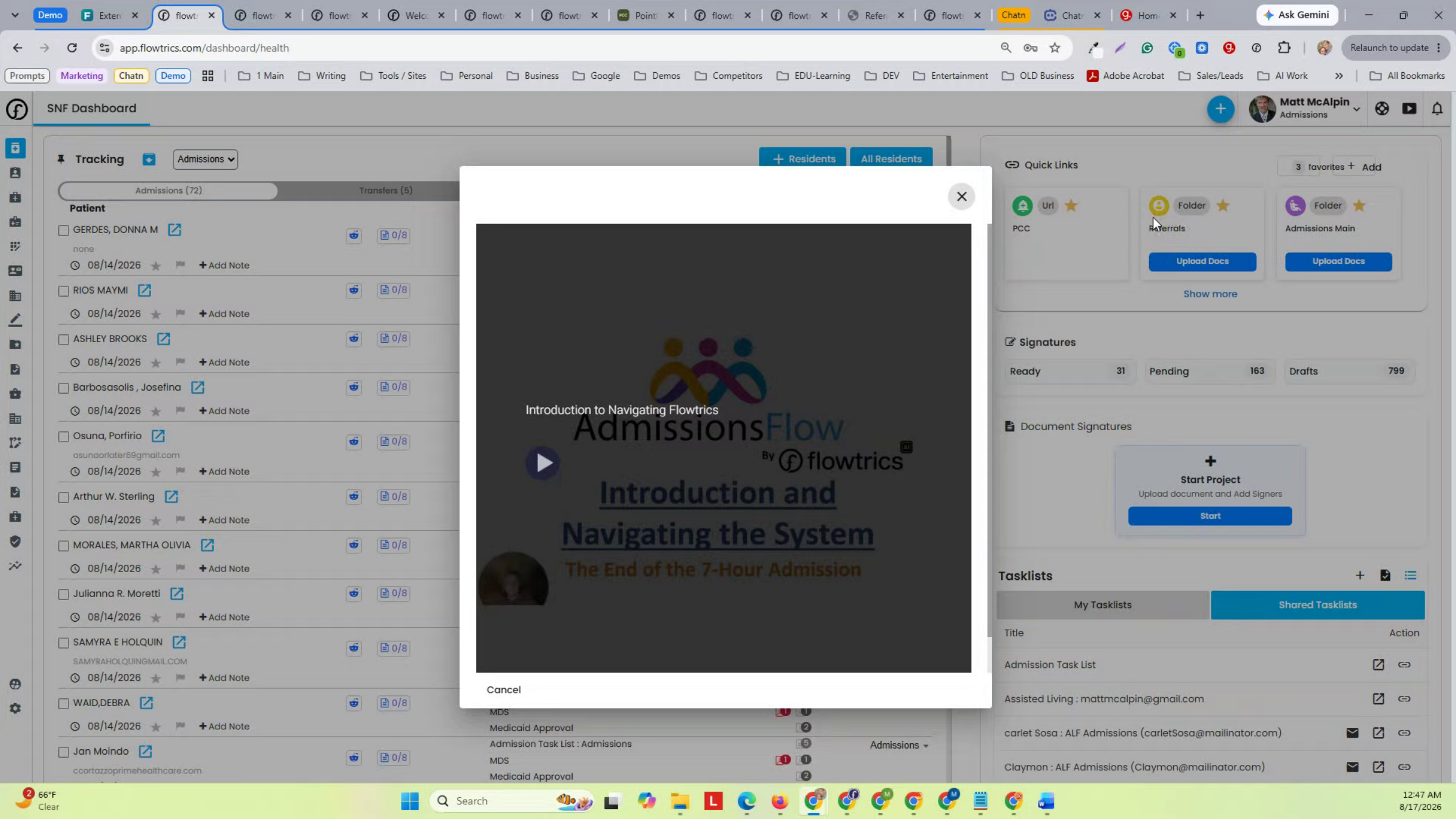
You’ll also find Training Videos available for each of the key screens, providing a quick walkthrough of what each screen does and how to use it. These videos are designed to help you navigate Flowtrics with confidence. That completes our overview of the right-hand side.
8. Left Side Navigation – Main Tabs
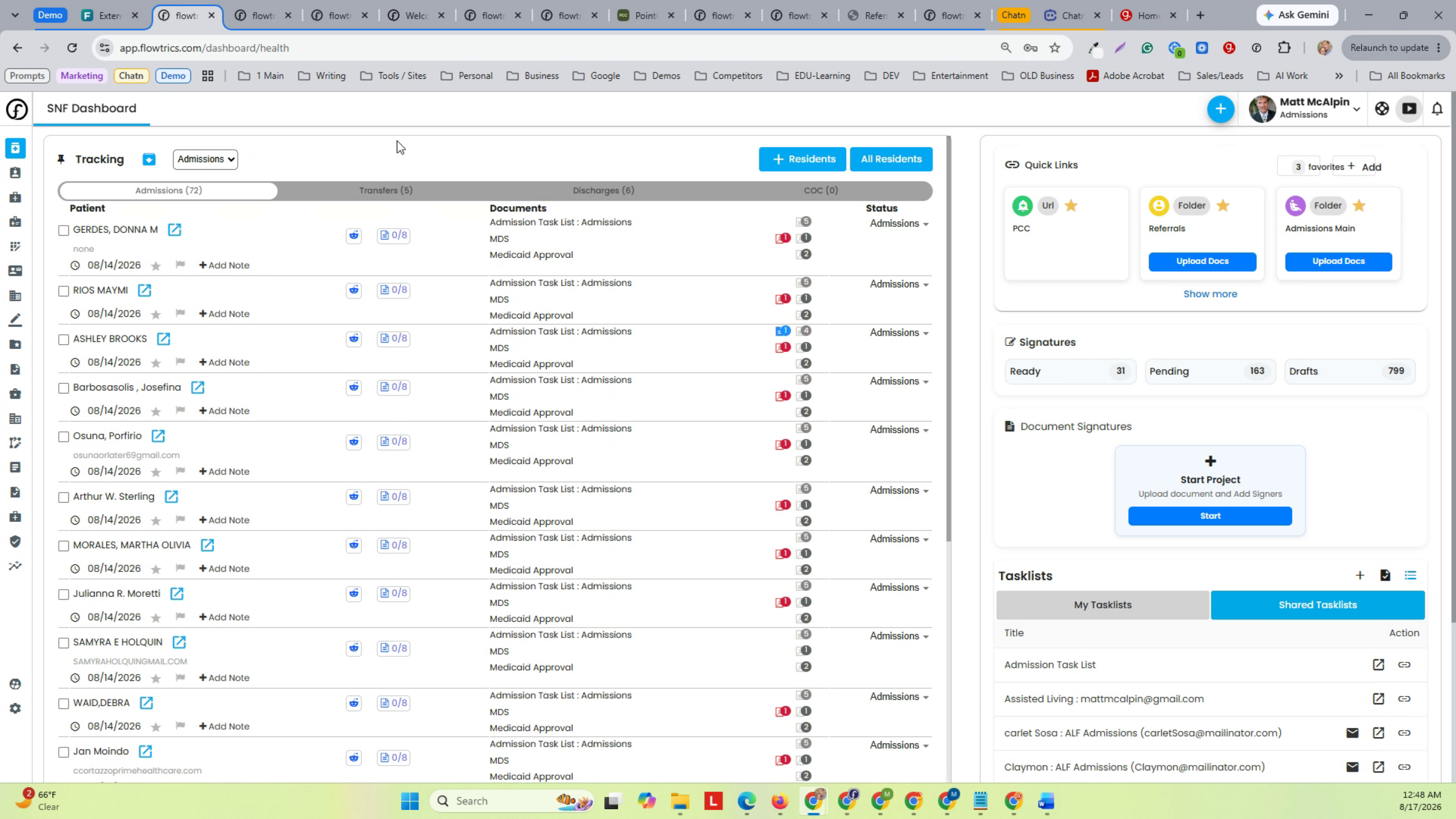
On the left-hand side, you’ll find the Flowtrics icon and your main navigation. As you’re getting familiar with the platform, select the Flowtrics icon to expand the menu and view all the tabs available to you. This makes it easy to learn where everything is located. Each tab also has dedicated training, so as you begin working with a feature, you can access the corresponding training to learn more. Over time, you’ll become familiar with the icons and won’t need to keep the menu expanded. Simply hover over any icon to display the name of that section.
9. Completion of Overview
That completes our overview of the Flowtrics platform and its main navigation. You should now have a better understanding of the layout, where to find key resources, and how to move throughout the system. When you’re ready, continue to the next training to begin exploring the individual Flowtrics modules. We’ll see you there.
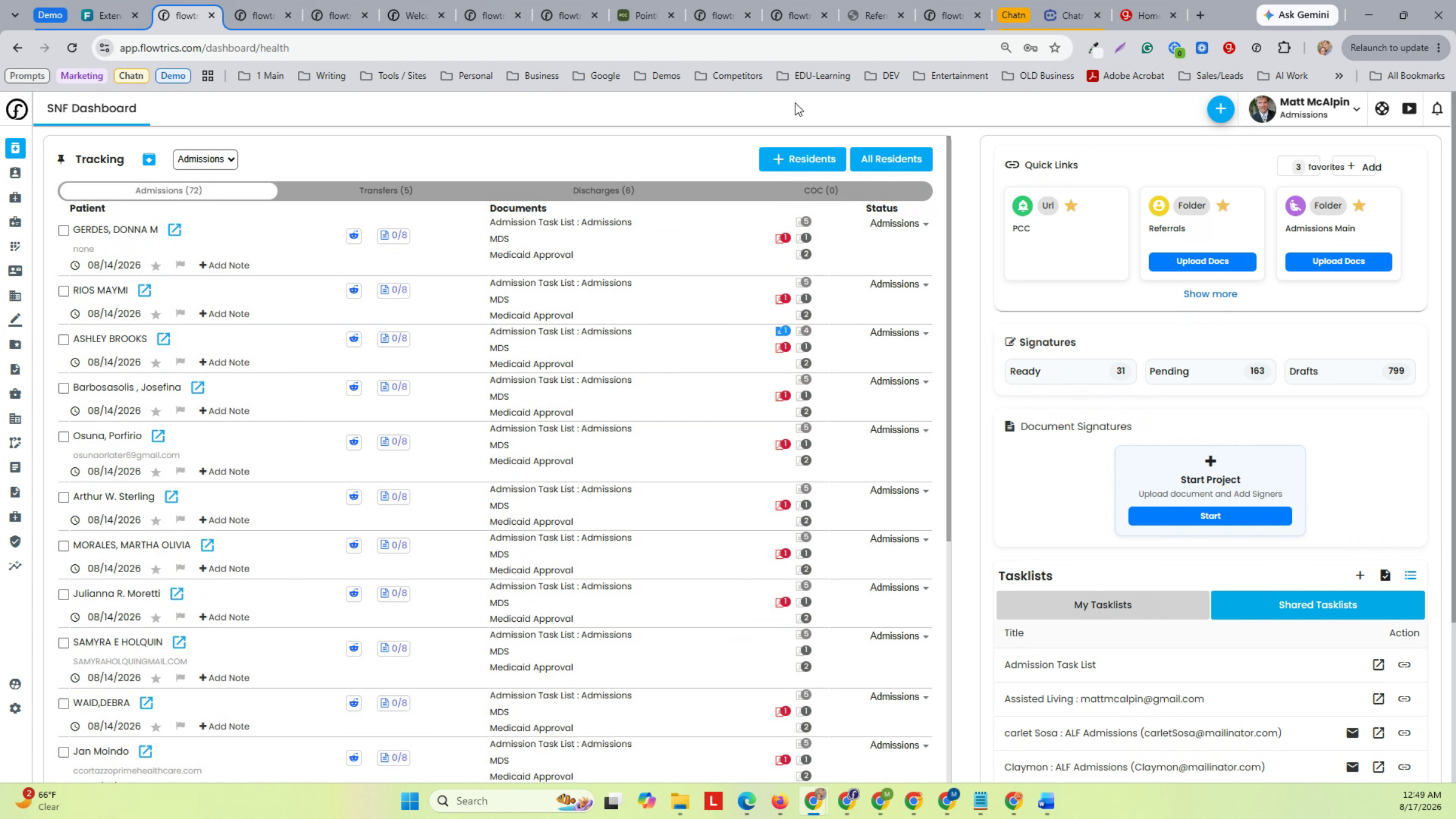
Learn to navigate Flowtricks, manage profiles, access support, and configure user and facility settings for effective platform use.
0 Comments