
Creating Residents without using Referral Management – (8:42)
This video demonstrates how to create resident records in multiple ways using Admissions only, without using the referral management section. It covers 3 manual and 2 automated methods for creating new residents via browser extensions, email/eFax facilitation, document uploads, and AI processing to streamline admissions workflows.
1. Document Upload And AI Processing (1)
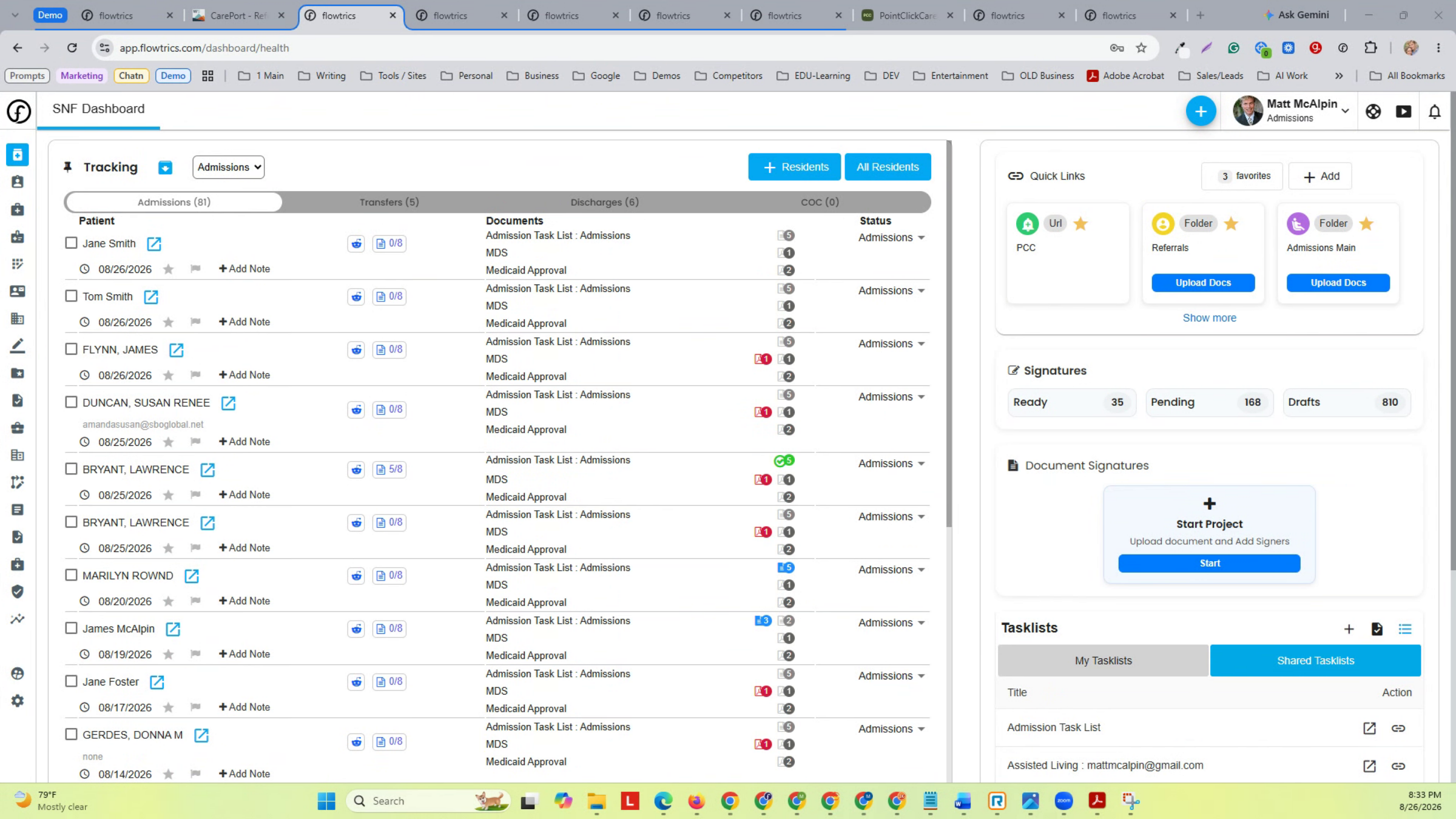
By the end of this training, you’ll understand how to create a resident directly in Admissions, manage their documents, and begin the admissions workflow—all without using Referral Management..
2. Manual Admissions Without Referral (1)
Let’s get started. If you’ve completed the Referral Management training, you already know that the primary admissions workflow begins there. Once a referral is accepted, Flowtrics automatically moves the resident into the Admissions process within the Residents section.
3. Manual Admissions Without Referral (2)
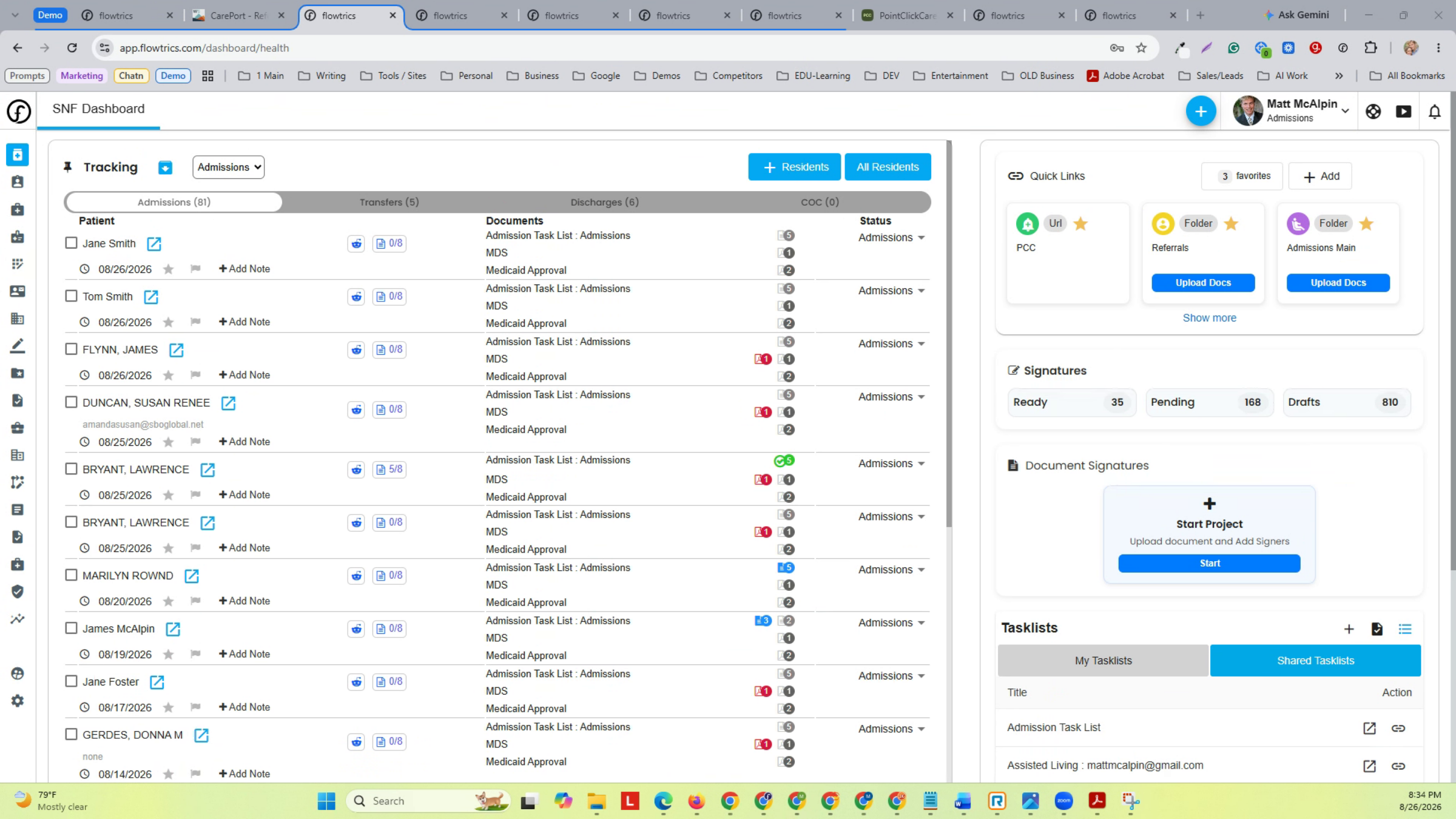
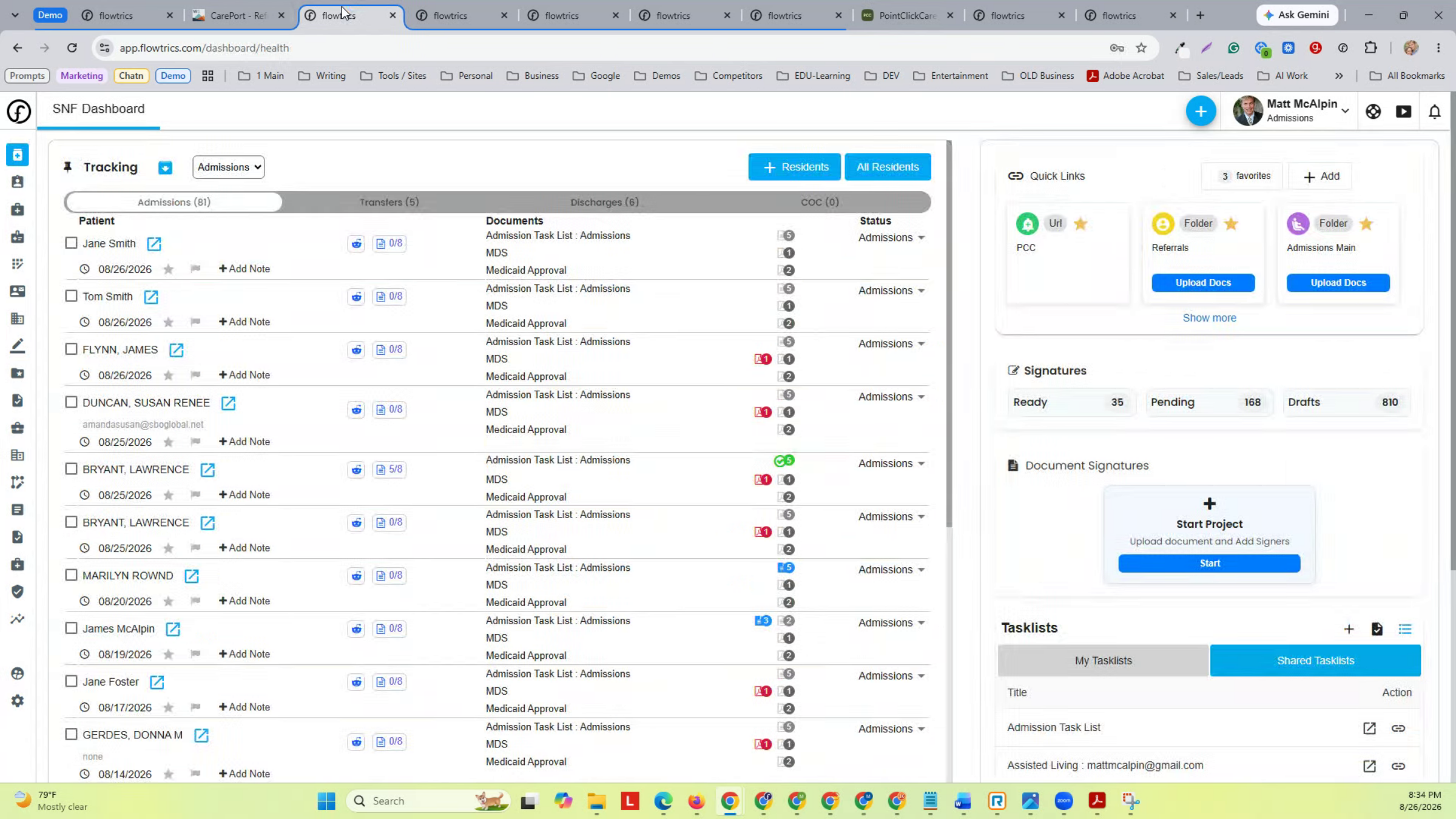
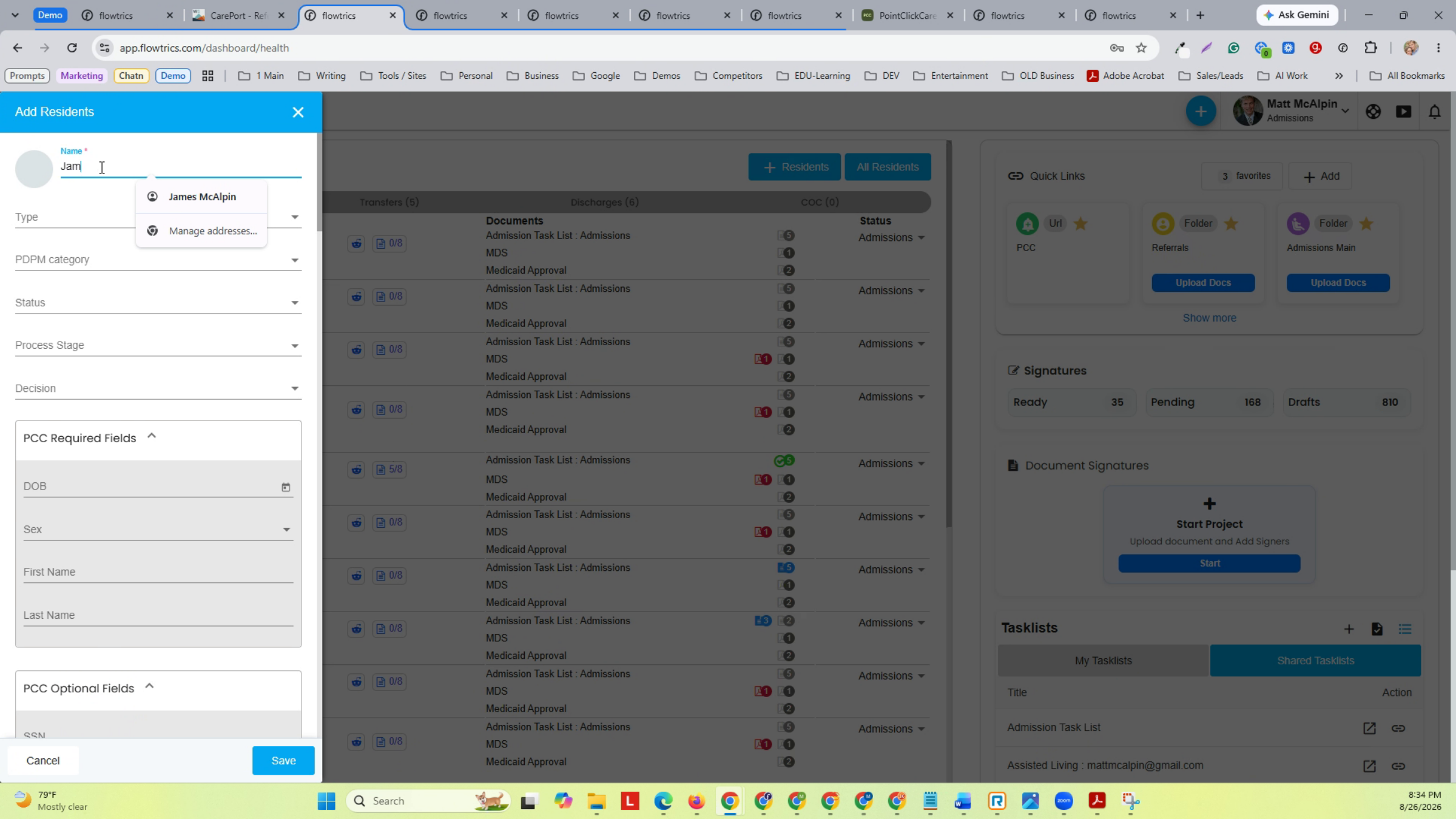
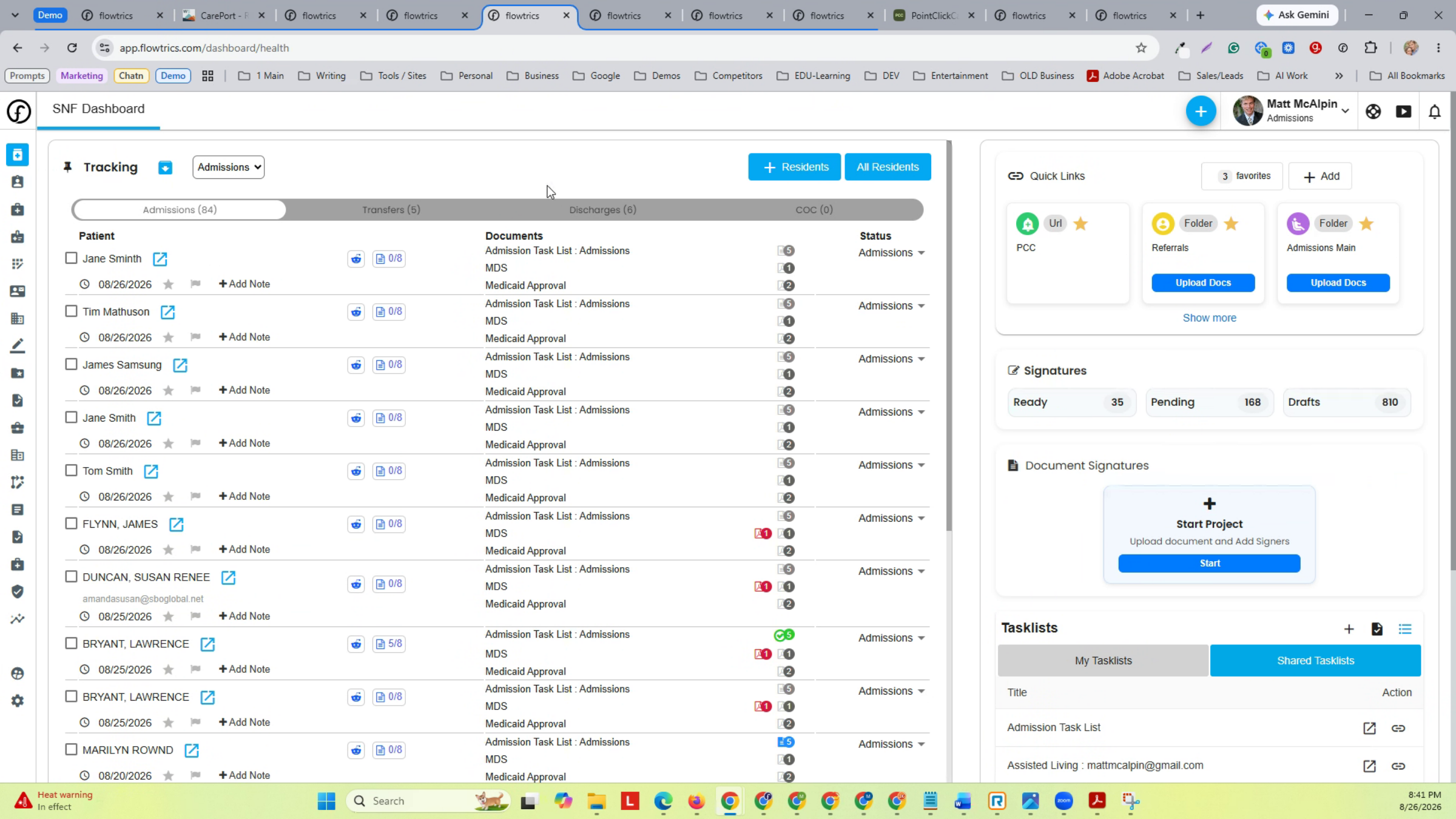
In this training, we’ll focus on how to create residents manually or automatically without using Referral Management. There are three ways to add a resident manually and two ways to add a resident automatically. We’ll begin with the manual options. The first is directly from the Dashboard. Simply select Add Resident, enter the resident’s information, and create the record..
4. Creating Resident Manually Dashboard (1)
Enter any additional information you have available, then select Save. And just like that, James’s resident record is created and ready to use.
5. Adding Resident From Any Page
Once the resident is created, the documents and workflow items are automatically available. The second manual option is the Plus icon. From any page in Flowtrics, select the Plus icon and choose Add Resident. The process is exactly the same as adding a resident from the Dashboard—enter the resident information, select Save, and the record is created. The third manual option is directly from the Residents section. Select the Flowtrics icon to expand the navigation, then choose Residents.
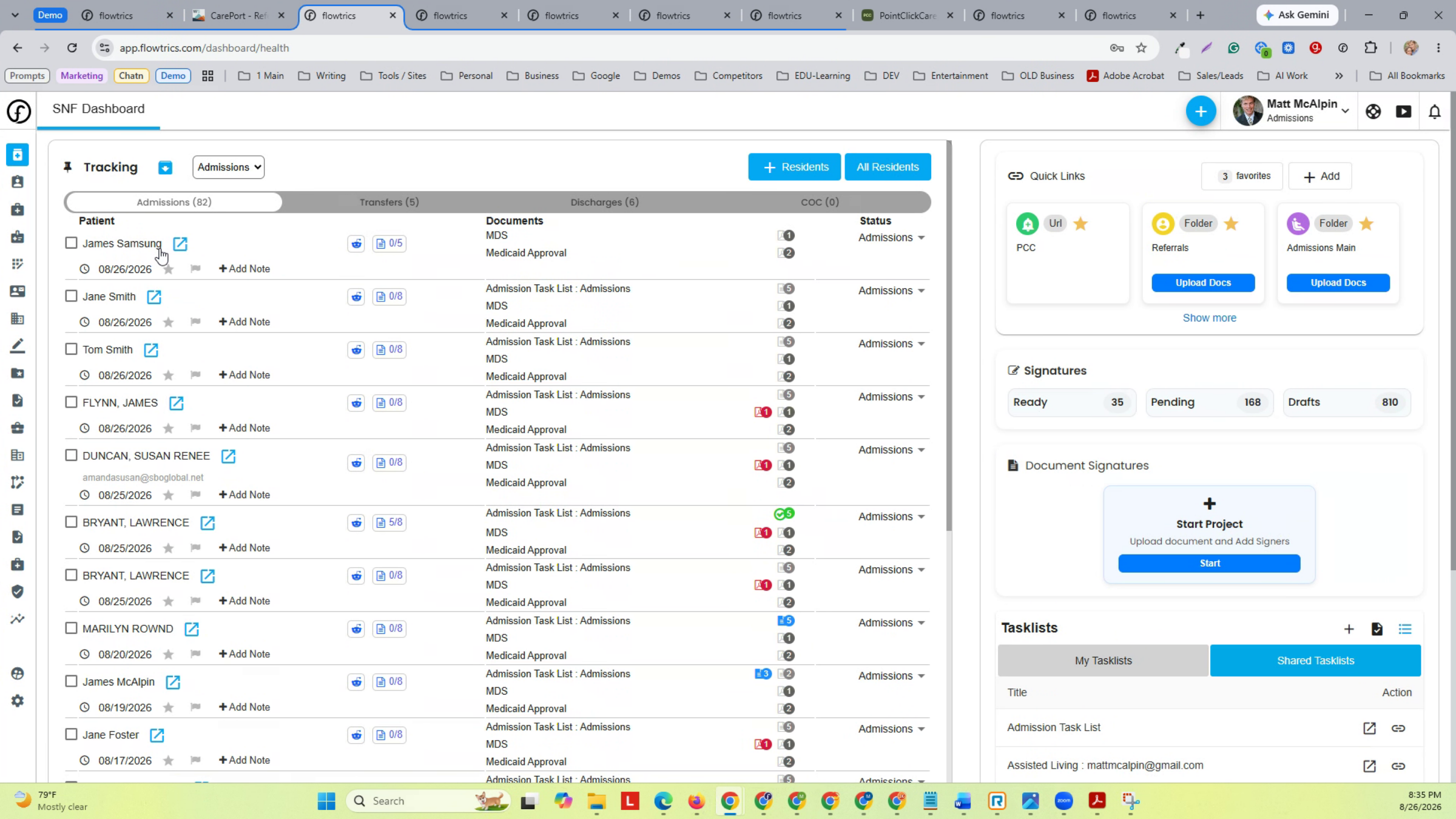
6. Resident List Manual Addition (2)
In the Residents section, you’ll see a complete list of your resident records. To add a new resident, select either the Plus button or Add New. Both options open the same resident creation screen. Enter the available information, then select Save.
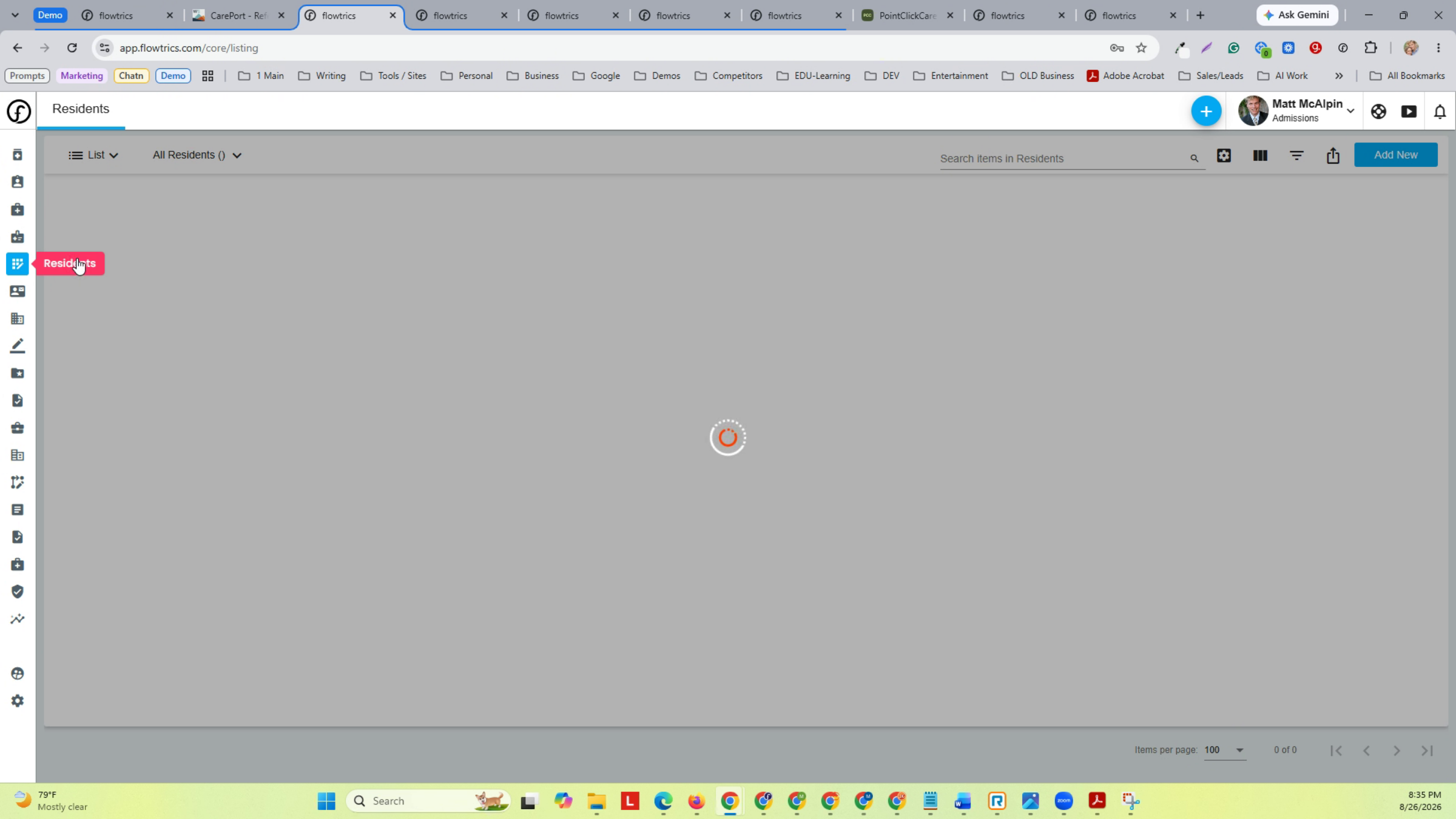
7. 3rd Way to Manually Create Resident
And just like that, you’ve completed the third manual method for creating a resident, allowing you to quickly create the record and move forward with the admissions process.
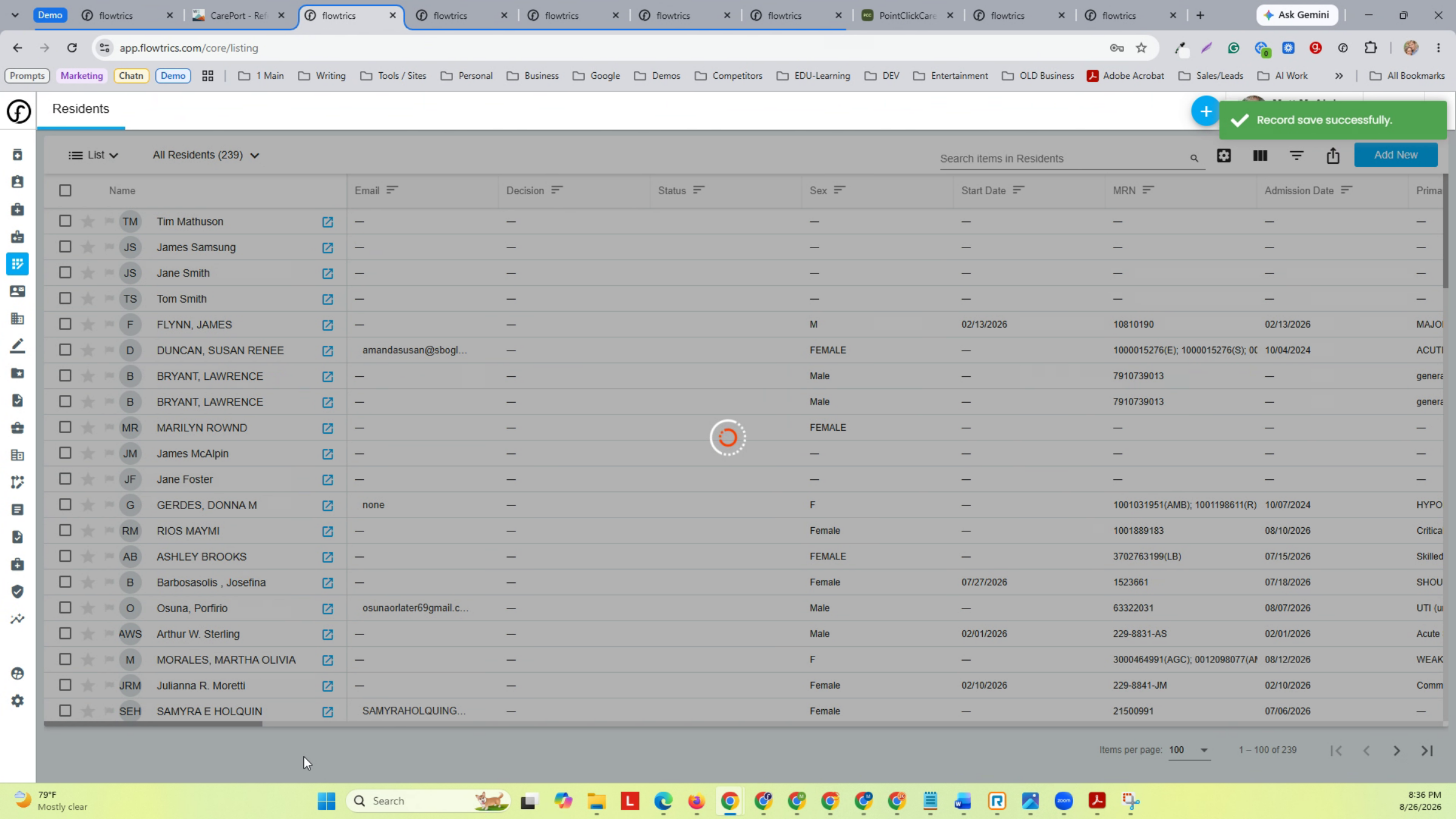
8. Wrapping up 3 manual ways to create Residents
Now, let’s return to the Dashboard. Those are the three manual ways to create a resident in Flowtrics and begin the admissions workflow, including the documents and tasks associated with that resident.
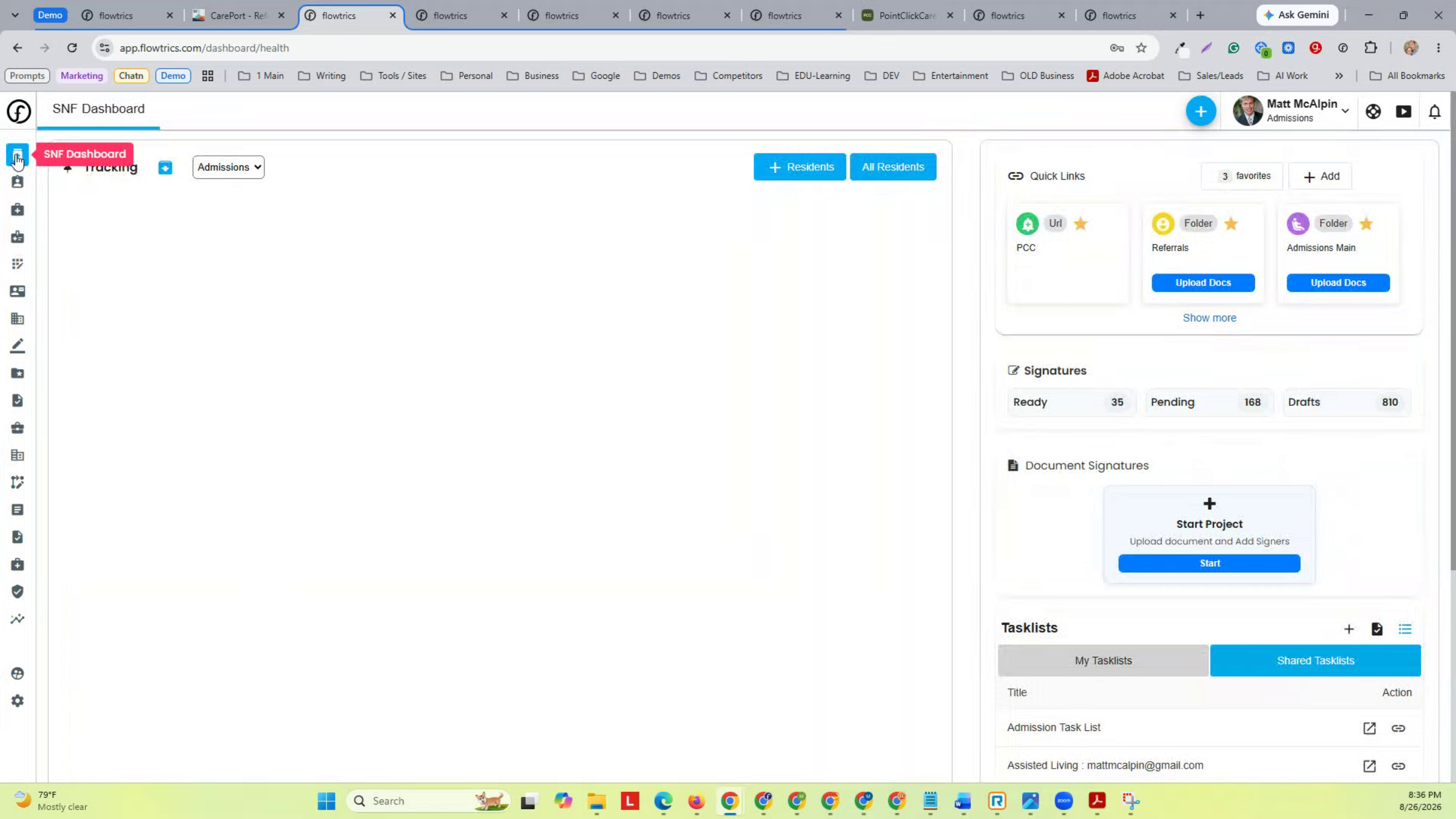
9. Automated Admissions with Email & eFax
Now, if you’d like to automate the resident creation process, there are two additional options available outside of Referral Management. Referral Management is the primary automated workflow, but Flowtrics also provides two ways to automatically create residents and begin the admissions process without using Referral Management.
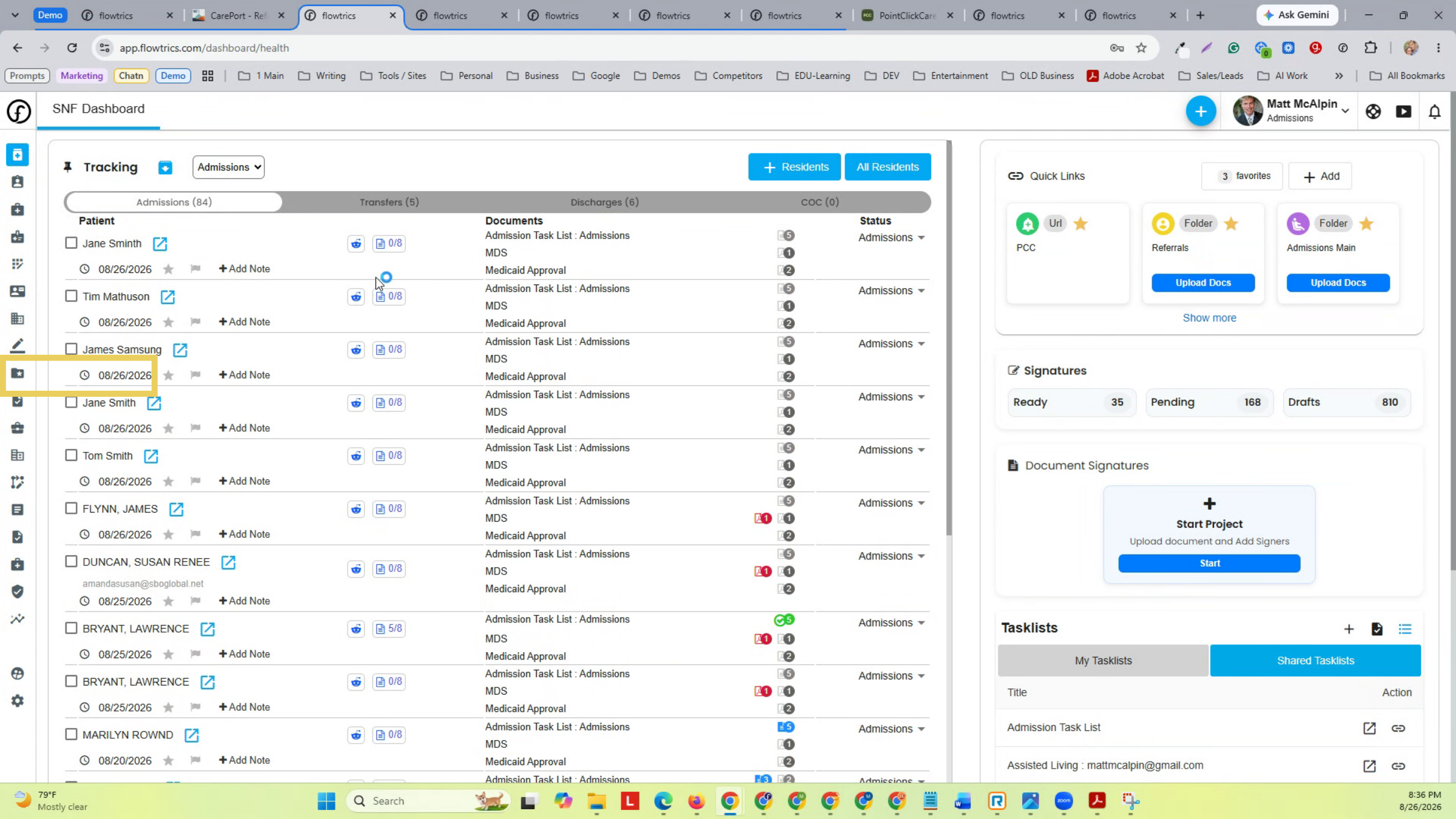
10. Automated Admissions for Residents with Emailing
The first automated method is through email or eFax. Navigate to File Manager. Go to Office Drive, and go to folders configured for Admissions and Referrals. From the Admissions folder, select this icon and choose Add Document Email. Here, you can create a unique email address for this folder, provided the address is available. Copy this email and use it to forward documents such as an H&P, final discharge orders, or other admission documents directly into Flowtrics. Once received, Flowtrics automatically brings those documents into the system and places them in the appropriate document folder.
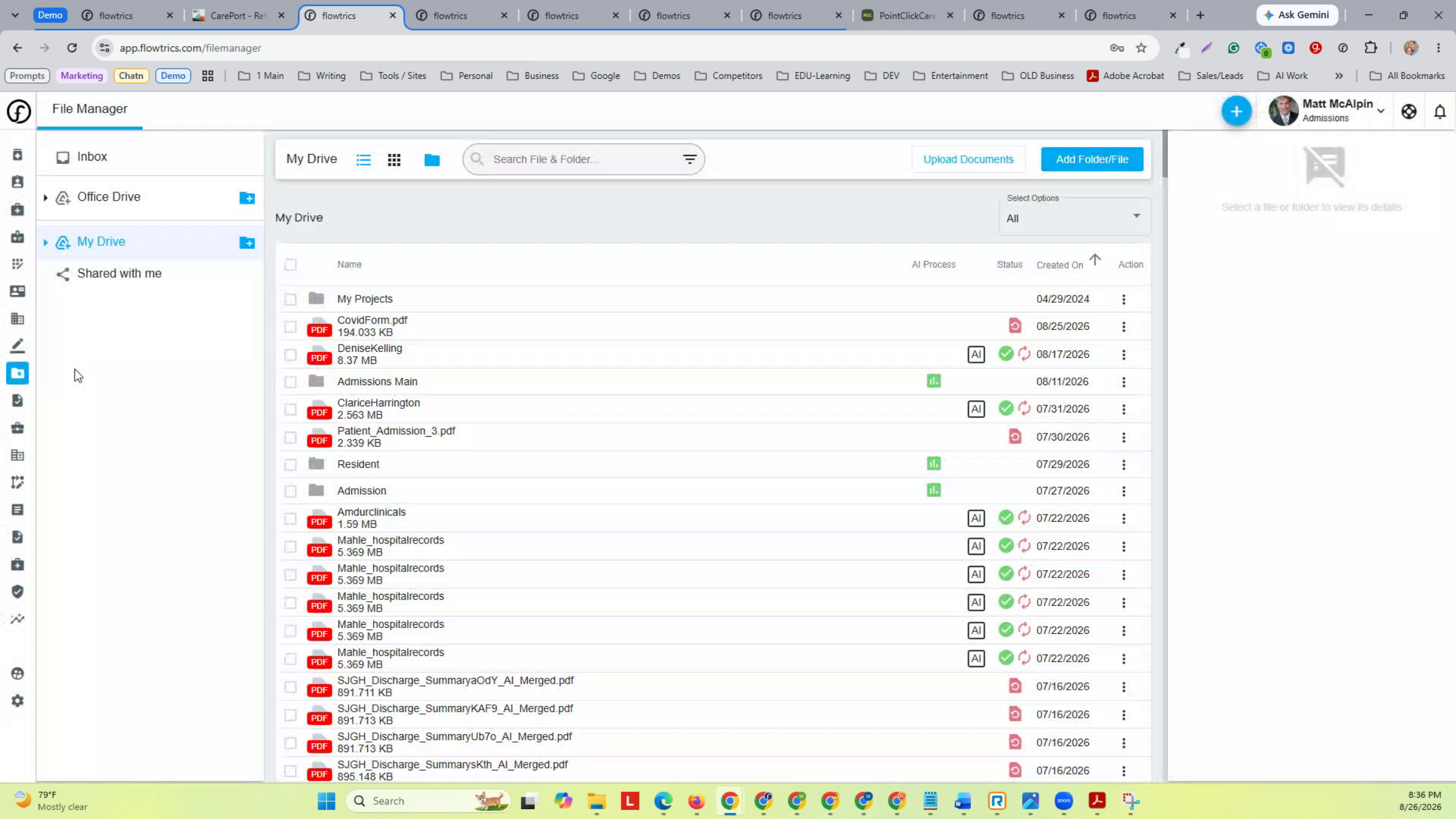
11. Automated Admissions
Flowtrics will automatically run AI processing on the incoming documents and, once complete, create the resident record for you. The key difference is that with the manual methods, you’re creating the resident record yourself. With the automated method, Flowtrics creates the resident record, adds the documents, and begins the AI analysis automatically. So, by the time you open the resident, much of the initial work is already underway.
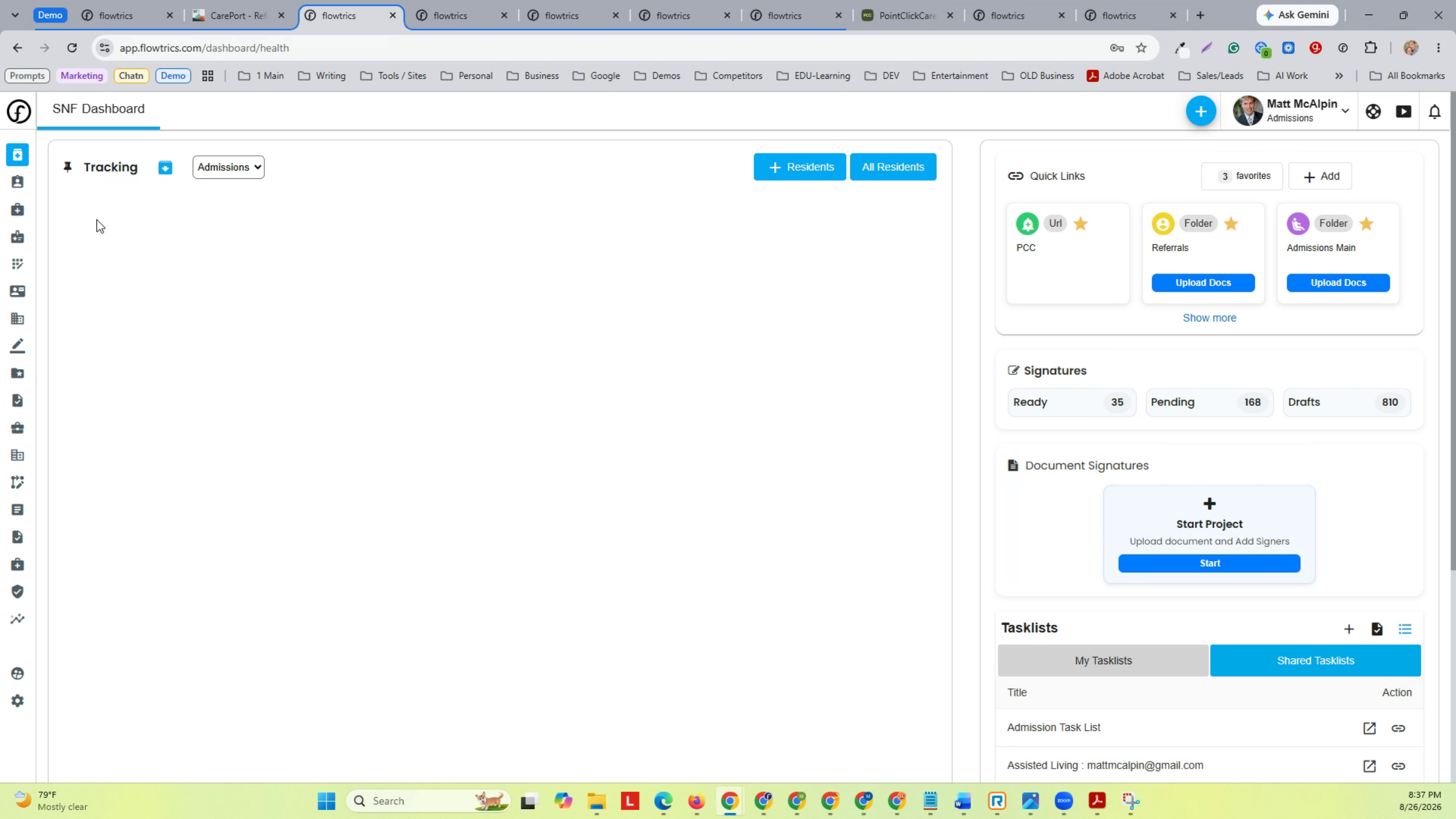
12. Automated Admissions Email EFax
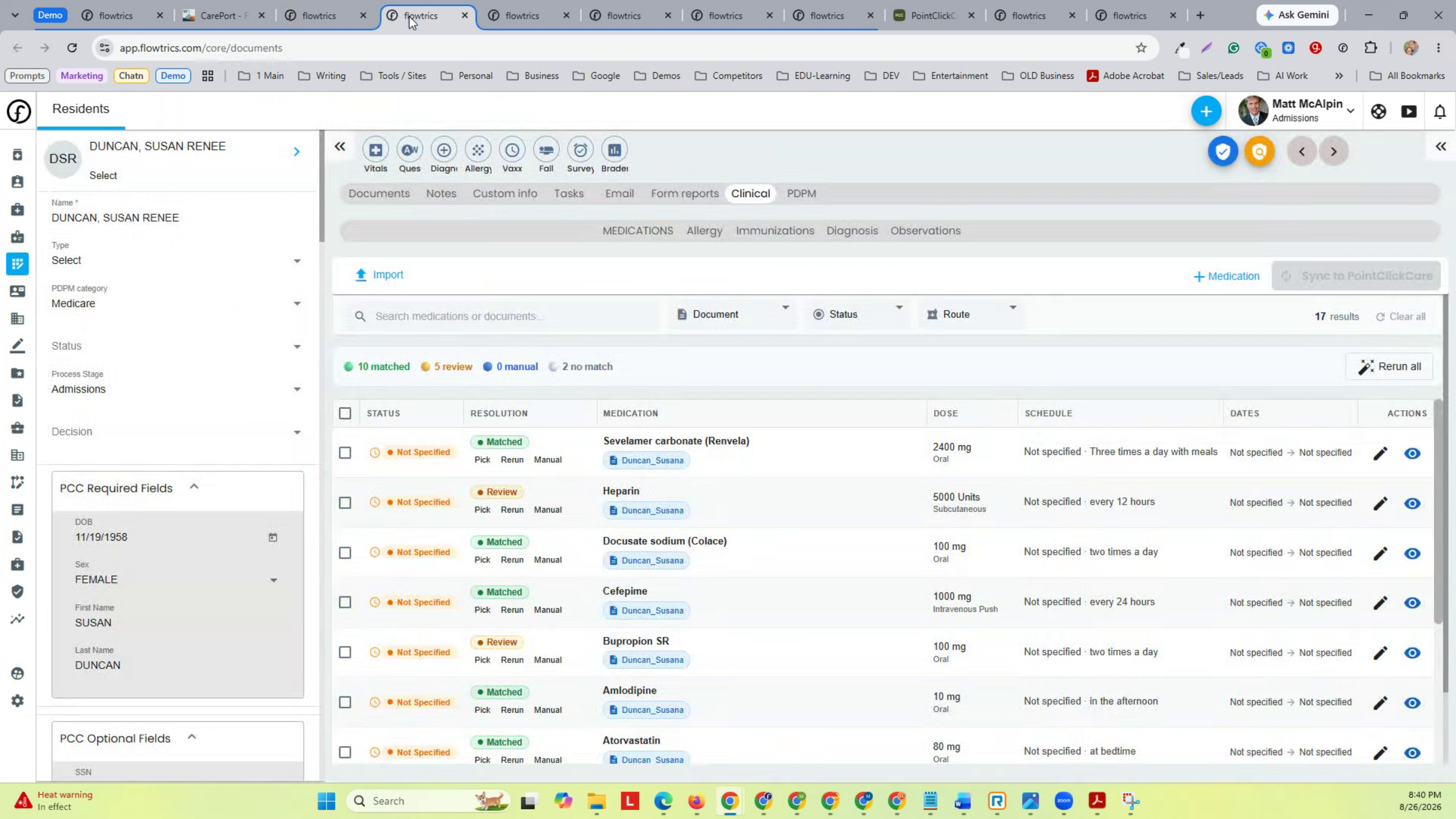
Let’s take a look at an example. In the resident record, everything will already be synced. You’ll see the AI document here, Your configured questions will already be answered, and everything will be organized here for review. From there, you can move directly into Clinical, where all of the resident’s information is available and ready to go. It’s the same streamlined process you would have if the resident came through Referral Management, except in this case, the entire process was initiated automatically simply by emailing the documents into Flowtrics
13. eFax Forwarding Setup
That same functionality can also be used with eFax. If your facility receives referral or admission documents by fax from the hospital, you can configure that same Flowtrics email address within your eFax system. When a fax is received, it can automatically forward the documents directly into Flowtrics, where the same automated process begins. So, that’s the first automated way to create a resident and begin the admissions workflow.
14. Chrome Edge Extension Automation
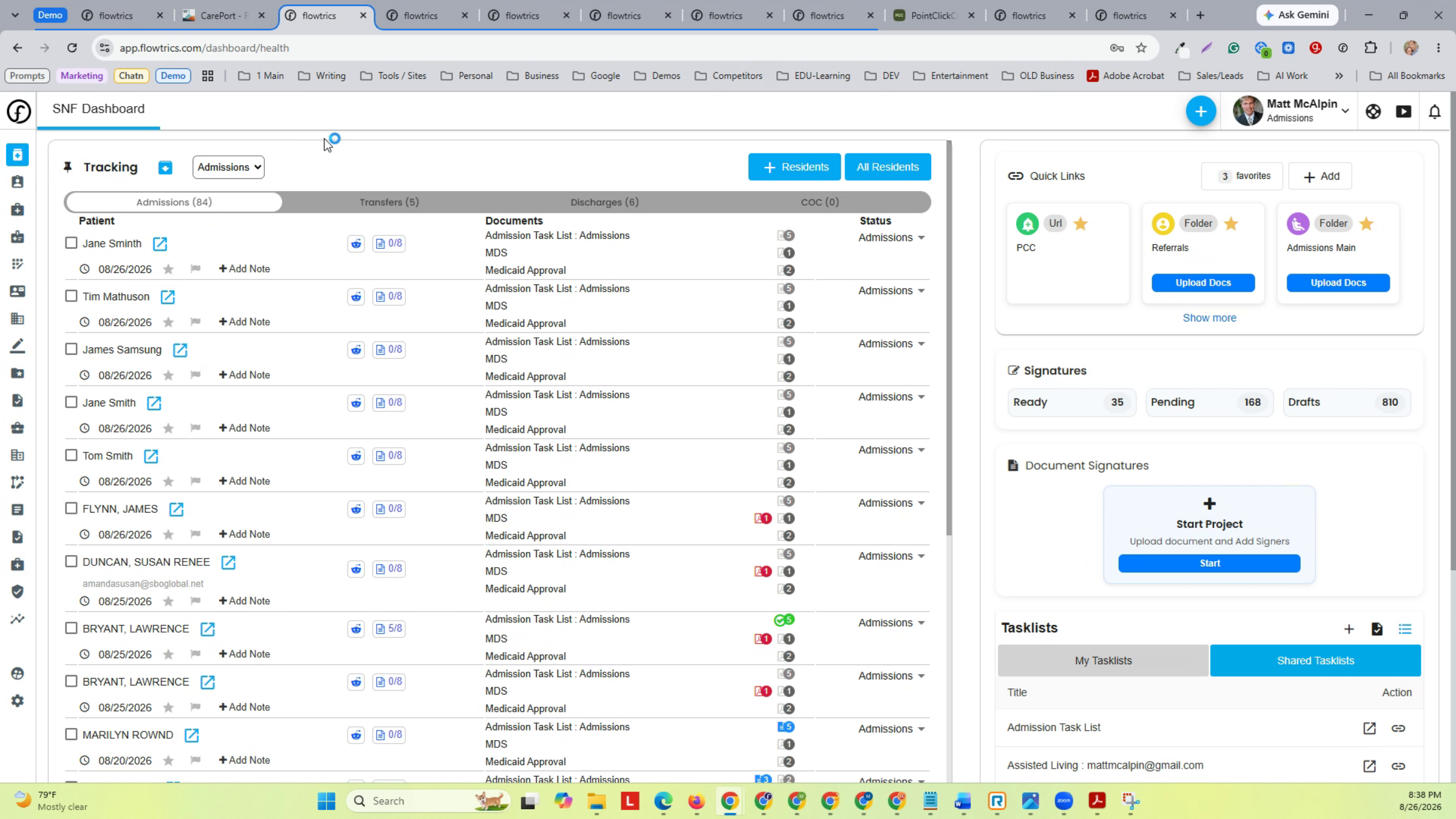
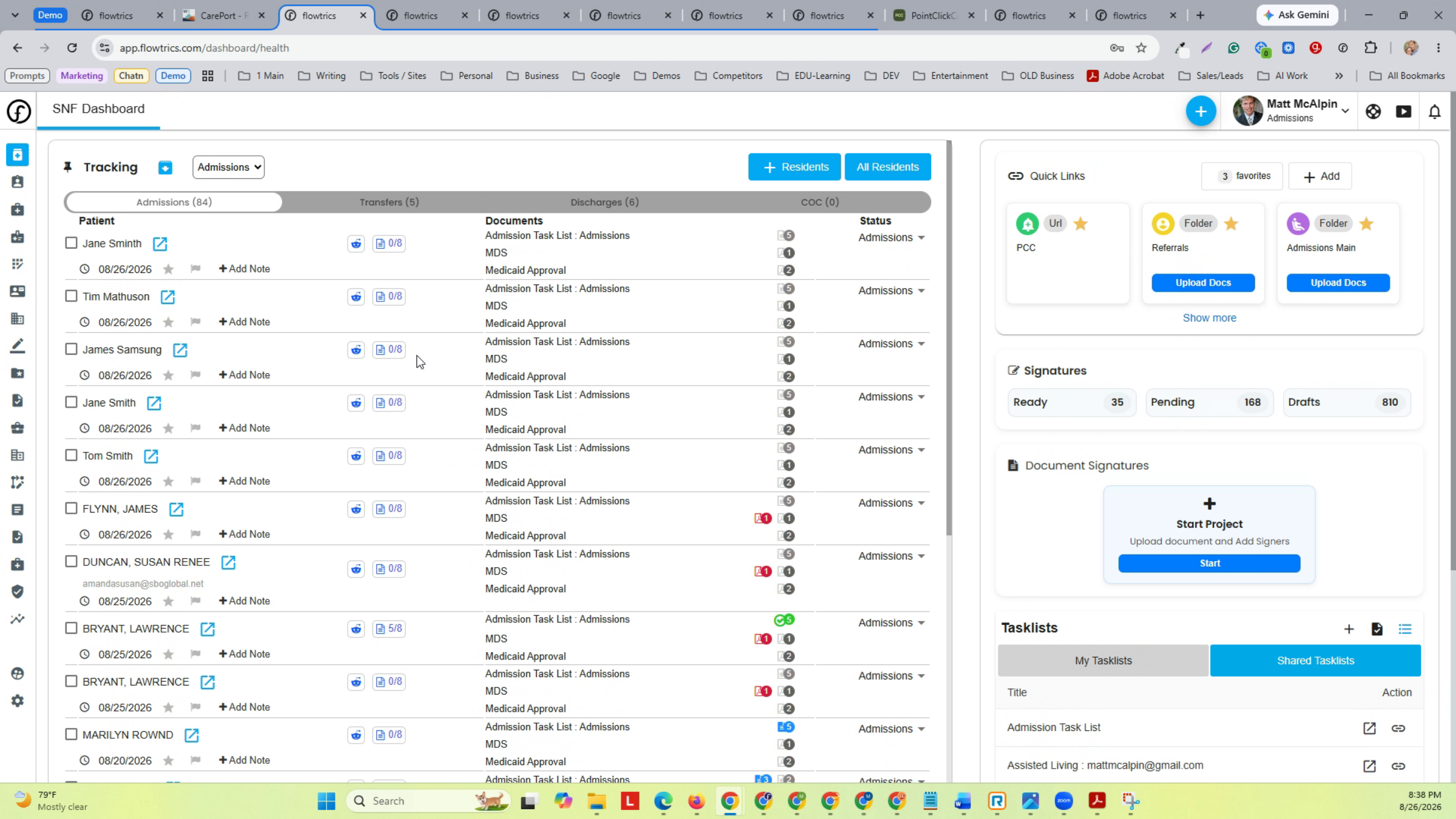
Now, the second automated method—without using Referral Management—is through the Flowtrics browser extension, available for both Google Chrome and Microsoft Edge. If you haven’t completed the browser extension training, we recommend reviewing that training first to learn how to install and configure it. Once it’s set up, the Flowtrics extension is always available directly from your browser toolbar. Simply select the Flowtrics icon to open it. From there, no matter where you’re working, including within an external referral management system, you can use the extension to bring documents directly into Flowtrics.
15. Chrome Edge Extension Automation (2) (1) (2)
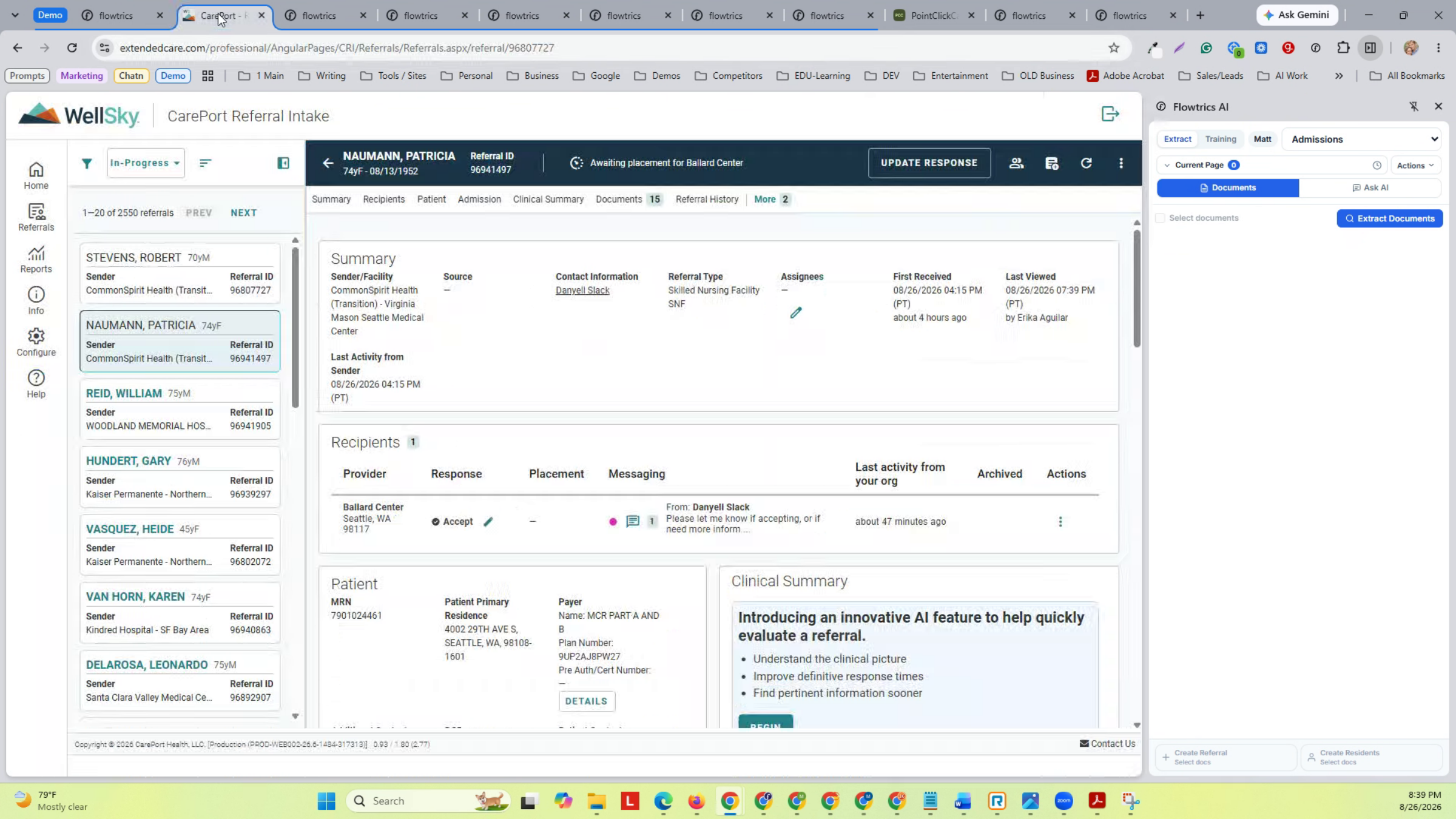
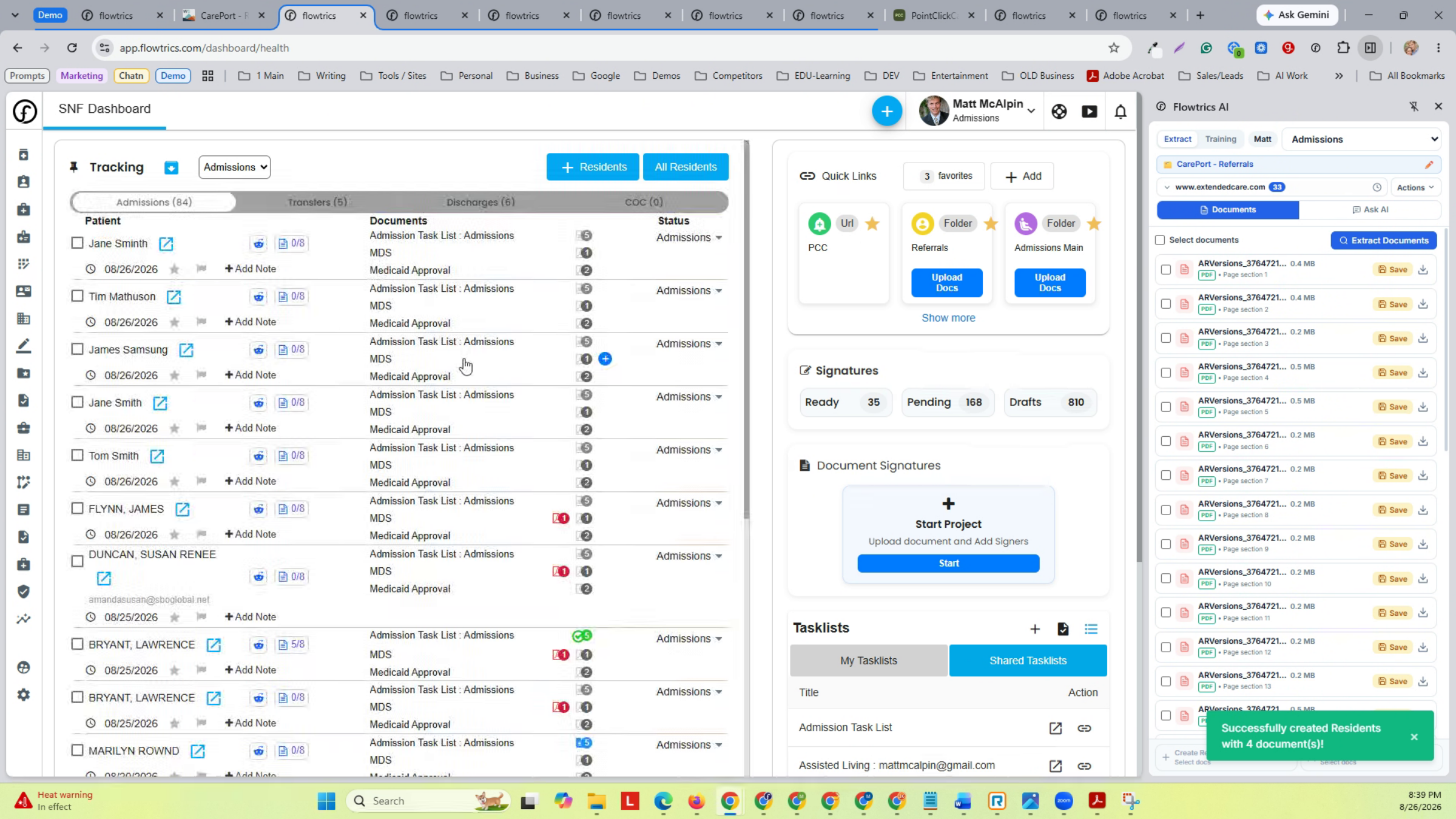
From the external system, simply open the Flowtrics extension and select Extract Documents. Flowtrics will pull the available documents, allowing you to select the ones you want to bring into the system. Instead of downloading those files and then uploading them again, simply select Create New Resident. Flowtrics will automatically send the selected documents into the platform and create the new resident record for you. When you return to Flowtrics, give the system a few moments to process the documents. Flowtrics AI will automatically analyze the information and make the results available within the resident record.
16. Reusing Chrome Edge Extension Automation
The Flowtrics extension is always available from your browser toolbar. This is the second automated way to bring documents into Flowtrics and start AI processing. You can close the extension at any time, and whenever you’re ready to use it again, simply select the Flowtrics icon to open it and continue working.
17. Browser Extension – Training Materials (1)
And don’t forget, the extension also gives you direct access to Training. Anytime you need a refresher, simply return to the Training section to access helpful videos and additional resources.
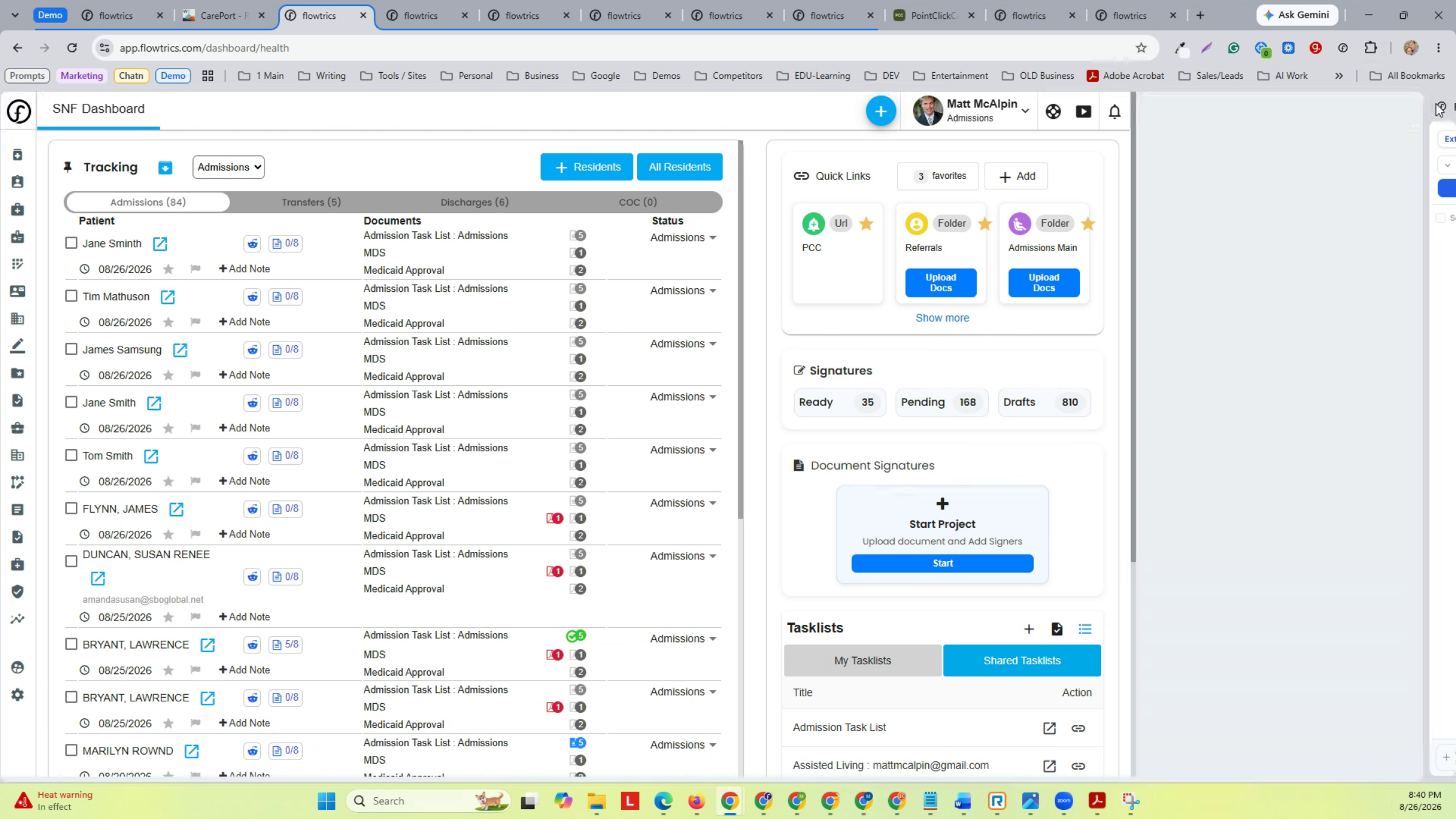
18. Automated Process Versus Referral (2) (1)
We just covered the two automated ways to bring documents directly into Flowtrics without going through Referral Management.
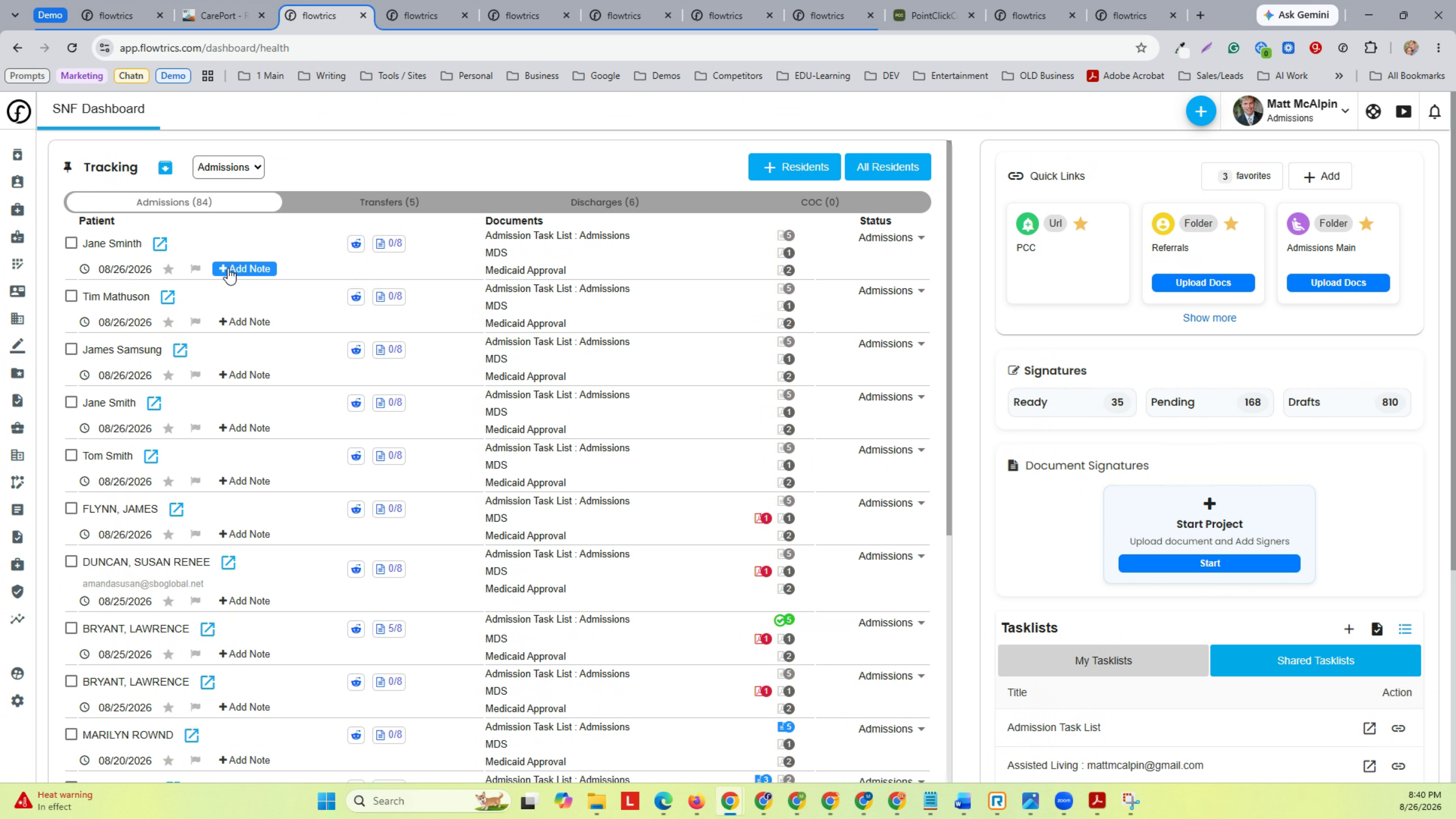
19. Automated Process Versus Referral (2) (2) (2)
From this point forward, the workflow runs the same way as if the resident had come through Referral Management. Once a referral is accepted, it moves into Admissions, creates the resident record, and begins the AI processing. With these two automated methods, you’re simply bypassing the Referral Management step. Flowtrics still creates the record, processes the documents, runs the AI, and initiates your configured automations. By the time you come into the resident record, everything is ready for you to review and continue working. From this point forward, the process is the same regardless of how the resident was created.
20.
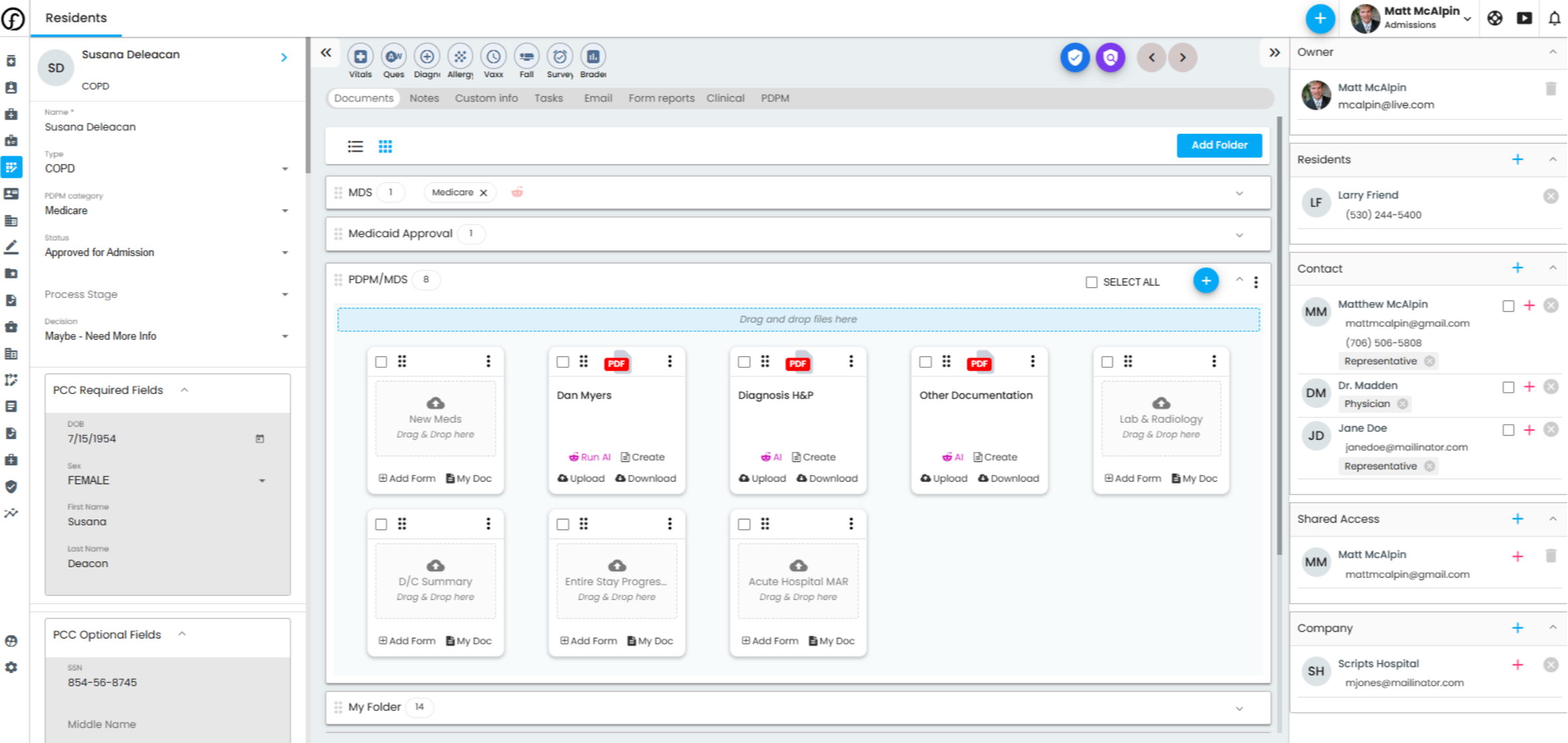
21. Unified Admissions Workflow
Whether the resident came through Referral Management, the email or eFax feature, or the Flowtrics browser extension, once the resident is in Admissions, the process works exactly the same. Your next training will walk you through how to manage the resident throughout the Admissions workflow. That completes our overview of how to bring residents and documents into Flowtrics automatically without using Referral Management.
Today we learned to create resident records manually or automatically using email, eFax, and browser extensions, with AI-driven document processing to simplify admissions management in Flowtrics.
0 Comments