
Configure Custom Fields – (1:01)
This tutorial guides you through configuring custom fields in Flowtrics to tailor your data collection.
Go to app.flowtrics.com
1. Introduction
You will learn how to create and set field types for effective form and tab usage.
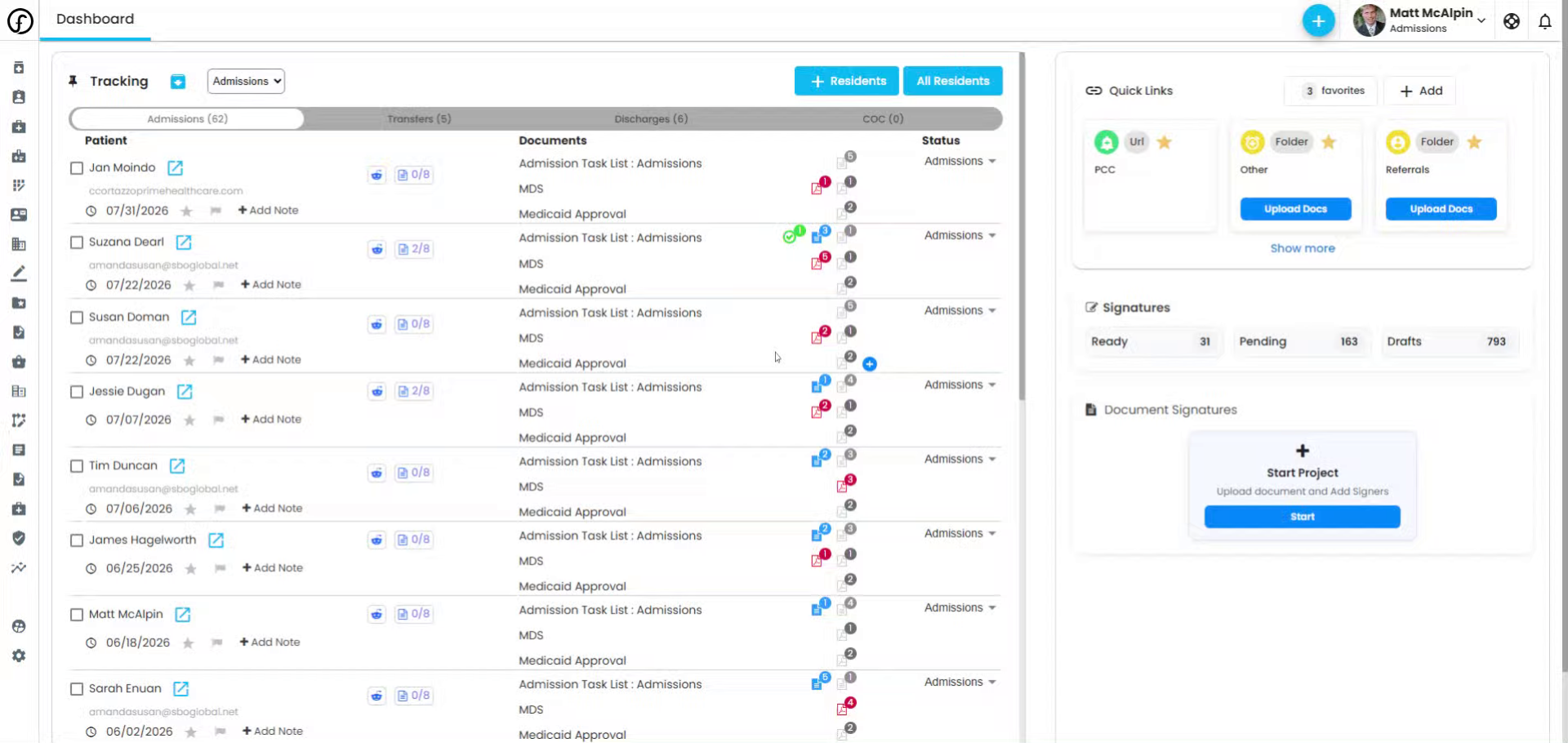
2. Access Flowtrics Settings
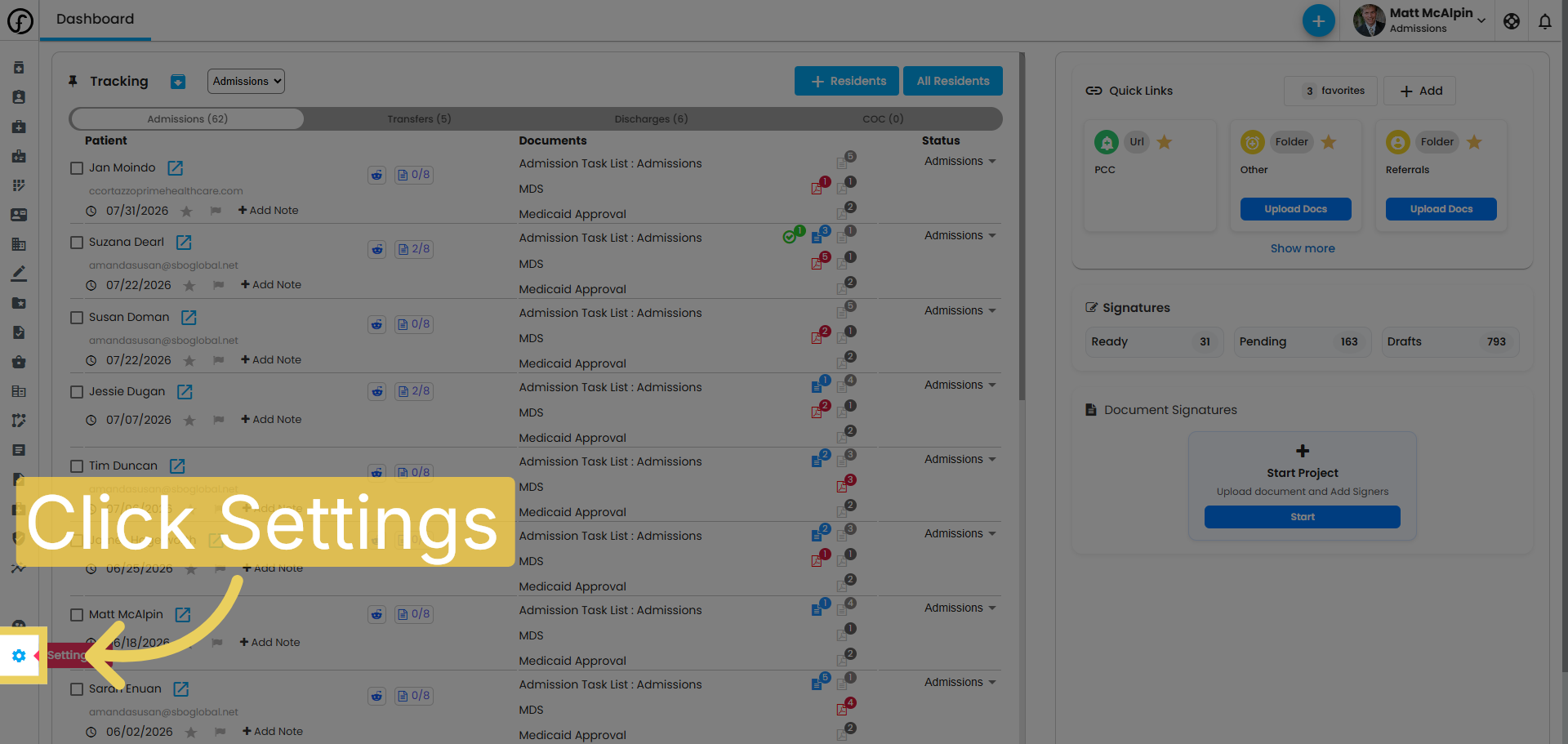
Click “settings” to open the configuration options in Flowtrics.
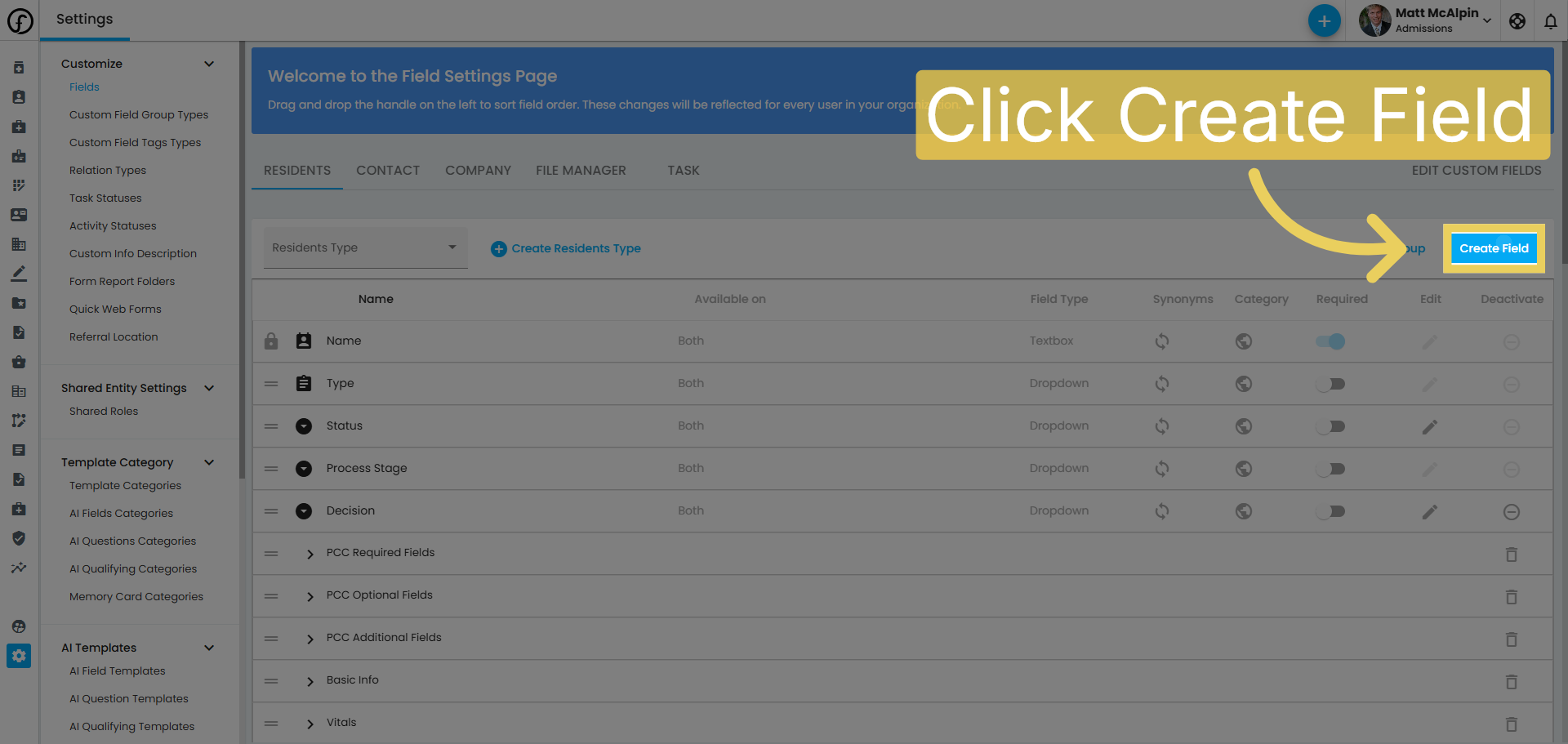
3. Initiate Field Creation
Click “Create Field” to start adding a new custom field to your Flowtrics setup.
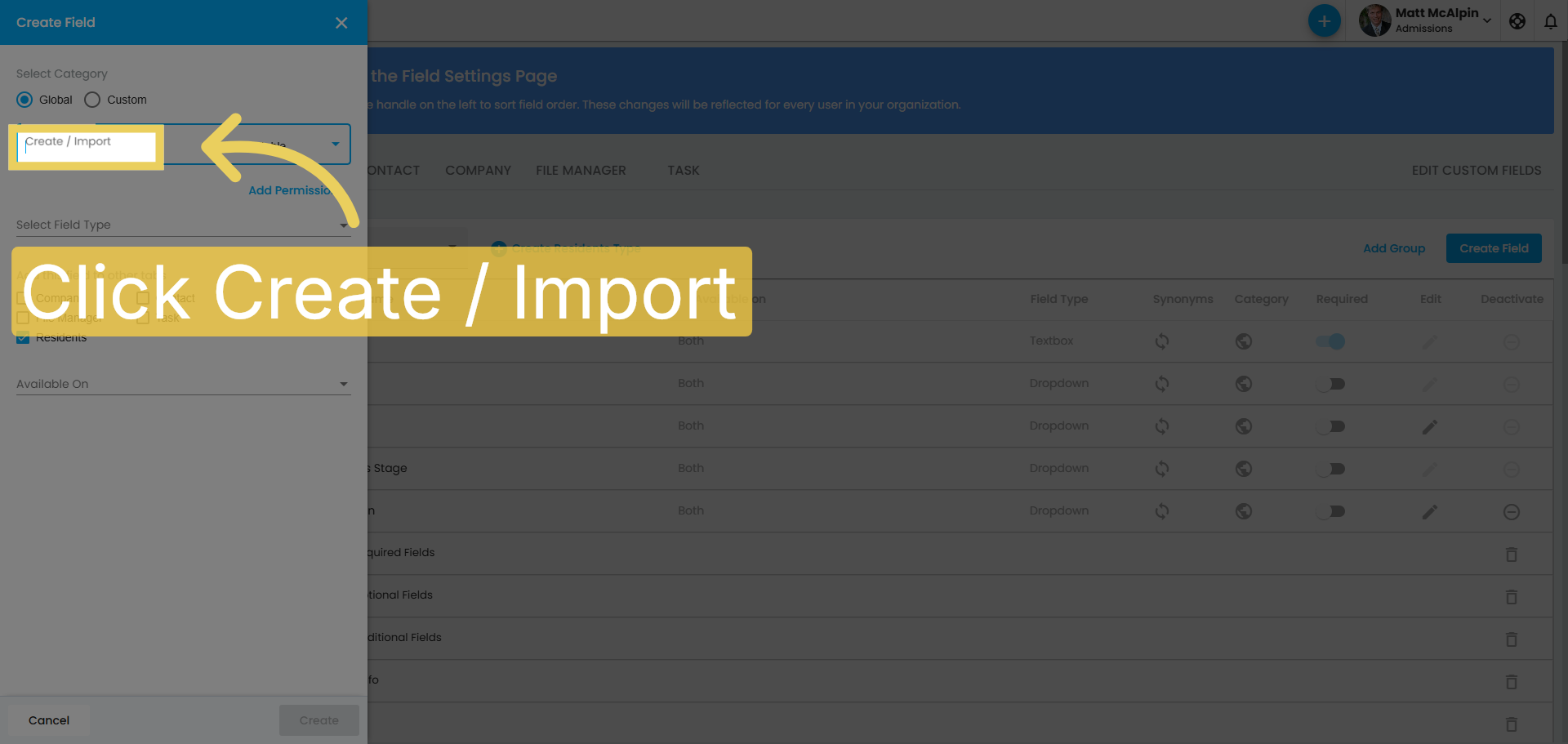
4. Open Create or Import Options
Click “Create / Import” to choose how you want to add your new field.
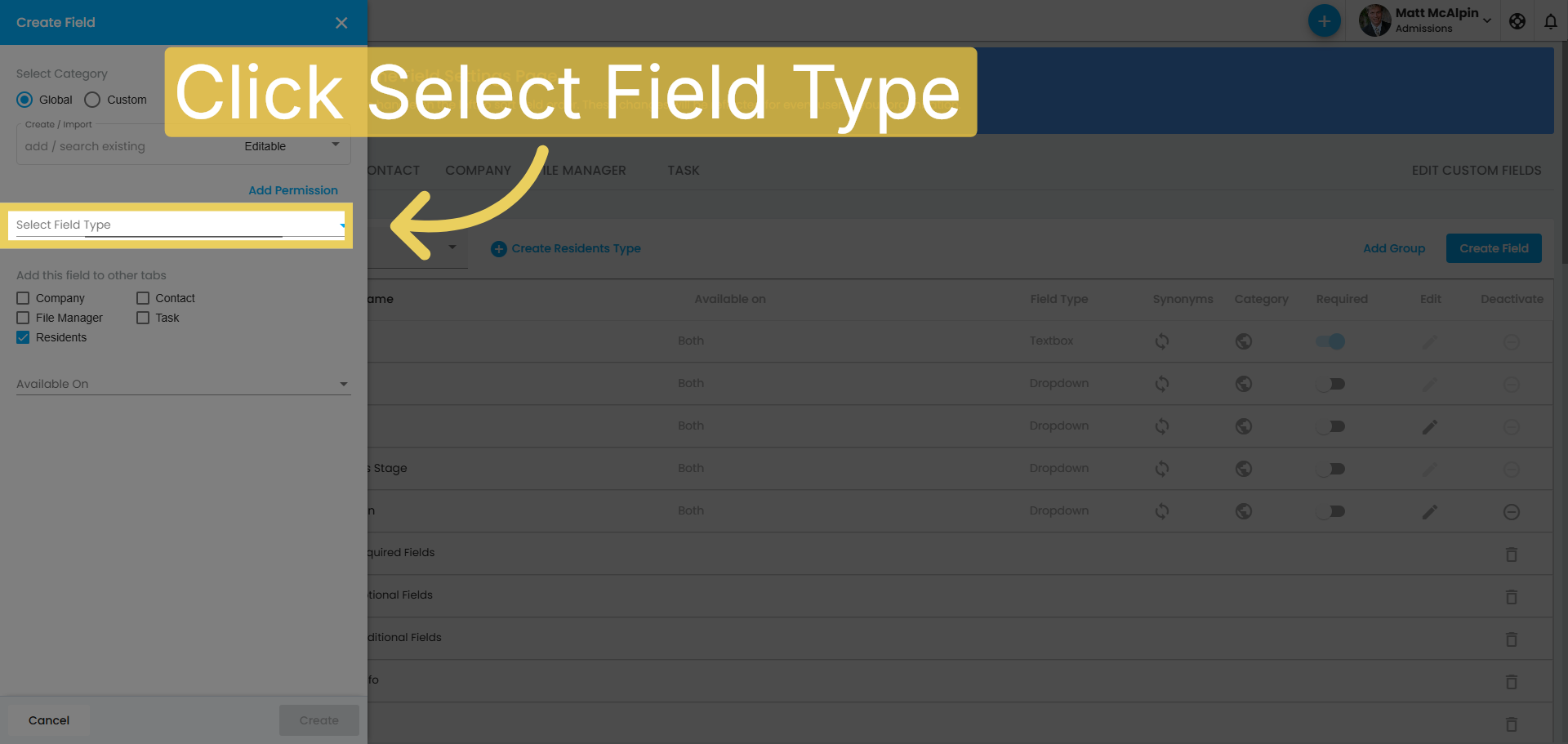
5. Choose Field Type Selection
Click “Select Field Type” to specify the kind of data your new field will capture.
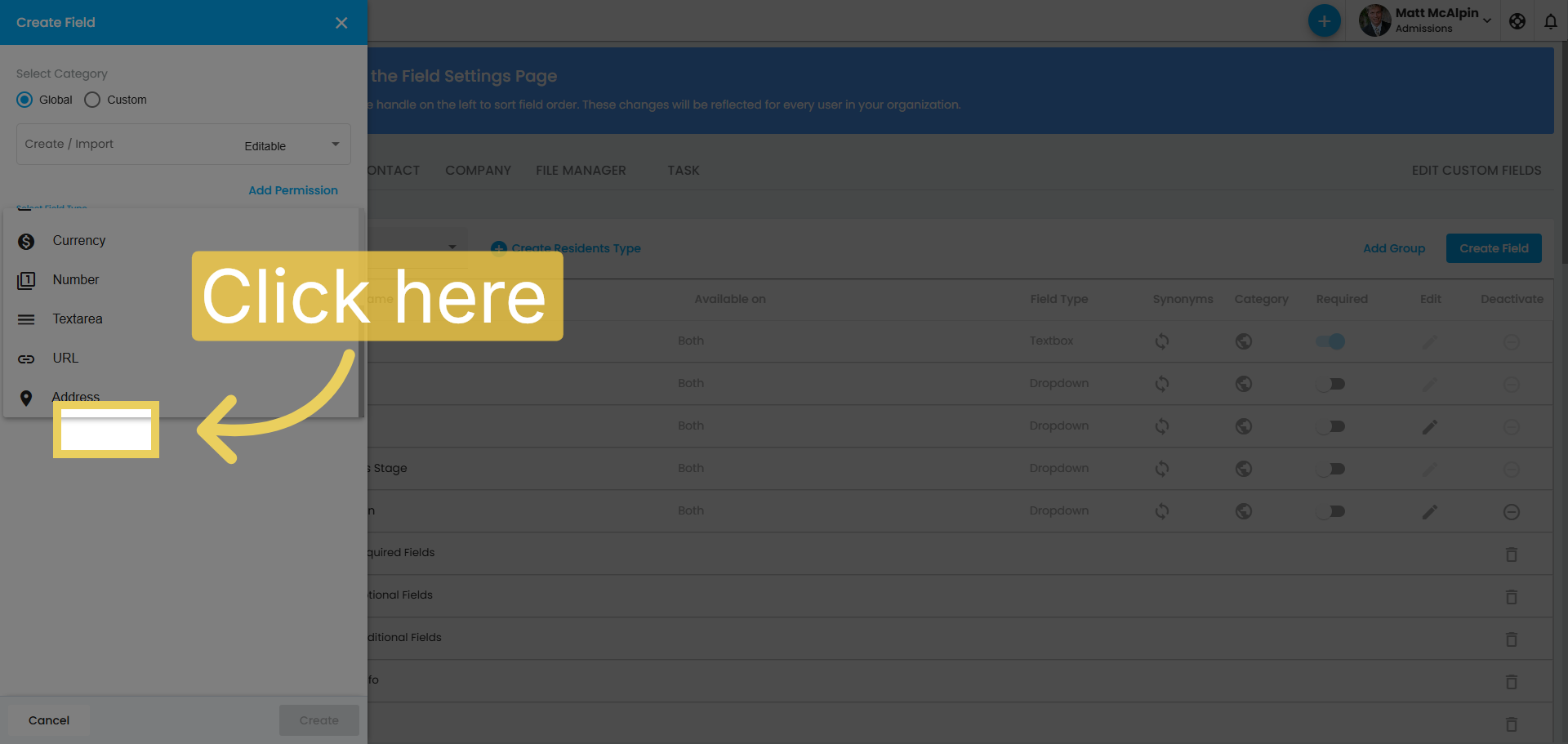
6. Proceed with Field Type Selection
Click here to continue with selecting the appropriate field type for your custom field.
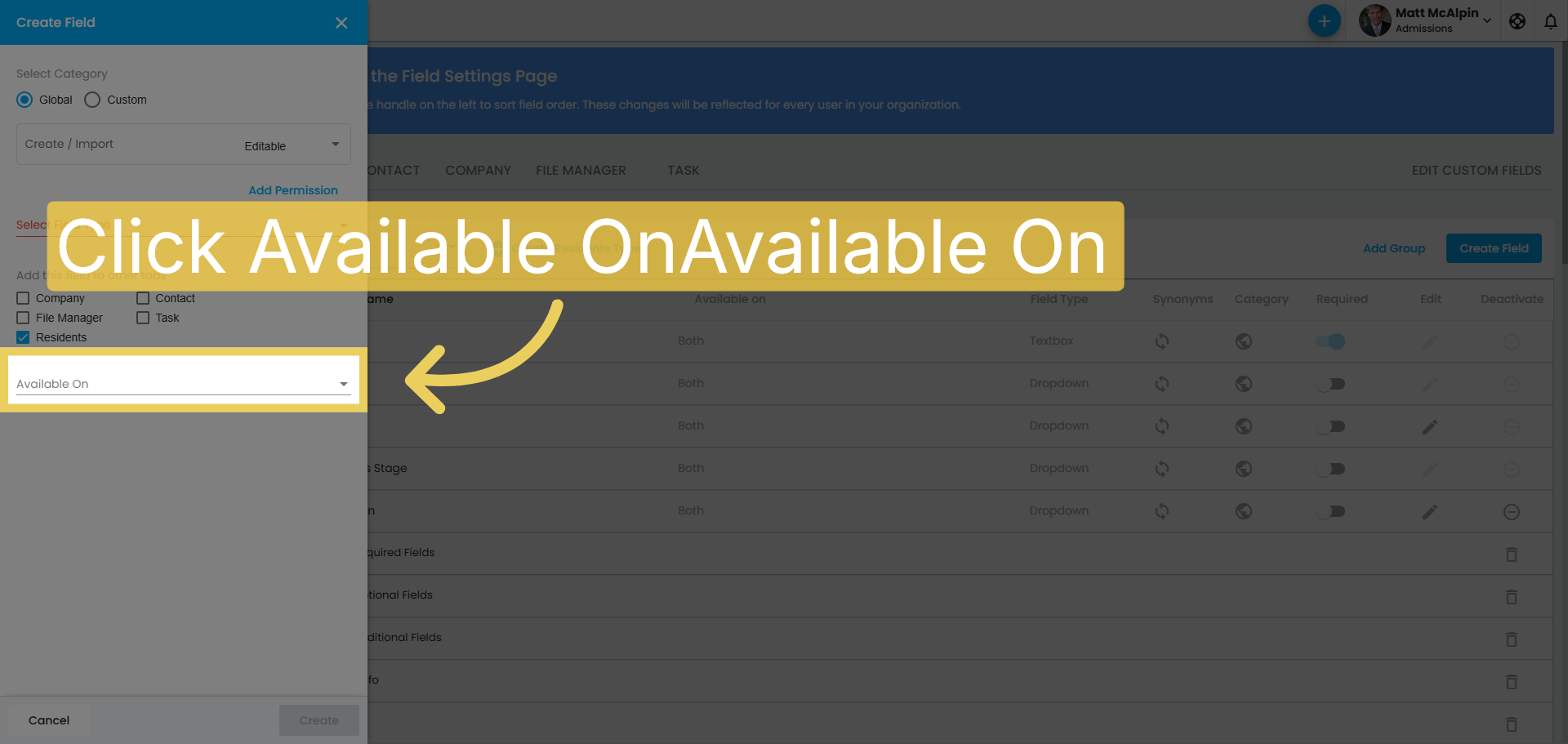
7. Access Availability Settings
Click “Available OnAvailable On” to configure where the field will be accessible within Flowtrics.
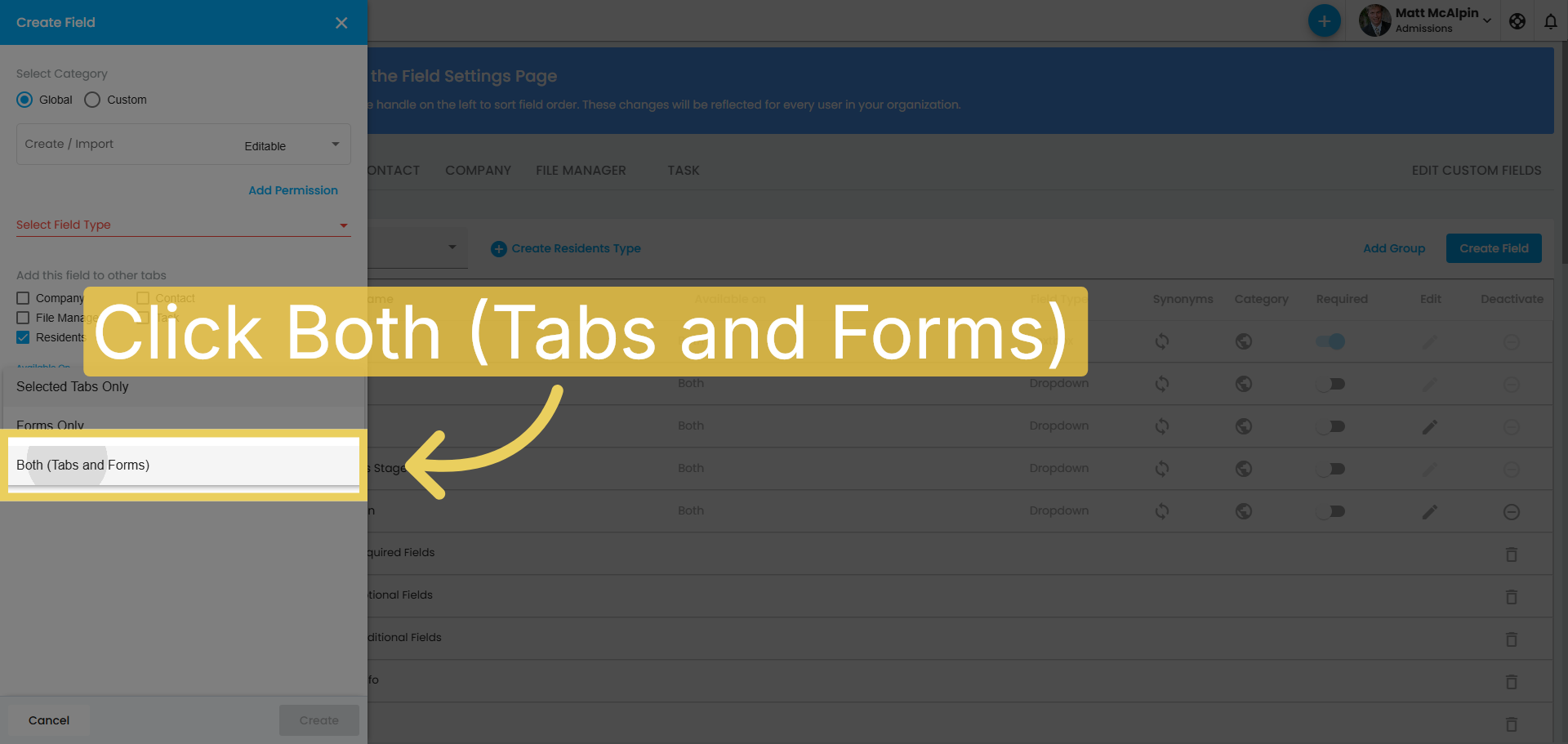
8. Set Field Availability Scope
Click “Both (Tabs and Forms)” to make the field available on both tabs and forms for comprehensive use.
You have successfully configured a custom field in Flowtrics by creating it, selecting its type, and setting its availability on both tabs and forms. This setup ensures your data collection is tailored and accessible where needed.
0 Comments