
Administrator SNF
Add and Configure Users
This tutorial guides you through adding and configuring a new user in the Flowtrics application
Go to app.flowtrics.com
01 Introduction
You will learn how to enter user details, assign roles, and complete the setup process.
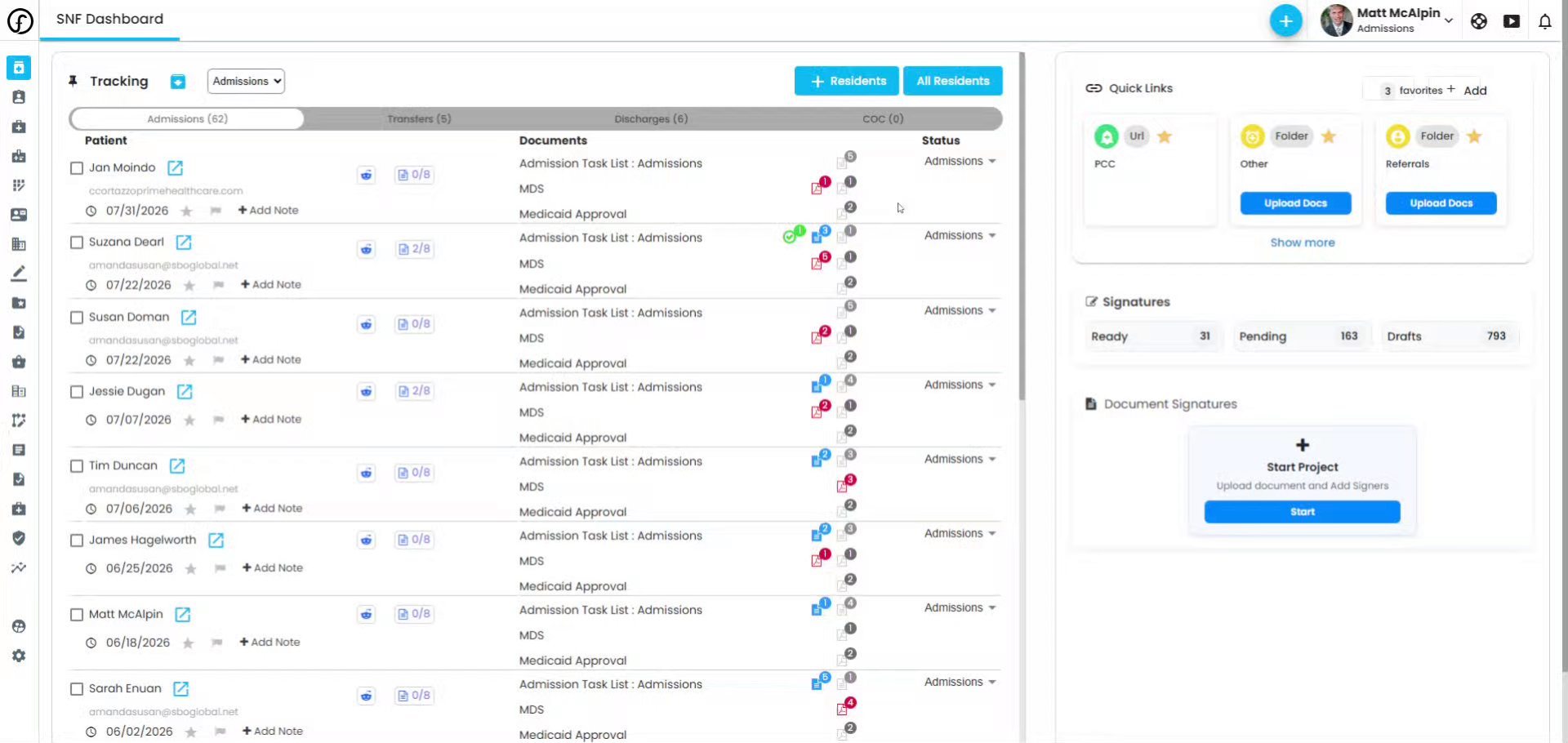
02 Access User Management
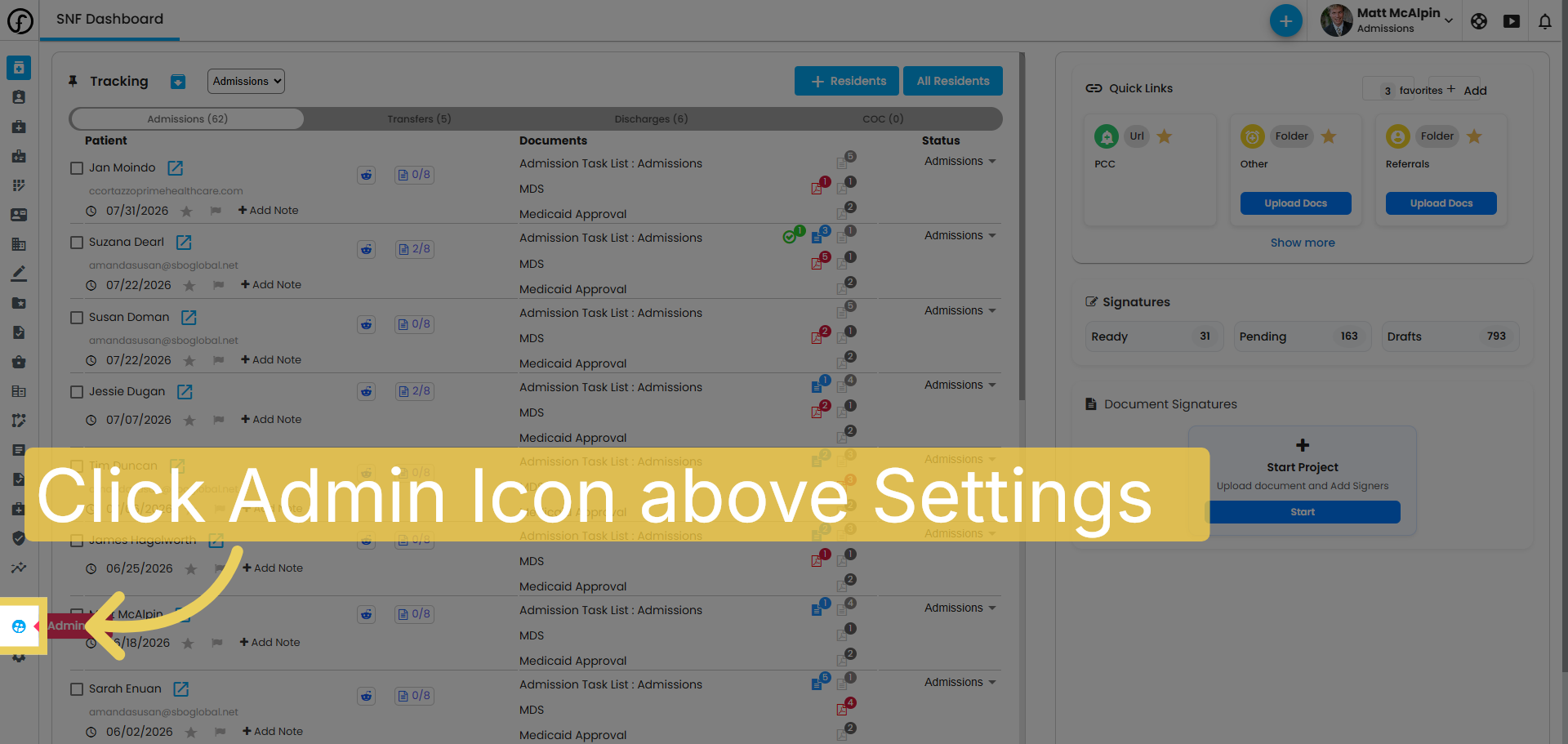
Click the Admin Icon to open the user management section in Flowtrics. This is located above the Settings tab in the bottom left.
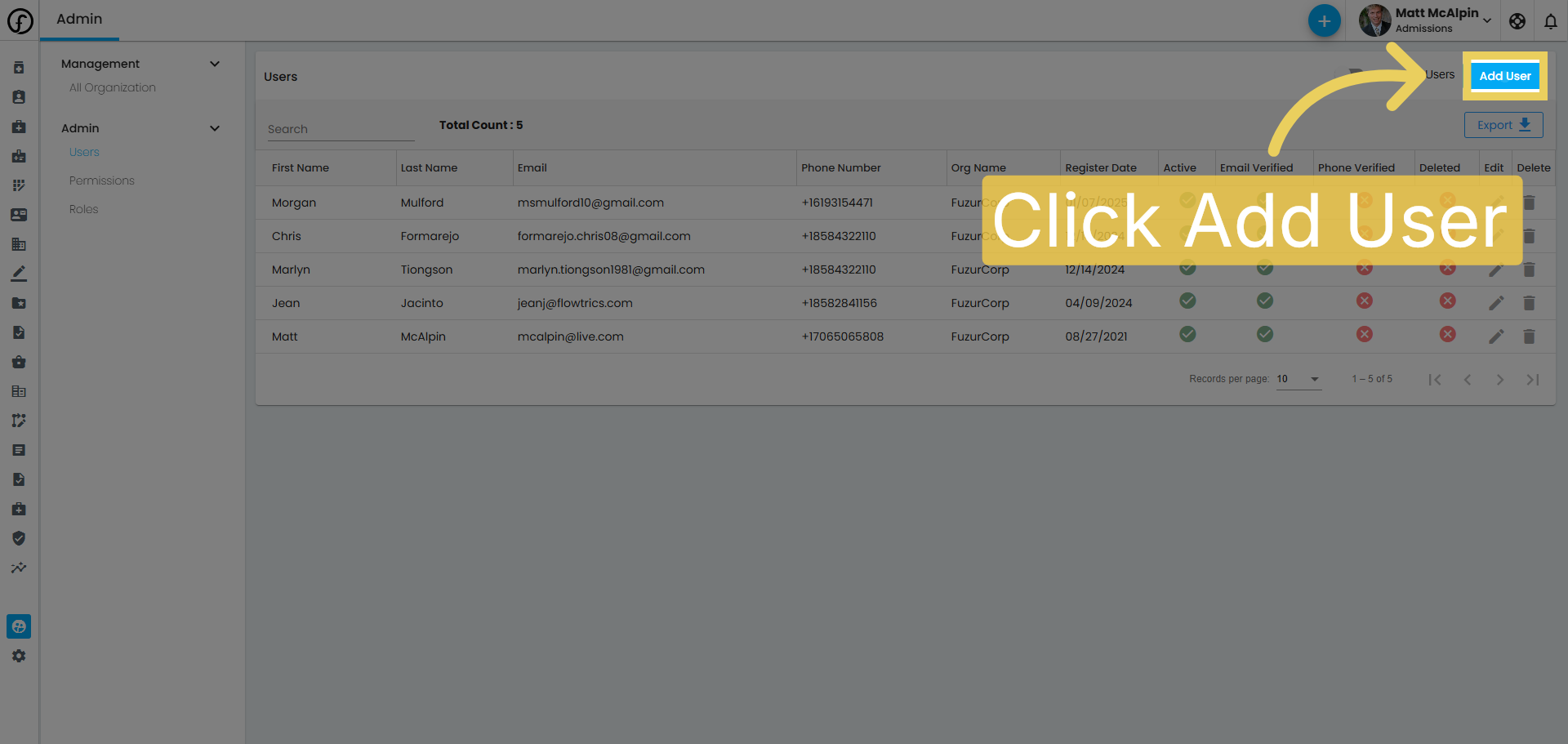
03 Initiate Adding New User
Click the Add User button to start creating a new user profile.
04 Select First Name Field
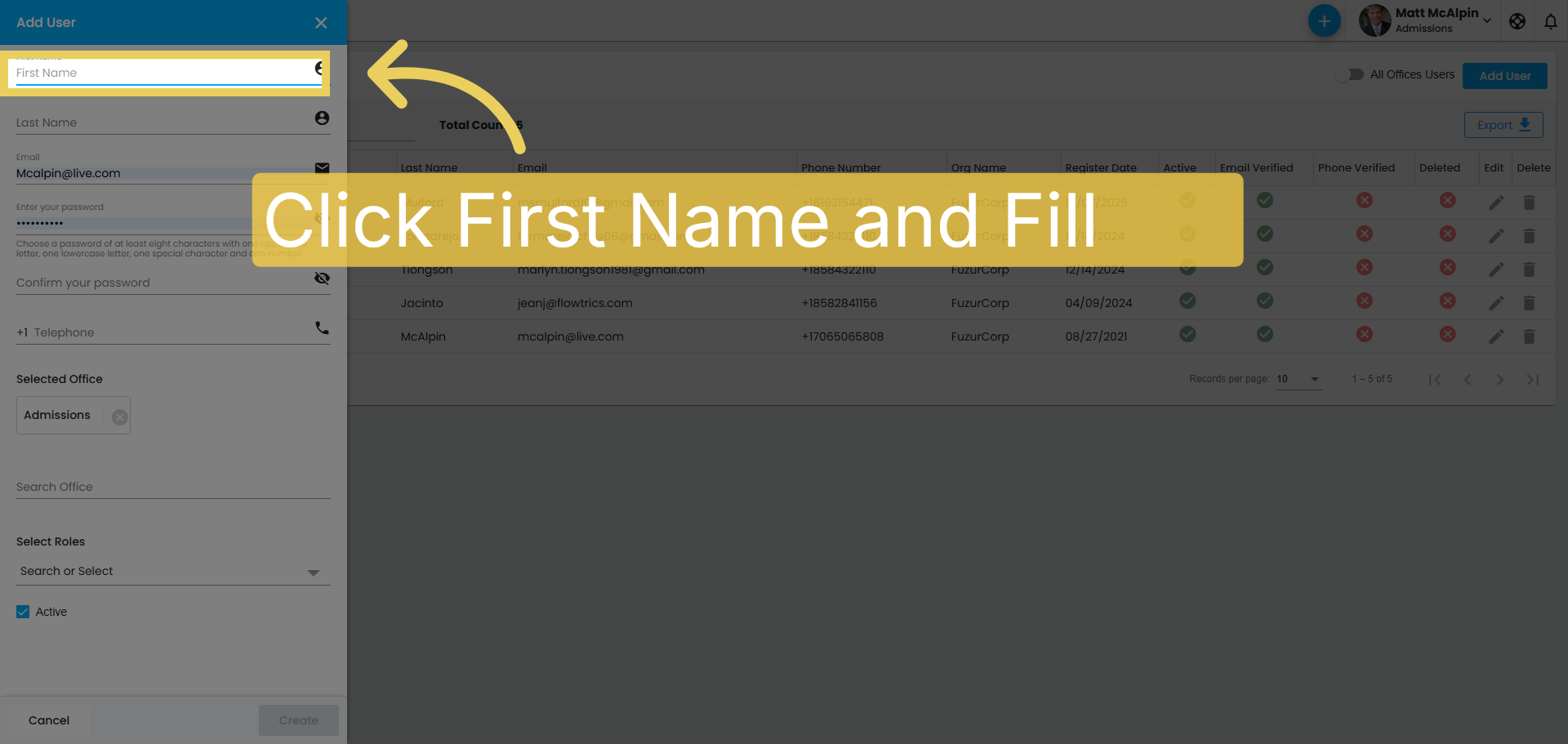
Click the First Name field to begin entering the new user’s personal information.
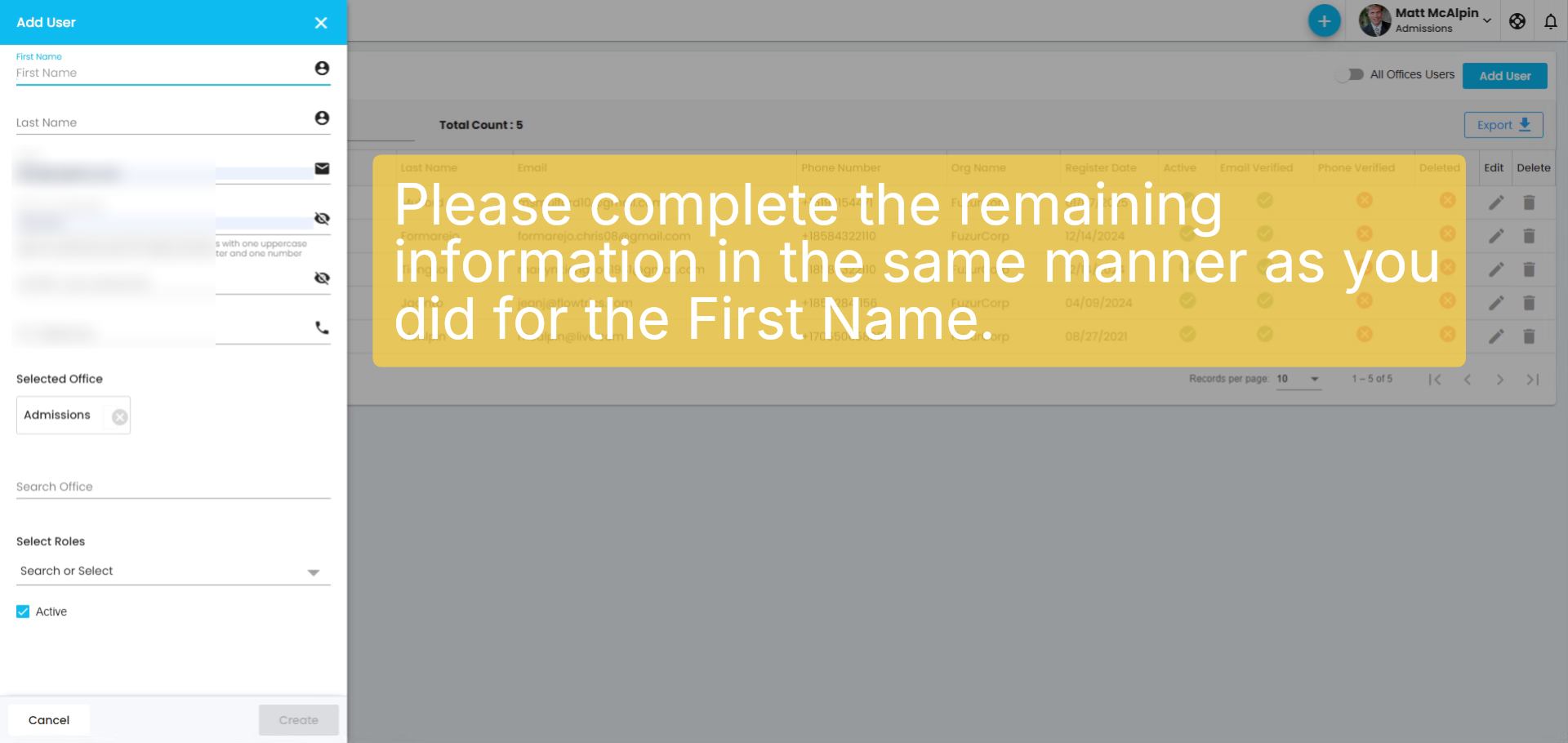
05 Enter Remaining Fields
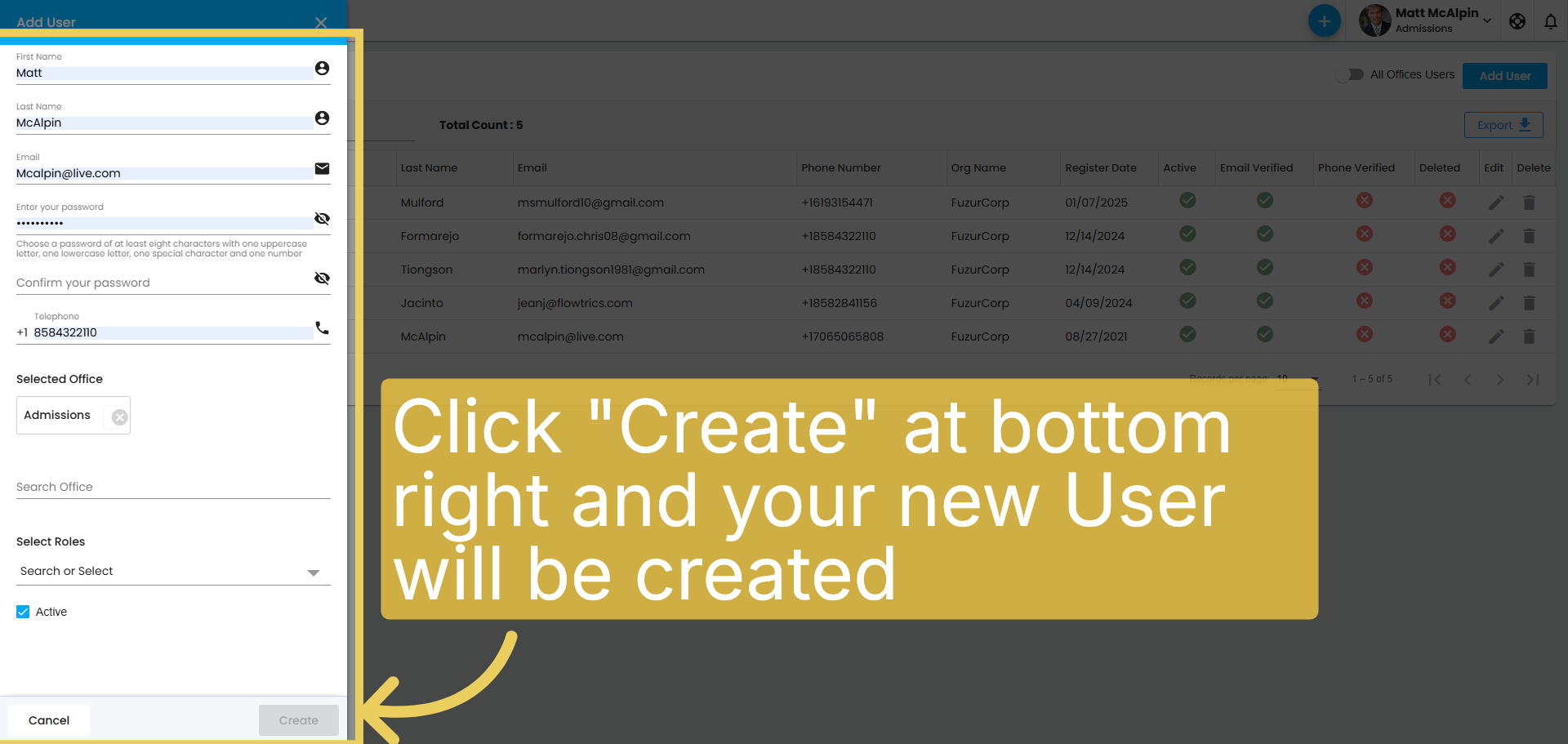
Please complete the remaining information in the same manner as you did for the First Name. Click the fields for First Name, Last Name, Email, password entry, and password requirements to finalize the user’s account setup.
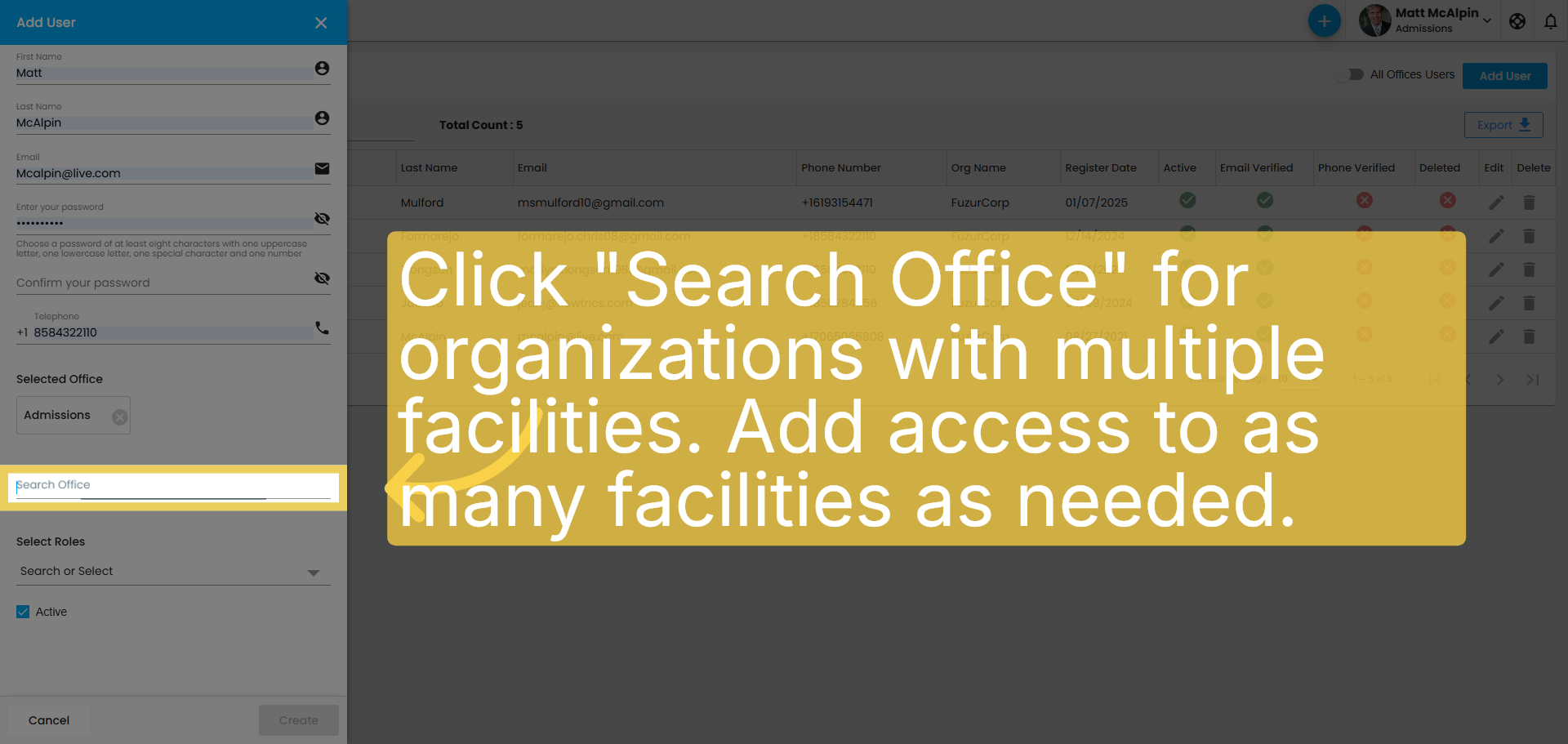
06 Assign to Multiple offices.
Click “Search Office” for organizations with multiple facilities. Add access to as many facilities as needed.
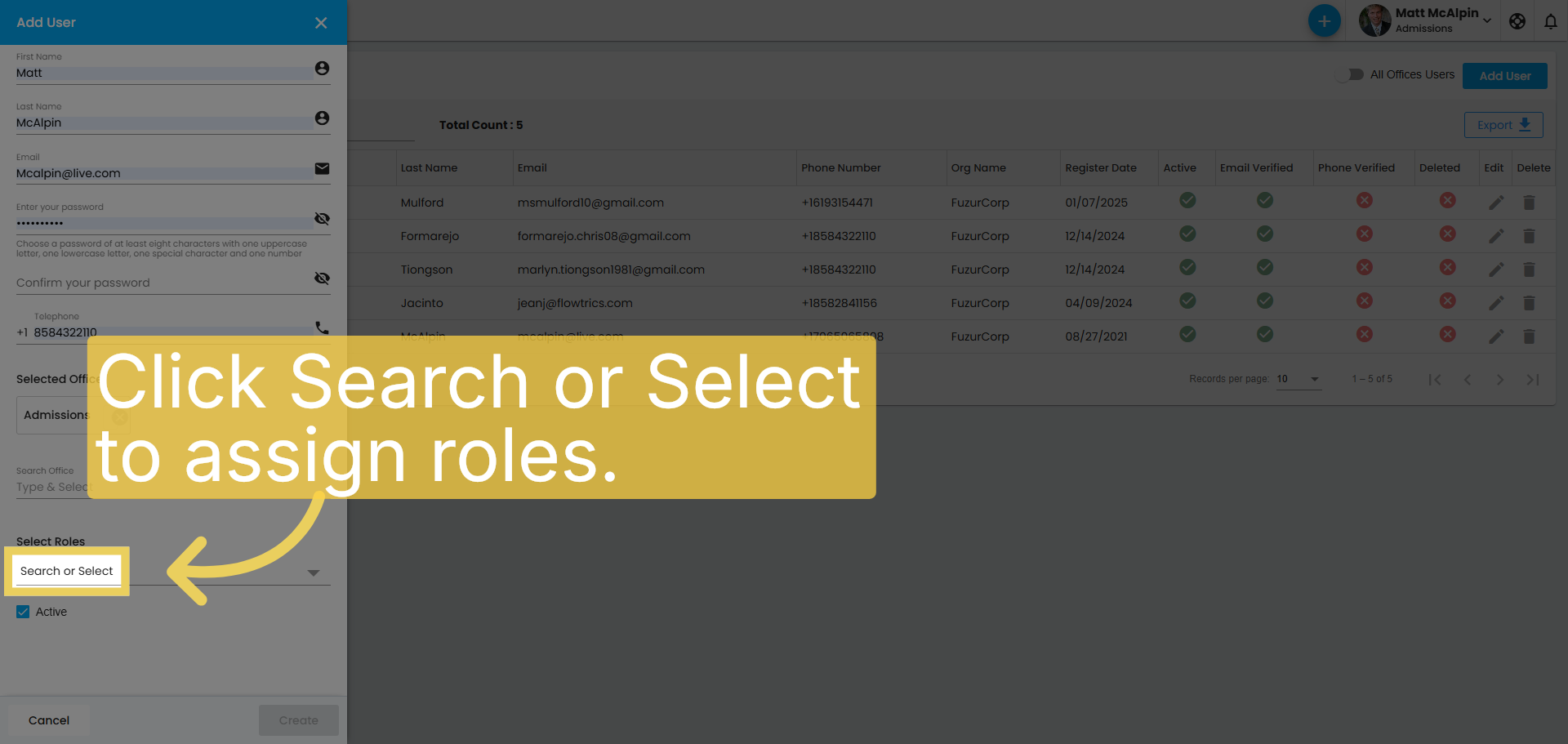
07 Access Office Selection
Click the Search or Select option to choose the appropriate office from the list.
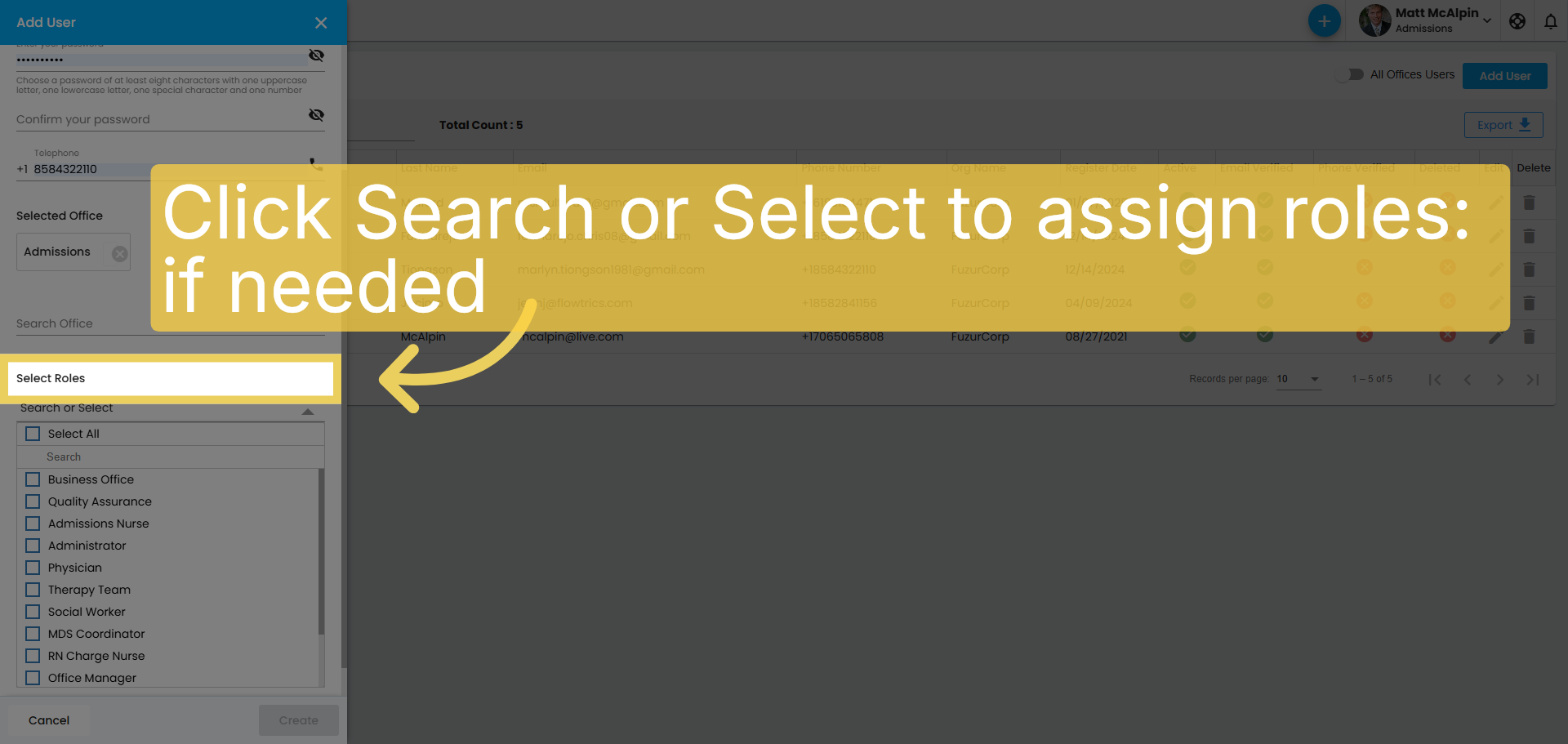
08 Assign User Roles
Click the Select Roles option to assign roles and permissions to the new user.
09 Complete User Details
Click and review the fields for First Name, Last Name, Email, password entry, and password requirements to finalize the user’s account setup.
0 Comments